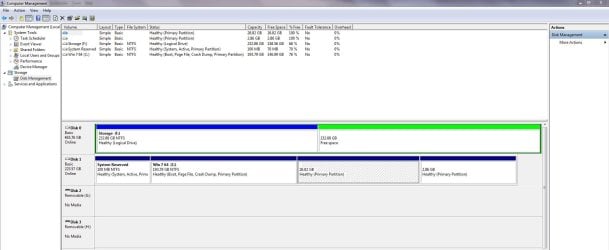
Why does my new storage drive appear 1st in puter mgmt?

Tinsby

New member
Member
VIP
Local time
3:13 AM
Messages
176
I now have an SSD as the boot drive and a 500GB as a storage drive. Why does the SSD show up as DRIVE "1" and not DRIVE "0" in "Computer Management?'

Thought reversing the the SATA cables would solve it but it didn't seem to help, just seems odd to me it's appearing as it is. This order isn't going to help my Acronis backups any <sigh>

Of course in "Computer" the "C" is Win 7 and storage is "F".

Thanks maybe I am too tired to make sense of it tonight....

Regards
 

Attachments

  • Capture.JPG
    Capture.JPG
    118.7 KB · Views: 10

My Computer My Computer

At a glance

Dual boot Win7 Pro 64 & Linux Mint 18.3Intel Core 2 Quad Core8GBNvidia GeForce GTX 750 Ti
Computer type
PC/Desktop
Computer Manufacturer/Model Number
Home/Custom built
OS
Dual boot Win7 Pro 64 & Linux Mint 18.3
CPU
Intel Core 2 Quad Core
Motherboard
Asus Rampage Extreme
Memory
8GB
Graphics Card(s)
Nvidia GeForce GTX 750 Ti
Sound Card
PCIe Supreme FX X-fi
Monitor(s) Displays
Viewsonic VX2450WM LED
Screen Resolution
1920x1080
Hard Drives
Intel SSD 240GB
WD 500GB HDD
PSU
Corsair 850 watt
Case
Lian Li
Cooling
Zalman
Keyboard
MS natural/ergonomic
Mouse
Intellimouse
Internet Speed
240 Mbps +/- Dnld, 12Mbps Upld via Xfinity Blast
Antivirus
Norton Security Suite by Xfinity
Browser
Firefox & Chrome
Other Info
4 slot memory card reader
Floppy drive
2 DVD burners
Brother MFCJ450dw AIO Printer/Scanner/Fax
eSATA connections
Hello Tinsby!

Do you experience any problems with your storage devices because of this?
Sometimes, disk drive numbers may not be the same as the SATA channel numbers. There is no direct relationship between the BIOS order, and the order in which Windows numbers the disks. The disk numbers that are assigned by Windows are dependent solely on the order in which the disks are enumerated and processed by Plug and Play.

This article from the Microsoft support page may help you further:
https://support.microsoft.com/kb/937251

A probable way for you to fix this would be to go to BIOS Boot Order and see if your OS drive is listed first and then your Storage F hard drive. If not, make it so, see what happens.

Cheers! :)

CK_WD
 

My Computer My Computer

At a glance

Windows 7 Home Premium x64
Computer type
PC/Desktop
OS
Windows 7 Home Premium x64
When Windows sees a new hard drive for the first time it "names" it (enumerates) and gives it a unique identifier that is kept in the Windows Registry. The order that Windows will list drives is the order that it discovers them (by day - minute - second). So your older drive was discovered first and will forever be the first drive (in Windows).

I have solved this "problem" - it's not really a problem except for OCD folks like me - by shutting down the computer, disconnecting all drives except the one I want to be Disk 0 in DM, and starting up again. Going to DM you will see the drive as Disk 0.
Then shut down, connect the second drive, and start up... etc etc.

Oddly, sometimes this won't work on the first try. It is sometimes necessary to shut down and restart two times to get the new enumeration to "stick".

Hope that helps.
 

My Computer My Computer

At a glance

Windows 7 64 Bit Home Premium SP1i7-3820GSkill F3-14900CL9Q - 16GBEVGA GeForce GTX660 - Driver 352.86
Computer type
PC/Desktop
Computer Manufacturer/Model Number
Home Built - Jan 2013
OS
Windows 7 64 Bit Home Premium SP1
CPU
i7-3820
Motherboard
Asus P9X79-PRO - Bios 4608
Memory
GSkill F3-14900CL9Q - 16GB
Graphics Card(s)
EVGA GeForce GTX660 - Driver 352.86
Sound Card
On board Realtek ALC898
Monitor(s) Displays
Acer S271HL
Screen Resolution
1920 x 1080
Hard Drives
#1- Samsung 840 Pro Series
#2- Western Digital WD1002FAEX Sata3 Black
#3- Western Digital WD1002FAEX Sata3 Black
PSU
Corsair CMPSU-850TX-V2 - 850 watt (by Seasonic)
Case
Corsair Obsidian 550D
Cooling
Standard 3 120mm case fans, Cooler Master Hyper 212 EVO
Keyboard
MS KC-0405
Mouse
Intellimouse 5-button
Internet Speed
56 Mbits/Sec (on a good day)
Antivirus
Avast & Malwarebytes
Browser
Firefox
Other Info
Asus DVD - DRW-24B1ST 24X
Thanks both of you!

Sorry to say that I have not been able to get the SSD to 'stick' as Drive "0" The only way is to unplug the other drive and let the SSD be the only one. I have restarted the machine with it in that state multiple times to no avail.

When I connect the storage drive the BIOS immediately finds that and adds it to the boot order, when that happens the choice to add the SSD is gone! So now instead of having 2 drives with the letters reversed. I have a machine that only recognizes one of the drives at a time!! Where do I go from here?

I have encountered this problem with other machines I have built and forgot this time, of course, to plug the drives in, in the order I wanted Win 7 to find them. But in those cases simply changing the order they were plugged in solved the problem, never had it with SATA drives however.

Now I don't know how to solve it..

TVeblen, I am like you IE: OCD in how things 'look'! I don't like it one bit and refuse to accept it the way it is. I didn't build it to have the drive letters screwed up <sigh>

What is the registry hack to resolve this problem. Seems a shame to be hacking the reg' on a newly built system but I'll do it. But now I can't get the system to even recognize both drives!!

Regards and thanks!
 

My Computer My Computer

At a glance

Dual boot Win7 Pro 64 & Linux Mint 18.3Intel Core 2 Quad Core8GBNvidia GeForce GTX 750 Ti
Computer type
PC/Desktop
Computer Manufacturer/Model Number
Home/Custom built
OS
Dual boot Win7 Pro 64 & Linux Mint 18.3
CPU
Intel Core 2 Quad Core
Motherboard
Asus Rampage Extreme
Memory
8GB
Graphics Card(s)
Nvidia GeForce GTX 750 Ti
Sound Card
PCIe Supreme FX X-fi
Monitor(s) Displays
Viewsonic VX2450WM LED
Screen Resolution
1920x1080
Hard Drives
Intel SSD 240GB
WD 500GB HDD
PSU
Corsair 850 watt
Case
Lian Li
Cooling
Zalman
Keyboard
MS natural/ergonomic
Mouse
Intellimouse
Internet Speed
240 Mbps +/- Dnld, 12Mbps Upld via Xfinity Blast
Antivirus
Norton Security Suite by Xfinity
Browser
Firefox & Chrome
Other Info
4 slot memory card reader
Floppy drive
2 DVD burners
Brother MFCJ450dw AIO Printer/Scanner/Fax
eSATA connections
Hey again Tinsby!
This is quite unpleasant!
You could try and update the BIOS. Connect only your boot drive, update, load the defaults of the new BIOS, shut down, connect your HDD too, see if that fixes the issue.
Also, check your cables if they're working properly and the ports too.

I hope this helps!
CK_WD
 

My Computer My Computer

At a glance

Windows 7 Home Premium x64
Computer type
PC/Desktop
OS
Windows 7 Home Premium x64
Try swapping the Sata connection on the motherboard.
Then make sure of the boot order in the bios.
 

My Computer My Computer

At a glance

Windows 10 Pro. 64/ version 1709 Windows 7 Pr...Intel i7-6800K @ 4.3Corsair Platinum 16 gig @2400EVGA GTX 1070 OC
Computer type
PC/Desktop
Computer Manufacturer/Model Number
Home made Desktop
OS
Windows 10 Pro. 64/ version 1709 Windows 7 Pro/64
CPU
Intel i7-6800K @ 4.3
Motherboard
ASUS X-99 Deluxe II
Memory
Corsair Platinum 16 gig @2400
Graphics Card(s)
EVGA GTX 1070 OC
Monitor(s) Displays
Asus 27" LED LCD/VE278Q
Screen Resolution
1920-1080 or 1280-720 HDMI
Hard Drives
INTEL SSD 730-240 Gb Sata 3.0/
PSU
EVGA Platium 1200W
Case
Phanteks Luxe Tempered Glass 8 fans/ one radiator
Cooling
XSPC/ Water Cooled CPU
Keyboard
Das 4 Professional
Mouse
Logitech M705/MX Anywhere 2-S
Internet Speed
100 mbits
Antivirus
Microsoft Security Essentials/ Malwarebytes Premium 3.0/ SAS
Browser
I.E. 11 default/Firefox/ ISP Time Warner Cable/Spectrum
Other Info
LG BluRay Burner/
Sound system-KLipsch-THX/
Icy Dock ssd Hot Swap bays.
The part about the SSD disappearing in the boot order in the BIOS is troubling. I'm trying to wrap my head around what would cause that.

It might be helpful to post a screenshot of your Disk Management window, expanded so we can read everything, so we can see if it is anything obvious.

Do you recall formatting either drive as GPT instead of MBR?
 

My Computer My Computer

At a glance

Windows 7 64 Bit Home Premium SP1i7-3820GSkill F3-14900CL9Q - 16GBEVGA GeForce GTX660 - Driver 352.86
Computer type
PC/Desktop
Computer Manufacturer/Model Number
Home Built - Jan 2013
OS
Windows 7 64 Bit Home Premium SP1
CPU
i7-3820
Motherboard
Asus P9X79-PRO - Bios 4608
Memory
GSkill F3-14900CL9Q - 16GB
Graphics Card(s)
EVGA GeForce GTX660 - Driver 352.86
Sound Card
On board Realtek ALC898
Monitor(s) Displays
Acer S271HL
Screen Resolution
1920 x 1080
Hard Drives
#1- Samsung 840 Pro Series
#2- Western Digital WD1002FAEX Sata3 Black
#3- Western Digital WD1002FAEX Sata3 Black
PSU
Corsair CMPSU-850TX-V2 - 850 watt (by Seasonic)
Case
Corsair Obsidian 550D
Cooling
Standard 3 120mm case fans, Cooler Master Hyper 212 EVO
Keyboard
MS KC-0405
Mouse
Intellimouse 5-button
Internet Speed
56 Mbits/Sec (on a good day)
Antivirus
Avast & Malwarebytes
Browser
Firefox
Other Info
Asus DVD - DRW-24B1ST 24X
More info...

The part about the SSD disappearing in the boot order in the BIOS is troubling. I'm trying to wrap my head around what would cause that.

It might be helpful to post a screenshot of your Disk Management window, expanded so we can read everything, so we can see if it is anything obvious.

Do you recall formatting either drive as GPT instead of MBR?

Hello again,

I didn't format the drive as GPT that's one thing I am certain of.

Here's the way it all started:

I bought an SSD, I was told to enable AHCI before I put the OS/ Win 7 on to it. So that's what I did. Then I bought a WD 500GB HDD to use as a storage drive for music files and photos etc. With that drive connected and unallocated it wouldn't boot, so I used Partition Wizard to format it to NTFS.

Then I booted the machine and all was fine with the exception of the drive letters in Computer Management being reversed. This is when I started to change the SATA cables around to 'solve' the problem.. lol... right!

Now back to present day, when my SSD is the only drive connected it boots and runs fine. But now, as soon as I connect the HDD, the option for the SSD disappears in the BIOS and the HDD is the only choice.
At one time early on I did have BOTH drives visible in the BIOS. The system now only wants one of the two drives connected at any given time.

Changing the SATA configuration to IDE, allows the BIOS to recognize the HDD storage drive. But I am afraid to try and boot it this way, expecting it to ask me to "insert boot media" or "installation disc" which will recover the system but will take away any gain from AHCI.....

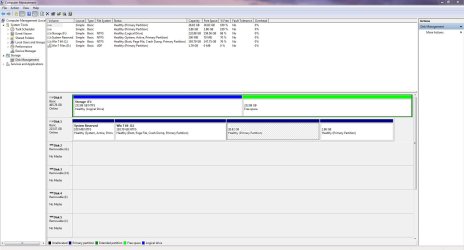
I have attached a screen shot of CM for your consideration.

Thanks to all!
 

Attachments

  • Capture 002.JPG
    Capture 002.JPG
    136.5 KB · Views: 7

My Computer My Computer

At a glance

Dual boot Win7 Pro 64 & Linux Mint 18.3Intel Core 2 Quad Core8GBNvidia GeForce GTX 750 Ti
Computer type
PC/Desktop
Computer Manufacturer/Model Number
Home/Custom built
OS
Dual boot Win7 Pro 64 & Linux Mint 18.3
CPU
Intel Core 2 Quad Core
Motherboard
Asus Rampage Extreme
Memory
8GB
Graphics Card(s)
Nvidia GeForce GTX 750 Ti
Sound Card
PCIe Supreme FX X-fi
Monitor(s) Displays
Viewsonic VX2450WM LED
Screen Resolution
1920x1080
Hard Drives
Intel SSD 240GB
WD 500GB HDD
PSU
Corsair 850 watt
Case
Lian Li
Cooling
Zalman
Keyboard
MS natural/ergonomic
Mouse
Intellimouse
Internet Speed
240 Mbps +/- Dnld, 12Mbps Upld via Xfinity Blast
Antivirus
Norton Security Suite by Xfinity
Browser
Firefox & Chrome
Other Info
4 slot memory card reader
Floppy drive
2 DVD burners
Brother MFCJ450dw AIO Printer/Scanner/Fax
eSATA connections
Now I have the HDD back again in boot up..

Now after mucking around in the BIOS, I have my HDD visible again to the OS.

Don't ask me why but it is. At one point in the BIOS I changed the setting to RAID, but never booted it that way. Upon changing it back to AHCI, on boot up it said " Loading drivers " then lo and behold my HDD was again visible and accessible.

The original problem remains the naming of the drives is wrong, imho. Drive "0" is the HDD and Drive "1" is the new SSD with 7 and Linux on it.

My concern is that if I make any backups using Acronis the names and numbers will come back to haunt me.

If this drive naming convention is stored in the registry, where is it and how can I modify it to reverse what I have now?

Thanks again!
 

Attachments

  • Capture 003.JPG
    Capture 003.JPG
    140.1 KB · Views: 7

My Computer My Computer

At a glance

Dual boot Win7 Pro 64 & Linux Mint 18.3Intel Core 2 Quad Core8GBNvidia GeForce GTX 750 Ti
Computer type
PC/Desktop
Computer Manufacturer/Model Number
Home/Custom built
OS
Dual boot Win7 Pro 64 & Linux Mint 18.3
CPU
Intel Core 2 Quad Core
Motherboard
Asus Rampage Extreme
Memory
8GB
Graphics Card(s)
Nvidia GeForce GTX 750 Ti
Sound Card
PCIe Supreme FX X-fi
Monitor(s) Displays
Viewsonic VX2450WM LED
Screen Resolution
1920x1080
Hard Drives
Intel SSD 240GB
WD 500GB HDD
PSU
Corsair 850 watt
Case
Lian Li
Cooling
Zalman
Keyboard
MS natural/ergonomic
Mouse
Intellimouse
Internet Speed
240 Mbps +/- Dnld, 12Mbps Upld via Xfinity Blast
Antivirus
Norton Security Suite by Xfinity
Browser
Firefox & Chrome
Other Info
4 slot memory card reader
Floppy drive
2 DVD burners
Brother MFCJ450dw AIO Printer/Scanner/Fax
eSATA connections
It's not that easy. It is important that Windows makes the change, otherwise bigger problems could occur.

I do not see anything unusual in your screenshot, so no help there.
Curious as to why the HDD was formatted as a logical drive. That is not necessary, but it won't harm anything either. (Do not play with the formatting unless you have backed up all data on the drive!).

IIRC, the last time I dealt with this 'problem', I did something like this:

  • Connected only the SSD (desired Disk 0) to SATA port 0 on the MB
  • Cold booted into windows (from full OFF condition).
  • Checked to be sure the drive was in DM and was Drive 0
  • Turned off the computer
  • Connected the HDD (to be Disk 1) to SATA port 1 on the MB
  • Booted and immediately went into BIOS (did not let Windows start)
  • Check in BIOS that 1) both hard drives were recognized, and 2) that the boot order was correct. It was not. Bios showed my HDD as the first drive to boot from.
  • I changed the boot order to boot from SSD first. Saved changes and Exit.
  • When the PC booted I immediately went into BIOS again. Checked boot order. All was good. Save and exit.
  • Then on reboot I let it go into Windows. My drives were finally in the right order.
 

My Computer My Computer

At a glance

Windows 7 64 Bit Home Premium SP1i7-3820GSkill F3-14900CL9Q - 16GBEVGA GeForce GTX660 - Driver 352.86
Computer type
PC/Desktop
Computer Manufacturer/Model Number
Home Built - Jan 2013
OS
Windows 7 64 Bit Home Premium SP1
CPU
i7-3820
Motherboard
Asus P9X79-PRO - Bios 4608
Memory
GSkill F3-14900CL9Q - 16GB
Graphics Card(s)
EVGA GeForce GTX660 - Driver 352.86
Sound Card
On board Realtek ALC898
Monitor(s) Displays
Acer S271HL
Screen Resolution
1920 x 1080
Hard Drives
#1- Samsung 840 Pro Series
#2- Western Digital WD1002FAEX Sata3 Black
#3- Western Digital WD1002FAEX Sata3 Black
PSU
Corsair CMPSU-850TX-V2 - 850 watt (by Seasonic)
Case
Corsair Obsidian 550D
Cooling
Standard 3 120mm case fans, Cooler Master Hyper 212 EVO
Keyboard
MS KC-0405
Mouse
Intellimouse 5-button
Internet Speed
56 Mbits/Sec (on a good day)
Antivirus
Avast & Malwarebytes
Browser
Firefox
Other Info
Asus DVD - DRW-24B1ST 24X
I bought an SSD, I was told to enable AHCI before I put the OS/ Win 7 on to it. So that's what I did. Then I bought a WD 500GB HDD to use as a storage drive for music files and photos etc. With that drive connected and unallocated it wouldn't boot, so I used Partition Wizard to format it to NTFS.

Then I booted the machine and all was fine with the exception of the drive letters in Computer Management being reversed. This is when I started to change the SATA cables around to 'solve' the problem.. lol... right!
Honestly, it doesn't matter what SATA controller you use for what drive, nor does it matter what "disk number" any disk shows up as either in the BIOS setup or in Disk Management. No matter what you see, you can change and reconfigure to meet your needs.

What's really important is what you define as the boot sequence in the BIOS, because the drive you want to be your boot drive with the "active" partition on it... that drive must be specified as the first hard drive in the BIOS boot sequence. So you should reconfigure things in your BIOS setup so that your SSD is that first drive. Then, when you install Win7 to the SSD, the installer will create the "active" 100MB "system reserved" partition (where it will put Boot Manager) and C partition (where it will put Win7 system) on that drive. And when you have to re-boot during the Win7 install, the BIOS will automatically boot from the SSD being constructed forever after. You can even do this before you boot from the Win7 installation DVD, since your CD/DVD is presumably in front of the first hard drive (i.e. your new SSD) in the boot sequence, so you can always boot from the DVD no matter what hard drive comes next.

Or, if you do a new Win7 install to a newly added drive that currently is not first in the BIOS boot sequence, the installer will still mark the 100MB "system reserved" partition as active and build Win7 what it will also create and which will appear as C when you boot to that drive. But you need to get into the BIOS and change the boot sequence before the first reboot during the installation process to point to this new drive first in the boot sequence, so that it will truly become the boot drive.

The remaining non-boot drive(s) for data, honestly it doesn't matter where they show up to the BIOS. All that's critical is that your boot drive with the "active" partition, that must appear first in the hard drive boot sequence for the BIOS.

Now... once you finally boot to Windows, it will automatically letter the Win7 system partition as C, no matter what SATA controller it's on, and no matter what disk number it shows up as in Disk Management. Doesn't matter at all, as long as that "active" partition drive is first in boot sequence to the BIOS, then Win7 system partition will automatically be lettered as C.

After that, again it is not critical at all what any other drive(s) you have appear as in Disk Management. Nor is it at all problematic what drive letters got assigned to any partition(s) on any hard drive. And that's because except for C, you can use Disk Management to change any assigned drive letter for any partition on any hard drive, to whatever you want it to be. Now you can't "switch" drive letters between two partitions, but you can change m to be x, and then n to be m, and then x to be n, and you've accomplished your desired "switch".

So again, it doesn't matter one bit what SATA controller you use for any drive. And it doesn't matter what drive letter Win7 initially assigns for any partition on any hard drive. it only matters that the drive you want to boot from and have installed Win7 to (and thus created the "system reserved" partition which is also marked "active") is first in the BIOS boot sequence, and you must configure this if it's currently not. Then, when you boot, Win7 system partition will automatically be lettered as C. Any other partitions on any other hard drive can be re-lettered using Disk Management, no matter what disk number they appear as in Disk Management, and no matter what drive letter they were initially assigned by Windows the first time that assignment occurred on first-boot of a newly installed Win7 system.

 

My Computer My Computer

At a glance

Windows 7 Pro x64 (1), Win7 Pro X64 (2)i5-3350p 3.1Ghz/6MB-cache (1); E8400 3.0Ghz/6...8GB PC3-12800 DDR3 (1); 4GB PC3-10600 DDR3 (2)ATI HD7750 (1), (see TV cards); ATI R7 250 (2)
Computer type
PC/Desktop
Computer Manufacturer/Model Number
Home-built, two systems (1) and (2)
OS
Windows 7 Pro x64 (1), Win7 Pro X64 (2)
CPU
i5-3350p 3.1Ghz/6MB-cache (1); E8400 3.0Ghz/6MB-cache (2)
Motherboard
ASUS P8Z77-V Pro (1); ASUS P5Q3 (2)
Memory
8GB PC3-12800 DDR3 (1); 4GB PC3-10600 DDR3 (2)
Graphics Card(s)
ATI HD7750 (1), (see TV cards); ATI R7 250 (2)
Sound Card
Realtek ALC892 HD Audio (1); Realtek ALC1200 HD Audio (2)
Monitor(s) Displays
Eizo HD2441W LCD, Eizo S2433W (1); Eizo 24" S2433W (2)
Screen Resolution
1920x1200, 1920x1200 (1); 1920x1200 (2)
Hard Drives
(1) 1TB SATA-II (7200RPM), 2x2TB SATA-III (7200RPM), 250GB SATA-III (10000RPM) for OS; 2x2TB external USB 3.0

(2) 320GB SATA-II (7200RPM), 750GB SATA-II (7200RPM), 150GB SATA-II (10000RPM) for OS; 2TB external USB 3.0
PSU
Nesteq ECS-6001 600W (1); Nesteq ECS-5001 500W (2)
Case
Acousti-Case 360 (1) and (2)
Cooling
Noctua NH-U12P SE2 for CPU, 2x120mm case fans (1) and (2)
Keyboard
IBM PS/2 (1) and (2)
Mouse
Logitech MX Revolution wireless (1); Microsoft wired (2)
Internet Speed
100mbps down / 10mbps up
Antivirus
Microsoft Security Essentials; Malwarebyte Anti-Malware Pro
Browser
Firefox
Other Info
Ceton InfiniTV 4-tuner cablecard-enabled TV card as well as Hauppauge HVR-2250 OTA/ATSC 2-tuner TV card in (1), running under Win7 WMC
As @TVeblen and @dsperber basically explained, you need to make sure that your boot order in BIOS is on first place the SSD with the OS and System reserved partitions and next, the storage HDD.
See what your settings in BIOS are and if you could fix it from there or as e.g. @Tveblen explained so thoroughly.
Keep us posted, good luck! :)

CK_WD
 

My Computer My Computer

At a glance

Windows 7 Home Premium x64
Computer type
PC/Desktop
OS
Windows 7 Home Premium x64
HI TVeblen,

Not sure if I actually have a SATA port 0 on the board I'll have to look in the manual. Mine are numbered 1 thru 6 as I recall.

In step 3 of your "how to".. wouldn't the SSD automatically be Drive 0, since it was the only one connected? I had that condition, at one point, and figured it was the default being it was the only drive connected...

I think your point about the machine being cold booted is a good one, sometimes I try and use my external HD to make a backup and it won't show up in 7 until I have totally shut the machine off and restarted. The eSata isn't hot swappable on this MB.

I'm glad you got yours sorted. I had such a miserable time getting the HD to be recognized that when it did show up with he SSD, I simply said "that's it.!" I don't like it but after so many hours of playing with it and getting nowhere enough was enough. Not letting the machine boot to the OS after changing the BIOS is what I did as well I think that's what made allowed the HD to show up, even though the naming and order are wrong.

Thanks for your DIY and maybe when I am feeling less doubtful about messing with it I'll go back to it again at a later date. Constantly having to lift the machine from where it resides up to my desktop is a killer. Especially after having two spinal fusions <sigh>

Thanks again!
 

My Computer My Computer

At a glance

Dual boot Win7 Pro 64 & Linux Mint 18.3Intel Core 2 Quad Core8GBNvidia GeForce GTX 750 Ti
Computer type
PC/Desktop
Computer Manufacturer/Model Number
Home/Custom built
OS
Dual boot Win7 Pro 64 & Linux Mint 18.3
CPU
Intel Core 2 Quad Core
Motherboard
Asus Rampage Extreme
Memory
8GB
Graphics Card(s)
Nvidia GeForce GTX 750 Ti
Sound Card
PCIe Supreme FX X-fi
Monitor(s) Displays
Viewsonic VX2450WM LED
Screen Resolution
1920x1080
Hard Drives
Intel SSD 240GB
WD 500GB HDD
PSU
Corsair 850 watt
Case
Lian Li
Cooling
Zalman
Keyboard
MS natural/ergonomic
Mouse
Intellimouse
Internet Speed
240 Mbps +/- Dnld, 12Mbps Upld via Xfinity Blast
Antivirus
Norton Security Suite by Xfinity
Browser
Firefox & Chrome
Other Info
4 slot memory card reader
Floppy drive
2 DVD burners
Brother MFCJ450dw AIO Printer/Scanner/Fax
eSATA connections
The neverending story...

As @TVeblen and @dsperber basically explained, you need to make sure that your boot order in BIOS is on first place the SSD with the OS and System reserved partitions and next, the storage HDD.
See what your settings in BIOS are and if you could fix it from there or as e.g. @Tveblen explained so thoroughly.
Keep us posted, good luck! :)

CK_WD

Well that's what I have, the SSD is first in the boot order in the BIOS. The trouble occurs when the BIOS doesn't recognize the HDD, it will 'see' one or the other but at times not both! I can fool around for a long time to get the BIOS to recognize both at the same time and when it does, it makes the SSD Drive 1 and the HDD Drive 0.

As @dsperger opined in his lengthy response I followed the steps he calls out...
The install of Win 7 was a new one to a new SSD and I chose to let it make the system reserved paritition even though I know I could have gotten on fine w/o it. The SSD was loaded with Win 7 on this machine and this BIOS so it's not as if I plugged in a drive that was created elsewhere. Plus when I did the install of 7, the SSD was the only drive connected to the system. Where it's going wrong I have no idea. Plus if in the BIOS I had the drive letters reversed the machine wouldn't boot since there's no OS on the HDD storage drive.

I think back to when I added the HDD to the machine, the drive at that point was unformatted and just unallocated space. The machine wouldn't boot of course, so I had to use the Partition Wizard to format it NTFS. Could it be that the BIOS made the HDD Drive 0 at that point? I never removed the SSD during the format it stayed connected fwiw. If I was to reformat the HDD again, and make it unallocated, then try to boot and then reformat it ( I have it backed up) np, would that alleviate the mess I am in?

Thanks to @dserber and @tveblen all the rest who have tried to help, I may try and putz around with it again because it just pi$$es me off that it's not 'right' in the sense of appearance if nothing else. I don't mind spending the time to make something right, so I may get a burst of energy and try it sort it out again. I just made an Acronis image of all the drives so I can't mess it up too far, if I do I simply revert to the image backup on my external HDD.

I found this article from 2011 that refers to drive letter assignments for XP not 7, but everything in the registry was exactly like the article says. http://www.tomshardware.com/forum/266874-45-drive-letter-assignments-registry

Did I try it........... 'no' ......... was I tempted..............'YES'

Cheers and here we go again....... maybe! lol

You all will be the second to know if I ever get it sorted! :D
 
Last edited:

My Computer My Computer

At a glance

Dual boot Win7 Pro 64 & Linux Mint 18.3Intel Core 2 Quad Core8GBNvidia GeForce GTX 750 Ti
Computer type
PC/Desktop
Computer Manufacturer/Model Number
Home/Custom built
OS
Dual boot Win7 Pro 64 & Linux Mint 18.3
CPU
Intel Core 2 Quad Core
Motherboard
Asus Rampage Extreme
Memory
8GB
Graphics Card(s)
Nvidia GeForce GTX 750 Ti
Sound Card
PCIe Supreme FX X-fi
Monitor(s) Displays
Viewsonic VX2450WM LED
Screen Resolution
1920x1080
Hard Drives
Intel SSD 240GB
WD 500GB HDD
PSU
Corsair 850 watt
Case
Lian Li
Cooling
Zalman
Keyboard
MS natural/ergonomic
Mouse
Intellimouse
Internet Speed
240 Mbps +/- Dnld, 12Mbps Upld via Xfinity Blast
Antivirus
Norton Security Suite by Xfinity
Browser
Firefox & Chrome
Other Info
4 slot memory card reader
Floppy drive
2 DVD burners
Brother MFCJ450dw AIO Printer/Scanner/Fax
eSATA connections
Sorry but no joy

It's not that easy. It is important that Windows makes the change, otherwise bigger problems could occur.

I do not see anything unusual in your screenshot, so no help there.
Curious as to why the HDD was formatted as a logical drive. That is not necessary, but it won't harm anything either. (Do not play with the formatting unless you have backed up all data on the drive!).

IIRC, the last time I dealt with this 'problem', I did something like this:

  • Connected only the SSD (desired Disk 0) to SATA port 0 on the MB
  • Cold booted into windows (from full OFF condition).
  • Checked to be sure the drive was in DM and was Drive 0
  • Turned off the computer
  • Connected the HDD (to be Disk 1) to SATA port 1 on the MB
  • Booted and immediately went into BIOS (did not let Windows start)
  • Check in BIOS that 1) both hard drives were recognized, and 2) that the boot order was correct. It was not. Bios showed my HDD as the first drive to boot from.
  • I changed the boot order to boot from SSD first. Saved changes and Exit.
  • When the PC booted I immediately went into BIOS again. Checked boot order. All was good. Save and exit.
  • Then on reboot I let it go into Windows. My drives were finally in the right order.

Hi TVeblen,

I used your method above word by word on my system today, unfortunately it didn't work. I'm glad it did for you but for some reason no luck on this end. But thank you for all the time all of you have spent on this niggling problem. No one sees it but me, plus if I showed it to anyone who isn't interested in computers they'd just shrug and say " Oh!"

Failing any forthcoming ideas I have decided it's not hurting anything but my ego. I know it's there and it shouldn't be the way it is, but it is what it is!

Regards and Happy Holidays to all of you!

J T
 

My Computer My Computer

At a glance

Dual boot Win7 Pro 64 & Linux Mint 18.3Intel Core 2 Quad Core8GBNvidia GeForce GTX 750 Ti
Computer type
PC/Desktop
Computer Manufacturer/Model Number
Home/Custom built
OS
Dual boot Win7 Pro 64 & Linux Mint 18.3
CPU
Intel Core 2 Quad Core
Motherboard
Asus Rampage Extreme
Memory
8GB
Graphics Card(s)
Nvidia GeForce GTX 750 Ti
Sound Card
PCIe Supreme FX X-fi
Monitor(s) Displays
Viewsonic VX2450WM LED
Screen Resolution
1920x1080
Hard Drives
Intel SSD 240GB
WD 500GB HDD
PSU
Corsair 850 watt
Case
Lian Li
Cooling
Zalman
Keyboard
MS natural/ergonomic
Mouse
Intellimouse
Internet Speed
240 Mbps +/- Dnld, 12Mbps Upld via Xfinity Blast
Antivirus
Norton Security Suite by Xfinity
Browser
Firefox & Chrome
Other Info
4 slot memory card reader
Floppy drive
2 DVD burners
Brother MFCJ450dw AIO Printer/Scanner/Fax
eSATA connections
Curious as to why the HDD was formatted as a logical drive.

TVeblen,

Forgot to ask this before.. why should I have formatted it to? Another primary? I can easily blow it out and reformat it I have all the backups.

Tnx!
 

My Computer My Computer

At a glance

Dual boot Win7 Pro 64 & Linux Mint 18.3Intel Core 2 Quad Core8GBNvidia GeForce GTX 750 Ti
Computer type
PC/Desktop
Computer Manufacturer/Model Number
Home/Custom built
OS
Dual boot Win7 Pro 64 & Linux Mint 18.3
CPU
Intel Core 2 Quad Core
Motherboard
Asus Rampage Extreme
Memory
8GB
Graphics Card(s)
Nvidia GeForce GTX 750 Ti
Sound Card
PCIe Supreme FX X-fi
Monitor(s) Displays
Viewsonic VX2450WM LED
Screen Resolution
1920x1080
Hard Drives
Intel SSD 240GB
WD 500GB HDD
PSU
Corsair 850 watt
Case
Lian Li
Cooling
Zalman
Keyboard
MS natural/ergonomic
Mouse
Intellimouse
Internet Speed
240 Mbps +/- Dnld, 12Mbps Upld via Xfinity Blast
Antivirus
Norton Security Suite by Xfinity
Browser
Firefox & Chrome
Other Info
4 slot memory card reader
Floppy drive
2 DVD burners
Brother MFCJ450dw AIO Printer/Scanner/Fax
eSATA connections
Curious as to why the HDD was formatted as a logical drive.

TVeblen,

Forgot to ask this before.. why should I have formatted it to? Another primary? I can easily blow it out and reformat it I have all the backups.
Again... makes zero difference for a data partition. In fact, it doesn't even make a difference for the Windows system partition (i.e. C drive). So the Windows C partition can also be logical.

The only partition which ABSOLUTELY must be "primary" is the "active' partition, i.e. that 100MB "system reserved" partition. This is truly the only partition that MUST be "primary", as it's required by the BIOS to be that way.

Otherwise, any other partition anywhere on any drive can be primary or logical... matters not. There is no performance consequence, or any other consequence for that matter.

A hard drive formatted as MBR can have up to four primary partitions. If you want to have one or more logical partitions (because you want to have more than four partitions on that drive) you need to give up one of those four primary partitions (thus leaving you with three max), which gets converted to be the "extended partition" inside of which all of your logical partitions on the drive will live... one or more of them, up to a max of 120.

You simply choose primary or logical when you define the partition. And of course, the logical partitions must be essentially contiguous (although there also can be "logical free space" between logical partitions) since they're all living within the "extended partition".

The particular primary partition you give up to convert it into the "extended partition" can be any of the four max primary partitions on the drive. So it can be at the left-end of the drive, right-end of the drive, or be a middle partition area, or in fact can occupy the entire drive (i.e. there are zero other primary partitions on that drive, which could have now held up to three). Doesn't matter. But you can only have one "extended partition" on a drive, and all logical partitions are inside of it.
 

My Computer My Computer

At a glance

Windows 7 Pro x64 (1), Win7 Pro X64 (2)i5-3350p 3.1Ghz/6MB-cache (1); E8400 3.0Ghz/6...8GB PC3-12800 DDR3 (1); 4GB PC3-10600 DDR3 (2)ATI HD7750 (1), (see TV cards); ATI R7 250 (2)
Computer type
PC/Desktop
Computer Manufacturer/Model Number
Home-built, two systems (1) and (2)
OS
Windows 7 Pro x64 (1), Win7 Pro X64 (2)
CPU
i5-3350p 3.1Ghz/6MB-cache (1); E8400 3.0Ghz/6MB-cache (2)
Motherboard
ASUS P8Z77-V Pro (1); ASUS P5Q3 (2)
Memory
8GB PC3-12800 DDR3 (1); 4GB PC3-10600 DDR3 (2)
Graphics Card(s)
ATI HD7750 (1), (see TV cards); ATI R7 250 (2)
Sound Card
Realtek ALC892 HD Audio (1); Realtek ALC1200 HD Audio (2)
Monitor(s) Displays
Eizo HD2441W LCD, Eizo S2433W (1); Eizo 24" S2433W (2)
Screen Resolution
1920x1200, 1920x1200 (1); 1920x1200 (2)
Hard Drives
(1) 1TB SATA-II (7200RPM), 2x2TB SATA-III (7200RPM), 250GB SATA-III (10000RPM) for OS; 2x2TB external USB 3.0

(2) 320GB SATA-II (7200RPM), 750GB SATA-II (7200RPM), 150GB SATA-II (10000RPM) for OS; 2TB external USB 3.0
PSU
Nesteq ECS-6001 600W (1); Nesteq ECS-5001 500W (2)
Case
Acousti-Case 360 (1) and (2)
Cooling
Noctua NH-U12P SE2 for CPU, 2x120mm case fans (1) and (2)
Keyboard
IBM PS/2 (1) and (2)
Mouse
Logitech MX Revolution wireless (1); Microsoft wired (2)
Internet Speed
100mbps down / 10mbps up
Antivirus
Microsoft Security Essentials; Malwarebyte Anti-Malware Pro
Browser
Firefox
Other Info
Ceton InfiniTV 4-tuner cablecard-enabled TV card as well as Hauppauge HVR-2250 OTA/ATSC 2-tuner TV card in (1), running under Win7 WMC
I just meant what I said: it is unusual to create a entire disk as a Logical Drive, so I was curious if there was a reason why you did that.

As dsperber said, it has no bearing on your 'problem'. I think you would be just spinning your wheels to change it.

But it remains why the HDD is sometimes not recognized in BIOS. There just seems to be a piece of this puzzle that is missing.
 

My Computer My Computer

At a glance

Windows 7 64 Bit Home Premium SP1i7-3820GSkill F3-14900CL9Q - 16GBEVGA GeForce GTX660 - Driver 352.86
Computer type
PC/Desktop
Computer Manufacturer/Model Number
Home Built - Jan 2013
OS
Windows 7 64 Bit Home Premium SP1
CPU
i7-3820
Motherboard
Asus P9X79-PRO - Bios 4608
Memory
GSkill F3-14900CL9Q - 16GB
Graphics Card(s)
EVGA GeForce GTX660 - Driver 352.86
Sound Card
On board Realtek ALC898
Monitor(s) Displays
Acer S271HL
Screen Resolution
1920 x 1080
Hard Drives
#1- Samsung 840 Pro Series
#2- Western Digital WD1002FAEX Sata3 Black
#3- Western Digital WD1002FAEX Sata3 Black
PSU
Corsair CMPSU-850TX-V2 - 850 watt (by Seasonic)
Case
Corsair Obsidian 550D
Cooling
Standard 3 120mm case fans, Cooler Master Hyper 212 EVO
Keyboard
MS KC-0405
Mouse
Intellimouse 5-button
Internet Speed
56 Mbits/Sec (on a good day)
Antivirus
Avast & Malwarebytes
Browser
Firefox
Other Info
Asus DVD - DRW-24B1ST 24X
I have to agree with @Tveblen, something is missing and not quite right.
What's troubling me is the fact that the hard drive is not always recognized. You could first of try it on a different PC to and scan its health.
Though, it sounds to me that the problem is somewhere in the cables or motherboard itself.
After all, you said you have a back up, so it wouldn't hurt to try and wipe the drive clean and format and partition it again, see if the Disk numbers will rearrange.

CK_WD
 

My Computer My Computer

At a glance

Windows 7 Home Premium x64
Computer type
PC/Desktop
OS
Windows 7 Home Premium x64
Back
Top