
- Local time
- 3:39 PM
- Messages
- 80
My Computer
- Computer type
- PC/Desktop
- OS
- W7 64bit


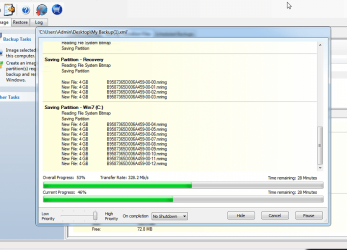
Did you specifically tell Macrium to make images of both Recovery partition and C partition in an earlier step?
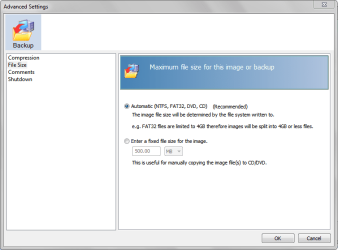
It's creating 4GB files for some reason.
Check your Advanced Settings / File Size settings.
View attachment 359069
What file system is in use on that 2TB external?
What file system is in use on that 2TB external?
Will check, but I can't get to the drive for a couple of hours yet...
What file system is in use on that 2TB external?
Will check, but I can't get to the drive for a couple of hours yet...
Per David's post 4, if it's FAT32, that would explain the 4 GB chunks.
In which case, you reformat the external as NTFS and re-image.

...Why in the heck would a 2TB new Hitachi external hard drive be formatted in FAT32?...[/QUOTE]
...Why in the heck would a 2TB new Hitachi external hard drive be formatted in FAT32?...
Did you specifically tell Macrium to make images of both Recovery partition and C partition in an earlier step?
So, in your opinion, what's the best way to do images? In other words, should I have a complete HDD image, and then a few drive C images? Or, should I not be imaging the recovery partition?

I'd look at it on a partition by partition basis--as opposed to drive by drive.
At a minimum, I'd make an image of C and System Reserved (assuming I had the latter). That would be all you need to "restore Windows and applications". If you have both of those, you could either make one image of System Reserved and periodic images of C or just make a single image file periodically which contained both System Reserved and C.
Note: some OEMs put necessary Windows files (boot files typically) in odd locations. Normally, they'd be in System Reserved, but anything is possible. If they are in some oddball partition, then you'd have to image that oddball partition or else copy the boot files to a saner location (with EasyBCD) and then image that saner partition.
You would not need to image recovery partitions unless you have some interest in restoring to factory state (excluding the caveat in prior paragraph). I build my own and don't have recovery partitions, but I assume you do. It's entirely personal preference--if you have no interest in ever restoring to factory state, then no, don't image it.
If you have partitions that contain data ONLY, you could image them but they are not needed for Windows. However, I don't image them. My thinking is that data is too precious to be entrusted to something as shaky as imaging. It can't hurt, but might not help when disaster strikes.
I would generally try to image partition by partition rather than entire drives. If you image an entire drive, you end up with one image file and would be limited to restoring that entire image and therefore ALL of the partitions on the drive--rather than just the partition you want to restore. At least that's how I think it works. I'm not positive as all of my drives contain just 1 partition.
Many people make an image of C and System Reserved shortly after installation, after everything is configured and Windows is updated---and then keep that image permanently. Then make periodic new images maybe monthly, keeping maybe the last 2. So at any given point you might have 3 images: shortly after configuration was finished, last month, and this month. Each month you make a new one and throw one away, always having 3 on hand.
I wouldn't do incrementals. I'd do full images only.
Some like to use more than one imaging program---perhaps alternating them. Macrium in even months, Aomei or something else in odd months. Whatever suits your level of paranoia and obsessiveness.
I'd make sure my "rescue disk" was bootable and I'd make a new one from time to time, particularly if the software maker came out with a new major version.
I'd never get myself in the situation where I was reliant on images for anything. I'd expect them to fail and hope they didn't. I'd always know what I would do when they failed---go through installation and configuration hell, which you just did.
Hey, it all depends on how is your drive is structured I guess.
The recovery partition should have static data in it, so one image for it should be enough.
You should keep OS partition as small as possible, try not to use it for data. Perform a full backup of OS (including System Reserved if you have it) once a week and keep few of them, deleting older ones in time. OS partition should be around 40-50 GB, with normal compression one image should be around 20-30 GB.
You can use a file sync program to backup your data. I prefer FreeFileSync, it compares source and destination files for 2.3TB (3 million files) data in 10 minutes (actually it compares the first 500k files in 40 seconds so maybe my RAM amount is slowing it down, not sure).
Please note that I use Acronis software for backups for OS partition and don't have a recovery partition. Perform full backups weekly and do differential backups daily while keeping several weeks of backups. I also clone my OS drive once a month in case all backups fail. The modern backup programs can clone by removing the empty sectors so you can use a smaller disk (really depends on how your drive is structured). Also use Paragon Backup and Recovery 14 to make a full backup every 10-15 days.
Anyway, I hope you get the idea. I am sure others will share their strategies.
...I have a question: can you explain the rationale for keeping the data off the C: partition? Is it for speed? Extending the life of the HDD? Keeping the OS images small? Thanks!
Assuming the next HDD catastrophically fails again, I put in a new drive, boot with the Linux recovery CD, and point to the images on the external HDD. Now, does the new internal HDD automatically get partitioned as I restore these images? and do I need to restore them in the order they were on the original HDD? Or do I initialize the disk, restore Reserved, partition, restore windows, etc.... Have you ever had to do this?
I would NOT boot with the Linux recovery CD. I'd boot with the WinPE recovery CD, which you can also make through the Macrium interface. Advantages of WinPE: less prone to driver issues and therefore more likely to actually boot your PC. Also, when you use the WinPE disc, the interface is EXACTLY what you would see if you started Macrium from your hard drive. The Linux CD usually works, but can have driver issues and drops you into a slow and unfamiliar text-based interface that can be confusing.
You can also use a USB stick rather than a CD, but I've never personally done it.
As far as I know, there's no need to initialize the destination disk, but there wouldn't be any harm in doing so.
Right now I have all my data on the C: partition along with the OS. I use Crashplan for local and cloud backup (I have a lot of data/work that's way too important to lose). You think it's better to have a separate partition for my data, or is it just personal preference? I mean, if the HDD fails, all partitions fail, so I guess the smart thing to do is put a second HDD in and store my data there, right? Then I would point Documents to D:, etc.?
I do think it's better to have Windows and apps on C and data on D.
Yes, if the disc fails you lose all partitions, BUT: if C is smaller, the images of it will be smaller and quicker to make. They will take up less space on your backup drive.
And think about this if you have data on C:
May 1: you make an image of C, which would include your data
May 2: you do some work and develop some new or modified data files
May 3: your drive fails
May 4: you buy a new drive and restore the May 1 image successfully. The restored image does not include the May 2 work. You would be forced to dig out whatever backup of the May 2 work you may have and copy it back to C. Doable, but a nuisance.
Yeah, if you had data on D, you'd point Documents to D.
Or you could be a caveman/Luddite like me and not use the "C:\Users" directory tree at all and just save to D directly.
when restoring an entire disk image (or a partition image for that matter), does the destination have to be the same size? Same make/model? larger? Would it fail if smaller? (assuming there was enough free space that you could put it on a smaller drive.) And, once a new HDD is re-imaged, do you have to go through all the re-activations of Windows/Office again?
Destination generally has to be as large or larger. Not the same make or model. No, you don't have to reactivate anything. The image file contains EVERYTHING on the partition, to include licensing info, configuration, and whatever unspeakable malware and viruses were on the source partition.
One thing I'm not sure of:
Consider a C partition of 100 GB, with 60 occupied. You image it. The image file would typically be around 30 GB in size (half of occupied space). I am NOT sure of the minimum size drive that could be restored to----60 GB or 100 GB. I'd assume 100, but stand to be corrected.
All of my drives have single partitions with no crowding issues, so I've never been faced with that problem when restoring. When I've had an outright drive failure (as I did recently), I've always bought a larger replacement drive.

