Macrium Reflect Free making multiple images?

One advantage of having C & D partitions on one drive, when I purchased twin HDs, one was C, the other was D, it was easy to clone D-partition, or restore D-partition image, onto its new home, the 2nd HD. I guess one can also do the reverse.

You can, and that is the fastest way to transfer data to replacement drives but, same as imaging, cloning is an inefficient way to backup data drives/partitions (unlike OS and program files, which must be imaged or cloned to work). Both imaging and cloning data for backups requires too much space and takes way too long to do. A folder/file syncing program, such as FreeFileSync, is much more efficient and will result in a backup that is essentially a clone of source drive/partition. When set to mirror mode (not quite the same as RAID 1, btw, which I do not recommend for backups), a folder/file syncing program will compare a source with a destination and then copy and delete files as necessary to make the two essentially identical without altering the source. Since only folders and files that have changed are involved, it takes considerable less time to update a backup than cloning and imaging, which require all data to be dealt with every time a backup is updated.
 

My Computer My Computer

Computer type
PC/Desktop
Computer Manufacturer/Model Number
Custom Build
OS
Win 7 Ultimate 64 bit
CPU
Intel i7-3930K
Motherboard
ASUS P9X79 WS
Memory
Kingston HyperX Genesis 32GB Kit (8x4GB Modules) 1600MHz DDR
Graphics Card(s)
MSI R7850 Twin Frozr 2GD5/OC Radeon HD 7850 2GB 256-bit GDDR
Sound Card
Asus Xonar Essence STX
Monitor(s) Displays
3x Asus VG248QE 24", Vizio 32" TV
Screen Resolution
1920 x 1080, ?
Hard Drives
Samsung 128GB 840 Pro SSD (1),
Samsung 4TB 850 EVO SSDs (4)
Samsung 4TB 850 EVO SSDs (16) external backup drives used in 2.5" hot swap bays in the computer.
PSU
Corsair HX750w
Case
Antec Two Hundred v2 (modified)
Cooling
Cooler Master GeminII S524 120mm (fan replaced with a 140mm)
Keyboard
Logitech G510s
Mouse
Logitech M525 (two in use)
Internet Speed
=< 32Mbps down, 8Mbps up
Antivirus
AVAST!, MBAM, SAS, Spybot S&D (all but MBAM free) Glary Util
Browser
IE11
Other Info
LSI 9211-8i HBA card (8 SATA III ports), 2.5" & 3.5" Hot Swap Bays, HooToo HT-CR001 PCI-E to USB 3.0 Internal Hub + 6 Slot Card Reader, and LG Model CH12LS28 BD-ROM Optical Drive. Also, ScanSnap S1500 ADF duplexing scanner, Canon 9000F flat bed scanner, Corsair SP2500 2.1 speakers, Samsung CLP 415nw laser color printer, Cyberpower PP2200SW UPS
In your example of a 100GB partition on a HDD (assuming that is the formatted size) with only 60GB being used, to have 10% headroom on a destination partition, it would need to be at least 67GB formatted space. It never hurts to have more room for future expansion, however.[/I]

I wonder how that intelligent sector thing works in "real life", you should pardon the expression.

Ever had to rely on it working as advertised?

Like restoring a 100 GB partition, with 60 occupied, to an 80 GB disk?

I'm just curious. Offhand, I can't recall anyone on this forum who has done it--or attempted it.

Maybe it's flawless, but I rarely look at Macrium forums where that might be discussed.
 

My Computer My Computer

Computer type
PC/Desktop
Computer Manufacturer/Model Number
Ignatz Special; 4 speed manual gearbox; factory air conditioning; one of one
OS
Windows 7 Home Premium SP1, 64-bit
CPU
Intel Skylake i5-6600K, not overclocked
Motherboard
AsRock Z170M Extreme 4, micro ATX
Memory
8 GB HyperX DDR4-2666 (2 x 4 GB)
Graphics Card(s)
none; graphics are integrated on CPU
Sound Card
onboard: Realtek ALC1150; external: USB Behringer UF0-202
Monitor(s) Displays
Dell S2340M 23 inch IPS
Screen Resolution
1600 x 900
Hard Drives
System: Crucial MX100 series SSD, 128 GB;
Data: Samsung Spinpoint 103SJ, 1 TB;
Backup: WD Caviar Green WD30EZRX-00D8PB0, 3 TB
PSU
Rosewill SilentNight 500 watt fanless, semi-modular
Case
Antec Solo II
Cooling
Noctua NH-U12S; Noctua F12 intake, Noctua S12A exhaust
Keyboard
Microsoft 200 6JH-00001 USB
Mouse
Dell or Microsoft optical wired; USB
Antivirus
Microsoft Security Essentials and Malwarebytes Premium
Browser
Pale Moon
Other Info
All fans PWM; speeds at idle: CPU circa 500 rpm; intake circa 600 rpm; exhaust circa 600 rpm; CPU temps 27 idle and 47 C load in a warm room (27 C/81 F) when running Intel Extreme Tuning Utility stress test.
In your example of a 100GB partition on a HDD (assuming that is the formatted size) with only 60GB being used, to have 10% headroom on a destination partition, it would need to be at least 67GB formatted space. It never hurts to have more room for future expansion, however.[/I]

I wonder how that intelligent sector thing works in "real life", you should pardon the expression.

Ever had to rely on it working as advertised?

Like restoring a 100 GB partition, with 60 occupied, to an 80 GB disk?

I'm just curious. Offhand, I can't recall anyone on this forum who has done it--or attempted it.

Maybe it's flawless, but I rarely look at Macrium forums where that might be discussed.

The Intelligent Sector thing is a default setting so I strongly suspect everyone here who uses Macrium Reflect has used it, whether they realized it or not, including you. I've never had a problem with it in the two years or so I've been using Macrium Reflect.
 

My Computer My Computer

Computer type
PC/Desktop
Computer Manufacturer/Model Number
Custom Build
OS
Win 7 Ultimate 64 bit
CPU
Intel i7-3930K
Motherboard
ASUS P9X79 WS
Memory
Kingston HyperX Genesis 32GB Kit (8x4GB Modules) 1600MHz DDR
Graphics Card(s)
MSI R7850 Twin Frozr 2GD5/OC Radeon HD 7850 2GB 256-bit GDDR
Sound Card
Asus Xonar Essence STX
Monitor(s) Displays
3x Asus VG248QE 24", Vizio 32" TV
Screen Resolution
1920 x 1080, ?
Hard Drives
Samsung 128GB 840 Pro SSD (1),
Samsung 4TB 850 EVO SSDs (4)
Samsung 4TB 850 EVO SSDs (16) external backup drives used in 2.5" hot swap bays in the computer.
PSU
Corsair HX750w
Case
Antec Two Hundred v2 (modified)
Cooling
Cooler Master GeminII S524 120mm (fan replaced with a 140mm)
Keyboard
Logitech G510s
Mouse
Logitech M525 (two in use)
Internet Speed
=< 32Mbps down, 8Mbps up
Antivirus
AVAST!, MBAM, SAS, Spybot S&D (all but MBAM free) Glary Util
Browser
IE11
Other Info
LSI 9211-8i HBA card (8 SATA III ports), 2.5" & 3.5" Hot Swap Bays, HooToo HT-CR001 PCI-E to USB 3.0 Internal Hub + 6 Slot Card Reader, and LG Model CH12LS28 BD-ROM Optical Drive. Also, ScanSnap S1500 ADF duplexing scanner, Canon 9000F flat bed scanner, Corsair SP2500 2.1 speakers, Samsung CLP 415nw laser color printer, Cyberpower PP2200SW UPS
I've never had a problem with it in the two years or so I've been using Macrium Reflect.

Nor have I.

But I know of no one who has attempted (successfully or not) a restore to a drive that was noticeably smaller than the source partition.

Do you?
 

My Computer My Computer

Computer type
PC/Desktop
Computer Manufacturer/Model Number
Ignatz Special; 4 speed manual gearbox; factory air conditioning; one of one
OS
Windows 7 Home Premium SP1, 64-bit
CPU
Intel Skylake i5-6600K, not overclocked
Motherboard
AsRock Z170M Extreme 4, micro ATX
Memory
8 GB HyperX DDR4-2666 (2 x 4 GB)
Graphics Card(s)
none; graphics are integrated on CPU
Sound Card
onboard: Realtek ALC1150; external: USB Behringer UF0-202
Monitor(s) Displays
Dell S2340M 23 inch IPS
Screen Resolution
1600 x 900
Hard Drives
System: Crucial MX100 series SSD, 128 GB;
Data: Samsung Spinpoint 103SJ, 1 TB;
Backup: WD Caviar Green WD30EZRX-00D8PB0, 3 TB
PSU
Rosewill SilentNight 500 watt fanless, semi-modular
Case
Antec Solo II
Cooling
Noctua NH-U12S; Noctua F12 intake, Noctua S12A exhaust
Keyboard
Microsoft 200 6JH-00001 USB
Mouse
Dell or Microsoft optical wired; USB
Antivirus
Microsoft Security Essentials and Malwarebytes Premium
Browser
Pale Moon
Other Info
All fans PWM; speeds at idle: CPU circa 500 rpm; intake circa 600 rpm; exhaust circa 600 rpm; CPU temps 27 idle and 47 C load in a warm room (27 C/81 F) when running Intel Extreme Tuning Utility stress test.
I've never had a problem with it in the two years or so I've been using Macrium Reflect.

Nor have I.

But I know of no one who has attempted (successfully or not) a restore to a drive that was noticeably smaller than the source partition.

Do you?

Yup! Me! :D All seriousness aside (?), I did a test sometime back where I restored an image of data I planted on a spare 500GB HDD (I don't remember how big the data was) to a 160GB HDD. It worked just fine.
 

My Computer My Computer

Computer type
PC/Desktop
Computer Manufacturer/Model Number
Custom Build
OS
Win 7 Ultimate 64 bit
CPU
Intel i7-3930K
Motherboard
ASUS P9X79 WS
Memory
Kingston HyperX Genesis 32GB Kit (8x4GB Modules) 1600MHz DDR
Graphics Card(s)
MSI R7850 Twin Frozr 2GD5/OC Radeon HD 7850 2GB 256-bit GDDR
Sound Card
Asus Xonar Essence STX
Monitor(s) Displays
3x Asus VG248QE 24", Vizio 32" TV
Screen Resolution
1920 x 1080, ?
Hard Drives
Samsung 128GB 840 Pro SSD (1),
Samsung 4TB 850 EVO SSDs (4)
Samsung 4TB 850 EVO SSDs (16) external backup drives used in 2.5" hot swap bays in the computer.
PSU
Corsair HX750w
Case
Antec Two Hundred v2 (modified)
Cooling
Cooler Master GeminII S524 120mm (fan replaced with a 140mm)
Keyboard
Logitech G510s
Mouse
Logitech M525 (two in use)
Internet Speed
=< 32Mbps down, 8Mbps up
Antivirus
AVAST!, MBAM, SAS, Spybot S&D (all but MBAM free) Glary Util
Browser
IE11
Other Info
LSI 9211-8i HBA card (8 SATA III ports), 2.5" & 3.5" Hot Swap Bays, HooToo HT-CR001 PCI-E to USB 3.0 Internal Hub + 6 Slot Card Reader, and LG Model CH12LS28 BD-ROM Optical Drive. Also, ScanSnap S1500 ADF duplexing scanner, Canon 9000F flat bed scanner, Corsair SP2500 2.1 speakers, Samsung CLP 415nw laser color printer, Cyberpower PP2200SW UPS

My Computer My Computer

Computer type
PC/Desktop
Computer Manufacturer/Model Number
home built
OS
Multi-Boot W7_Pro_x64 W8.1_Pro_x64 W10_Pro_x64 +Linux_VMs +Chromium_VM
CPU
AMD Athlon II x4 620
Motherboard
Gigabyte GA-MA785G-UD3H
Memory
6GB GSkill DDR2 800
Graphics Card(s)
AMD 4670 GPU + AMD 4200 IGP
Sound Card
on board Realtek ALC889A
Monitor(s) Displays
RCA 40" LCD TV, Insignia 32" LCD TV, HP 15" LCD monitor
Screen Resolution
1680 x 1050
Hard Drives
OCZ Vertex 3 120GB,
Samsung F3 1TB (3),
Several others - WD, Seagate, Hitachi, ...
PSU
Corsair 500 W
Case
Rosewill mid tower
Cooling
CM 90mm rifle
Keyboard
Gyration wireless, Logitech wireless, Dell USB wired
Mouse
Gyration wireless, Logitech wireless, V7 USB wired
Internet Speed
Spectrum - 100Mbps D / 10Mbps U
Antivirus
Avast, MBAM3, EMET, WinPatrol
Browser
Pale Moon, Firefox, IE
Other Info
2 multi-boot PC's
Mainly HTPC/Office/Gen purpose (no gaming).
Trendnet USB KVM.
LG DVD burner/Blue Ray Player.
Tray system for removable SATA backup drives.

Not currently OCd, under-volted.
I use Hybrid sleep, rarely re-boot or shutdown.

Hauppauge HD-PVR, Avermedia PCIe TV Tuner, Hauppauge PCI TV Tuner.
I use Acronis TI 2010 Home:

The clone function can be done to a smaller drive as long as used space is smaller than destination. (500GB SSD with 100GB used space cloned to 250GB HDD). I guess it can perform the regular restore function to smaller drive as well.
 

My Computer My Computer

Computer type
PC/Desktop
Computer Manufacturer/Model Number
Custom Build
OS
Windows 7 Ultimate x64 SP1
CPU
AMD Phenom 2 1090T
Motherboard
Gigabyte GA-890FXA-UD5
Memory
2x8GB Kingston HyperX Fury Black 1600Mhz Unganged
Graphics Card(s)
MSI GTX 970 Gaming 4G
Sound Card
Realtek On-Board HD 7.1 Audio / Logitech G35
Monitor(s) Displays
3xAcer GD245HQ
Screen Resolution
1920x1080
Hard Drives
Samsung 850 Pro 512GB SSD - OS /
WD Caviar Black SATA 3 - 1 TBx2 - Dynamic RAID 0 /
WD Caviar Green SATA 2 - 640GBx2 - Dynamic RAID 0 /
WD Caviar Green SATA 2 - 640GB - Internal Backup /
Seagate Barracude SATA 3 - 3TB - External Backup/ Sync
PSU
HighPower 1000W
Case
Cooler Master HAF 932
Cooling
Noctua NH-D14
Keyboard
Logitech G19
Mouse
Logitech G500
Internet Speed
100/4 Mbit Cable (100GB quota)
Antivirus
ZoneAlarm Extreme Security / MBAM Pro / MBAE Free / SAS Free
Browser
IE 11 - Firefox - Chrome
Other Info
Logitech F710/ G27/ G940/ Z5500 // TrackIR 5 // Nvidia 3D Surround Vision
I use Acronis TI 2010 Home:

The clone function can be done to a smaller drive as long as used space is smaller than destination. (500GB SSD with 100GB used space cloned to 250GB HDD). I guess it can perform the regular restore function to smaller drive as well.

The same is true of Macrium Reflect for both cloning and image restoration (I have done both).
 

My Computer My Computer

Computer type
PC/Desktop
Computer Manufacturer/Model Number
Custom Build
OS
Win 7 Ultimate 64 bit
CPU
Intel i7-3930K
Motherboard
ASUS P9X79 WS
Memory
Kingston HyperX Genesis 32GB Kit (8x4GB Modules) 1600MHz DDR
Graphics Card(s)
MSI R7850 Twin Frozr 2GD5/OC Radeon HD 7850 2GB 256-bit GDDR
Sound Card
Asus Xonar Essence STX
Monitor(s) Displays
3x Asus VG248QE 24", Vizio 32" TV
Screen Resolution
1920 x 1080, ?
Hard Drives
Samsung 128GB 840 Pro SSD (1),
Samsung 4TB 850 EVO SSDs (4)
Samsung 4TB 850 EVO SSDs (16) external backup drives used in 2.5" hot swap bays in the computer.
PSU
Corsair HX750w
Case
Antec Two Hundred v2 (modified)
Cooling
Cooler Master GeminII S524 120mm (fan replaced with a 140mm)
Keyboard
Logitech G510s
Mouse
Logitech M525 (two in use)
Internet Speed
=< 32Mbps down, 8Mbps up
Antivirus
AVAST!, MBAM, SAS, Spybot S&D (all but MBAM free) Glary Util
Browser
IE11
Other Info
LSI 9211-8i HBA card (8 SATA III ports), 2.5" & 3.5" Hot Swap Bays, HooToo HT-CR001 PCI-E to USB 3.0 Internal Hub + 6 Slot Card Reader, and LG Model CH12LS28 BD-ROM Optical Drive. Also, ScanSnap S1500 ADF duplexing scanner, Canon 9000F flat bed scanner, Corsair SP2500 2.1 speakers, Samsung CLP 415nw laser color printer, Cyberpower PP2200SW UPS
LadyF, you're right as rain concerning data imaging. However in the context of moving data partition from one location to another location is one good way to go. I average partition imaging once monthly, or maybe every 2-3 weeks. Resplendence has a great undelete program that I use on two computers.
 

My Computer My Computer

Computer type
PC/Desktop
Computer Manufacturer/Model Number
Antec desktop; Acer Aspire laptops
OS
Windows 7 Professional 64-bit
CPU
Desktop i5; Acers i5 & i7
Memory
desktop 16GB; 1 Acer 8GB & 1 Acer 16GB
Hard Drives
1TB split into 2 equal partitions [OS and data] usable by RJS
Internet Speed
AT&T DSL
Browser
FF, GChrome, msIE
Other Info
Windows 7 Firewall, Emsisoft AM/AV, MSE [scan-only], SpywareBlaster, Ruiware/BillP combine
Great information everyone. I really appreciate it. This has given me a lot of insight in my quest to avoid re-installation hell in the future! So I'm thinking it will be one or two complete disk images, and then just the C partition on a regular basis. For my data backup, I'm using Crashplan. And, the reason I'm using that, is because I would be able to recover "versions" of my data, should one of those encryption malware ever strike.

So, just to be clear: Let's say my HDD bites the dust. I get a new one (that's at least 10% larger than the used space on the original drive), boot from the WinPE disk, restore the full image, then restore the latest C image, then attach my Crashplan drive and restore the latest versions of my data (unless, of course, they're encrypted, then I would restore to a previous version). Does that sound right?
 

My Computer My Computer

Computer type
PC/Desktop
OS
W7 64bit
So, just to be clear: Let's say my HDD bites the dust. I get a new one (that's at least 10% larger than the used space on the original drive), boot from the WinPE disk, restore the full image, then restore the latest C image, then attach my Crashplan drive and restore the latest versions of my data (unless, of course, they're encrypted, then I would restore to a previous version). Does that sound right?


You may be confused. I'm guessing you are because you say "restore the full image, then restore the latest C image".

What's contained in the so-called "full image" you mention? What partitions does it represent?

To restore Windows and get it running, you need to make and later restore an image file that represents C. You also need to make and later restore an image file of another partition IF, I say IF that other partition contains your boot files. This other partition is typically called "System Reserved", but your boot files can be anywhere, depending on who built the PC.

Let's say your boot files are on System Reserved.

You need to restore both C and System Reserved. So you need to have image files of both partitions.

You could make a single image file containing both partitions or you could make a separate image file for each. If you did the former, you'd presumably make that single image file on some repeating schedule. If you did the latter, you COULD do that repeatedly also, but more likely you'd just make one image of System Reserved and then make repeated images of C according to your schedule.

You can make images of your data partitions if you want, but I'd never fully rely on it.
 

My Computer My Computer

Computer type
PC/Desktop
Computer Manufacturer/Model Number
Ignatz Special; 4 speed manual gearbox; factory air conditioning; one of one
OS
Windows 7 Home Premium SP1, 64-bit
CPU
Intel Skylake i5-6600K, not overclocked
Motherboard
AsRock Z170M Extreme 4, micro ATX
Memory
8 GB HyperX DDR4-2666 (2 x 4 GB)
Graphics Card(s)
none; graphics are integrated on CPU
Sound Card
onboard: Realtek ALC1150; external: USB Behringer UF0-202
Monitor(s) Displays
Dell S2340M 23 inch IPS
Screen Resolution
1600 x 900
Hard Drives
System: Crucial MX100 series SSD, 128 GB;
Data: Samsung Spinpoint 103SJ, 1 TB;
Backup: WD Caviar Green WD30EZRX-00D8PB0, 3 TB
PSU
Rosewill SilentNight 500 watt fanless, semi-modular
Case
Antec Solo II
Cooling
Noctua NH-U12S; Noctua F12 intake, Noctua S12A exhaust
Keyboard
Microsoft 200 6JH-00001 USB
Mouse
Dell or Microsoft optical wired; USB
Antivirus
Microsoft Security Essentials and Malwarebytes Premium
Browser
Pale Moon
Other Info
All fans PWM; speeds at idle: CPU circa 500 rpm; intake circa 600 rpm; exhaust circa 600 rpm; CPU temps 27 idle and 47 C load in a warm room (27 C/81 F) when running Intel Extreme Tuning Utility stress test.
So, just to be clear: Let's say my HDD bites the dust. I get a new one (that's at least 10% larger than the used space on the original drive), boot from the WinPE disk, restore the full image, then restore the latest C image, then attach my Crashplan drive and restore the latest versions of my data (unless, of course, they're encrypted, then I would restore to a previous version). Does that sound right?


You may be confused. I'm guessing you are because you say "restore the full image, then restore the latest C image".

What's contained in the so-called "full image" you mention? What partitions does it represent?

To restore Windows and get it running, you need to make and later restore an image file that represents C. You also need to make and later restore an image file of another partition IF, I say IF that other partition contains your boot files. This other partition is typically called "System Reserved", but your boot files can be anywhere, depending on who built the PC.

Let's say your boot files are on System Reserved.

You need to restore both C and System Reserved. So you need to have image files of both partitions.

You could make a single image file containing both partitions or you could make a separate image file for each. If you did the former, you'd presumably make that single image file on some repeating schedule. If you did the latter, you COULD do that repeatedly also, but more likely you'd just make one image of System Reserved and then make repeated images of C according to your schedule.

You can make images of your data partitions if you want, but I'd never fully rely on it.


The full image I was referring to would be the system reserved and C partitions of my drive - that's all there is on my computer. So I was thinking I make one full image and then subsequent images of C partition. So for this particular system of mine.. I just reinstalled Win8Pro on the new HDD then updated to 8.1...it has System Reserved and C. In Disk Management, it says that Boot is on C: partition. So in this case, could I make one complete image (both partitions) and then just update C on a regular basis?

Then if the boot was on the system reserved partition, I would need to periodically update that image as well? or am I confused....I thought the boot didn't really change...

To further confuse me, on the ASUS W8.1 machine my friend has, there are 8 partitions (ugh!):
unallocated 1MB
win re tools 800MB NTFS
system260MB FAT32
other 128MB reserved
windows C 800.35GB NTFS
D data 112.63GB NTFS
recovery (including install.wim) 17.37GB NTFS
unallocated 7.11KB

I don't have access to it at the moment, so I don't know where the boot files reside. I'm not sure how to tackle this one?

Thanks for your patience with me! :confused:
 

My Computer My Computer

Computer type
PC/Desktop
OS
W7 64bit
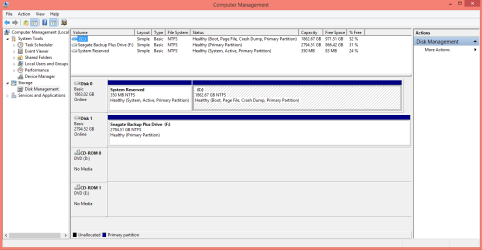
In Disk Management, it says that Boot is on C: partition.

Post a MAXIMIZED screen print of Disk Management
http://www.sevenforums.com/tutorials/274797-disk-management-post-screen-capture-image.html

In Disk Management the partition that shows "Boot" is the partition that the Windows OS is installed on, and currently running.
In Disk Management the partition that shows "System/Active" is where the boot code is, used to boot up the correct Windows OS partition.
Yes, it's confusing...
 

My Computer My Computer

Computer type
PC/Desktop
Computer Manufacturer/Model Number
home built
OS
Multi-Boot W7_Pro_x64 W8.1_Pro_x64 W10_Pro_x64 +Linux_VMs +Chromium_VM
CPU
AMD Athlon II x4 620
Motherboard
Gigabyte GA-MA785G-UD3H
Memory
6GB GSkill DDR2 800
Graphics Card(s)
AMD 4670 GPU + AMD 4200 IGP
Sound Card
on board Realtek ALC889A
Monitor(s) Displays
RCA 40" LCD TV, Insignia 32" LCD TV, HP 15" LCD monitor
Screen Resolution
1680 x 1050
Hard Drives
OCZ Vertex 3 120GB,
Samsung F3 1TB (3),
Several others - WD, Seagate, Hitachi, ...
PSU
Corsair 500 W
Case
Rosewill mid tower
Cooling
CM 90mm rifle
Keyboard
Gyration wireless, Logitech wireless, Dell USB wired
Mouse
Gyration wireless, Logitech wireless, V7 USB wired
Internet Speed
Spectrum - 100Mbps D / 10Mbps U
Antivirus
Avast, MBAM3, EMET, WinPatrol
Browser
Pale Moon, Firefox, IE
Other Info
2 multi-boot PC's
Mainly HTPC/Office/Gen purpose (no gaming).
Trendnet USB KVM.
LG DVD burner/Blue Ray Player.
Tray system for removable SATA backup drives.

Not currently OCd, under-volted.
I use Hybrid sleep, rarely re-boot or shutdown.

Hauppauge HD-PVR, Avermedia PCIe TV Tuner, Hauppauge PCI TV Tuner.
see comments in bold

The full image I was referring to would be the system reserved and C partitions of my drive - that's all there is on my computer. So I was thinking I make one full image and then subsequent images of C partition. So for this particular system of mine.. I just reinstalled Win8Pro on the new HDD then updated to 8.1...it has System Reserved and C. In Disk Management, it says that Boot is on C: partition. So in this case, could I make one complete image (both partitions) and then just update C on a regular basis?

No, I wouldn't do it that way. Here's the problem with your method. Suppose on May 1 you "make one full image", representing both System Reserved and C. Then on May 10, you make an image of C only. Then on May 20, your drive fails. You'd have to restore the May 1 image, not the newer May 10 image because you don't have an image of System Reserved ONLY. If you restore the May 10 image only, it won't boot because that image file does not include the boot files. You could restore the May 1 image and then immediately restore the May 10 image of C, overwriting the May 1 image of C, but why bother going through 2 restoration procedures? Why complicate a procedure that is shaky to begin with? You can't restore just part of an image file (C but not System Reserved). It's all or none.

Take your pic from the following, either would work:

1: ALWAYS make one image file, containing both C and System Reserved. Each and every time, at whatever schedule you want. Restore this single image file when you have issues.

2: Make an image of System Reserved ONLY. Make another image of C ONLY. Don't make more images of System Reserved unless you do something radical like install a dual boot (2 operating systems). Make periodic new images of C ONLY. When disaster strikes, you restore both images, separately.


Then if the boot was on the system reserved partition, I would need to periodically update that image as well? or am I confused....I thought the boot didn't really change...

"Boot" is never going to be on System Reserved. Boot will always be C. That's where Windows lives. C will be changing constantly. System Reserved will rarely if ever change.

To further confuse me, on the ASUS W8.1 machine my friend has, there are 8 partitions (ugh!):
unallocated 1MB

Unallocated space is NOT a partition. It's unallocated space. Your friend has 6 partitions.


win re tools 800MB NTFS
system260MB FAT32
other 128MB reserved
windows C 800.35GB NTFS
D data 112.63GB NTFS
recovery (including install.wim) 17.37GB NTFS
unallocated 7.11KB

I don't have access to it at the moment, so I don't know where the boot files reside. I'm not sure how to tackle this one?

You'd need to look at his Windows Disk Management to decipher things. He'd need to restore C and whatever partition is marked as "system" in order to recover from a drive failure. He COULD restore additional partitions, but they wouldn't be required to get back to a bootable Windows.
 

My Computer My Computer

Computer type
PC/Desktop
Computer Manufacturer/Model Number
Ignatz Special; 4 speed manual gearbox; factory air conditioning; one of one
OS
Windows 7 Home Premium SP1, 64-bit
CPU
Intel Skylake i5-6600K, not overclocked
Motherboard
AsRock Z170M Extreme 4, micro ATX
Memory
8 GB HyperX DDR4-2666 (2 x 4 GB)
Graphics Card(s)
none; graphics are integrated on CPU
Sound Card
onboard: Realtek ALC1150; external: USB Behringer UF0-202
Monitor(s) Displays
Dell S2340M 23 inch IPS
Screen Resolution
1600 x 900
Hard Drives
System: Crucial MX100 series SSD, 128 GB;
Data: Samsung Spinpoint 103SJ, 1 TB;
Backup: WD Caviar Green WD30EZRX-00D8PB0, 3 TB
PSU
Rosewill SilentNight 500 watt fanless, semi-modular
Case
Antec Solo II
Cooling
Noctua NH-U12S; Noctua F12 intake, Noctua S12A exhaust
Keyboard
Microsoft 200 6JH-00001 USB
Mouse
Dell or Microsoft optical wired; USB
Antivirus
Microsoft Security Essentials and Malwarebytes Premium
Browser
Pale Moon
Other Info
All fans PWM; speeds at idle: CPU circa 500 rpm; intake circa 600 rpm; exhaust circa 600 rpm; CPU temps 27 idle and 47 C load in a warm room (27 C/81 F) when running Intel Extreme Tuning Utility stress test.
In Disk Management, it says that Boot is on C: partition.

Post a MAXIMIZED screen print of Disk Management
http://www.sevenforums.com/tutorials/274797-disk-management-post-screen-capture-image.html

In Disk Management the partition that shows "Boot" is the partition that the Windows OS is installed on, and currently running.
In Disk Management the partition that shows "System/Active" is where the boot code is, used to boot up the correct Windows OS partition.
Yes, it's confusing...

YES! Confusing! LOL
 

Attachments

  • disk-management.PNG
    disk-management.PNG
    23.4 KB · Views: 3

My Computer My Computer

Computer type
PC/Desktop
OS
W7 64bit
2: Make an image of System Reserved ONLY. Make another image of C ONLY. Don't make more images of System Reserved unless you do something radical like install a dual boot (2 operating systems). Make periodic new images of C ONLY. When disaster strikes, you restore both images, separately.

"Boot" is never going to be on System Reserved. Boot will always be C. That's where Windows lives. C will be changing constantly. System Reserved will rarely if ever change.

Yes, option #2 makes sense to me now. Thanks for that.
Unallocated space is NOT a partition. It's unallocated space. Your friend has 6 partitions...

You'd need to look at his Windows Disk Management to decipher things. He'd need to restore C and whatever partition is marked as "system" in order to recover from a drive failure. He COULD restore additional partitions, but they wouldn't be required to get back to a bootable Windows.

I will have access to it later next week. I'll have a look and report back. Thanks!
 

My Computer My Computer

Computer type
PC/Desktop
OS
W7 64bit
see comments in bold

You'd need to look at his Windows Disk Management to decipher things. He'd need to restore C and whatever partition is marked as "system" in order to recover from a drive failure. He COULD restore additional partitions, but they wouldn't be required to get back to a bootable Windows.

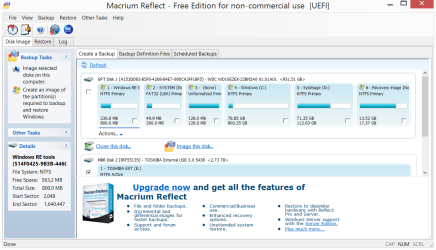
Okay, so here is the info on my friend's machine:
 

Attachments

  • disk-management-knust.PNG
    disk-management-knust.PNG
    81.4 KB · Views: 0
  • macrium-partitions-knust.PNG
    macrium-partitions-knust.PNG
    63.7 KB · Views: 1

My Computer My Computer

Computer type
PC/Desktop
OS
W7 64bit
In Disk Management, it says that Boot is on C: partition.

Post a MAXIMIZED screen print of Disk Management
http://www.sevenforums.com/tutorials/274797-disk-management-post-screen-capture-image.html

In Disk Management the partition that shows "Boot" is the partition that the Windows OS is installed on, and currently running.
In Disk Management the partition that shows "System/Active" is where the boot code is, used to boot up the correct Windows OS partition.
Yes, it's confusing...

I've had a chance to grab screen shots of my friend's machine (above). Any chance of deciphering it, or should I head on over to eightforums?
 

My Computer My Computer

Computer type
PC/Desktop
OS
W7 64bit
Create a Backup Image of the partition periodically. Create a Backup Image EFI System Partition at least once in case that ever gets corrupted. As the EFI System Partition is so small you could also include that partition in the periodic Backup Images. That way you always have it easily available whenever you need to restore the system.
 

My Computer My Computer

Computer type
PC/Desktop
Computer Manufacturer/Model Number
home built
OS
Multi-Boot W7_Pro_x64 W8.1_Pro_x64 W10_Pro_x64 +Linux_VMs +Chromium_VM
CPU
AMD Athlon II x4 620
Motherboard
Gigabyte GA-MA785G-UD3H
Memory
6GB GSkill DDR2 800
Graphics Card(s)
AMD 4670 GPU + AMD 4200 IGP
Sound Card
on board Realtek ALC889A
Monitor(s) Displays
RCA 40" LCD TV, Insignia 32" LCD TV, HP 15" LCD monitor
Screen Resolution
1680 x 1050
Hard Drives
OCZ Vertex 3 120GB,
Samsung F3 1TB (3),
Several others - WD, Seagate, Hitachi, ...
PSU
Corsair 500 W
Case
Rosewill mid tower
Cooling
CM 90mm rifle
Keyboard
Gyration wireless, Logitech wireless, Dell USB wired
Mouse
Gyration wireless, Logitech wireless, V7 USB wired
Internet Speed
Spectrum - 100Mbps D / 10Mbps U
Antivirus
Avast, MBAM3, EMET, WinPatrol
Browser
Pale Moon, Firefox, IE
Other Info
2 multi-boot PC's
Mainly HTPC/Office/Gen purpose (no gaming).
Trendnet USB KVM.
LG DVD burner/Blue Ray Player.
Tray system for removable SATA backup drives.

Not currently OCd, under-volted.
I use Hybrid sleep, rarely re-boot or shutdown.

Hauppauge HD-PVR, Avermedia PCIe TV Tuner, Hauppauge PCI TV Tuner.
Create a Backup Image of the partition periodically. Create a Backup Image EFI System Partition at least once in case that ever gets corrupted. As the EFI System Partition is so small you could also include that partition in the periodic Backup Images. That way you always have it easily available whenever you need to restore the system.[/QUOTE] Thanks David. I also noticed that Macrium have the option to "[I]Create an image of the partition(s) required to backup and restore Windows[/I]". I assume that selection would capture boot, OS and restore partitions - have I got that right? So if a computer had been upgraded to W10 from W7, or W8.1 from W8.0, that would be useless, unless you wanted to go all the way back to original configuration, correct? Thanks so much for your help!
 

My Computer My Computer

Computer type
PC/Desktop
OS
W7 64bit
Back
Top