Solved Word 2016 Search & Replace foreign quotation marks (Guillemets)

Davexxx

New member
Local time
11:02 AM
Messages
18
I have some Italian text which has '<' & '>' (greater than/less than, or Word tags) as quotation marks and which need replacing with respective double Guillemets («»).

However Word 2016 replaces '<' with a double quotation mark '"' rather than a double Guillemet.

I've tried changing the default language to French/Italian, switching off Autocorrect, and entering the characters in search & replace via the Alt/NumLock scheme, but none of these work.

Any suggestions would be welcome. TIA.

Dave.
 

My Computer My Computer

Computer type
PC/Desktop
Computer Manufacturer/Model Number
Quiet PC IcePipe A40
OS
Windows 7 Professional x64
CPU
Intel Core i7 3770K 3.5GHz 77W HD4000 Quad Core CPU
Motherboard
Gigabyte GA-Z77-D3H LGA1155 ATX
Memory
Corsair 16GB (2x8GB) XMS3 DDR3 Memory
Graphics Card(s)
NA
Hard Drives
KingSpec Challenger E3000-240 Enterprise Grade 240GB SATA 3.0 SSD
Antivirus
Vipre, Malwarebytes Anti-Malware Home & Anti-Exploit
Browser
FireFox
Hello Davexxx, and welcome to Seven Forums

Does the font family (font style) support guillemets/chevrons? Presumably, the original document was typed on a computer, in a font that supported guillemets. But then I am assuming from your question, that the document was transfered to a different computer to read, where the symbols were replaced with the double quotation marks.
It could be that the symbols were replaced because this computer has not yet installed, or has removed, the font that supports the special characters that you require, and you maybe reading the document in a substitute font.
 

My Computer My Computer

Computer type
PC/Desktop
OS
Windows 7 x64, Vista x64, 8.1 smartphone
CPU
Intel E8400 65W 64-bit
Motherboard
Gigabyte EP45-UD3LR
Memory
DDR2 2 x 2GB, 1GB x 2
Graphics Card(s)
XFX Radeon HD5750
Sound Card
AMD High Definition Audio; Realtek High Definition Audio
Monitor(s) Displays
iiyama prolite X2377HDS
Screen Resolution
1920 x 1080
Hard Drives
500GB 7200 rpm Seagate ST3500413AS 16MB, 500GB 5400 rpm Toshiba MQ02ABF050H 32MB, 200GB 7200 rpm Seagate ST3200820AS 8MB, 2TB 7200 rpm Western Digital WD20EZRX 64MB
PSU
Enermax Liberty Modular
Case
Antec P193 Midi Tower
Keyboard
Mionix ZIBAL 60
Mouse
Razer USB 2.0 Diamondback Mouse or Huion Graphics Tablet
Browser
Internet Explorer, Lunascape, Firefox, Opera, Avast Safezone
... Does the font family (font style) support guillemets/chevrons? ...


I think so - it's Arial Opentype. The process was:


1) Acrobat X - OCR from image to text
2) Copy text to Windows Notepad (and correct for OCR errors - opening guillemet typically appearing as 'c', and manually converted to '<'; closing guillemet often as '~', ditto '>')
3) Paste corrected Notepad text into Word 2016 doc.
4) Word 2016 - problematic 'Search and Replace'


Dave.
 

My Computer My Computer

Computer type
PC/Desktop
Computer Manufacturer/Model Number
Quiet PC IcePipe A40
OS
Windows 7 Professional x64
CPU
Intel Core i7 3770K 3.5GHz 77W HD4000 Quad Core CPU
Motherboard
Gigabyte GA-Z77-D3H LGA1155 ATX
Memory
Corsair 16GB (2x8GB) XMS3 DDR3 Memory
Graphics Card(s)
NA
Hard Drives
KingSpec Challenger E3000-240 Enterprise Grade 240GB SATA 3.0 SSD
Antivirus
Vipre, Malwarebytes Anti-Malware Home & Anti-Exploit
Browser
FireFox
I did a bit of searching around the web.

In the Unicode standard, the character symbols are known respectively as "Left-Pointing Double Angle Quotation Mark" and "Right-Pointing Double Angle Quotation Mark". From there, I discovered this Microsoft Document: Unicode Symbol Reference (Short)

You can copy-paste the two punctuation marks from that document, and resize as desired. Otherwise, you can enter the characters by using Alt+X:
In your document, type the hexadecimal code immediately followed by pressing Alt+X. That succeeds in my Word, and I am using English default language.
Hope that helps.

BTW the Fonts supporting these character symbols are listed here: Font Support
 

My Computer My Computer

Computer type
PC/Desktop
OS
Windows 7 x64, Vista x64, 8.1 smartphone
CPU
Intel E8400 65W 64-bit
Motherboard
Gigabyte EP45-UD3LR
Memory
DDR2 2 x 2GB, 1GB x 2
Graphics Card(s)
XFX Radeon HD5750
Sound Card
AMD High Definition Audio; Realtek High Definition Audio
Monitor(s) Displays
iiyama prolite X2377HDS
Screen Resolution
1920 x 1080
Hard Drives
500GB 7200 rpm Seagate ST3500413AS 16MB, 500GB 5400 rpm Toshiba MQ02ABF050H 32MB, 200GB 7200 rpm Seagate ST3200820AS 8MB, 2TB 7200 rpm Western Digital WD20EZRX 64MB
PSU
Enermax Liberty Modular
Case
Antec P193 Midi Tower
Keyboard
Mionix ZIBAL 60
Mouse
Razer USB 2.0 Diamondback Mouse or Huion Graphics Tablet
Browser
Internet Explorer, Lunascape, Firefox, Opera, Avast Safezone
Many thanks - Unicode Symbol Reference (Short) is useful, interestingly, it seems to omit both '<' and '>' characters ! (the characters to replace).

Dave.
 

My Computer My Computer

Computer type
PC/Desktop
Computer Manufacturer/Model Number
Quiet PC IcePipe A40
OS
Windows 7 Professional x64
CPU
Intel Core i7 3770K 3.5GHz 77W HD4000 Quad Core CPU
Motherboard
Gigabyte GA-Z77-D3H LGA1155 ATX
Memory
Corsair 16GB (2x8GB) XMS3 DDR3 Memory
Graphics Card(s)
NA
Hard Drives
KingSpec Challenger E3000-240 Enterprise Grade 240GB SATA 3.0 SSD
Antivirus
Vipre, Malwarebytes Anti-Malware Home & Anti-Exploit
Browser
FireFox
Yes, they are both in there, otherwise I would not have recommended you read the document. They are in a tiny 6 point font, which could prove difficult for some folk. You can zoom in or otherwise enlarge the font of the entire document.

Anyhow, LEFT-POINTING DOUBLE ANGLE QUOTATION MARK is at 00AB and RIGHT-POINTING DOUBLE ANGLE QUOTATION MARK is at 00BB.

So copy these for future reference, or in your word processor, type 00AB followed by ALT X, and type 00BB followed by ALT X.

Here they are again '«' and '»' look. These characters were obtained by copy from document and paste into the online text editor.
 

My Computer My Computer

Computer type
PC/Desktop
OS
Windows 7 x64, Vista x64, 8.1 smartphone
CPU
Intel E8400 65W 64-bit
Motherboard
Gigabyte EP45-UD3LR
Memory
DDR2 2 x 2GB, 1GB x 2
Graphics Card(s)
XFX Radeon HD5750
Sound Card
AMD High Definition Audio; Realtek High Definition Audio
Monitor(s) Displays
iiyama prolite X2377HDS
Screen Resolution
1920 x 1080
Hard Drives
500GB 7200 rpm Seagate ST3500413AS 16MB, 500GB 5400 rpm Toshiba MQ02ABF050H 32MB, 200GB 7200 rpm Seagate ST3200820AS 8MB, 2TB 7200 rpm Western Digital WD20EZRX 64MB
PSU
Enermax Liberty Modular
Case
Antec P193 Midi Tower
Keyboard
Mionix ZIBAL 60
Mouse
Razer USB 2.0 Diamondback Mouse or Huion Graphics Tablet
Browser
Internet Explorer, Lunascape, Firefox, Opera, Avast Safezone
Thanks, again.

I don't think that the characters below are '<' and '>' (they cannot be found in the text by searching for '<' and '>' in Unicode Symbol Reference (Short)):

227A ≺ PRECEDES
227B ≻ SUCCEEDS

Dave.

PS I wonder whether the fact that '<' and '>' are Word tags is at the root of this ?
 

My Computer My Computer

Computer type
PC/Desktop
Computer Manufacturer/Model Number
Quiet PC IcePipe A40
OS
Windows 7 Professional x64
CPU
Intel Core i7 3770K 3.5GHz 77W HD4000 Quad Core CPU
Motherboard
Gigabyte GA-Z77-D3H LGA1155 ATX
Memory
Corsair 16GB (2x8GB) XMS3 DDR3 Memory
Graphics Card(s)
NA
Hard Drives
KingSpec Challenger E3000-240 Enterprise Grade 240GB SATA 3.0 SSD
Antivirus
Vipre, Malwarebytes Anti-Malware Home & Anti-Exploit
Browser
FireFox
Lets talk through the steps.
Copy the "»" character into the clipboard.
Grab your word document, and select Replace from the menu.
When the Replace dialog box appears, Type "~" into the Find what field.
Next, Paste the contents of the clipboard into the Replace with field.
Finally select Replace All, and let the Word Processor do the work.

Repeat for the "«" character. You say the "«" gets recognised as a "c". This is a little more tricky, as "c" is quite a common character. Your document probably contains lots of "c" that do not mean "«". So you have to adapt the procedure fractionally, to Find Next then Replace.
Copy the "«" character into the clipboard.
Grab your word document, and select Replace from the menu.
When the Replace dialog box appears, type "C" into the Find what field.
Next, Paste the contents of the clipboard into the Replace with field .
Then, (-this is the different bit-) select Find Next button.
When the WP has found a "c", you have to ask yourself if it is a "«"? If the answer is "yes", then select Replace. Otherwise, select Find Next again, until the entire Document has been searched.

Following this procedure will allow you to search & replace with the '«' and '»' characters.
 

My Computer My Computer

Computer type
PC/Desktop
OS
Windows 7 x64, Vista x64, 8.1 smartphone
CPU
Intel E8400 65W 64-bit
Motherboard
Gigabyte EP45-UD3LR
Memory
DDR2 2 x 2GB, 1GB x 2
Graphics Card(s)
XFX Radeon HD5750
Sound Card
AMD High Definition Audio; Realtek High Definition Audio
Monitor(s) Displays
iiyama prolite X2377HDS
Screen Resolution
1920 x 1080
Hard Drives
500GB 7200 rpm Seagate ST3500413AS 16MB, 500GB 5400 rpm Toshiba MQ02ABF050H 32MB, 200GB 7200 rpm Seagate ST3200820AS 8MB, 2TB 7200 rpm Western Digital WD20EZRX 64MB
PSU
Enermax Liberty Modular
Case
Antec P193 Midi Tower
Keyboard
Mionix ZIBAL 60
Mouse
Razer USB 2.0 Diamondback Mouse or Huion Graphics Tablet
Browser
Internet Explorer, Lunascape, Firefox, Opera, Avast Safezone
Many thanks for the persistence - I suspect we're talking at cross-purposes.

A text sample: <portici e stanze>

which needs to look like: «portici e stanze»

but Word 'Search and Replace' produces: "portici e stanze"

Dave.
 

My Computer My Computer

Computer type
PC/Desktop
Computer Manufacturer/Model Number
Quiet PC IcePipe A40
OS
Windows 7 Professional x64
CPU
Intel Core i7 3770K 3.5GHz 77W HD4000 Quad Core CPU
Motherboard
Gigabyte GA-Z77-D3H LGA1155 ATX
Memory
Corsair 16GB (2x8GB) XMS3 DDR3 Memory
Graphics Card(s)
NA
Hard Drives
KingSpec Challenger E3000-240 Enterprise Grade 240GB SATA 3.0 SSD
Antivirus
Vipre, Malwarebytes Anti-Malware Home & Anti-Exploit
Browser
FireFox
That's okay, I do this sort of thing frequently with scientific symbols. However it looks like we are talking cross purposes fractionally.

Lets see if we can iron it out. Firstly, there is no such thing as 'Search and Replace' in Word. It has always been called Find and Replace. Secondly, what are you putting into the 'Replace with' box?
 

My Computer My Computer

Computer type
PC/Desktop
OS
Windows 7 x64, Vista x64, 8.1 smartphone
CPU
Intel E8400 65W 64-bit
Motherboard
Gigabyte EP45-UD3LR
Memory
DDR2 2 x 2GB, 1GB x 2
Graphics Card(s)
XFX Radeon HD5750
Sound Card
AMD High Definition Audio; Realtek High Definition Audio
Monitor(s) Displays
iiyama prolite X2377HDS
Screen Resolution
1920 x 1080
Hard Drives
500GB 7200 rpm Seagate ST3500413AS 16MB, 500GB 5400 rpm Toshiba MQ02ABF050H 32MB, 200GB 7200 rpm Seagate ST3200820AS 8MB, 2TB 7200 rpm Western Digital WD20EZRX 64MB
PSU
Enermax Liberty Modular
Case
Antec P193 Midi Tower
Keyboard
Mionix ZIBAL 60
Mouse
Razer USB 2.0 Diamondback Mouse or Huion Graphics Tablet
Browser
Internet Explorer, Lunascape, Firefox, Opera, Avast Safezone

My Computer My Computer

Computer type
PC/Desktop
Computer Manufacturer/Model Number
Quiet PC IcePipe A40
OS
Windows 7 Professional x64
CPU
Intel Core i7 3770K 3.5GHz 77W HD4000 Quad Core CPU
Motherboard
Gigabyte GA-Z77-D3H LGA1155 ATX
Memory
Corsair 16GB (2x8GB) XMS3 DDR3 Memory
Graphics Card(s)
NA
Hard Drives
KingSpec Challenger E3000-240 Enterprise Grade 240GB SATA 3.0 SSD
Antivirus
Vipre, Malwarebytes Anti-Malware Home & Anti-Exploit
Browser
FireFox
Read Repair an Office Application and choose your Operating System from the Tabs: support.office.com
 

My Computer My Computer

Computer type
PC/Desktop
OS
Windows 7 x64, Vista x64, 8.1 smartphone
CPU
Intel E8400 65W 64-bit
Motherboard
Gigabyte EP45-UD3LR
Memory
DDR2 2 x 2GB, 1GB x 2
Graphics Card(s)
XFX Radeon HD5750
Sound Card
AMD High Definition Audio; Realtek High Definition Audio
Monitor(s) Displays
iiyama prolite X2377HDS
Screen Resolution
1920 x 1080
Hard Drives
500GB 7200 rpm Seagate ST3500413AS 16MB, 500GB 5400 rpm Toshiba MQ02ABF050H 32MB, 200GB 7200 rpm Seagate ST3200820AS 8MB, 2TB 7200 rpm Western Digital WD20EZRX 64MB
PSU
Enermax Liberty Modular
Case
Antec P193 Midi Tower
Keyboard
Mionix ZIBAL 60
Mouse
Razer USB 2.0 Diamondback Mouse or Huion Graphics Tablet
Browser
Internet Explorer, Lunascape, Firefox, Opera, Avast Safezone
Thanks - I've repaired Office 2016 (online), but unfortunately no improvement.

However, a solution is to use Word AutoCorrect, e.g. '<' automatically replaced with '«' as you type.

Dave.
 

My Computer My Computer

Computer type
PC/Desktop
Computer Manufacturer/Model Number
Quiet PC IcePipe A40
OS
Windows 7 Professional x64
CPU
Intel Core i7 3770K 3.5GHz 77W HD4000 Quad Core CPU
Motherboard
Gigabyte GA-Z77-D3H LGA1155 ATX
Memory
Corsair 16GB (2x8GB) XMS3 DDR3 Memory
Graphics Card(s)
NA
Hard Drives
KingSpec Challenger E3000-240 Enterprise Grade 240GB SATA 3.0 SSD
Antivirus
Vipre, Malwarebytes Anti-Malware Home & Anti-Exploit
Browser
FireFox
You can use WordPad Find & Replace as a solution. You do not need Office 2016, to do this.

WordPad would accept a '<' in the Find what box; and a '«' in the Replace with box. And WordPad will succeed with a correct replacement.

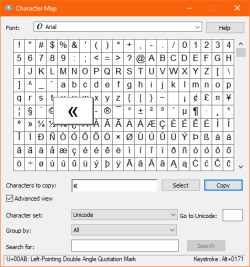
You can use Character Map to obtain the initial '«' and '»' characters.

Character map.PNG

From Character Map, click on the character you wish to copy and then click Copy. Then click Paste into the WordPad editor's Replace with box.
 

My Computer My Computer

Computer type
PC/Desktop
OS
Windows 7 x64, Vista x64, 8.1 smartphone
CPU
Intel E8400 65W 64-bit
Motherboard
Gigabyte EP45-UD3LR
Memory
DDR2 2 x 2GB, 1GB x 2
Graphics Card(s)
XFX Radeon HD5750
Sound Card
AMD High Definition Audio; Realtek High Definition Audio
Monitor(s) Displays
iiyama prolite X2377HDS
Screen Resolution
1920 x 1080
Hard Drives
500GB 7200 rpm Seagate ST3500413AS 16MB, 500GB 5400 rpm Toshiba MQ02ABF050H 32MB, 200GB 7200 rpm Seagate ST3200820AS 8MB, 2TB 7200 rpm Western Digital WD20EZRX 64MB
PSU
Enermax Liberty Modular
Case
Antec P193 Midi Tower
Keyboard
Mionix ZIBAL 60
Mouse
Razer USB 2.0 Diamondback Mouse or Huion Graphics Tablet
Browser
Internet Explorer, Lunascape, Firefox, Opera, Avast Safezone
Back
Top