I have a laptop which gets connected to the internet via an ethernet cable.
And I'm trying to use the laptop to create a Wi-Fi hotspot. Ordinarily when I create a wi-fi network, other devices simply won't connect to it.
So in the Network and Sharing Center, I go to "Change adapter settings" in the left hand menu. I go to the "Wireless Network Connection #" which is labelled with the wireless hardware name.
This connection is also the one under which all the available wi-fi networks in the taskbar menu appear.
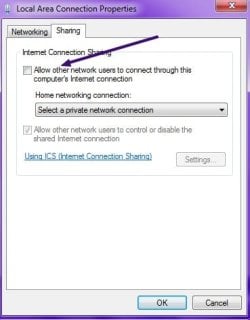
I right-click on it to access the properties, and go to the "Sharing" tab. There's an option to "Allow other network users to connect through this computer's Internet connection".
It requires me to select a "Home networking connection", and I'm not sure what to select. If I select "Local Area Connection", my ethernet internet connection gets disconnected, rendering the whole thing moot
I've tried looking at online tutorials but their menus don't have the Home networking connection option. In fact in this online tutorial, the menu's tabs are labelled "General" and "Advanced", while I see that my tabs are labelled "Networking" and "Sharing".
And I'm trying to use the laptop to create a Wi-Fi hotspot. Ordinarily when I create a wi-fi network, other devices simply won't connect to it.
So in the Network and Sharing Center, I go to "Change adapter settings" in the left hand menu. I go to the "Wireless Network Connection #" which is labelled with the wireless hardware name.
This connection is also the one under which all the available wi-fi networks in the taskbar menu appear.
I right-click on it to access the properties, and go to the "Sharing" tab. There's an option to "Allow other network users to connect through this computer's Internet connection".
It requires me to select a "Home networking connection", and I'm not sure what to select. If I select "Local Area Connection", my ethernet internet connection gets disconnected, rendering the whole thing moot
I've tried looking at online tutorials but their menus don't have the Home networking connection option. In fact in this online tutorial, the menu's tabs are labelled "General" and "Advanced", while I see that my tabs are labelled "Networking" and "Sharing".
My Computers
-
At a glance
Windows 7 Home Premium x64- OS
- Windows 7 Home Premium x64
-
- Computer type
- PC/Desktop