restoring SEVEN boot in dual boot XP/SEVEN

jaca

New member
Member
Local time
7:36 PM
Messages
36
Location
Brasil
I am using Win XP + 7 in dual boot, because there was a program that did not run well on Win 7, only on XP. After a thousand experiments, could make it run well on Win 7. I now want to uninstall XP. Can I do this with the partitioner, formatting the partition that contains XP.
I am in doubt if it will not make me lose the boot of Win7.
If this happens, the commands fixboot and fixmbr work? ... There are other commands for this?

Just in time: Microsoft says in SEVEN Help: You can not uninstall an old OS without damaging SEVEN...
 

My Computer My Computer

At a glance

SEVEN ultimate 64bitsAMD Phenom II4GNVidia 9500
OS
SEVEN ultimate 64bits
CPU
AMD Phenom II
Motherboard
M5A78
Memory
4G
Graphics Card(s)
NVidia 9500
Internet Speed
1M
We help do them here every day.

Please post back a screenshot of your full DIsk Management drive map so we can advise you better of the needed steps. Use the Snipping Tool in Start Menu and attaching the file using paper clip in reply box.

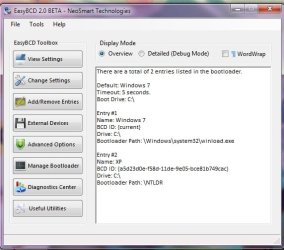
You will need the excellent tool EasyBCD. Please install it to also include a screenshot of its front-panel listings.

View attachment 44370
 
I am using Win XP + 7 in dual boot, because there was a program that did not run well on Win 7, only on XP. After a thousand experiments, could make it run well on Win 7. I now want to uninstall XP. Can I do this with the partitioner, formatting the partition that contains XP.
I am in doubt if it will not make me lose the boot of Win7.
If this happens, the commands fixboot and fixmbr work? ... There are other commands for this?

Just in time: Microsoft says in SEVEN Help: You can not uninstall an old OS without damaging SEVEN...

Hi Jaca! Welcome to SevenForums! If you installed Seven first, then all of the boot and MBR files are on Seven's partition and wiping XP will not affect the MBR.

   Warning
If you still have an XP option at boot, download and install EasyBCD, choose Add/Remove Entries from the Sidebar, select XP from the list and click delete. When you reboot XP shall be GONE! :D


ZeshanA
If I helped, please click the scales at the top right of my post.
 
I made the removal of XP through EasyBCD and then formatted that partition. Okay. The next step was to merge the two partitions (seven + XP) and then everything stopped working. The only alternative was a complete reinstallation of the Seven. It gave work, but is well now
 

My Computer My Computer

At a glance

SEVEN ultimate 64bitsAMD Phenom II4GNVidia 9500
OS
SEVEN ultimate 64bits
CPU
AMD Phenom II
Motherboard
M5A78
Memory
4G
Graphics Card(s)
NVidia 9500
Internet Speed
1M
I made the removal of XP through EasyBCD and then formatted that partition. Okay. The next step was to merge the two partitions (seven + XP) and then everything stopped working. The only alternative was a complete reinstallation of the Seven. It gave work, but is well now

Sorry you didn't post back the requested screenshots of Disk Management and EasyBCD listings. We could have advised you the easy steps. We do this every day here.

We would have shown you how merging or resizing operations require the partition to be marked active first, then boot into the Win7 DVD to run Startup Repair 3 times to repair the MBR which has been moved.
 
Sorry, I was (deadly) anxious...
 

My Computer My Computer

At a glance

SEVEN ultimate 64bitsAMD Phenom II4GNVidia 9500
OS
SEVEN ultimate 64bits
CPU
AMD Phenom II
Motherboard
M5A78
Memory
4G
Graphics Card(s)
NVidia 9500
Internet Speed
1M
We help do them here every day.

Please post back a screenshot of your full DIsk Management drive map so we can advise you better of the needed steps. Use the Snipping Tool in Start Menu and attaching the file using paper clip in reply box.

You will need the excellent tool EasyBCD. Please install it to also include a screenshot of its front-panel listings.

View attachment 44370

Jonathan.............. Why do you need to do it three times? I had to do it 3 times myself once, but I never understood why???

ZeshanA
 
Why do you need to do it three times? I had to do it 3 times myself once, but I never understood why???

As I understand it: Startup Repair in Win7 automates all bootsect and bootrect recovery commands, but only runs them after completing all of it's myriad tests and fixes. You can see the list on the log it produces when prompting for reboot.

It assumes that a given fix will work until the user returns for another.

So it may run all tests, then run bootrec /fixboot + bootrec /fixmbr, prompt for reboot.

However in a dual boot extraction where MBR has been removed, this may not be enough so it will next run bootsect command which will normally start Win7.

Win7 will often restart in two reboots in above scenario, however Startup Repair may have found another issue and tried a repair earlier not related to bootrec and bootsect so it can often be three total times before it works.

When no installation shows to repair, Startup Repair will sometimes not work. I have gotten it to discover the installation to repair by manually running the bootrec and bootsect commands. Strange, but true.
 
Uau, you are the men! congratulations, good teaching
 

My Computer My Computer

At a glance

SEVEN ultimate 64bitsAMD Phenom II4GNVidia 9500
OS
SEVEN ultimate 64bits
CPU
AMD Phenom II
Motherboard
M5A78
Memory
4G
Graphics Card(s)
NVidia 9500
Internet Speed
1M
I made the removal of XP through EasyBCD and then formatted that partition. Okay. The next step was to merge the two partitions (seven + XP) and then everything stopped working. The only alternative was a complete reinstallation of the Seven. It gave work, but is well now

Sorry you didn't post back the requested screenshots of Disk Management and EasyBCD listings. We could have advised you the easy steps. We do this every day here.

We would have shown you how merging or resizing operations require the partition to be marked active first, then boot into the Win7 DVD to run Startup Repair 3 times to repair the MBR which has been moved.

I would like to return to this subject, so I'm in a similar situation. Would appreciate your guidance. To this end, I attached files, as you suggested anpther day ...
 

Attachments

  • disk1.jpg
    disk1.jpg
    63.2 KB · Views: 22
  • easy1.jpg
    easy1.jpg
    38 KB · Views: 32

My Computer My Computer

At a glance

SEVEN ultimate 64bitsAMD Phenom II4GNVidia 9500
OS
SEVEN ultimate 64bits
CPU
AMD Phenom II
Motherboard
M5A78
Memory
4G
Graphics Card(s)
NVidia 9500
Internet Speed
1M
Since you had it repaired once, perhaps you should restate your request? Are you trying to get rid of XP again?
 

My Computer My Computer

At a glance

Windows 7 x64i7-2600K8 GGTX 480
Computer Manufacturer/Model Number
Homebuilt
OS
Windows 7 x64
CPU
i7-2600K
Motherboard
Asus P8Z77-v Pro
Memory
8 G
Graphics Card(s)
GTX 480
Sound Card
Onboard
Monitor(s) Displays
LG W2753V
Screen Resolution
1920x1080
Hard Drives
Crucial M4 128 G SSD
If you wish to remove XP, Delete it in Win7 Disk Management, then extend Win7 partition into the unallocated space resulting from the delete, make a new partition, or use a Partition Manager to add it to your Data partition on the right.

If the Dual Boot Menu remains, remove the XP listing in EasyBCD Add/Remove tab, or on the msconfig Boot tab.
 
So, following these steps, can I assume I'll be able to boot with the Seven, in the end? :eek:
 

My Computer My Computer

At a glance

SEVEN ultimate 64bitsAMD Phenom II4GNVidia 9500
OS
SEVEN ultimate 64bits
CPU
AMD Phenom II
Motherboard
M5A78
Memory
4G
Graphics Card(s)
NVidia 9500
Internet Speed
1M
If you merely delete the XP partition, it should not affect Win7 boot at all since C holds the System MBR.

Always have your Win7 DVD or Repair CD handy so you can do an emergency repair if Win7 fails to boot.

If you want to resize Win7 into the XP space, it's possible the MBR will need to be repaired. You achieve this by booting the Win7 DVD repair console or Repair CD, clicking through to Recovery Tools list to run Startup Repair up to 3 separate times with reboots until Win7 starts.

I cannot see all of the labels on the C drive to see if it is marked Active. If not, it may need to be marked active during this process using Diskpart commands from the DVD/CD or a 3rd party Partition Manager like free Partition Wizard bootable CD which is the best one for Win7.
 
I followed the following steps:
- Exclusion volume of XP
-Delete XP Boot with EasyCD
- created partition and formatted it
- Merge with C:

Worked
 

My Computer My Computer

At a glance

SEVEN ultimate 64bitsAMD Phenom II4GNVidia 9500
OS
SEVEN ultimate 64bits
CPU
AMD Phenom II
Motherboard
M5A78
Memory
4G
Graphics Card(s)
NVidia 9500
Internet Speed
1M
Back
Top