Half of my hard drive partition disappeared

JamesW7

New member
Local time
1:01 PM
Messages
2
Half of my hard drive partitions disappeared

Greeting, I booted up my computer and I found out that a lot of my hard drive partitions have disappeared for no reason, yet the other partitions are still intact. According to Disk Management, the partitions somehow turned into free space.

10458434_771460209582178_454639990461547349_n.jpg


1379612_771457732915759_5513113471116612606_n.jpg


10659381_771460516248814_152929565212834200_n.jpg


Please help!
 
Last edited:

My Computer My Computer

At a glance

Windows 7 Ultimate 32-bitAMD Athlon x4 740 Quad Core Processor
Computer type
PC/Desktop
Computer Manufacturer/Model Number
Custom build
OS
Windows 7 Ultimate 32-bit
CPU
AMD Athlon x4 740 Quad Core Processor
Motherboard
BIOSTAR Hi-Fi A85X
Hard Drives
ST1000DM003-1CH162 ATA Device
Antivirus
AVG Free Edition 2014
Browser
Google Chrome

My Computer My Computer

At a glance

Vista, Windows7, Mint Mate, Zorin, Windows 8from 1.6GHz Duo to i7
Computer Manufacturer/Model Number
HP, Dell, Gateway, Toshiba - 4 laptops and 2 desktops
OS
Vista, Windows7, Mint Mate, Zorin, Windows 8
CPU
from 1.6GHz Duo to i7
Monitor(s) Displays
2x HP w2207
Hard Drives
5x HDD, 7x SSD, 12x Externals
Keyboard
with trackball - no mices
Mouse
Trackball mice
Internet Speed
DSL 6000
It seems that I accidentally deleted the partitions, but MiniTool Power Data Recovery only lets me recover 1 GB of data while I have to recover around 200 GB of data, are there any free alternatives?
 

My Computer My Computer

At a glance

Windows 7 Ultimate 32-bitAMD Athlon x4 740 Quad Core Processor
Computer type
PC/Desktop
Computer Manufacturer/Model Number
Custom build
OS
Windows 7 Ultimate 32-bit
CPU
AMD Athlon x4 740 Quad Core Processor
Motherboard
BIOSTAR Hi-Fi A85X
Hard Drives
ST1000DM003-1CH162 ATA Device
Antivirus
AVG Free Edition 2014
Browser
Google Chrome
Hi,

Why are you clicking on and Running MiniTool Power Data recovery?

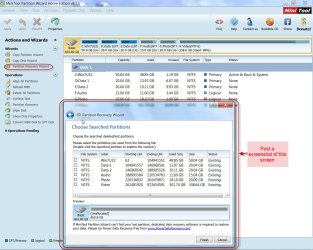
You have to click on MiniTool Partition Wizard and run Partition Recovery Wizard. ( Remove all other external drives/pen drives)

Select your drive. ( If no other drive is connected, and you have only the system drive on your machine that would have been selected automatically)

Partition Recovery Wizard > Next > Next > Full Disk > Next > Quick Scan > Next.

At this point the resulting screen should show all your partitions detected .Post a screenshot of that screen.

05-10-2014 09-31-46.jpg

Select all the partitions that were there originally on your drive by putting a tick mark against those.

(If in doubt wait for further instructions but a screenshot as above is necessary).

Then the preview map at the bottom should turn from "Unallocated" and show your Drive with all partitions without any gap as before.

Click on Finish and then in the Main Screen click on APPLY.

If those partitions do not have a drive letter, right click on those, assign a drive letter and click on Apply.
 

My Computer My Computer

At a glance

Windows 7 Home Premium 32 bit
OS
Windows 7 Home Premium 32 bit
Back
Top