Solved Word 2010: how do I change default viewing zoom of document?

Athene

New member
Local time
6:29 PM
Messages
2,069
I have got Microsoft Office 2010 installed on Windows Vista and on Windows 7, and when I open a document in Word, I would like to view it at a zoom of 100% instead of the default zoom of 150%. I tried to follow the instructions over here in order to reduce the zoom permanently, but the macros simply disappear each time I close Word and open it again. I also followed the idiot's guide to installing macros as indicated in the link above, and the macros worked...but as mentioned before, they refuse to stick around.

What do I do in order to prevent the macros from disappearing?

Thanks in advance for your help :)
 

My Computer My Computer

At a glance

-
OS
-
i've never needed macros - i use the zoom slider at the bottom-right of the document window.

with saved documents, it seems that the zoom level is saved with the file - so if you saved at 100%, it will open later at 100%.

to set the level for new blank documents, use the slider, then close down word - the next new document will appear at that same level, with no need to save.

that's how it works for me, anyway.

just tested, and it keeps the level after a reboot too.
 

My Computer My Computer

At a glance

ultimate 64 sp1i5 2500K [email protected]8 gigs GSkill Ripjaws 1600amd hd6950
Computer Manufacturer/Model Number
mickey megabyte 1234
OS
ultimate 64 sp1
CPU
i5 2500K [email protected]
Motherboard
MSI P67A-GD53
Memory
8 gigs GSkill Ripjaws 1600
Graphics Card(s)
amd hd6950
Sound Card
creative x-fi gamer
Monitor(s) Displays
samsung 24"
Screen Resolution
1920x1080
Hard Drives
ocz vertex 2e 60 gig, samsung f3 1tb, buffalo 2tb ext
PSU
antec 550
Case
antec three hundred
Cooling
i'm a cooling fan
Keyboard
saitek eclipse ii
Mouse
logitech g3
Internet Speed
about 4 Mbps
Other Info
i love win7
i've never needed macros - i use the zoom slider at the bottom-right of the document window.

with saved documents, it seems that the zoom level is saved with the file - so if you saved at 100%, it will open later at 100%.

to set the level for new blank documents, use the slider, then close down word - the next new document will appear at that same level, with no need to save.

that's how it works for me, anyway.

just tested, and it keeps the level after a reboot too.

That's the issue: I work as a translator and proofreader, and people send me their documents, so when I open them, they open according to the zoom settings (and usually they're always bigger than 100%) under which the other person saved them, not according to mine, the slider only seems to work for the currently opened session in Word.
 

My Computer My Computer

At a glance

-
OS
-
ah, i'm sorry.

in that case, i'm not very experienced in macros.

hopefully somebody else will be along soon with more knowledge.
 

My Computer My Computer

At a glance

ultimate 64 sp1i5 2500K [email protected]8 gigs GSkill Ripjaws 1600amd hd6950
Computer Manufacturer/Model Number
mickey megabyte 1234
OS
ultimate 64 sp1
CPU
i5 2500K [email protected]
Motherboard
MSI P67A-GD53
Memory
8 gigs GSkill Ripjaws 1600
Graphics Card(s)
amd hd6950
Sound Card
creative x-fi gamer
Monitor(s) Displays
samsung 24"
Screen Resolution
1920x1080
Hard Drives
ocz vertex 2e 60 gig, samsung f3 1tb, buffalo 2tb ext
PSU
antec 550
Case
antec three hundred
Cooling
i'm a cooling fan
Keyboard
saitek eclipse ii
Mouse
logitech g3
Internet Speed
about 4 Mbps
Other Info
i love win7
ah, i'm sorry.

in that case, i'm not very experienced in macros.

hopefully somebody else will be along soon with more knowledge.

I think I figured it out; the macro text described over here has to be pasted into one macro - since the poster was talking of macros, I was trying to create them separately; when I stuffed the whole chunk into one macro, the two macros were automatically split up and generated, one called AutoOpen and the other AutoNew...It seems to be working now, they no longer disappear alternately after I close Word and open it again...*scratches head* :sarc: :D

Thanks for helping, and the slider does seem to help when it comes to opening Word (not a document, though) and zooming into the blank document at the desired ratio.
 

My Computer My Computer

At a glance

-
OS
-
The problem you face is that the AutoOpen macro is reserved for the current workbook only. AutoNew is the correct syntax if you wish for new workbooks to open in a particular macro in effect (see code below)...

Code:
Sub AutoNew()
'
    ActiveDocument.ShowRevisions = False
'
' Zoom to page width
'
    ActiveWindow.ActivePane.View.Zoom = 100
'
End Sub


OS
 

My Computer My Computer

At a glance

Windows 7 Ultimate x64AMD Sempron Dual Core3GBNVIDIA GeForce 6150SE nForce 430
Computer Manufacturer/Model Number
Compaq Desktop
OS
Windows 7 Ultimate x64
CPU
AMD Sempron Dual Core
Memory
3GB
Graphics Card(s)
NVIDIA GeForce 6150SE nForce 430
Screen Resolution
1024x768
Hard Drives
150GB Sata
I think I figured it out; the macro text described over here has to be pasted into one macro - since the poster was talking of macros, I was trying to create them separately; when I stuffed the whole chunk into one macro, the two macros were automatically split up and generated, one called AutoOpen and the other AutoNew...It seems to be working now, they no longer disappear alternately after I close Word and open it again...*scratches head* :sarc: :D

Thanks for helping, and the slider does seem to help when it comes to opening Word (not a document, though) and zooming into the blank document at the desired ratio.

You got there before me ;)
 

My Computer My Computer

At a glance

Windows 7 Ultimate x64AMD Sempron Dual Core3GBNVIDIA GeForce 6150SE nForce 430
Computer Manufacturer/Model Number
Compaq Desktop
OS
Windows 7 Ultimate x64
CPU
AMD Sempron Dual Core
Memory
3GB
Graphics Card(s)
NVIDIA GeForce 6150SE nForce 430
Screen Resolution
1024x768
Hard Drives
150GB Sata
I think I figured it out; the macro text described over here has to be pasted into one macro - since the poster was talking of macros, I was trying to create them separately; when I stuffed the whole chunk into one macro, the two macros were automatically split up and generated, one called AutoOpen and the other AutoNew...It seems to be working now, they no longer disappear alternately after I close Word and open it again...*scratches head* :sarc: :D

Thanks for helping, and the slider does seem to help when it comes to opening Word (not a document, though) and zooming into the blank document at the desired ratio.

You got there before me ;)

:D I tried out your code, it works when I open Word and then go to "File" and "New" (am translating from German), but when opening Word, which then automatically creates a blank document, said blank document or any other previously created document refuse to adapt to the zoom of 100%. Ticklish stuff, this macro business :-D I am still wondering why the whole text of the AutoNew and AutoOpen macros had to be copied to one macro, and how they were automatically generated separately after they were created...

In addition, opening/viewing documents from an online source in protected mode has to be deactivated, otherwise a Microsoft Visual Basic error box pops up, saying (I'm translating again) "runtime error '4248': This command is not available because no document is opened".
 

My Computer My Computer

At a glance

-
OS
-
If you enter the following code into a new macro in a new document then save it as a template (normal.dot) it should automatically invoke when you open word...

Code:
Sub AutoOpen()
 
ActiveWindow.View.Type = 3 'print layout
ActiveWindow.View.Zoom.Percentage = 100
 
End Sub

 
Sub AutoNew()
 
ActiveWindow.View.Type = 3 'print layout
ActiveWindow.View.Zoom.Percentage = 100
 
End Sub
 

My Computer My Computer

At a glance

Windows 7 Ultimate x64AMD Sempron Dual Core3GBNVIDIA GeForce 6150SE nForce 430
Computer Manufacturer/Model Number
Compaq Desktop
OS
Windows 7 Ultimate x64
CPU
AMD Sempron Dual Core
Memory
3GB
Graphics Card(s)
NVIDIA GeForce 6150SE nForce 430
Screen Resolution
1024x768
Hard Drives
150GB Sata
If you enter the following code into a new macro in a new document then save it as a template (normal.dot) it should automatically invoke when you open word...

Code:
Sub AutoOpen()
 
ActiveWindow.View.Type = 3 'print layout
ActiveWindow.View.Zoom.Percentage = 100
 
End Sub

 
Sub AutoNew()
 
ActiveWindow.View.Type = 3 'print layout
ActiveWindow.View.Zoom.Percentage = 100
 
End Sub

Thank you so much :D Er, just one more question...how do I save (the document or the macro?) as a template?
 

My Computer My Computer

At a glance

-
OS
-
The whole document, including the macro. Once you exit the VB editor the macro will be available and will save along with the current document.
 

My Computer My Computer

At a glance

Windows 7 Ultimate x64AMD Sempron Dual Core3GBNVIDIA GeForce 6150SE nForce 430
Computer Manufacturer/Model Number
Compaq Desktop
OS
Windows 7 Ultimate x64
CPU
AMD Sempron Dual Core
Memory
3GB
Graphics Card(s)
NVIDIA GeForce 6150SE nForce 430
Screen Resolution
1024x768
Hard Drives
150GB Sata
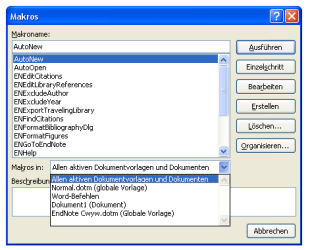
Okay, I guess I've got to choose "normal.dotm" from the dropdown list? Thanks for being so patient with a complete macro-newbie :D
 

Attachments

  • macro_options.PNG
    macro_options.PNG
    7.2 KB · Views: 21

My Computer My Computer

At a glance

-
OS
-
I've just noticed that once I finish creating a macro then exit Word, I get no save notification. When I open word again, the macros I created are still there so it seems that the mecros must be part of an "auto-saved" template :huh:
 

My Computer My Computer

At a glance

Windows 7 Ultimate x64AMD Sempron Dual Core3GBNVIDIA GeForce 6150SE nForce 430
Computer Manufacturer/Model Number
Compaq Desktop
OS
Windows 7 Ultimate x64
CPU
AMD Sempron Dual Core
Memory
3GB
Graphics Card(s)
NVIDIA GeForce 6150SE nForce 430
Screen Resolution
1024x768
Hard Drives
150GB Sata
I've just noticed that once I finish creating a macro then exit Word, I get no save notification. When I open word again, the macros I created are still there so it seems that the mecros must be part of an "auto-saved" template :huh:

Same over here (since I figured out that all the text has to be pasted into one macro) :-) I can't complain - after all, they were disappearing all the time when I did it the wrong way ;)
 

My Computer My Computer

At a glance

-
OS
-
After some tinkering it seems that the macros are indeed saved automtically. Currently it'll open already saved documents @ the % you desire but when starting a new document, fresh start of Word, it reverts back to the default.

There is a AutoExec sub that can be used to execute a macro when word starts but the problem is that it looks for a document which does not yet exist. It's running before the new document even opens...
 

My Computer My Computer

At a glance

Windows 7 Ultimate x64AMD Sempron Dual Core3GBNVIDIA GeForce 6150SE nForce 430
Computer Manufacturer/Model Number
Compaq Desktop
OS
Windows 7 Ultimate x64
CPU
AMD Sempron Dual Core
Memory
3GB
Graphics Card(s)
NVIDIA GeForce 6150SE nForce 430
Screen Resolution
1024x768
Hard Drives
150GB Sata
Thank you very much for experimenting around in Word to find out why the macros are recalcitrant when Word automatically opens/generates a blank document :-) I consider the problem solved, your code works beautifully, and I gave you a rep for your patience, time and excellent help! :D Happy Easter!
 

My Computer My Computer

At a glance

-
OS
-
You're very welcome and thanks for the rep :)
 

My Computer My Computer

At a glance

Windows 7 Ultimate x64AMD Sempron Dual Core3GBNVIDIA GeForce 6150SE nForce 430
Computer Manufacturer/Model Number
Compaq Desktop
OS
Windows 7 Ultimate x64
CPU
AMD Sempron Dual Core
Memory
3GB
Graphics Card(s)
NVIDIA GeForce 6150SE nForce 430
Screen Resolution
1024x768
Hard Drives
150GB Sata
I can't get this to work when I open Word 2010 for the first time (and a new document opens automatically with it), nor does it work when I open a .docx file sent to me as an attachment. The macro DOES, however, seem to work when I already have Word open and click File -> New. While scouring around, I noticed that the AutoOpen sub is frequently listed with an underscore (as 'Auto_Open'). Could this be part of the problem? I want EVERY SINGLE DOCUMENT I open to be 111% zoom, regardless of what it may have been saved at. Will this macro accomplish that? Thanks!
 

My Computer My Computer

At a glance

Windows 7 64 bit
OS
Windows 7 64 bit
I also get the following error when trying to open a Word document from an attachment:

Run-time error '4248':

The command is not available because no document is open.

When I click 'Debug', it highlights the first ActiveWindow command of the AutoOpen sub. Any suggestions??
 

My Computer My Computer

At a glance

Windows 7 64 bit
OS
Windows 7 64 bit
Sub AutoOpen()
On Error GoTo ErrHandler
ActiveWindow.View.Type = 3 'print layout
ActiveWindow.View.Zoom.Percentage = 110
Exit Sub
ErrHandler:
If Err <> 0 Then
Err.Clear
Resume Next
End If
End Sub
 

My Computer My Computer

At a glance

Windows 7 Home Premium x64
OS
Windows 7 Home Premium x64
Back
Top