- Local time
- 11:52 PM
- Messages
- 23
Here's a TON of information collected and discovered over the course of testing 9 Phenom 9850BE's and 4 PhenomII 940's that is sure to help some of you with any AM2/AM2+/AM3 setup, as well as my BIOS options for the M3A32-MVP Deluxe and M3A79-T Deluxe.
DISCLAIMER: This tome of information is intended to be a guide, used as a template for YOUR overclocking adventure - in no way shall I be liable for any malfunction or damage as a result of using any of this information.
Everything in this post is from my own personal experience embellished with links and facts from other's personal experiences. It was complied from 42 pages of hand-written notes spanning 4 different stepping Phenom 9850BE processors, along with prior knowledge of AMD architecture...nothing here is hearsay, it's all real-world experience of what has proven to be an effective overclock for MY current setup.
IN NO WAY do I mean for this guide to be followed to the letter - ALL components, even given the same exact stepping/lot #, sequential serial #'s, etc., will overclock the same.
There is no guarantee. You paid for parts that will perform at their advertised specifications, and what you're doing by overclocking is getting *more* than what you paid for (hence the 'no guarantees' part.)
What may work for one individual may or may not work for the next...even given the same exact components...just always remember this...sometimes you have to settle for less than what you originally expected - the way to make it 'ok' in your head is to remember the 'no guarantees' thing...you've already got 'something' for 'nothing' if you've overclocked *at all*.
In overclocking, there are inherent risks. The very fact that you're playing with voltages and cycles translates into playing with fire - literally. More voltage = more heat. I can't stress enough the importance of proper temperature monitoring and some real good CPU cooling as well as excellent case cooling.
Here's AMD's 'secret' overclocking formula (not discovered by me, but rewritten by me to be understandable by the masses: This equation is for the Phenom/AM2/AM2+/AM3 architecture, it's a bit different from the older (pre-K8) architecture in that our HT and NB are now a multiple of the FSB with their own individual multipliers, and now the divisor ratio is no longer rounded up when landing on a fraction (decimal) of a whole integer.
AMD Overclocking Equation:
(CPU Multi) * (FSB) = (CPU Freq)
(CPU Multi) / (Memory Divider) = (Divisor Ratio)
(CPU Freq) / (Divisor Ratio) = (RAM MHz) (* 2 = DDR MHz)
(NB Multi) * (FSB) = (NB Freq)
(HT Multi) * (FSB) = (HT Freq) **
**note: the HT Multi is usually shown as a MHz option rather than a multiplier of the FSB, but in fact, it is a default of 10X the FSB
Also of note is that your HT *MUST* be < or = the resulting NB Frequency or you will not be stable.
Memory Dividers for use in the equation above
I have included every conceivable way that these dividers can be displayed for every AM2/AM2+ BIOS. Use the DECIMAL value in the equation above and use one of the corresponding values for your specific BIOS. I've only included the 800MHz and the 1066MHz values, as this is what the majority of us are using.
533 = 1066 = 16:6 = 8:3 = (8 / 3 = 2.6666666) = 2.6666666
400 = 800 = 12:6 = 6:3 = (6 / 3 = 2) = 2
There are footnotes collected from my adventures at the bottom describing some of the more obscure functions and some of the hidden options. Read them carefully, test each config for yourself and decide what works for you.
About MONITORING YOUR TEMPS:
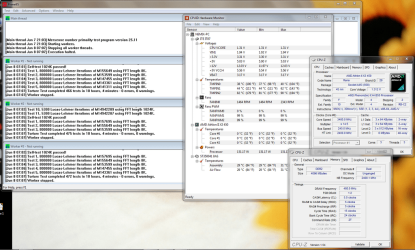
ASUS has a nifty little utility called PCProbe2 that comes on the CD that came with the motherboard... USE IT. I also found that CoreTemp gives a very close reading with the M3A32-MVP Deluxe and M3A79-T Deluxe.
If your temps at *any* time reach into the mid 50*C range, STOP and readdress your CPU and case cooling before continuing any further. (High 60*C is the upper limit for Phenom X4 series and low 60*C is the upper limit for the Phenom2 X4 series, but we don’t need to push it, right?)
Just ensure that you're using *something* to monitor your temps while spending any time in the overclocking arena!
There are loads of good aftermarket CPU cooling options out there...I personally have the ThermalRight Ultra-120 Extreme, and I'm very pleased with not only it's performance, but it's sound level as well (with 2 Scythe S-Flex fans).
Also of importance is your case cooling. Every case I've ever had IS NOT pre-setup with what turns out to be the most efficient fan arrangement. It's up to YOU to decide what fan needs to be where, which direction it should be (pulling air IN or pushing it OUT) and what make/model/CFM/RPM you need. Just be aware that without fresh, cool air coming IN the case, all you've got is warmed air to circulate across your CPU's HS/f, and without adequate EXHAUST, you've really just shot yourself in the foot again - BOTH are paramount to a decent overclock (I really can't stress this enough - MOST people miss case cooling and concentrate solely on their CPU HS/f)
All in all, by the very nature of overclocking, you need to know that you're taking a risk of exposing specific components to more voltage/heat/cycles than they're designed to take, which *could* or *may not* lead to their early or eventual demise.
I'm sure most people that will read through all that crap already understand the risks...it's just pertinent for me to say...I can't be held liable for any kind of overclock gone wrong.
Alrighty then...
Some here's some terminology that we're going to be familiar with by the end of this post:
TERMINOLOGY and BACKGROUND INFO:
AMD's HT: HyperTransport (HT), formerly known as Lightning Data Transport (LDT), is a bidirectional serial/parallel high-bandwidth, low-latency computer bus. The HyperTransport Technology Consortium is in charge of promoting and developing HyperTransport technology. The technology is used by AMD and Transmeta in x86 processors, PMC-Sierra and Broadcom in MIPS microprocessors, NVIDIA, Via, SiS, ULi/ALi, and AMD in PC chipsets, Apple Computer and HP in Desktops and notebooks, HP, Sun, IBM, and IWill in servers, Cray in supercomputers, and Cisco Systems in routers.
HyperTransport runs at 200-5200 (for Phenom architecture) MHz (compared to PCI at either 33 or 66 MHz). It is also a DDR or "double-data-rate" bus, meaning it sends data on both the rising and falling edges of the 1400 MHz clock signal. This allows for a maximum data rate of 2600 MTransfers/s each direction. The frequency is auto-negotiated, but can be changed via a multiplier, which is a multiple of your FSB.
HyperTransport supports auto-negotiated bus widths, from 2 (bidirectional serial, 1 bit each way) to 32-bit (16 each way) busses are allowed. The full-sized, full-speed 32-bit bus has a transfer rate of 22,400 MByte/s, making it much faster than existing standards. Busses of various widths can be mixed together in a single application, which allows for high speed busses between main memory and the CPU, and lower speed busses to peripherals, as appropriate. The technology also has much lower latency than other solutions.
So, in a nutshell, HT is the bandwidth used between your memory and CPU and the CPU and other peripherals.
AMD's HTT: (HyperTransport Technology (HTT) - I know, confusing!!!) AMD has no 'true' FSB (or Front Side Bus) as we know it. That's because the memory controller is built-in to the CPU rather than being on the motherboard. Basically, HyperTransport Technology replaces the FSB.
So raising the HTT is how we raise the CPU cycles...it's the amount of communication a CPU can push in a given amount of time.
This has reverted (in terminology only) back to FSB with the new boards and new BIOS, probably to make it easier and less confusing. So, HTT = FSB on the new AM2/AM2+ boards.
CPU Multiplier: The CPU multiplier is one way for processors to run much faster than the clock speed of the motherboard or RAM allows. For every tick of the front side bus (FSB) clock, a frequency multiplier causes the CPU to perform x cycles, where x is the multiplier.
For example, if the FSB has a clock speed of 200 MHz and the CPU multiplier is 10x, then the processor would run at 2000MHz or 2.0GHz.
One downside of the multiplier is that it only increases CPU speed. In the previous example there is a multiplier of 10x, but RAM still runs at 200 MHz, so the computer can only access memory at 1/10th of the processor speed, 200 MHz, the speed of the FSB. Because of this, many overclockers prefer to have lower multipliers with higher FSBs.
With the Phenom systems (currently using the 790X and 790FX chipsets) - the CPU Multiplier is really the best way to increase your CPU Frequency. Adding FSB to an already high CPU Multiplier can improve CPU Frequency, but most times leads to instability without lots of voltage to help it out.
Memory Divider: One popular way of overclocking your processor is to increase your FSB. This increases the processor bus, and memory bus equally. In the event that your processor still has the ability to increase in speed, but your memory is maxed out, you would use the memory divider to slow down your memory by running it at a fraction of it's rated speed. Example: You want to run your FSB at 300Mhz, but your memory maxes at 1066Mhz. Set the FSB to 300Mhz, and the memory divider to 1/2, and the memory will run at 533Mhz. (primitive example, but you should get the idea) – the point here is that running a memory divider *literally* runs your memory at a fraction of its original speed…this is a good thing as we’ll learn later.
** There are 2 ways of overclocking AMD CPUs effectively. We'll explore the FSB method in detail below, but the easiest way, and often times the most effective way, is by CPU Multiplier increase alone (which may require higher VCORE (CPU Voltage) but nothing else per se.
Overclocking utilizing the CPU Multiplier method of overclocking is very simple:
Increase your default CPU Multiplier until it won't pass POST, then you may increase the VCORE and try raising it some more. Really, the only thing that is imperative with this type of overclocking, is to ensure your CPU temperature is within normal full-load limits (again, upper 60*C range for Phenom architecture, lower 60*C range for PhenomII architecture)
Very simple, yet effective.
Some of you may find that overclocking via the CPU Multiplier method will yield better results than any other way, and some of you may find that overclocking via the FSB method will yield better results.
It's really up to you to find out what type of overclocking gives the best results - testing with Everest's Cache and Memory Benchmark as well as SuperPI are very quick and dirty, but give you a decent idea of throughput vs. other settings.
Here, we'll explore the FSB method of overclocking in depth:
Finding your maximum values is the first step for a reason - without this base information, you have no idea what's going to cap out on you and where it's going to happen...it's like taking a stab in the dark without even a semblance of an educated guess.
FINDING YOUR MAXIMUM VALUES:
It's extremely important to find each of your component's maximum values before attempting any relevant overclock. Without such knowledge, it's all just a stab in the dark, but with the knowledge of where everything caps out, you have an excellent idea of what you can expect from each individual component.
Now then, here is what I do when beginning a new overclock via the FSB method of overclocking:
(We're going to try to find the limit for your motherboard's FSB first)
Drop the CPU Multiplier to it's lowest setting
Drop the HT Link Speed to it's lowest setting
Drop the RAM divider to it's lowest setting
Begin by raising the FSB (CPU Frequency) in 5 - 10MHz increments - rebooting to POST (Power On Self Test - it's the very first screen of text in black and white that you see when you first start your computer from an OFF state) in between each change - until it wont POST (Power On Self Test) - note the number as you've just found your motherboard's maximum FSB. This is important, as your motherboard really is a major determining factor on just how far you can overclock your CPU/RAM and other peripherals. I have found my M3A32-MVP Deluxe is capable of 286MHz FSB with all 4 Phenom 9850BE's that I've tested...I know that it would be different for a different architecture CPU.
Drop it down to a comfortable stable level decided on from the equation above.
(yep, we're going to be using that equation *a lot*, so just get used to it!!!)
CPU Multiplier:
Begin with your RAM at it's lowest setting, your HT at it's lowest setting, your NB at it's lowest setting and your FSB at 200, then begin raising your CPU Multiplier 1 step at a time, rebooting between each change until it fails POST. This is going to be the maximum CPU Multiplier that you're going to be able to use.
NorthBridge: You can adjust your NB frequency using a multiplier in the BIOS - remember it's a multiple of the FSB. I've found mine to be completely stable at 2600MHz. You'll have to experiment with the NB voltage to find your full-speed maximum.
Find this by raising it one level and rebooting all the way into Windows, repeating until it won't boot into Windows.
HT Link Speed Remembering that it's actually a 10X multiple of your FSB, increasing the FSB also increases your HT. I've found mine stable at over 2400MHz, but in conjunction with the NB, it's stability is capped at 2400MHz when the NB is at 2400MHz or higher. Find this the same way as the NB.
The secret for getting a higher MHz throughput out of the HT is because of the chipset and the options for it.
Higher voltage helps in the stability for higher bandwidth - But you've GOT to pay attention to your motherboard temp now! Mine's sitting at 38*C right now, and doesn't really get much higher - this is due to adequate case cooling, which I suggest you definitely follow up on!!! (since the Northbridge on the M3A32-MVP Deluxe is passive, it really relies on good airflow around it to keep it cool! - if at any point you feel uncomfortable about the NB reaching into the mid 40*C range, you may want to check into an active cooling, or perhaps just removing the HS assembly and replacing the ASUS thermal gunk with a nice fresh layer of Arctic Silver5 or Ceramique) along with using the crap copper heatsink that came with the board...even though the memory cooling part is useless, the extra copper fins do help to dissipate a lot of the heat generated by the NB.
You can begin playing with the equation above now that you know *most* of the variables and what all your individual component's maximum values are.
If your temps are good (~50*C or below at FULL LOAD) and your motherboard temps are good (38-44*C) then you can start experimenting with other voltages (NB/HT/PCI PLL, etc.)
(this really becomes nothing more than a balancing act at this point - and it takes time...have patience, take breaks - if you get too frustrated, stop for 10-15 minutes and do something else in a different room...I'm not kidding! I've been soooo close to putting my foot all the way through my case that it's not even funny, so I *know* what I'm talking about - TAKE BREAKS! - oh, and try not to drink alot of coffee, it only will agitate you and make it very aggravating!)
If you've made it this far, you've just found a *comfortable* level from which to work...now the hard part begins!
RAM Overclocking:
Raise ALL your RAM latencies to 3-4 notches (where possible) above stock SPD for the speed you've decided to run.
Leave your voltage where the manufacturer recommends it (don't go higher - the BIOS text goes red for a reason!) - Later on, you can adjust it up to 2.50V (as a MAX), but you will not need it to be even .01 higher - The point of diminishing returns happens when you've exhausted all overclocking attempts and it will not increase no matter how much voltage you throw at it.
Now, starting with the SECOND one (tRAS), drop it one notch and reboot to POST (and I *mean* [1] notch at a time - you do more than that, you'll find yourself resetting your CMOS twice a much as you're already going to!!!!), repeating until it will not pass the POST, clear the CMOS if you have to, and raise that one value one notch.
Do the same for ALL the latencies (rebooting to POST in between EACH AND EVERY CHANGE) - leaving tREF at 127.5ns (this will help with stability at higher MHz)
This is a *very* long and arduous process, but the benefit will be more than worth the effort you put into it!
Once you've made it this far, try changing the CMD (Command Rate) Timing to 1T and see if it boots all the way into Windows - if not, change it back to 2T. (most sticks won't run at a 1T CMD Rate on AM2/AM2+, so don't feel bad - it was worth the try!)
After you've found all the lowest latencies for the *comfortable* overclock, you can begin to see if there's any more...
By raising the CPU voltage, (NEVER HIGHER THAN 1.55V) you can increase stability in your overclock - but it comes at a great price - HEAT. If your CPU gets above 50*C under full load (should be in the 35-42*C range for idle - but load temps are the most important!), you need better cooling, or need to settle on an overclock that utilizes less voltage (which means less FSB and/or higher multiplier and maybe even a different memory divider)
Here are some links to software that you'll need...you probably don't need it all as a few are redundant and overkill, but here they are nonetheless.
I'd DEFINITELY pick up OCCT, Orthos, SuperPI, CPU RightMark and RMMA from the Benchmarking section, *everything* from the Monitoring section, then Memset and AMD Overdrive from the MISC section/
Benchmarking Software:
OCCT Perestroïka
Orthos StressPRIME 2004
SuperPI (use for quick and dirty bench tests to discover if what you did was faster or slower)
SiSoft Sandra
CPU RightMark
RMMA
RAMTester
wPrime
MaxPi is a newer version of SuperPi coded for multiple core processors, and a relatively new addition to this list - it gives some interesting results, but a certain drawback is that it's written in Russian...(personally, I will use it once in a while, but when testing if what I changed in BIOS is better or worse for number crunching, I'll still use SuperPi - it's quicker and gives results in a language I can understand!)
and then of course the FutureMark line of PC and GPU benchmark products - but I'd only get PCMark Vantage for this...and really, only if you want to. (or optionally, 3DMark Vantage, but then you're scoring more than just your CPU...)
Monitoring Software:
ASUS PCProbe 2
CPUz
Everest 4 - also contains a Cache and Memory Benchmark that I use all the time.
AMDClock
CoreTemp
Calculators and MISC tools:
RMGotcha
MemSet
AMD Overdrive
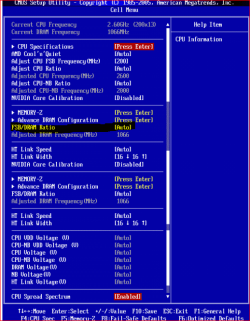
Below is one of my current overclocks for one of my Phenom 9850BE's using BIOS 1102 on the M3A32-MVP Deluxe - again, DO NOT just input these values into your own, either you'll not be stable (BEST case scenario) or you'll fry something altogether - you'll need to do the legwork yourself for YOUR components.
This BIOS guide below is to be used as a template *only* - not for anything further than to see what I've done to accomplish a decent overclock
MAIN
Press F4 and we'll see some 'hidden' settings further in...
(leave all these options at default)
Legacy Diskette A [Disabled] Unless you use a Floppy Drive
Primary IDE Master [Not Detected]
Primary IDE Slave [Not Detected]
SATA1 [Not Detected]
SATA2 [Not Detected]
SATA3 [Not Detected]
SATA4 [Not Detected]
Storage Configuration
On Chip SATA Channel [Enabled]
On Chip SATA Type [IDE]
ADVANCED
.JumperFree Configuration
..AI Overclocking [Manual]
..FSB Frequency [210]
..PCIE Frequency [110] (I wouldn't experiment much with this one, but some boards do have a 'sweet spot')
..Processor Frequency Multiplier [15.00x]
..Processor Voltage [1.325] - which is actually 1.318 *see footnote 1
..Processor-NB Voltage [1.35]
..CPU VDDA Voltage [2.6v] (CPU voltage regulation circuits)
..CPU-NB HT Link Speed [2.4GHz] - this has to be proven stable before just jumping into it!
..DDR Voltage [2.10]
..Northbridge Voltage [Manual]
..Hyper Transport Volatge [1.50v]
..Core/PCIe Voltage [1.20] - Voltage supplied to the NB chip itself
..NB PCIE PLL [1.9v]
..Southbridge Voltage [1.24]
..Auto Xpress [Disabled] - Has to do with the TLB fix and doesn't do anything for xx50 series Phenoms
..CPU Tweak [Disabled] - Has to do with the TLB fix and doesn't do anything for xx50 series Phenoms
Memory Configuration
..Bank Interleving [Auto]
..Channel Interleaving XOR of Address bits [Disabled]
..MemClk Trisate C3/ATLVID [Disabled] *see footnotes
..Memory Hole Remaping [Enabled]
..DRAM Ganged Mode [Disabled] (no matter what your system, UNganged will be faster and have more throughput than ganged)
..Power Down Enable [Disabled]
..Read Delay [Auto]
..DCQ Bypass Maximum [Auto] - setting to 4 or 6 may help yield stability at high MHz values
.DRAM Timing Configuration
..Memory Clock Mode [Manual]
..Memory Clock Value [1066 MHz] (only available in combination with a Phenom or PhenomII
..2T Mode [Enabled]
..DRAM Timing Mode [Both]
..CAS Latency (CL) [5 CLK]
..TCWL [5 CLK] - lower values equal faster writes, but will cause instability at high MHz
..TRCD [5 CLK]
..TRP [5 CLK]
..TRAS [15 CLK] - bios 1002 and up overrides this setting: If tRTP is set to Auto then -2 from what the setting is. Any other tRTP setting and this is 18 no matter what the setting is.
..tWR [4 CLK]
..tRFC0 [127.5 ns]
..tRFC1 [127.5 ns]
..tRFC2 [127.5 ns]
..tRFC3 [127.5 ns]
...TRC [26 CLK] - BIOS 1002 overrides this setting if tRTP is not on Auto. If tRTP is not on Auto this is 26.
..TRRD [2 CLK]
..tWTR [3 CLK] - BIOS 1002 orverrides this setting if tRTP is not on Auto, the resulting setting will be reduced by 1 otherwise.
..tRTP [2-4 CLK] In bios 0801 anything but auto and TRC and TRAS are overridden, BIOS 902 and higher, 2-4 CLK and TRAS will function as set.
..tRWTTO [4 CLK] - for my memory it is Auto or same as tWR or will not boot.
..tWRRD [Auto]
..tWRWR [Auto]
..tRDRD [Auto]
..PLL1 Spread Spectrum [Disabled]
..PLL2 Spread Spectrum [Disabled]
..AI Clock Skew for Channel A [Auto]
....Current Clock Skew Advance 300ps
..AI Clock Skew for Channel B [Auto]
....Current Clock Skew Advance 450ps
AI Net 2
..Marvell Post LAN cable [Disabled]
CPU Configuration
..GART Error Reporting [Disabled]
..Microcode Updation [Enabled]
..Secure Virtual Machine Mode [Disabled]
..AMD Cool 'n' Quiet Function [Disabled]
..ACPI SRAT Table [Enabled]
..Processor Downcore [Disabled] - this effectively shuts down between 1 and 3 cores
..AMD Live! [Disabled]
Chipset
..Primary Video Controller [PCIE GFX0-GFX2-GPP] - this setting identifies the top blue slot as primary. GFX2 refers to the top black slot (Port #03)
..PCI Express Configuration
..GFX Dual Slot Configuration [Enabled]
..GFX Dual Slot Configuration [Disabled]
..Peer-to-Peer among GFX/GFX2 [Disabled] this setting is for running cards connected to the top blue and black slots on equal status for issuing requests and commands
..GPP Slots Power Limit, W [200] (for those of us running high-end ATi cards, set the Power Limit at 200 - nVidia cards should be in the 100W range, but I've never tested with one)
..Port #02 & #03 Features
....Gen2 High Speed Mode [Disabled] found this was the best setting for me according to 3DMark06 - may need to enable for CF
....Link ASPM [Disabled] - ASPM stands for Active State Power Mangement
....Slot Power Limit, W [25] Maximum wattage that can be supplied through the slot (0-250) - set to 200 for most high-end ATi cards
..Port#04 through #10
....Gen2 High Speed Mode [Disabled]
....Link ASPM [Disabled]
..Port#11 Features Bottom blue slot
....Gen2 High Speed Mode [Disabled] - again, may need to be enabled for CF
....Link ASPM [Disabled]
....Link Width [x16]
....Slot Power Limit, W [200] - set to 200 for most high-end ATi cards
..NB-SB Port Features
..NB-SB Link ASPM [Disabled]
..NP NB-SB VC1 Traffic Support [Enabled] (virtual channel 1) helps with Isochronous Flow-Control Mode or [Disabled] if not using Isochronous Flow Control, 2xCLK or UnitID Clumping * see footnotes
Hyper Transport Configuration
..Isochronous Flow-Control Mode [Enabled] or [Disabled] if not used in conjunction with the other variables * see footnotes
..HT Link Tristate [CAD/CTL/CLK] or [Disabled] if not used in conjunction with the other variables * see footnotes
..UnitID Clumping [UnitID 2/3&B/C] or [Disabled] if not used in conjunction with the other variables * see footnotes
..2xLCLK Mode [Disabled]
Onboard Devices Configuration
..Onboard Floppy Controller [Disabled] unless you use a Floppy Drive
..Floppy Drive Swap [Disabled] unless you use a Floppy Drive
..Serial Port1 Address [Disabled] unless you use a serial device
..HD Audio Azalia Device [Auto] left at default
..Front Panel Support Type [HD Audio] (neither of these 2 items need to be enabled if you're using a 3rd party sound card
..1394 [Disabled] unless you use a 1394 device
..WiFi [Disabled] unless you use the WiFi motherboard attachment
..Onboard LAN [Enable]
..Onboard LAN Boot ROM [Disabled]
..Marvell 6111 SATA Controller [Disabled] (found NO use for this and I have 6 HDDs)
..Marvell 6121 SATA Controller [Enable] (all HDDs/DVD drives use this channel)
..Marvell Option ROM [Disabled]
..Primary Display Adapter [PCI-E]
PCI PnP
..Plug and Play OS [No] - let your motherboard decide IRQs for what's plugged into it, not Windows!
..PCI Latency Timer [64] - higher values may create more stability, but at the cost of increasing PCI bandwidth time
..Allocate IRQ to PCI VGA [Yes]
..Palette Snooping [Disabled]
USB Configuration
..USB Functions [Enabled]
..USB 2.0 Controller [Enabled]
..USB 2.0 Controller Mode [HiSpeed]
..BIOS EHCI Hand-Off [Enabled] - Windows takes care of this for you via the EHCI drivers
..Legacy USB Support [Auto] - no one uses any 1.0 USB anymore, but this setting can cause the system to crash if disabled, Auto will automagically shut-down in the event no 1.0 USB device is found
POWER
..Suspend Mode [Auto]
..Report Video on S3 Resume [No] default
..ACPI 2.0 Support [Enabled] ACPI Power Management
..ACPI APIC Support [Enabled] ACPI APIC
APM Configuration
all settings left at default
Hardware Monitor
..CPU Fan Warning Speed [Disabled]
..Smart Q-Fan Function [Disabled] this is what the fourth pin is for on four pin fan connectors, so if you use this function, set to [Enabled]
BOOT
..Boot Device Priority
...1st Boot Device [(set to your OS HDD in 'Hard Disk Drives')]
...2nd Boot Device [Disabled]
Boot Settings Configuration
..Quick Boot [Enabled] - only set to enabled AFTER you're done tweaking your overclock!
..Full Screen Logo [Disabled] - because I like to see the POST
..AddOn ROM Display Mode [Force BIOS]
..Bootup Num-Lock [On]
..Wait for 'F1' Error [Enabled] - waits for user input in the event of an overclock failure
..Hit 'DEL' Message Display [Enabled] - reminds you to push DEL to enter BIOS options
..Chassis Intrusion [Disabled] unless you use this feature with your case
Security
all settings left at default
FOOTNOTES
1) There is a small bug in every version of the M3A32-MVP Deluxe BIOS that slightly UNDER-volts your input. At 1.3V in BIOS, read with any software application (not including AOD) - it will be 1.28V, and the difference increases with the increase in voltage.
2) Isochronous Flow-Control Mode: This has to do with how information is passed between the CPU, the GPU and the RAM along the NorthBridge. It has been a part of the BIOS for HT since AGP 8X, but the option to enable or disable it is a fairly recent addition. When this option is enabled, it assigns the information a number, in the order it was received. Each bit of information is then processed in that order along the route. In toher words, there is no loss of information, but the processing in this orderly manner has drawbacks. If you choose to enable this feature, you will also need to enable UnitID Clumping and then under PCI-E COnfiguraiton and the NB-SB section of the BIOS, VC1 needs to be enabled as well.
3) UnitID Clumping: Simply put, it accounts for not all devices being equally quick at processing information. This allows each device to support a longer waiting line. VC1 accounts for a major drawback of Isochronous Flow-Control mode in that the flow control mode does not allow any information to break line. Everything must wait it's turn. Therefore, if one piece of info is intended for the CPU and in front of it is info the for GPU, the info for the GPU needs to be processed before the CPU info is processed; plus, if there is a waiting line of info to be processed onthe GPU, the CPU info is held up all that much longer. VC1 comes to the rescue by letting the CPU info break line, bypassing the GPU info jam to join the CPU info queue.
4) Tristating (in all forms): Tristating is a power saving feature in addition to ASPM linking. Whatever sections you want to enable Tristate in, you reduce the energy needed to run that area, but the downside is that you also reduce that area's performance.
5) 2xLCLK: This setting only affects HT 3.0, so Phenom's may benefit from it while with Athlon's, it just does not apply. LCLK stands for Latency Clock. The 2x means that instead of one full bandwidth HT Link you are requesting two half bandwidth HT Links. For performance, at times it is better to have a two lane highway; traffic flowing in both directions at the same time along the same strip of asphalt at 50mph, than it is to have a single lane highway along the same strip of asphalt with traffic lights controlling the directional flow at 100mph.
Hopefully, there's enough information there to get some of you going, and certainly enough to read more than once, pulling something new each time it's read.
Good luck to all! If there is any information that needs to be changed, added or removed, please pm me and I will take care of it.
Psychlone
DISCLAIMER: This tome of information is intended to be a guide, used as a template for YOUR overclocking adventure - in no way shall I be liable for any malfunction or damage as a result of using any of this information.
Everything in this post is from my own personal experience embellished with links and facts from other's personal experiences. It was complied from 42 pages of hand-written notes spanning 4 different stepping Phenom 9850BE processors, along with prior knowledge of AMD architecture...nothing here is hearsay, it's all real-world experience of what has proven to be an effective overclock for MY current setup.
IN NO WAY do I mean for this guide to be followed to the letter - ALL components, even given the same exact stepping/lot #, sequential serial #'s, etc., will overclock the same.
There is no guarantee. You paid for parts that will perform at their advertised specifications, and what you're doing by overclocking is getting *more* than what you paid for (hence the 'no guarantees' part.)
What may work for one individual may or may not work for the next...even given the same exact components...just always remember this...sometimes you have to settle for less than what you originally expected - the way to make it 'ok' in your head is to remember the 'no guarantees' thing...you've already got 'something' for 'nothing' if you've overclocked *at all*.
In overclocking, there are inherent risks. The very fact that you're playing with voltages and cycles translates into playing with fire - literally. More voltage = more heat. I can't stress enough the importance of proper temperature monitoring and some real good CPU cooling as well as excellent case cooling.
Here's AMD's 'secret' overclocking formula (not discovered by me, but rewritten by me to be understandable by the masses: This equation is for the Phenom/AM2/AM2+/AM3 architecture, it's a bit different from the older (pre-K8) architecture in that our HT and NB are now a multiple of the FSB with their own individual multipliers, and now the divisor ratio is no longer rounded up when landing on a fraction (decimal) of a whole integer.
AMD Overclocking Equation:
(CPU Multi) * (FSB) = (CPU Freq)
(CPU Multi) / (Memory Divider) = (Divisor Ratio)
(CPU Freq) / (Divisor Ratio) = (RAM MHz) (* 2 = DDR MHz)
(NB Multi) * (FSB) = (NB Freq)
(HT Multi) * (FSB) = (HT Freq) **
**note: the HT Multi is usually shown as a MHz option rather than a multiplier of the FSB, but in fact, it is a default of 10X the FSB
Also of note is that your HT *MUST* be < or = the resulting NB Frequency or you will not be stable.
Memory Dividers for use in the equation above
I have included every conceivable way that these dividers can be displayed for every AM2/AM2+ BIOS. Use the DECIMAL value in the equation above and use one of the corresponding values for your specific BIOS. I've only included the 800MHz and the 1066MHz values, as this is what the majority of us are using.
533 = 1066 = 16:6 = 8:3 = (8 / 3 = 2.6666666) = 2.6666666
400 = 800 = 12:6 = 6:3 = (6 / 3 = 2) = 2
There are footnotes collected from my adventures at the bottom describing some of the more obscure functions and some of the hidden options. Read them carefully, test each config for yourself and decide what works for you.
About MONITORING YOUR TEMPS:
ASUS has a nifty little utility called PCProbe2 that comes on the CD that came with the motherboard... USE IT. I also found that CoreTemp gives a very close reading with the M3A32-MVP Deluxe and M3A79-T Deluxe.
If your temps at *any* time reach into the mid 50*C range, STOP and readdress your CPU and case cooling before continuing any further. (High 60*C is the upper limit for Phenom X4 series and low 60*C is the upper limit for the Phenom2 X4 series, but we don’t need to push it, right?)
Just ensure that you're using *something* to monitor your temps while spending any time in the overclocking arena!
There are loads of good aftermarket CPU cooling options out there...I personally have the ThermalRight Ultra-120 Extreme, and I'm very pleased with not only it's performance, but it's sound level as well (with 2 Scythe S-Flex fans).
Also of importance is your case cooling. Every case I've ever had IS NOT pre-setup with what turns out to be the most efficient fan arrangement. It's up to YOU to decide what fan needs to be where, which direction it should be (pulling air IN or pushing it OUT) and what make/model/CFM/RPM you need. Just be aware that without fresh, cool air coming IN the case, all you've got is warmed air to circulate across your CPU's HS/f, and without adequate EXHAUST, you've really just shot yourself in the foot again - BOTH are paramount to a decent overclock (I really can't stress this enough - MOST people miss case cooling and concentrate solely on their CPU HS/f)
All in all, by the very nature of overclocking, you need to know that you're taking a risk of exposing specific components to more voltage/heat/cycles than they're designed to take, which *could* or *may not* lead to their early or eventual demise.
I'm sure most people that will read through all that crap already understand the risks...it's just pertinent for me to say...I can't be held liable for any kind of overclock gone wrong.
Alrighty then...
Some here's some terminology that we're going to be familiar with by the end of this post:
TERMINOLOGY and BACKGROUND INFO:
AMD's HT: HyperTransport (HT), formerly known as Lightning Data Transport (LDT), is a bidirectional serial/parallel high-bandwidth, low-latency computer bus. The HyperTransport Technology Consortium is in charge of promoting and developing HyperTransport technology. The technology is used by AMD and Transmeta in x86 processors, PMC-Sierra and Broadcom in MIPS microprocessors, NVIDIA, Via, SiS, ULi/ALi, and AMD in PC chipsets, Apple Computer and HP in Desktops and notebooks, HP, Sun, IBM, and IWill in servers, Cray in supercomputers, and Cisco Systems in routers.
HyperTransport runs at 200-5200 (for Phenom architecture) MHz (compared to PCI at either 33 or 66 MHz). It is also a DDR or "double-data-rate" bus, meaning it sends data on both the rising and falling edges of the 1400 MHz clock signal. This allows for a maximum data rate of 2600 MTransfers/s each direction. The frequency is auto-negotiated, but can be changed via a multiplier, which is a multiple of your FSB.
HyperTransport supports auto-negotiated bus widths, from 2 (bidirectional serial, 1 bit each way) to 32-bit (16 each way) busses are allowed. The full-sized, full-speed 32-bit bus has a transfer rate of 22,400 MByte/s, making it much faster than existing standards. Busses of various widths can be mixed together in a single application, which allows for high speed busses between main memory and the CPU, and lower speed busses to peripherals, as appropriate. The technology also has much lower latency than other solutions.
So, in a nutshell, HT is the bandwidth used between your memory and CPU and the CPU and other peripherals.
AMD's HTT: (HyperTransport Technology (HTT) - I know, confusing!!!) AMD has no 'true' FSB (or Front Side Bus) as we know it. That's because the memory controller is built-in to the CPU rather than being on the motherboard. Basically, HyperTransport Technology replaces the FSB.
So raising the HTT is how we raise the CPU cycles...it's the amount of communication a CPU can push in a given amount of time.
This has reverted (in terminology only) back to FSB with the new boards and new BIOS, probably to make it easier and less confusing. So, HTT = FSB on the new AM2/AM2+ boards.
CPU Multiplier: The CPU multiplier is one way for processors to run much faster than the clock speed of the motherboard or RAM allows. For every tick of the front side bus (FSB) clock, a frequency multiplier causes the CPU to perform x cycles, where x is the multiplier.
For example, if the FSB has a clock speed of 200 MHz and the CPU multiplier is 10x, then the processor would run at 2000MHz or 2.0GHz.
One downside of the multiplier is that it only increases CPU speed. In the previous example there is a multiplier of 10x, but RAM still runs at 200 MHz, so the computer can only access memory at 1/10th of the processor speed, 200 MHz, the speed of the FSB. Because of this, many overclockers prefer to have lower multipliers with higher FSBs.
With the Phenom systems (currently using the 790X and 790FX chipsets) - the CPU Multiplier is really the best way to increase your CPU Frequency. Adding FSB to an already high CPU Multiplier can improve CPU Frequency, but most times leads to instability without lots of voltage to help it out.
Memory Divider: One popular way of overclocking your processor is to increase your FSB. This increases the processor bus, and memory bus equally. In the event that your processor still has the ability to increase in speed, but your memory is maxed out, you would use the memory divider to slow down your memory by running it at a fraction of it's rated speed. Example: You want to run your FSB at 300Mhz, but your memory maxes at 1066Mhz. Set the FSB to 300Mhz, and the memory divider to 1/2, and the memory will run at 533Mhz. (primitive example, but you should get the idea) – the point here is that running a memory divider *literally* runs your memory at a fraction of its original speed…this is a good thing as we’ll learn later.
** There are 2 ways of overclocking AMD CPUs effectively. We'll explore the FSB method in detail below, but the easiest way, and often times the most effective way, is by CPU Multiplier increase alone (which may require higher VCORE (CPU Voltage) but nothing else per se.
Overclocking utilizing the CPU Multiplier method of overclocking is very simple:
Increase your default CPU Multiplier until it won't pass POST, then you may increase the VCORE and try raising it some more. Really, the only thing that is imperative with this type of overclocking, is to ensure your CPU temperature is within normal full-load limits (again, upper 60*C range for Phenom architecture, lower 60*C range for PhenomII architecture)
Very simple, yet effective.
Some of you may find that overclocking via the CPU Multiplier method will yield better results than any other way, and some of you may find that overclocking via the FSB method will yield better results.
It's really up to you to find out what type of overclocking gives the best results - testing with Everest's Cache and Memory Benchmark as well as SuperPI are very quick and dirty, but give you a decent idea of throughput vs. other settings.
Here, we'll explore the FSB method of overclocking in depth:
Finding your maximum values is the first step for a reason - without this base information, you have no idea what's going to cap out on you and where it's going to happen...it's like taking a stab in the dark without even a semblance of an educated guess.
FINDING YOUR MAXIMUM VALUES:
It's extremely important to find each of your component's maximum values before attempting any relevant overclock. Without such knowledge, it's all just a stab in the dark, but with the knowledge of where everything caps out, you have an excellent idea of what you can expect from each individual component.
Now then, here is what I do when beginning a new overclock via the FSB method of overclocking:
(We're going to try to find the limit for your motherboard's FSB first)
Drop the CPU Multiplier to it's lowest setting
Drop the HT Link Speed to it's lowest setting
Drop the RAM divider to it's lowest setting
Begin by raising the FSB (CPU Frequency) in 5 - 10MHz increments - rebooting to POST (Power On Self Test - it's the very first screen of text in black and white that you see when you first start your computer from an OFF state) in between each change - until it wont POST (Power On Self Test) - note the number as you've just found your motherboard's maximum FSB. This is important, as your motherboard really is a major determining factor on just how far you can overclock your CPU/RAM and other peripherals. I have found my M3A32-MVP Deluxe is capable of 286MHz FSB with all 4 Phenom 9850BE's that I've tested...I know that it would be different for a different architecture CPU.
Drop it down to a comfortable stable level decided on from the equation above.
(yep, we're going to be using that equation *a lot*, so just get used to it!!!)
CPU Multiplier:
Begin with your RAM at it's lowest setting, your HT at it's lowest setting, your NB at it's lowest setting and your FSB at 200, then begin raising your CPU Multiplier 1 step at a time, rebooting between each change until it fails POST. This is going to be the maximum CPU Multiplier that you're going to be able to use.
NorthBridge: You can adjust your NB frequency using a multiplier in the BIOS - remember it's a multiple of the FSB. I've found mine to be completely stable at 2600MHz. You'll have to experiment with the NB voltage to find your full-speed maximum.
Find this by raising it one level and rebooting all the way into Windows, repeating until it won't boot into Windows.
HT Link Speed Remembering that it's actually a 10X multiple of your FSB, increasing the FSB also increases your HT. I've found mine stable at over 2400MHz, but in conjunction with the NB, it's stability is capped at 2400MHz when the NB is at 2400MHz or higher. Find this the same way as the NB.
The secret for getting a higher MHz throughput out of the HT is because of the chipset and the options for it.
Higher voltage helps in the stability for higher bandwidth - But you've GOT to pay attention to your motherboard temp now! Mine's sitting at 38*C right now, and doesn't really get much higher - this is due to adequate case cooling, which I suggest you definitely follow up on!!! (since the Northbridge on the M3A32-MVP Deluxe is passive, it really relies on good airflow around it to keep it cool! - if at any point you feel uncomfortable about the NB reaching into the mid 40*C range, you may want to check into an active cooling, or perhaps just removing the HS assembly and replacing the ASUS thermal gunk with a nice fresh layer of Arctic Silver5 or Ceramique) along with using the crap copper heatsink that came with the board...even though the memory cooling part is useless, the extra copper fins do help to dissipate a lot of the heat generated by the NB.
You can begin playing with the equation above now that you know *most* of the variables and what all your individual component's maximum values are.
If your temps are good (~50*C or below at FULL LOAD) and your motherboard temps are good (38-44*C) then you can start experimenting with other voltages (NB/HT/PCI PLL, etc.)
(this really becomes nothing more than a balancing act at this point - and it takes time...have patience, take breaks - if you get too frustrated, stop for 10-15 minutes and do something else in a different room...I'm not kidding! I've been soooo close to putting my foot all the way through my case that it's not even funny, so I *know* what I'm talking about - TAKE BREAKS! - oh, and try not to drink alot of coffee, it only will agitate you and make it very aggravating!)
If you've made it this far, you've just found a *comfortable* level from which to work...now the hard part begins!
RAM Overclocking:
Raise ALL your RAM latencies to 3-4 notches (where possible) above stock SPD for the speed you've decided to run.
Leave your voltage where the manufacturer recommends it (don't go higher - the BIOS text goes red for a reason!) - Later on, you can adjust it up to 2.50V (as a MAX), but you will not need it to be even .01 higher - The point of diminishing returns happens when you've exhausted all overclocking attempts and it will not increase no matter how much voltage you throw at it.
Now, starting with the SECOND one (tRAS), drop it one notch and reboot to POST (and I *mean* [1] notch at a time - you do more than that, you'll find yourself resetting your CMOS twice a much as you're already going to!!!!), repeating until it will not pass the POST, clear the CMOS if you have to, and raise that one value one notch.
Do the same for ALL the latencies (rebooting to POST in between EACH AND EVERY CHANGE) - leaving tREF at 127.5ns (this will help with stability at higher MHz)
This is a *very* long and arduous process, but the benefit will be more than worth the effort you put into it!
Once you've made it this far, try changing the CMD (Command Rate) Timing to 1T and see if it boots all the way into Windows - if not, change it back to 2T. (most sticks won't run at a 1T CMD Rate on AM2/AM2+, so don't feel bad - it was worth the try!)
After you've found all the lowest latencies for the *comfortable* overclock, you can begin to see if there's any more...
By raising the CPU voltage, (NEVER HIGHER THAN 1.55V) you can increase stability in your overclock - but it comes at a great price - HEAT. If your CPU gets above 50*C under full load (should be in the 35-42*C range for idle - but load temps are the most important!), you need better cooling, or need to settle on an overclock that utilizes less voltage (which means less FSB and/or higher multiplier and maybe even a different memory divider)
Here are some links to software that you'll need...you probably don't need it all as a few are redundant and overkill, but here they are nonetheless.
I'd DEFINITELY pick up OCCT, Orthos, SuperPI, CPU RightMark and RMMA from the Benchmarking section, *everything* from the Monitoring section, then Memset and AMD Overdrive from the MISC section/
Benchmarking Software:
OCCT Perestroïka
Orthos StressPRIME 2004
SuperPI (use for quick and dirty bench tests to discover if what you did was faster or slower)
SiSoft Sandra
CPU RightMark
RMMA
RAMTester
wPrime
MaxPi is a newer version of SuperPi coded for multiple core processors, and a relatively new addition to this list - it gives some interesting results, but a certain drawback is that it's written in Russian...(personally, I will use it once in a while, but when testing if what I changed in BIOS is better or worse for number crunching, I'll still use SuperPi - it's quicker and gives results in a language I can understand!)
and then of course the FutureMark line of PC and GPU benchmark products - but I'd only get PCMark Vantage for this...and really, only if you want to. (or optionally, 3DMark Vantage, but then you're scoring more than just your CPU...)
Monitoring Software:
ASUS PCProbe 2
CPUz
Everest 4 - also contains a Cache and Memory Benchmark that I use all the time.
AMDClock
CoreTemp
Calculators and MISC tools:
RMGotcha
MemSet
AMD Overdrive
Below is one of my current overclocks for one of my Phenom 9850BE's using BIOS 1102 on the M3A32-MVP Deluxe - again, DO NOT just input these values into your own, either you'll not be stable (BEST case scenario) or you'll fry something altogether - you'll need to do the legwork yourself for YOUR components.
This BIOS guide below is to be used as a template *only* - not for anything further than to see what I've done to accomplish a decent overclock
MAIN
Press F4 and we'll see some 'hidden' settings further in...
(leave all these options at default)
Legacy Diskette A [Disabled] Unless you use a Floppy Drive
Primary IDE Master [Not Detected]
Primary IDE Slave [Not Detected]
SATA1 [Not Detected]
SATA2 [Not Detected]
SATA3 [Not Detected]
SATA4 [Not Detected]
Storage Configuration
On Chip SATA Channel [Enabled]
On Chip SATA Type [IDE]
ADVANCED
.JumperFree Configuration
..AI Overclocking [Manual]
..FSB Frequency [210]
..PCIE Frequency [110] (I wouldn't experiment much with this one, but some boards do have a 'sweet spot')
..Processor Frequency Multiplier [15.00x]
..Processor Voltage [1.325] - which is actually 1.318 *see footnote 1
..Processor-NB Voltage [1.35]
..CPU VDDA Voltage [2.6v] (CPU voltage regulation circuits)
..CPU-NB HT Link Speed [2.4GHz] - this has to be proven stable before just jumping into it!
..DDR Voltage [2.10]
..Northbridge Voltage [Manual]
..Hyper Transport Volatge [1.50v]
..Core/PCIe Voltage [1.20] - Voltage supplied to the NB chip itself
..NB PCIE PLL [1.9v]
..Southbridge Voltage [1.24]
..Auto Xpress [Disabled] - Has to do with the TLB fix and doesn't do anything for xx50 series Phenoms
..CPU Tweak [Disabled] - Has to do with the TLB fix and doesn't do anything for xx50 series Phenoms
Memory Configuration
..Bank Interleving [Auto]
..Channel Interleaving XOR of Address bits [Disabled]
..MemClk Trisate C3/ATLVID [Disabled] *see footnotes
..Memory Hole Remaping [Enabled]
..DRAM Ganged Mode [Disabled] (no matter what your system, UNganged will be faster and have more throughput than ganged)
..Power Down Enable [Disabled]
..Read Delay [Auto]
..DCQ Bypass Maximum [Auto] - setting to 4 or 6 may help yield stability at high MHz values
.DRAM Timing Configuration
..Memory Clock Mode [Manual]
..Memory Clock Value [1066 MHz] (only available in combination with a Phenom or PhenomII
..2T Mode [Enabled]
..DRAM Timing Mode [Both]
..CAS Latency (CL) [5 CLK]
..TCWL [5 CLK] - lower values equal faster writes, but will cause instability at high MHz
..TRCD [5 CLK]
..TRP [5 CLK]
..TRAS [15 CLK] - bios 1002 and up overrides this setting: If tRTP is set to Auto then -2 from what the setting is. Any other tRTP setting and this is 18 no matter what the setting is.
..tWR [4 CLK]
..tRFC0 [127.5 ns]
..tRFC1 [127.5 ns]
..tRFC2 [127.5 ns]
..tRFC3 [127.5 ns]
...TRC [26 CLK] - BIOS 1002 overrides this setting if tRTP is not on Auto. If tRTP is not on Auto this is 26.
..TRRD [2 CLK]
..tWTR [3 CLK] - BIOS 1002 orverrides this setting if tRTP is not on Auto, the resulting setting will be reduced by 1 otherwise.
..tRTP [2-4 CLK] In bios 0801 anything but auto and TRC and TRAS are overridden, BIOS 902 and higher, 2-4 CLK and TRAS will function as set.
..tRWTTO [4 CLK] - for my memory it is Auto or same as tWR or will not boot.
..tWRRD [Auto]
..tWRWR [Auto]
..tRDRD [Auto]
..PLL1 Spread Spectrum [Disabled]
..PLL2 Spread Spectrum [Disabled]
..AI Clock Skew for Channel A [Auto]
....Current Clock Skew Advance 300ps
..AI Clock Skew for Channel B [Auto]
....Current Clock Skew Advance 450ps
AI Net 2
..Marvell Post LAN cable [Disabled]
CPU Configuration
..GART Error Reporting [Disabled]
..Microcode Updation [Enabled]
..Secure Virtual Machine Mode [Disabled]
..AMD Cool 'n' Quiet Function [Disabled]
..ACPI SRAT Table [Enabled]
..Processor Downcore [Disabled] - this effectively shuts down between 1 and 3 cores
..AMD Live! [Disabled]
Chipset
..Primary Video Controller [PCIE GFX0-GFX2-GPP] - this setting identifies the top blue slot as primary. GFX2 refers to the top black slot (Port #03)
..PCI Express Configuration
..GFX Dual Slot Configuration [Enabled]
..GFX Dual Slot Configuration [Disabled]
..Peer-to-Peer among GFX/GFX2 [Disabled] this setting is for running cards connected to the top blue and black slots on equal status for issuing requests and commands
..GPP Slots Power Limit, W [200] (for those of us running high-end ATi cards, set the Power Limit at 200 - nVidia cards should be in the 100W range, but I've never tested with one)
..Port #02 & #03 Features
....Gen2 High Speed Mode [Disabled] found this was the best setting for me according to 3DMark06 - may need to enable for CF
....Link ASPM [Disabled] - ASPM stands for Active State Power Mangement
....Slot Power Limit, W [25] Maximum wattage that can be supplied through the slot (0-250) - set to 200 for most high-end ATi cards
..Port#04 through #10
....Gen2 High Speed Mode [Disabled]
....Link ASPM [Disabled]
..Port#11 Features Bottom blue slot
....Gen2 High Speed Mode [Disabled] - again, may need to be enabled for CF
....Link ASPM [Disabled]
....Link Width [x16]
....Slot Power Limit, W [200] - set to 200 for most high-end ATi cards
..NB-SB Port Features
..NB-SB Link ASPM [Disabled]
..NP NB-SB VC1 Traffic Support [Enabled] (virtual channel 1) helps with Isochronous Flow-Control Mode or [Disabled] if not using Isochronous Flow Control, 2xCLK or UnitID Clumping * see footnotes
Hyper Transport Configuration
..Isochronous Flow-Control Mode [Enabled] or [Disabled] if not used in conjunction with the other variables * see footnotes
..HT Link Tristate [CAD/CTL/CLK] or [Disabled] if not used in conjunction with the other variables * see footnotes
..UnitID Clumping [UnitID 2/3&B/C] or [Disabled] if not used in conjunction with the other variables * see footnotes
..2xLCLK Mode [Disabled]
Onboard Devices Configuration
..Onboard Floppy Controller [Disabled] unless you use a Floppy Drive
..Floppy Drive Swap [Disabled] unless you use a Floppy Drive
..Serial Port1 Address [Disabled] unless you use a serial device
..HD Audio Azalia Device [Auto] left at default
..Front Panel Support Type [HD Audio] (neither of these 2 items need to be enabled if you're using a 3rd party sound card
..1394 [Disabled] unless you use a 1394 device
..WiFi [Disabled] unless you use the WiFi motherboard attachment
..Onboard LAN [Enable]
..Onboard LAN Boot ROM [Disabled]
..Marvell 6111 SATA Controller [Disabled] (found NO use for this and I have 6 HDDs)
..Marvell 6121 SATA Controller [Enable] (all HDDs/DVD drives use this channel)
..Marvell Option ROM [Disabled]
..Primary Display Adapter [PCI-E]
PCI PnP
..Plug and Play OS [No] - let your motherboard decide IRQs for what's plugged into it, not Windows!
..PCI Latency Timer [64] - higher values may create more stability, but at the cost of increasing PCI bandwidth time
..Allocate IRQ to PCI VGA [Yes]
..Palette Snooping [Disabled]
USB Configuration
..USB Functions [Enabled]
..USB 2.0 Controller [Enabled]
..USB 2.0 Controller Mode [HiSpeed]
..BIOS EHCI Hand-Off [Enabled] - Windows takes care of this for you via the EHCI drivers
..Legacy USB Support [Auto] - no one uses any 1.0 USB anymore, but this setting can cause the system to crash if disabled, Auto will automagically shut-down in the event no 1.0 USB device is found
POWER
..Suspend Mode [Auto]
..Report Video on S3 Resume [No] default
..ACPI 2.0 Support [Enabled] ACPI Power Management
..ACPI APIC Support [Enabled] ACPI APIC
APM Configuration
all settings left at default
Hardware Monitor
..CPU Fan Warning Speed [Disabled]
..Smart Q-Fan Function [Disabled] this is what the fourth pin is for on four pin fan connectors, so if you use this function, set to [Enabled]
BOOT
..Boot Device Priority
...1st Boot Device [(set to your OS HDD in 'Hard Disk Drives')]
...2nd Boot Device [Disabled]
Boot Settings Configuration
..Quick Boot [Enabled] - only set to enabled AFTER you're done tweaking your overclock!
..Full Screen Logo [Disabled] - because I like to see the POST
..AddOn ROM Display Mode [Force BIOS]
..Bootup Num-Lock [On]
..Wait for 'F1' Error [Enabled] - waits for user input in the event of an overclock failure
..Hit 'DEL' Message Display [Enabled] - reminds you to push DEL to enter BIOS options
..Chassis Intrusion [Disabled] unless you use this feature with your case
Security
all settings left at default
FOOTNOTES
1) There is a small bug in every version of the M3A32-MVP Deluxe BIOS that slightly UNDER-volts your input. At 1.3V in BIOS, read with any software application (not including AOD) - it will be 1.28V, and the difference increases with the increase in voltage.
2) Isochronous Flow-Control Mode: This has to do with how information is passed between the CPU, the GPU and the RAM along the NorthBridge. It has been a part of the BIOS for HT since AGP 8X, but the option to enable or disable it is a fairly recent addition. When this option is enabled, it assigns the information a number, in the order it was received. Each bit of information is then processed in that order along the route. In toher words, there is no loss of information, but the processing in this orderly manner has drawbacks. If you choose to enable this feature, you will also need to enable UnitID Clumping and then under PCI-E COnfiguraiton and the NB-SB section of the BIOS, VC1 needs to be enabled as well.
3) UnitID Clumping: Simply put, it accounts for not all devices being equally quick at processing information. This allows each device to support a longer waiting line. VC1 accounts for a major drawback of Isochronous Flow-Control mode in that the flow control mode does not allow any information to break line. Everything must wait it's turn. Therefore, if one piece of info is intended for the CPU and in front of it is info the for GPU, the info for the GPU needs to be processed before the CPU info is processed; plus, if there is a waiting line of info to be processed onthe GPU, the CPU info is held up all that much longer. VC1 comes to the rescue by letting the CPU info break line, bypassing the GPU info jam to join the CPU info queue.
4) Tristating (in all forms): Tristating is a power saving feature in addition to ASPM linking. Whatever sections you want to enable Tristate in, you reduce the energy needed to run that area, but the downside is that you also reduce that area's performance.
5) 2xLCLK: This setting only affects HT 3.0, so Phenom's may benefit from it while with Athlon's, it just does not apply. LCLK stands for Latency Clock. The 2x means that instead of one full bandwidth HT Link you are requesting two half bandwidth HT Links. For performance, at times it is better to have a two lane highway; traffic flowing in both directions at the same time along the same strip of asphalt at 50mph, than it is to have a single lane highway along the same strip of asphalt with traffic lights controlling the directional flow at 100mph.
Hopefully, there's enough information there to get some of you going, and certainly enough to read more than once, pulling something new each time it's read.
Good luck to all! If there is any information that needs to be changed, added or removed, please pm me and I will take care of it.
Psychlone
My Computer
At a glance
Windows Se7enPhenom II 940 CACVC AC 0849 APAW2 X 2GB Corsair Dominator 8500C5D v1.1 (D9's ...Sapphire 4870X2
- Computer Manufacturer/Model Number
- Home-Built
- OS
- Windows Se7en
- CPU
- Phenom II 940 CACVC AC 0849 APAW
- Motherboard
- ASUS M3A79-T Deluxe
- Memory
- 2 X 2GB Corsair Dominator 8500C5D v1.1 (D9's Baby!)
- Graphics Card(s)
- Sapphire 4870X2
- Sound Card
- Onboard w/ Creative Gigaworks S750 7.1
- Monitor(s) Displays
- Acer P241W 24", Samsung Syncmaster 204B 20.1"
- Screen Resolution
- 19X12 for most everything (I rarely use the secondary)
- Hard Drives
- 7 X 500GB Seagate 7200RPM Barracudas
- PSU
- OCZ GameXstream 1010W
- Case
- Heavily modified CM Cosmos S (reverse paint scheme, etc.)
- Cooling
- TRUE + 2 Scythe Slipstream 120mm, + 7 Scythe Slipstream case
- Keyboard
- MS Wireless 6000 v3.0
- Mouse
- MS Wireless Laser 6000 v2.0
- Internet Speed
- 7000/864