jumanji
New member
Recover a flash drive turned RAW – Partition Wizard and TestDisk.
Of late a lot of interest has been generated in using the Partition Recovey Wizard of MiniTools Partition Wizard (PW).
Venerable gregrocker brought out a new feature – extending a partition with even non-adjacent space - in the MiniTools Partition Wizard (PW) here: http://www.sevenforums.com/software/265776-amazing-new-partition-wizard-feature.html
On the data recovery front, there is little, if any, documented evidence of the Partition Recovery Wizard in it being deployed to restore a partition that had turned RAW.Traditionally TestDisk (TD), with many advanced features, has been the tool of choice in the freeware category.
So, in a way, this writeup exploring PW for data recovery from a RAW drive, is a first of its kind. Side by side, I have also used TD. Be ready for some surprises.
The MBR partition table and Volumes boot sector are the two places where the partition information is stored. When Windows is unable to read this for any reason, it reports it as RAW (though the data is still there).
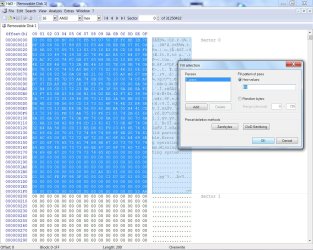
I had no drive that had turned RAW and so I had to “manufacture”. This was done by zero filling the first sector.
For this experimental exploration, I used two flash drives 1. a more recent 16GB SanDisk Cruzer Blade and 2. an almost first generation 1GB imation flash drive.
These were first lowlevel formatted with HDD LLF Low Level Format Tool v4.25 followed by a FAT32 Full Format with HP USB Disk Storage Format Tool v2.2.3. A generous amount of files were written for recovery later.
Making the Flash drive RAW:
Zero filling the first sector using HxD Hex Editor - turns the flash drive to RAW
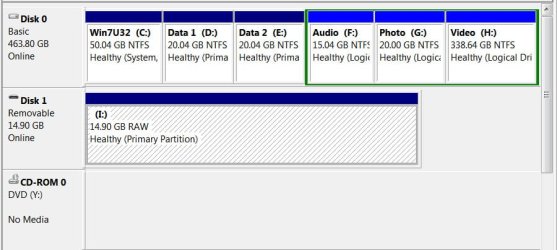
The resulting Flash drive - RAW. Windows wants you to format it (but data is still there).
Recovery with TestDisk: SanDisk Cruzer Blade 16GB
Run TestDisk
1. At the first screen select “No Log” ENTER
2. Select the drive to analyse, choose “Proceed” ENTER
3. Select partition type – Intel for a PC. ENTER
4.Select “Analyse” ENTER. The drive/partition will be analysed. At this screen the message “ Partition sector doesn’t have the endmark 0xAA55 “ appeared.(This happened even in the case of the other Imation 1 GB flash drive. So I would presume that this will happen with every flash drive.)
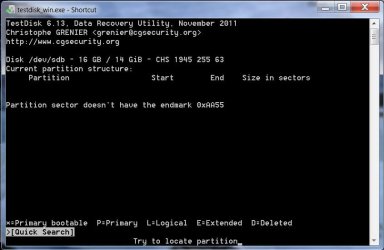
5. Select “Quick Search” ENTER
6. Press “Y” if the partitions were created under Vista or later – “N” if not. "Y" if you do not know.
7. Partition identified correctly.
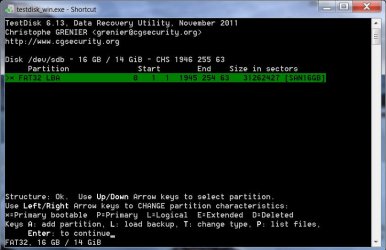
8. At this stage I pressed “P” to list the files and check whether it can see the files. It
showed all the files. I copied one file to a partition on my internal drive and checked
that it played. I terminated TestDisk after this since I have to now try Partition Wizard.
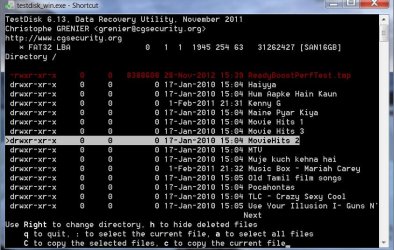
If one wants to write the partition table, instead of “P”, press ENTER to continue, select ‘Write” ENTER . Quit TestDisk and reboot your PC. (Since this is a flash drive, safely remove it and plug it in.) Later I made a repeat of this exercise starting from the lowlevel format and confirmed that it was successful.
Recovery with Partition Wizard: SanDisk Cruzer Blade 16GB
Run Partition Wizard 7.
The flash drive is shown as “unallocated” and without a drive letter.
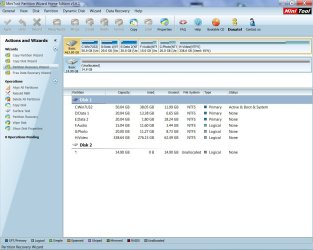
Click on Partition Recovery Wizard and Next.
In the Partition Recovery Wizard screen, select the flash drive to be recovered and click on Next.
Select Full Disk, and then Next.
Select Quick Scan, Next
The partition was found. Select and double click on it. The Partition Explorer shows the files on it. (Unlike in TestDisk, one cannot copy the files at this stage. The partition has to be necessarily restored.)

Close the Partition Explorer and click on Finish.
The Main Screen shows the restored Flash Drive but still without a drive letter.
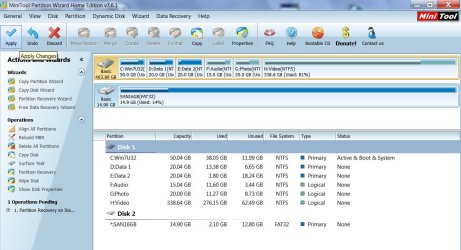
Right click on the drive, click on Change letter and give a drive letter.
Click on Apply to execute the two pending operations.
The partition is restored and the flash drive is now functional and you can access the files and folders.

First sector as restored by TestDisk:
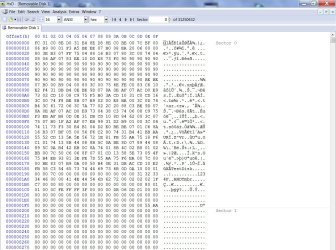
First Sector as restored by Partition Wizard:

Recovery with TestDisk: imation 1GB flash drive
When I tried the recovery operation on the imation flash drive, there was no change upto step 7 ( where it found the partition and indicated everything is OK) mentioned in the SanDisk drive recovery above.
However, when it found the partition and I hit “P” to list the files, it came to a cropper. “can’t open filesystem. File system seems damaged.” !!!!!!!!!!!!
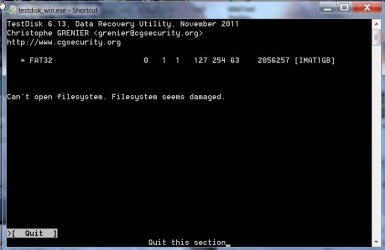
When I went back to the earlier screen and did “Write” ENTER it was “Partition write error”

Operation abandoned.
Curious to explore what happens when I try it on the fully functional imation Flash drive, I ran TestDisk on it.
On the fourth screen “Analyse” ENTER, it said “ Bad sector count” ( End 127 –122- 59) “No partition bootable”
On the Fifth screen “Quick Search” ENTER, it did find the bootable partition with the correct count (End 127 254 63)
“P” to list the files, only brought the message “can’t open filesystem. File system seems damaged.” ( This,the first flash drive I bought years ago paying an astronomical price, is still working fine)
Recovery with Partition Wizard: imation 1GB flash drive
By contrast, recovery with Partition Recovery Wizard in PW, went off without any event, restoring the flash drive.
So, Partition Wizard did recover pendrives that turned RAW.
Why TestDisk failed on the imation drive? My only hypothesis is that as a first generation device the hardware and firmware in it could be slightly different from what it is in the current day devices. That said, it is to the credit of PW, that it could recover even that device.
A SevenForums exclusive presentation.
Of late a lot of interest has been generated in using the Partition Recovey Wizard of MiniTools Partition Wizard (PW).
Venerable gregrocker brought out a new feature – extending a partition with even non-adjacent space - in the MiniTools Partition Wizard (PW) here: http://www.sevenforums.com/software/265776-amazing-new-partition-wizard-feature.html
On the data recovery front, there is little, if any, documented evidence of the Partition Recovery Wizard in it being deployed to restore a partition that had turned RAW.Traditionally TestDisk (TD), with many advanced features, has been the tool of choice in the freeware category.
So, in a way, this writeup exploring PW for data recovery from a RAW drive, is a first of its kind. Side by side, I have also used TD. Be ready for some surprises.
The MBR partition table and Volumes boot sector are the two places where the partition information is stored. When Windows is unable to read this for any reason, it reports it as RAW (though the data is still there).
I had no drive that had turned RAW and so I had to “manufacture”. This was done by zero filling the first sector.
For this experimental exploration, I used two flash drives 1. a more recent 16GB SanDisk Cruzer Blade and 2. an almost first generation 1GB imation flash drive.
These were first lowlevel formatted with HDD LLF Low Level Format Tool v4.25 followed by a FAT32 Full Format with HP USB Disk Storage Format Tool v2.2.3. A generous amount of files were written for recovery later.
Making the Flash drive RAW:
Zero filling the first sector using HxD Hex Editor - turns the flash drive to RAW
The resulting Flash drive - RAW. Windows wants you to format it (but data is still there).
Recovery with TestDisk: SanDisk Cruzer Blade 16GB
Run TestDisk
1. At the first screen select “No Log” ENTER
2. Select the drive to analyse, choose “Proceed” ENTER
3. Select partition type – Intel for a PC. ENTER
4.Select “Analyse” ENTER. The drive/partition will be analysed. At this screen the message “ Partition sector doesn’t have the endmark 0xAA55 “ appeared.(This happened even in the case of the other Imation 1 GB flash drive. So I would presume that this will happen with every flash drive.)
5. Select “Quick Search” ENTER
6. Press “Y” if the partitions were created under Vista or later – “N” if not. "Y" if you do not know.
7. Partition identified correctly.
8. At this stage I pressed “P” to list the files and check whether it can see the files. It
showed all the files. I copied one file to a partition on my internal drive and checked
that it played. I terminated TestDisk after this since I have to now try Partition Wizard.
If one wants to write the partition table, instead of “P”, press ENTER to continue, select ‘Write” ENTER . Quit TestDisk and reboot your PC. (Since this is a flash drive, safely remove it and plug it in.) Later I made a repeat of this exercise starting from the lowlevel format and confirmed that it was successful.
Recovery with Partition Wizard: SanDisk Cruzer Blade 16GB
Run Partition Wizard 7.
The flash drive is shown as “unallocated” and without a drive letter.
Click on Partition Recovery Wizard and Next.
In the Partition Recovery Wizard screen, select the flash drive to be recovered and click on Next.
Select Full Disk, and then Next.
Select Quick Scan, Next
The partition was found. Select and double click on it. The Partition Explorer shows the files on it. (Unlike in TestDisk, one cannot copy the files at this stage. The partition has to be necessarily restored.)
Close the Partition Explorer and click on Finish.
The Main Screen shows the restored Flash Drive but still without a drive letter.
Right click on the drive, click on Change letter and give a drive letter.
Click on Apply to execute the two pending operations.
The partition is restored and the flash drive is now functional and you can access the files and folders.
First sector as restored by TestDisk:
First Sector as restored by Partition Wizard:
Recovery with TestDisk: imation 1GB flash drive
When I tried the recovery operation on the imation flash drive, there was no change upto step 7 ( where it found the partition and indicated everything is OK) mentioned in the SanDisk drive recovery above.
However, when it found the partition and I hit “P” to list the files, it came to a cropper. “can’t open filesystem. File system seems damaged.” !!!!!!!!!!!!
When I went back to the earlier screen and did “Write” ENTER it was “Partition write error”
Operation abandoned.
Curious to explore what happens when I try it on the fully functional imation Flash drive, I ran TestDisk on it.
On the fourth screen “Analyse” ENTER, it said “ Bad sector count” ( End 127 –122- 59) “No partition bootable”
On the Fifth screen “Quick Search” ENTER, it did find the bootable partition with the correct count (End 127 254 63)
“P” to list the files, only brought the message “can’t open filesystem. File system seems damaged.” ( This,the first flash drive I bought years ago paying an astronomical price, is still working fine)
Recovery with Partition Wizard: imation 1GB flash drive
By contrast, recovery with Partition Recovery Wizard in PW, went off without any event, restoring the flash drive.
So, Partition Wizard did recover pendrives that turned RAW.
Why TestDisk failed on the imation drive? My only hypothesis is that as a first generation device the hardware and firmware in it could be slightly different from what it is in the current day devices. That said, it is to the credit of PW, that it could recover even that device.
A SevenForums exclusive presentation.
Last edited:
My Computer
- OS
- Windows 7 Home Premium 32 bit


 and leaving it aside to the more capable and energetic younger generation - there are many and if I name only a few I will be missing out many and so I won't name any