MSE not showing up on taskbar first time

SectorStar

New member
Local time
7:29 AM
Messages
49
I've been using Windows Seven and Microsoft Security Essentials since November and have been fairly happy with it. But today is the second time now that I've started my computer and the Icon for MSE is not appearing on the system tray on the task bar. If I go and click it on the desk top and run the program it says the real time protection is enabled and it looks like everything else is fine, but I guess I'm just a little paranoid that it's not appearing on the system tray. The strange thing, I'll restart the computer, and then its there upon start up on the second time. I checked the thing in the task bar properties where it says "show notifications" and that such and it doesn't look like its been changed or anything. Just thought that it was kind of odd that it'll work if I restart it on the second time.
 

My Computer

OS
Windows Seven
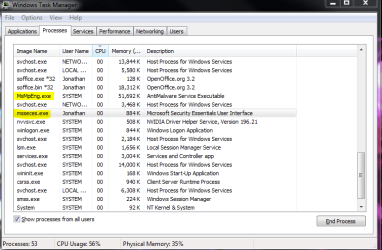
The real test to see whether MSE is protecting you, despite the missing icon, is if the services are running.

Capture.PNG

MsMpEng.exe is the security engine, used by Windows Defender and MSE.

msseces.exe is MSE itself.
 

My Computer

Computer Manufacturer/Model Number
Custom
OS
Windows 7 Professional x64
CPU
Intel i7 2600K OC'd @ 4620 MHz
Motherboard
Asus P8Z68-V Pro
Memory
16GB GSkill Sniper 2133 Mhz (4x4GB)
Graphics Card(s)
EVGA GeForce GTX 480 SuperClocked+
Sound Card
Realtek High Definition Audio
Monitor(s) Displays
2x Acer S273HLbmii 27"
Screen Resolution
2 x 1920x1080
Hard Drives
64GB Crucial M4 SSD

Storage: Hitachi 1TB 5400RPM, Samsung 1.5TB 5400RPM
PSU
Corsair HW Series 750w (modular)
Case
Cooler Master HAF 932 Advanced Blue Edition
Cooling
CM Hyper 212+ CPU cooler, 3x 230mm + 1x 140mm case fans
Keyboard
Logitech MK320 (wireless)
Mouse
Logitech MK320 (wireless)
Internet Speed
30 Mb/s : 2 Mb/s
Try this.

1) Right click on the msseces.exe file (located in C:\Program Files\Microsoft Security Essentials folder) and click on "create shortcut".

2) Navigate to your Startup folder (C:\Users\(User-Name)\AppData\Roaming\Microsoft\Windows\Start Menu\Programs\Startup). An easier way of getting there is to type "Shell:startup" without quotes in your start menu search field.

3) Cut and paste the shortcut you created in step 1 into the startup folder.

Hopefully, now you should see the icon every time.
 

My Computer

Computer Manufacturer/Model Number
Too many to describe...
OS
Windows 7 x64 pro/ Windows 7 x86 Pro/ XP SP3 x86
Try this.

1) Right click on the msseces.exe file (located in C:\Program Files\Microsoft Security Essentials folder) and click on "create shortcut".

2) Navigate to your Startup folder (C:\Users\(User-Name)\AppData\Roaming\Microsoft\Windows\Start Menu\Programs\Startup). An easier way of getting there is to type "Shell:startup" without quotes in your start menu search field.

3) Cut and paste the shortcut you created in step 1 into the startup folder.

Hopefully, now you should see the icon every time.

This seemed to have fixed it, it was the first icon that loaded on my system tray after restart, thanks again!
 

My Computer

OS
Windows Seven
Back
Top