
64bit W7 installation question

trinaz

New member
Member
VIP
Local time
5:04 PM
Messages
477
Location
Phoenix
Hello...just finished an OEM XP to W7 custom isntall that worked great. Last night I started on my system...32bit XP Pro ot 64bit W7 Pro.

Unlike the first install on the OEM machine....I didn't get an option to custom istall and/or format/partiton, the destination drive...which had a non-functioning XP Pro install on it.

W7 installed OK...I think...and put the windows.old file on the disk? But there was no option for the 100gb Restore/Recovery partition as with the OEM install previously.

W7 seems to be working fine...but before going on with program install...are there any issues with the way it installed...ie...no Recovery Partition and or no option to repartition/format the existing drive ?

Drive is the only drive in the system ?

Just nervous/confused that the isntallations proceeded so differently ?

Thanks, Tim
 

My Computer

Computer type
PC/Desktop
Computer Manufacturer/Model Number
Self built
OS
Windows 7 Pro 64bit SP1
CPU
AMD FX-6100 Six-Core Processor
Motherboard
M5A78L-M LX PLUS
Memory
2ea Corsair-1333MHz-PC3-10666-240-pin-CMX4GX3M1A1333C9
Graphics Card(s)
NVIDIA GeForce GT 630 - 1023MB (EVGA)
Sound Card
OnBoard Via High Def Audio
Monitor(s) Displays
Samsung 204B main - ASUS VS228 secondary
Screen Resolution
1920x1080 main - 1920x1080 secondary
Hard Drives
Samsung SSD 840 128GB Win7 Pro 64bit - Western Digital WDC 465GB - Seagate 640GB Sata B/U - Maxtor 500GB Sata B/U - Maxtor 200GB Sata
PSU
Antec 650 watt
Cooling
Multiple case fans
Keyboard
MS USB dual Wireless Keyboard - IntelliType Pro
Mouse
MS USB dual Wireless Mouse - IntelliPoint
Internet Speed
Cox Cable
Antivirus
Bitdefender IS 2014
Browser
FireFox Primary - IE 11
Other Info
Hauppaguge Win TV HVR-1250 (Model 22xxx, Hybrid ATSC/QAM)
Samsung HD103SI USB 1TB Desktop Drive - Backup & Disk Image storage
Thanks GR...yes...set bios to boot to cd drive and clicked "press any key to start" from CD. DVD did start with "Install Windows" and Custom Install....but clicking custom install only gave me the option to "upgrade" or "CLEAN INSTALL" as I remember. Did the "clean install"...but never had the same screen I had with the OEM install options you helped me with previously.

I'm pretty sure the only choice on screen was "upgrade" current installation...or "clean install"...which I chose and got the windows.old backup files as I think is supposed to happen.

just never came across the same Disk Tools/Advanced option I had with the OEM installation you were such a big help with earlier ?

The other thing that surprised me is that not only do I have the windows.old folder...but all my folders are present and intact in the new Win 7 directories on the c: drive. It appears just about every other folder I had in the XP installation is there and functioning in the new Win 7 Pro install ? However I have two "program files" folders...Program Files and Program Files(x86). However...the only files/folders in these are the new Win 7 isntall apps/files...nothing from my old XP installation "program files" folder. (jpgs attached)

Is this supposed to happen ? Thought all folders would be backed up in the windows.old folder...but not be maintained on the main C: drive for Win 7 ?

Not opposed to wipeing and starting over...but as I posted...things seem to be running fine in the new Win 7 system...ran as many Win 7 checks/diagnostics as I could find in Win 7 and every thing says A.O.K. Only program added so far is my anti-virus/firewall program.

Question is...is it best to wipe and re-install...or just proceed as is ? Have not activated yet.

Thanks as always, Tim
 

Attachments

  • Capture.JPG
    Capture.JPG
    66.8 KB · Views: 13
  • Capture2.JPG
    Capture2.JPG
    66.5 KB · Views: 9

My Computer

Computer type
PC/Desktop
Computer Manufacturer/Model Number
Self built
OS
Windows 7 Pro 64bit SP1
CPU
AMD FX-6100 Six-Core Processor
Motherboard
M5A78L-M LX PLUS
Memory
2ea Corsair-1333MHz-PC3-10666-240-pin-CMX4GX3M1A1333C9
Graphics Card(s)
NVIDIA GeForce GT 630 - 1023MB (EVGA)
Sound Card
OnBoard Via High Def Audio
Monitor(s) Displays
Samsung 204B main - ASUS VS228 secondary
Screen Resolution
1920x1080 main - 1920x1080 secondary
Hard Drives
Samsung SSD 840 128GB Win7 Pro 64bit - Western Digital WDC 465GB - Seagate 640GB Sata B/U - Maxtor 500GB Sata B/U - Maxtor 200GB Sata
PSU
Antec 650 watt
Cooling
Multiple case fans
Keyboard
MS USB dual Wireless Keyboard - IntelliType Pro
Mouse
MS USB dual Wireless Mouse - IntelliPoint
Internet Speed
Cox Cable
Antivirus
Bitdefender IS 2014
Browser
FireFox Primary - IE 11
Other Info
Hauppaguge Win TV HVR-1250 (Model 22xxx, Hybrid ATSC/QAM)
Samsung HD103SI USB 1TB Desktop Drive - Backup & Disk Image storage
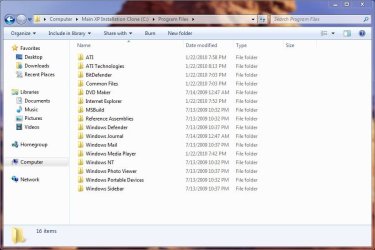
Program files(x86) is normal. That's where win7 installs 32 bit applications. you can get rid of the windows.old files with the disk cleanup utility. If you need to make new partitions, that's pretty easy to do from the logical disk manager. I had to reinstall windows several times to get everything working right, but if you're happy with the way things are right now, just keep it as is
 
It looks like a normal Programs folder for 64 bit, with a secondary for default 86 bit Programs, as it would appear after clean install.

All of the files for the old XP installation should be in windows.old folder. Delete it using Disk Cleanup after you're sure you've got everything you want out of it.

Not sure why you didn't get the Drive Tools on Custom "Where do you want to install Windows?" screen, since you know where to look. If it was booted, it should offer it. But you likely wouldn't get the windows.old folder if you format.
 
Not sure why you didn't get the Drive Tools on Custom "Where do you want to install Windows?" screen, since you know where to look. If it was booted, it should offer it. But you likely wouldn't get the windows.old folder if you format.

If remove the install media too soon and the system boots from the hdd during the installation, you won't get the drive tools screen.
 
Thanks guys...looks like not much to be concerned about...I'm just surprised that all my folders are in the new installation...knew that the windows.old would be created...but did not think all folders would also be migrated to the new installation on a "clean install" ?

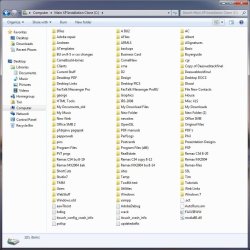
Why did W7 create the windows.old folder with all my files/docs, etc...if they are also in their original folders in the new install ? (screen shot of C: drive attached)

The only thing I have installed on the new W7 Pro system is the BitDefender AV and motherboard drivers/add-ons.

Consensus is that this is normal and not to worry ??

Tim
 

Attachments

  • all_folders.JPG
    all_folders.JPG
    99.4 KB · Views: 13

My Computer

Computer type
PC/Desktop
Computer Manufacturer/Model Number
Self built
OS
Windows 7 Pro 64bit SP1
CPU
AMD FX-6100 Six-Core Processor
Motherboard
M5A78L-M LX PLUS
Memory
2ea Corsair-1333MHz-PC3-10666-240-pin-CMX4GX3M1A1333C9
Graphics Card(s)
NVIDIA GeForce GT 630 - 1023MB (EVGA)
Sound Card
OnBoard Via High Def Audio
Monitor(s) Displays
Samsung 204B main - ASUS VS228 secondary
Screen Resolution
1920x1080 main - 1920x1080 secondary
Hard Drives
Samsung SSD 840 128GB Win7 Pro 64bit - Western Digital WDC 465GB - Seagate 640GB Sata B/U - Maxtor 500GB Sata B/U - Maxtor 200GB Sata
PSU
Antec 650 watt
Cooling
Multiple case fans
Keyboard
MS USB dual Wireless Keyboard - IntelliType Pro
Mouse
MS USB dual Wireless Mouse - IntelliPoint
Internet Speed
Cox Cable
Antivirus
Bitdefender IS 2014
Browser
FireFox Primary - IE 11
Other Info
Hauppaguge Win TV HVR-1250 (Model 22xxx, Hybrid ATSC/QAM)
Samsung HD103SI USB 1TB Desktop Drive - Backup & Disk Image storage
the .old files are just taking up space on your HDD, but if you are happy with it, I wouldn't worry
 
Win 7 Pro backup - clone question

Can you have more than on drive "C" clone on the same external drive ? I have a 1.5 gig usb external drive I got for backup/cloning of my C drive. Can I have more than one clone of the drive on this same unit ? Or..can I have a clone of my drive and a clone of my roommates drive on the same eternal usb drive...using separate partitions of course ?

Thanks, Tim
 

My Computer

Computer type
PC/Desktop
Computer Manufacturer/Model Number
Self built
OS
Windows 7 Pro 64bit SP1
CPU
AMD FX-6100 Six-Core Processor
Motherboard
M5A78L-M LX PLUS
Memory
2ea Corsair-1333MHz-PC3-10666-240-pin-CMX4GX3M1A1333C9
Graphics Card(s)
NVIDIA GeForce GT 630 - 1023MB (EVGA)
Sound Card
OnBoard Via High Def Audio
Monitor(s) Displays
Samsung 204B main - ASUS VS228 secondary
Screen Resolution
1920x1080 main - 1920x1080 secondary
Hard Drives
Samsung SSD 840 128GB Win7 Pro 64bit - Western Digital WDC 465GB - Seagate 640GB Sata B/U - Maxtor 500GB Sata B/U - Maxtor 200GB Sata
PSU
Antec 650 watt
Cooling
Multiple case fans
Keyboard
MS USB dual Wireless Keyboard - IntelliType Pro
Mouse
MS USB dual Wireless Mouse - IntelliPoint
Internet Speed
Cox Cable
Antivirus
Bitdefender IS 2014
Browser
FireFox Primary - IE 11
Other Info
Hauppaguge Win TV HVR-1250 (Model 22xxx, Hybrid ATSC/QAM)
Samsung HD103SI USB 1TB Desktop Drive - Backup & Disk Image storage
Hi Tim -

You'll get better responses by posting a new thread in General for max attention.

You can keep as many Backup images (cloning is done in real time HD to HD) stored on external as you want, either in the open or in folder.

If you use Win7 Backup Imaging the file must be in the root and labeled WindowsImageBackup for the booted DVD or Repair CD to autodetect it on external, however you can rename it or put it in another folder for Storage purposes.

For example, on my external at home I have Win7 backup images for seven home computers, each in a folder with other files from the same machine backed up. When I need to reimage one of our computers, I plug in the external, drag the WindowsImageBackup file for that machine into the External's root, boot from the Win7 DVD Repair console>Recover Using an Image and it autodetects it every time.
 
Back
Top