A external drive that is not connected to the computer shows in explor

Supadupa

New member
Local time
5:57 PM
Messages
17
Hi! I have a little annoying problem. A previously connected external drive shows up in my windows explorer even though it's not connected. It also takes up a drive letter. I can't eject it, when I try it says: "An error occurred while ejecting (G).

I would like to remove this non existent external drive and free up the drive letter G:. Any ideas?
 

My Computer My Computer

At a glance

Windows 7 Ultimate x64
OS
Windows 7 Ultimate x64
Do a complete proper Shut Down and Start Up and see if it works for you.
 

My Computer My Computer

At a glance

Windows 10 Pro. 64/ version 1709 Windows 7 Pr...Intel i7-6800K @ 4.3Corsair Platinum 16 gig @2400EVGA GTX 1070 OC
Computer type
PC/Desktop
Computer Manufacturer/Model Number
Home made Desktop
OS
Windows 10 Pro. 64/ version 1709 Windows 7 Pro/64
CPU
Intel i7-6800K @ 4.3
Motherboard
ASUS X-99 Deluxe II
Memory
Corsair Platinum 16 gig @2400
Graphics Card(s)
EVGA GTX 1070 OC
Monitor(s) Displays
Asus 27" LED LCD/VE278Q
Screen Resolution
1920-1080 or 1280-720 HDMI
Hard Drives
INTEL SSD 730-240 Gb Sata 3.0/
PSU
EVGA Platium 1200W
Case
Phanteks Luxe Tempered Glass 8 fans/ one radiator
Cooling
XSPC/ Water Cooled CPU
Keyboard
Das 4 Professional
Mouse
Logitech M705/MX Anywhere 2-S
Internet Speed
100 mbits
Antivirus
Microsoft Security Essentials/ Malwarebytes Premium 3.0/ SAS
Browser
I.E. 11 default/Firefox/ ISP Time Warner Cable/Spectrum
Other Info
LG BluRay Burner/
Sound system-KLipsch-THX/
Icy Dock ssd Hot Swap bays.
What if you go into disk management and delete the volume? You can do this going - start - right click computer- click manage- then go to disk management on the volume should show - then right click and delete
 

My Computer My Computer

At a glance

Windows 7 Ultimate 64-bitIntel Core 2 Duo E6550 @2.33GHz4GB DDR"NVIDIA GeForce 8600 GS
Computer type
PC/Desktop
Computer Manufacturer/Model Number
Dell / Lenovo g550
OS
Windows 7 Ultimate 64-bit
CPU
Intel Core 2 Duo E6550 @2.33GHz
Motherboard
foxconn g33m02
Memory
4GB DDR"
Graphics Card(s)
NVIDIA GeForce 8600 GS
Hard Drives
HDD 1 = 150GB
HDD 2 = 1.5TB
PSU
450W
Cooling
Stock fan
Internet Speed
12Mb
Antivirus
AVG Internet Security
Open Registry Editor: Start > All Programs > Accessories > Run > regedit and then click on OK

Go to the following Registry entry

[HKEY_CURRENT_USER\Software\Microsoft\Windows\CurrentVersion\Explorer\MountPoints2]

If under MountPoints2 you find the stuck/ghost drive letter, right click on it and delete. Close the Registry Editor.

Log off and on or reboot.

Problem Resolved?

( Be careful with the registry. Delete only the stuck drive letter under MountPoints2 and nothing else. I would advise that you rightclick on MountPoints2, Export, give it a filename and save it to Documents. If need be, you can restore it later by doubleclicking on it..)
 

My Computer My Computer

At a glance

Windows 7 Home Premium 32 bit
OS
Windows 7 Home Premium 32 bit
Open Registry Editor: Start > All Programs > Accessories > Run > regedit and then click on OK

Go to the following Registry entry

[HKEY_CURRENT_USER\Software\Microsoft\Windows\CurrentVersion\Explorer\MountPoints2]

If under MountPoints2 you find the stuck/ghost drive letter, right click on it and delete. Close the Registry Editor.

Log off and on or reboot.

Problem Resolved?

( Be careful with the registry. Delete only the stuck drive letter under MountPoints2 and nothing else. I would advise that you rightclick on MountPoints2, Export, give it a filename and save it to Documents. If need be, you can restore it later by doubleclicking on it..)


The drive does not show up in that location of regedit. Can you see it?

http://i516.photobucket.com/albums/u323/gottmedkakor/mousepoint_zpsa42acf0a.jpg
 

My Computer My Computer

At a glance

Windows 7 Ultimate x64
OS
Windows 7 Ultimate x64
Post a screen shot of your disk management.

Click Start :orb: > Right click 'Computer' > Manage > Click disk management on left pane and post a full screen screenshot.

Also try this: Reconnect the same external drive and make sure you can access G drive. Now click the green device removal icon in the taskbar notification area and click 'safely remove device'. Does this help?

If the green icon is not there, then right click G drive and click 'Eject' and then disconnect the drive from your system.
 
disks_zpsd4fd2f0b.jpg


I think that the external drive was not actually a externaldrive but a truecrypt volume that was assigned to a drive letter. The drive does not show in disk management.
 

My Computer My Computer

At a glance

Windows 7 Ultimate x64
OS
Windows 7 Ultimate x64
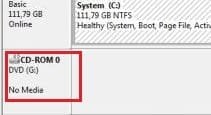
G: seems to be your DVD drive according to the screen shot:

tewt.jpg

Don't you have a DVD drive in your machine?

If not,

Click Start > Type in "Device Manager" and hit Enter.
Now expand "CD/DVD drives":

Capture.JPG

What do you see there? If there's an entry, right click it and click Uninstall.

Now is your G free?
 
ghost drive E

I appreciate the insights and possible solutions.
A "ghost" E drive is showing up in Explorer under "Devices with Removable Storage". It does not identify file type nor any size.
Computer - Properties - Hardware - it is listed as Generic-Multi-Card USB Device.
In Folder Options, I have unchecked "Don't show hidden files and folders".
I have not yet checked the bios.
SCANNOW did not reveal any integrity problems.
I checked the Registry and found it ("E"), as described in this blog, and deleted it. It disappeared in Explorer, but on re-boot, E shows back up in Explorer (message about software being installed for device), but does not show up in the Registry where it previously was.
I see it ("E") in Device Manager, both under Disk drives (Generic - Multi-Card USB Device) as well as under Portable Devices (E:\). I uninstalled both, it disappears, but on re-boot, same software install message, and, shows back up both in Explorer and in Device Manager.
In Device Manager - View - Devices by Connection - UMBus Enumerator - there was a reference to a USB Mass Storage Device. I uninstalled it. Reboot, it shows up in Explorer, but not in UMBus.
Under USB Hosts, I saw USB Mass Storage Device. I deleted it, but it showed back up. I then deleted all of the entries under USB Hosts, rebooted, and USB Mass did not show up. But, that "ghost" E is still showing up in Explorer - at boot, software is being installed for it.
Every re-boot, device software (generic MS) is being installed, and E shows up.
Computer - Manage - Disk Management - Disk 1 - Removable (E) - no media, not "basic" (it's blank); Disk 0 is the HD, Disk G is the DVD. When I right click on the E, no opportunity to delete.
I have an external HD - Passport - and when I connect it, it shows up as Passport (F). I have flash drives that I use, and they show up as well, as their own drive. Nothing I have associates itself with that drive E.
As you might understand, I am somewhat perturbed, :rolleyes: confused, and would greatly appreciate the expertise associated with this forum. :D
Thnx
 
Last edited:

My Computer My Computer

At a glance

Win 7 HP 642.4 GHz i5 M4506 GB DDR3 1066
Computer type
Laptop
Computer Manufacturer/Model Number
Dell Inspiron N7010
OS
Win 7 HP 64
CPU
2.4 GHz i5 M450
Motherboard
CN-08VFX1 8VFX1
Memory
6 GB DDR3 1066
Hard Drives
WD 640 GB
Antivirus
AVG
Browser
Chrome
I was experiencing a similar situation. Showing an E drive. Found out it was my printer.
 

My Computer My Computer

At a glance

Windows 7 Home Premium 64bit
OS
Windows 7 Home Premium 64bit
Back
Top