Solved a secondary drive marked as system drive?

chris2busy

New member
Member
Local time
1:03 AM
Messages
33
Hello forum friends!
This morning i did a fresh install of windows 7 pro 32 bit.
my rig has as main disk a 60gb ssd , and 3 secondary drives for multimedia storage and backups.
as i was selecting the drive i wanted to install the windows 7 on, it appeared that one of the drives had a "system" characterisation, as opposed to the other drives that were "logical drives"..i went ahead and installed the os, just fine, but it really troubled me.
what could it mean?why is the secondary drive i use to store family photos and videos characterized as "system drive" ?

thanks in advance for the time you to took to answer/read this.
 

My Computer My Computer

OS
win 7
System means its the partition booting OS. The new install might have placed its boot files there if the other drives were not unplugged during the install as they always should be.

After posting back the requested screenshot of Disk Management - Post a Screen Capture Image, unplug all but the new install SSD to see if it will boot itself. If not Mark Win7 or its 100mb System Reserved (preferred if you have it) Partition Active then run Startup Repair - Run up to 3 Separate Times until the SSD boots itself.

Then when you plug back in the other HD's, mark the erroneous System drive Inactive: Partition - Mark as Inactive - Windows 7 Forums, make sure the SSD remains set first drive to boot in BIOS setup.
 
Sure mate!
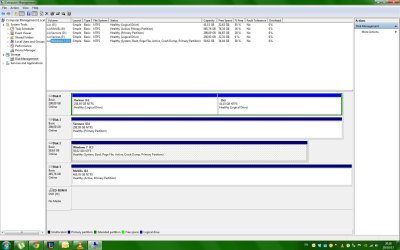
Here you go.
 

Attachments

  • disk managment.jpg
    disk managment.jpg
    146.8 KB · Views: 14

My Computer My Computer

OS
win 7
System means its the partition booting OS. The new install might have placed its boot files there if the other drives were not unplugged during the install as they always should be.

After posting back the requested screenshot of Disk Management - Post a Screen Capture Image, unplug all but the new install SSD to see if it will boot itself. If not Mark Win7 or its 100mb System Reserved (preferred if you have it) Partition Active then run Startup Repair - Run up to 3 Separate Times until the SSD boots itself.

Then when you plug back in the other HD's, mark the erroneous System drive Inactive: Partition - Mark as Inactive - Windows 7 Forums, make sure the SSD remains set first drive to boot in BIOS setup.

So, if that is the case, as long as i do not remove the secondary drive that may or may not contain bootloader(or whatnot), i should be okay to run like that, right?

Or would leaving it that way, could cause some sort of implication? I am kinda "if it ain't broke, don't fix it" , theory supporter.
I just ask for learning purposes :)
 

My Computer My Computer

OS
win 7
It's not correct. The Win7 drive should be booting itself and not dependent upon some data drive.
 
Last edited:
wait...it is not showing up for you?
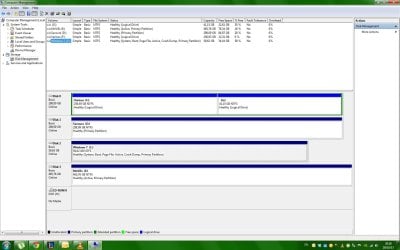
maybe i did something wrong...the screenshot is posted 2 posts ago..i will give it 1 more shot here.
 

Attachments

  • disk managment.jpg
    disk managment.jpg
    146.8 KB · Views: 8

My Computer My Computer

OS
win 7
Sorry I missed the screenshot.

The System (partition booting Win7) and Active (pointer to System partition) flags are set correctly on C.

The only potential problem is data drive E marked Active, when only the System drive should be Active. Best to mark it Inactive now: Partition - Mark as Inactive - Windows 7 Forums

A lesser concern is that if you run repairs or reinstall the System boot files may place themselves on a preceding Primary partition, so it's always best to have your OS drive is DISK0 position if that is an optimal port for it to be plugged into. If you move it be sure it remains set to boot first in BIOS. If not I would monitor that the System flag doesn't get moved to D during a repair or reinstall.
 
Thanks bro!
That was alot of help!
Cheers!
 

My Computer My Computer

OS
win 7
Back
Top