
Solved Access Recovery Console without install disk

markaz

New member
Power User
VIP
Local time
11:01 AM
Messages
168
Location
Peoria, AZ
Window 7 Home Premium 64-bit

Had a dual boot Win 7/Ubuntu 10.10. Got rid of ubuntu by deleting the partition it was on and extended the Win 7 volume. All of this done in Disk Management. At the end Disk Management showed that space now part of C drive. I restarted to check that the grub bootloader was no longer running startups and I get the Windows 7 startup screen and then the message "Windows configuring... Do not shut down computer". After running approximately 3 minutes appears a black screen with the following: error: no such partition. grub rescue > blinking cursor. I restart and get the error message immediately. Now for the bad part!
I purchased the computer (ASUS UL30-A) with Win 7 OEM and there is no install disk because the computer has no DVD/CD drive. To fix the MBR I need to access the recovery console, but have absolutely no way to get to the RC that I know of. If anyone has suggestions I would really appreciate it.
 
Last edited:

My Computer

Computer type
PC/Desktop
Computer Manufacturer/Model Number
Custom
OS
Windows 7 Home Premium x64
CPU
AMD A6-6400K APU
Motherboard
Gigabyte F2A88XM-D3H
Memory
8.0GB DDR3-1600
Graphics Card(s)
Radeon Onboard Graphics
Sound Card
Realtek High Def
Monitor(s) Displays
Acer K242HQL
Screen Resolution
1920x1080
Hard Drives
Samsung 850 EVO SSD 250GB
PSU
Corsair 430W
Case
Silverstone PS-08
Cooling
Enermax fans (120mm-intake, 80mm-exhaust)
Keyboard
Logitech K360
Mouse
Logitech M305 Cordless Optical
Internet Speed
Download 60.19Mbps Upload 6.71Mbps
Antivirus
AVG
Browser
Iron Version 51.0.2700.0 (64-bit)
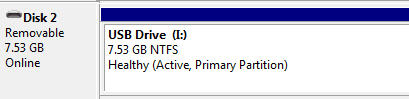
Reboot the computer and tap the F8 key repeatedly to see if you have the Repair Console on Advanced Boot Options menu.

If so, run Startup Repair repeatedly If not you can find or download a Win7 REpair CD or Installation DVD to write to flash stick using WinToFlash.
Boot it to run Startup Repair repeatedly after making sure WIn7 or it's 100mb boot partition (preferred) is marked Active: Partition - Mark as Active

Another option would be to run factory recovery from it's partition at boot if you still have the Recov partition. Or clean reinstall using Win7 installer from flash stick: Reinstalling Windows 7
 
Thanks for replying, gregrocker. Cannot get to the console via F8. Goes immediately to the error screen.
Checked online and there's a copyright issue with the iso, so the majority of reliable sites do not have the download. However, I did find one site that had it (165MB) and I downloaded it. Very interesting that it automatically downloads to a Temp folder regardless of what path you dictate. Burned the image to a DVD. Opened wintoflash and put in the DVD source and USB. got the message that the source does not have the necessary files. The iso has 2 folders but NO setup file. In one folder is a 164MB WIM file that I can't open.
If you know how to open the WIM file to see if there is and install there great. If not, or if I'm missing something here, please let me know.

Thanks again.
 
Last edited:

My Computer

Computer type
PC/Desktop
Computer Manufacturer/Model Number
Custom
OS
Windows 7 Home Premium x64
CPU
AMD A6-6400K APU
Motherboard
Gigabyte F2A88XM-D3H
Memory
8.0GB DDR3-1600
Graphics Card(s)
Radeon Onboard Graphics
Sound Card
Realtek High Def
Monitor(s) Displays
Acer K242HQL
Screen Resolution
1920x1080
Hard Drives
Samsung 850 EVO SSD 250GB
PSU
Corsair 430W
Case
Silverstone PS-08
Cooling
Enermax fans (120mm-intake, 80mm-exhaust)
Keyboard
Logitech K360
Mouse
Logitech M305 Cordless Optical
Internet Speed
Download 60.19Mbps Upload 6.71Mbps
Antivirus
AVG
Browser
Iron Version 51.0.2700.0 (64-bit)
AS you have install linux, this may or may not work.

How to make a ASUS Recovery disk on a USB Pendrive.

Ensure to connect your PC to the AC power adapter before using F9 recovery.
Using recovery partition (F9 Recovery)
1. Press <F9> during bootup.
Ensure to press <F9> only once during bootup.
2. Select the language you use and click to continue.
3. Connect a USB storage device to your Eee PC and click Backup in the Recovery System dialog box to start the recovery files backup.
The size of the connected USB storage device should be larger than 16GB.
Memory cards are not supported for this function.
A dialog box appears as a reminder if you have not connected the USB storage device for system recovery backup to your Eee PC.
4. Select a desired USB storage device if more than one USB storage device is connected to your Eee PC and click Continue.
5. All the data on the selected USB storage device will be cleared. Click Continue to start the backup or click Back to backup your important data.
You will lose all your data on the selected USB storage device. Ensure to back up your important data beforehand
6. The system backup starts and click OK when done.

Post back for the next step's.
 

My Computer

OS
ME/XP/Vista/Win7
The ISO for the Repair CD does not have a Setup file - it is an ISO meant to be burned to a CD then booted only. In the past WinToFlash has worked best to write it to flash stick. If this fails, try using UltraISO trial version: On file tab Open ISO, on Bootable tab Write Disk Img, Format, Write. Boot under USB or HD's.

It would be better to find the installer ISO for your version Win7 so you have the ability to clean reinstall if necessary as well as the Repair console on second screen after booting. This tool or UltraISO is easiest to write it to stick: Universal USB Installer – Easy as 1 2 3 | USB Pen Drive Linux
 
theog - Whether I click on <F9> once or multiple times the error screen described in my original post appears. To be clear, I deleted the partition containing Linux and extended the volume containing win7 to the unallocated space.

gregrocker - I burned the ISO to a DVD. Because I have never had to deal with ISO's before I don't know what should be on the disk after the image is burned. I include what is on the DVD below:
On the DVD:
97081338.jpg

In the 'boot' folder:
bootfolder.jpg

In the 'sources' folder:
sourcesfolder.jpg

I couldn't tell you if these contents are all that is needed or not. In Wintoflash I tried two sources for the Windows files. I used the ISO on my Desktop and the burned image on DVD. In both cases when I tried to proceed Wintoflash gives the message "Incorrect source of Windows files".

I installed UltraISO and followed your instructions. Set the USB as first to load in the BIOS and restarted the laptop. Immediately went to the error screen as described in my first post.

I apologize for responding much later than your posts, but I just now received email notification of ALL posts in this thread. I will manually check the site hourly. Thanks so much for the help. I appreciate it!

UPDATE: Although I set the USB to boot first in the BIOS, in 'desperation' I clicked F8 and F10 and got the error screen. I then clicked the 'ESC' key and a window opened "Select First Boot Device" and listed the HD and the USB drive. Selected USB drive and a window opened "Starting windows" and has taken me to the System Recovery Options.

So I can now get to the recovery options. I tried but failed to solve the boot problem, but my request to get to recovery has been solved and I thank you. I will start another thread with the problem I am having in recovery options.

Well done!!
 
Last edited:

My Computer

Computer type
PC/Desktop
Computer Manufacturer/Model Number
Custom
OS
Windows 7 Home Premium x64
CPU
AMD A6-6400K APU
Motherboard
Gigabyte F2A88XM-D3H
Memory
8.0GB DDR3-1600
Graphics Card(s)
Radeon Onboard Graphics
Sound Card
Realtek High Def
Monitor(s) Displays
Acer K242HQL
Screen Resolution
1920x1080
Hard Drives
Samsung 850 EVO SSD 250GB
PSU
Corsair 430W
Case
Silverstone PS-08
Cooling
Enermax fans (120mm-intake, 80mm-exhaust)
Keyboard
Logitech K360
Mouse
Logitech M305 Cordless Optical
Internet Speed
Download 60.19Mbps Upload 6.71Mbps
Antivirus
AVG
Browser
Iron Version 51.0.2700.0 (64-bit)
theog - I updated my post and am preparing to mark this problem as solved. As you can see it was a matter of manually selecting the USB device as the boot after ESC was clicked. Setting the BIOS for the USB as first device did not work for whatever reason.
I will shortly be starting a new thread as I have been unable to 'recover'.

Thanks for your help!
 

My Computer

Computer type
PC/Desktop
Computer Manufacturer/Model Number
Custom
OS
Windows 7 Home Premium x64
CPU
AMD A6-6400K APU
Motherboard
Gigabyte F2A88XM-D3H
Memory
8.0GB DDR3-1600
Graphics Card(s)
Radeon Onboard Graphics
Sound Card
Realtek High Def
Monitor(s) Displays
Acer K242HQL
Screen Resolution
1920x1080
Hard Drives
Samsung 850 EVO SSD 250GB
PSU
Corsair 430W
Case
Silverstone PS-08
Cooling
Enermax fans (120mm-intake, 80mm-exhaust)
Keyboard
Logitech K360
Mouse
Logitech M305 Cordless Optical
Internet Speed
Download 60.19Mbps Upload 6.71Mbps
Antivirus
AVG
Browser
Iron Version 51.0.2700.0 (64-bit)
Can you now make your ASUS Recovery disks?
 

My Computer

OS
ME/XP/Vista/Win7
No. I cannot get into Windows.
 

My Computer

Computer type
PC/Desktop
Computer Manufacturer/Model Number
Custom
OS
Windows 7 Home Premium x64
CPU
AMD A6-6400K APU
Motherboard
Gigabyte F2A88XM-D3H
Memory
8.0GB DDR3-1600
Graphics Card(s)
Radeon Onboard Graphics
Sound Card
Realtek High Def
Monitor(s) Displays
Acer K242HQL
Screen Resolution
1920x1080
Hard Drives
Samsung 850 EVO SSD 250GB
PSU
Corsair 430W
Case
Silverstone PS-08
Cooling
Enermax fans (120mm-intake, 80mm-exhaust)
Keyboard
Logitech K360
Mouse
Logitech M305 Cordless Optical
Internet Speed
Download 60.19Mbps Upload 6.71Mbps
Antivirus
AVG
Browser
Iron Version 51.0.2700.0 (64-bit)
As stated in my post on UltraISO, flash sticks often boot under HD's and not USB.

Glad it helped.
 
Back
Top