Acer Aspire XC-603 Boot problems

number138

New member
Local time
6:09 AM
Messages
11
Location
Netherlands
Well I've got this problem and couldn't find any solution in here that helped me.

I've formatted the C disk where windows 8 was on and then tried to install windows 7 from with a boot USB.
Did didn't work. I've tried literally everything.

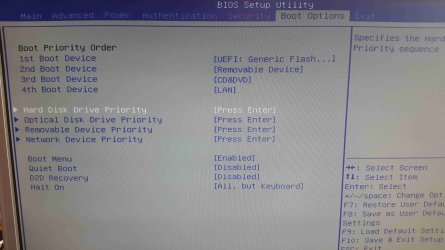
1. I've the right boot order.
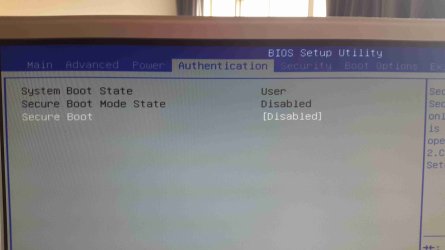
2. I've turned of secure boot.
3. I've tried it with a DVD.
4. The USB and DVD boot both work on my laptop.

It looks like whatever I do I always get this text in my screen:

"Reboot and Select proper Boot Device or Insert Boot Media in selected device and press a key"

Has anyone any idea what this can be? It gets really frustrating that this PC is unresponsive to any change and will not boot anything. Much thanks for the help in advance.
 

My Computer

Computer type
PC/Desktop
OS
Windows 7 Ultimate x64
Work through these steps to Troubleshoot Windows 7 Installation Failures - Windows 7 Help Forums

It sounds like your boot media is not formatted correctly. If you have UEFI BIOS then flash stick must be formatted using only Option 1 of UEFI Bootable USB Flash Drive - Create in Windows
and must then be booted only as a UEFI device. Delete all partitions to clear formatting and install.

If problems persist report back any BIOS settings related to UEFI, CSM, Legacy BIOS, Secure Boot, and BIOS Boot Priority order. Pictures will help. Screenshots and Files - Upload and Post in Seven Forums - Windows 7 Forums
 
First of all I want to thank you for your input this helped a lot.
The PC now boots from the USB. Only now the installation fails when it is trying to start up.
It keep hanging on: "Starting Windows". What can this be? A corrupt hard-drive or something?
Much thanks.
 

My Computer

Computer type
PC/Desktop
OS
Windows 7 Ultimate x64
I gave you very specific steps to follow above if the installation failed. That you asked back for more help while completely ignoring them makes me wonder what else you're skipping? This work requires absolute attention to detail and skipping no steps.

Where did you get the ISO from? Did it download completely, how is it written to stick?
 
The installation ISO is a Windows 7 64Bit version an has bin used for other computers and laptops so the ISO is good.
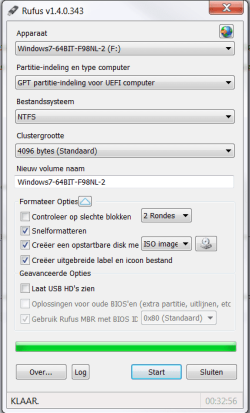
I've written it to the stick with GPT partition with a FAT32 filesystem.
The PC starts the boot from the USB stick but doesn't go further than "Starting Windows".
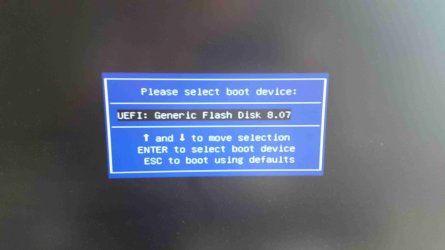
If I go to the BIOS Screen it recognizes the USB as a UEFI Boot device.

I've also tried MBR Parition for UEFI Computers but the same happens.
I think I tried every different option with RUFUS but the same keeps happening.

I can't take a screenshot right now.
But the boot order is:
- UEFI drive.
- DVD/CD
- LAN.

Safety boot is off.
 

My Computer

Computer type
PC/Desktop
OS
Windows 7 Ultimate x64
Did you follow exactly Option One of UEFI Bootable USB Flash Drive - Create in Windows?

There are pictures there showing exactly how each setting must be set to write the stick to UEFI with GPT. These settings can sometimes change when you adjust them if you don't double-check before formatting the stick that they stayed the same. This happened to me just yesterday.

Then boot the stick by rebooting the PC and tapping the Acer F12 one-time BIOS Boot menu key at boot until you get a Boot menu. Choose UEFI flash stick to boot. What happens?

If UEFI Flash stick doesn't show up to boot then it isn't written correctly, or the BIOS settings are not correct. This is why I asked you boot into BIOS setup to report back the settings choices for UEFI, CSM, Legacy BIOS, and BIOS Boot Priority order. These may be on the Advanced, Boot or another tab in BIOS setup. If you can snap pictures with your phone it will help. Attach the files in reply box using paper clip icon.

I will be online from 1100 hours til midnight PST tomorrow.
 
Last edited:
Ok I'll try this again to the letter and if it doesn't work I'll put some foto's online. Thanks for the help.
 

My Computer

Computer type
PC/Desktop
OS
Windows 7 Ultimate x64
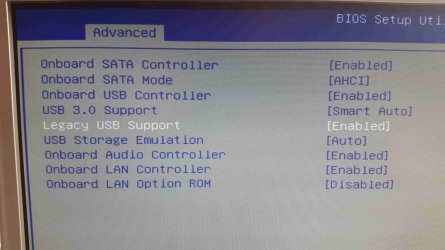
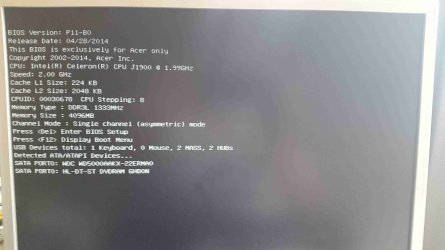
I've put a rar file with all the settings from the bootscreen in a attachment.
It still doesn't work. Is't possible that a formatted the Hard drive wrong and now the system doesn't recognize it anymore? I formatted it to NTFS but didn't set it as a GPT partition.

Greetings.
 

My Computer

Computer type
PC/Desktop
OS
Windows 7 Ultimate x64
I could not have been more specific about how to attach the pictures.
 
Rufus.png
By the way, NTFS is FAT32.
20150210_110401.jpg
20150210_110441.jpg
20150210_110350.jpg
20150210_110829.jpg
20150210_110012.jpg
20150210_104952.jpg
 
Last edited:

My Computer

Computer type
PC/Desktop
OS
Windows 7 Ultimate x64
The flash stick needs to be FAT32 formatted as shown below and not as shown in the picture you posted back. There is a problem with Rufus having the settings jump around when you change one.

22848d1370830848-uefi-bootable-usb-flash-drive-create-windows-rufus.jpg


I would do it over to make sure. If it fails I would try a DVD install since you obviously have a DVD drive.

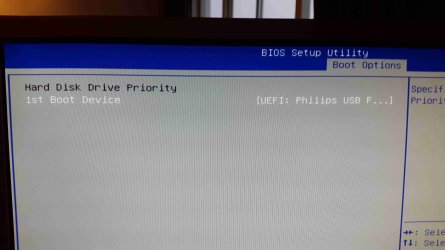
I see no hard drive in the Boot Priority, only under SATA ports. What is the Hard Drive Boot Priority? I see the HD WDC device on Port0, however for a UEFI install the hard drive should change to Windows Boot Manager.

Next I'd try formattting the stick for Legacy to MBR disk and booting the stick as a Legacy (not UEFI) device to see if you can Bypass UEFI to Install WIn7.
 
Last edited:
I'm going to try to create a boot with FAT32 Again.

But I believe that the hard drive isn't recognized anymore? (I formatted it in NTFS without any GPT partition setting). It's isn't at the Boot device options.
Is it possible to format the hard drive without any windows? I tried to make a MS Dos boot but this isn't possible with UEFI boot.
 

My Computer

Computer type
PC/Desktop
OS
Windows 7 Ultimate x64
We still have not seen HD Boot Priority choices.

The HD is listed under SATA ports, the WDC Device. It needs to be in Boot Priority, either as Windows Boot Manager for UEFI or WDC Device for Legacy install.

I explained also how to install in Legacy Mode.

The Commands to format the disk for Legacy are in Bypass UEFI tutorial I just linked.
 
The HDD isn't in the list. It is only shown in Advance AHCI Port0.
I can't select it as Boot device and it isn't in the HDD priority list.

20150212_082054.jpg

I've also tried the link but the problem is that I never get in the installation screen so getting in the command promt with shift F10 isn't possible :(
 

My Computer

Computer type
PC/Desktop
OS
Windows 7 Ultimate x64
When you attempt to boot DVD does it show up as a UEFI DVD drive and a plain DVD drive to boot? I'd try each of those methods, deleting all partitions if you get to the Drive Selection screen.

At some point it would probably be good to test the hard drive just to be sure: WD Diagnostics for Flash Stick

If the WD Diagnostics stick will boot and run, and the drive tests OK, then I'd create a Legacy Win7 installation Flash stick the same way and follow Bypass UEFI to Install WIn7
 
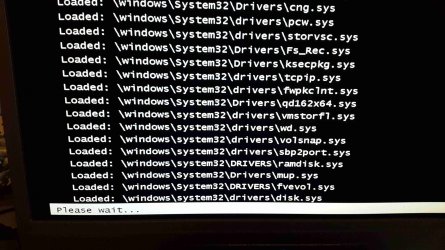
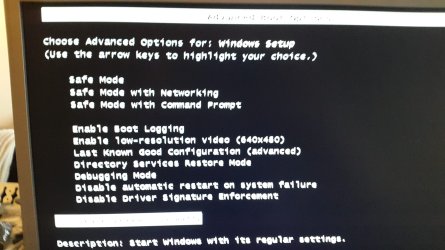
I've been able to start the windows install in save mode and then I got this list.
When I tried to boot up an installed windows 7 on a USB stick(not a boot install) this also happened.
It always stops at disk.sys.

20150212_090840.jpg
 

My Computer

Computer type
PC/Desktop
OS
Windows 7 Ultimate x64
If you can boot into Safe Mode, please post back a screenshot of Disk Management - Post a Screen Capture Image.

If not you can download Partition Wizard and burn to CD with Windows Image Burner, boot and take a picture of the full drive map showing all listings. This will tell us whether you have a UEFI or Legacy install.

There are many steps that have been given that have not yet been performed, so you need to catch up before we give any more. In many cases the step which has been skipped is the solution.
 
Ok. I've tried to install a windows 7 on an USB Drive with WinToUSB and tried to boot a fully installed windows on the desktop so I can see the HDD drive and maybe install windows on it or format it. When I started this Windows the screen kept being black so I tried starting it in Safe mode and saw that it stops at disk.sys.

Now when I tried to boot the Windows 7 installation from the USB when I pressed Shift F10 when the loading files bar showed up I was able to get in this screen.

20150212_092509.jpg

And then I tried to start in safe mode with command promt. And it also stopped at disk.sys.
 

My Computer

Computer type
PC/Desktop
OS
Windows 7 Ultimate x64
Win2USB will never work for UEFI installs, which is why I gave you the tool needed from Option One of UEFI Bootable USB Flash Drive - Create in Windows. Make sure that before proceeding to check that every settting is exactly as shown in the picture there because the settings can slip when you change one or add an ISO.

Then the stick must be booted as a UEFI flash stick.

Similarly if you use DVD it must be booted as a UEFI DVD.

Trying Legacy install will not work unless the BIOS settings are changed to allow CSM or Legacy BIOS. In either case the disk must be deleted down to Unallocated space to allow the correct formatting to be applied.

If you have further questions, please ask back. Otherwise go to the top of the thread and follow every step given to catch up.
 
Last edited:
Gregrocker I've followed those steps to the letter. The boot was successful but it wouldn't go to the install screen (and believe me I've tried to do this many many times exactly as you told me to). I've also tried this on another PC with the same settings and also with a UEFI boot this worked perfectly. I want to thank for your help. I've send the PC back because I believe it has a hardware problem.
 

My Computer

Computer type
PC/Desktop
OS
Windows 7 Ultimate x64
Back
Top