Add Network printer only looks at windows update for driver

Remush

New member
Local time
12:01 AM
Messages
6
Hi all,

I'm installing a network printer onto windows 7, the printer is hosted from a windows xp machine.

Windows 7 detect's the printer, and then says that its looking for drivers on windows update, this might take a while. However I never see an option to browse for the drivers myself.

I've tried running the exe to install windows 7 drivers for the Canon Pixma i4500 but it says the printer is not detected, well of course it isn't :) its a network printer.

Any suggestions are welcome and appreciated.
 

My Computer

OS
Win XP 32
Hello,

You need to install the windows 7 drivers onto the Windows XP machine as additional drivers.

See:
Microsoft Corporation

Also, you need to make sure that the printer is shared so that the Windows 7 machine can see it. You can then add the printer via the Add Printer Wizard or browse to it and double click the printer (\\XPMACHINENAME).


Dave
 

My Computer

Computer type
PC/Desktop
Computer Manufacturer/Model Number
Custom
OS
Windows 7 Ultimate x64
CPU
Intel Core i7 2600K (O/C 4.7GHz)
Motherboard
Asus ROG Maximus IV Extreme-Z - Intel Z68 Chipset
Memory
8GB Corsair Vengeance LP, DDR3, 1600Mhz
Graphics Card(s)
Nvidia GTX 460 Graphics Card
Sound Card
Onboard
Monitor(s) Displays
Dell E228WFP
Hard Drives
2 x 500GB Samsung SpinPoint Drives (1 for OS, 1 for Data and Apps)
PSU
CoolerMaster 1000W
Case
CoolerMaster HAF
Cooling
Air
Internet Speed
Fibre - 60MB Down, 30MB Up
Antivirus
ESET NOD32 Antivirus
Hi all,

I'm installing a network printer onto windows 7, the printer is hosted from a windows xp machine.

Windows 7 detect's the printer, and then says that its looking for drivers on windows update, this might take a while. However I never see an option to browse for the drivers myself.

I've tried running the exe to install windows 7 drivers for the Canon Pixma i4500 but it says the printer is not detected, well of course it isn't :) its a network printer.

Any suggestions are welcome and appreciated.
The normal approach is easier, if the USB printer is hosted by the 64-bit Win7 machine. Then the 32-bit driver for the 32-bit WinXP client machine can be added as an "additional driver" using the standard Windows capability.

This second "additional driver" is stored in the Win7 printer properties, and if a 32-bit client machine tries to "connect" (with the ADD PRINTER dialog from the 32-bit WinXP client machine, wanting to get to the "shared printer" hosted by the 64-bit Win7 machine) the Win7 host machine actually ships over the 32-bit driver (i.e. that "additional driver") to the 32-bit client. Had it been a second 64-bit Win7 client machine requesting "connection" to the shared printer, then the Win7 host machine would have shipped over its primary 64-bit driver.

However I don't believe the 32-bit WinXP host can hold drivers for both 32-bit WinXP and 64-bit Win7. So you need to obtain the 64-bit Win7 driver for yourself.

Of course the Pixma i4500 is supported by Win7 natively, if only the printer were physically USB-connected to the Win7 machine. The problem comes when the Win7 machine is the client, and the WinXP machine is the host.


Ok... back to the problem.

The driver you want is really the Vista64 driver, which can be downloaded from the Microsoft Catalog Update site if you search for "canon ip4500".

But the same driver file can be downloaded from the Canon site itself, if you specify your OS as "Vista 64-bit".

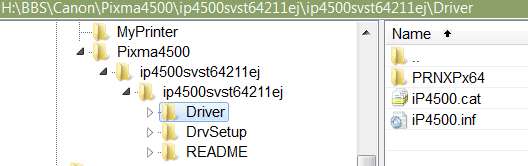
Anyway, assuming you download the self-expanding Canon file (ip4500svst64211ej.exe) into a target folder, you should then use WinRAR or WinZIP to expand it. Do not run it, as your printer is not locally attached to that Win7 machine.

You only want to expand this self-expanding installer file to get to the driver folder inside of it... where the required ip4500.inf file lives.

So, once it's expanded with WinRAR you should see this:

pixma4500.jpg


It is that ip4500.inf file in that folder which you need to navigate to on the Win7 client machine when you go through the "add printer" dialog.


Next... on the Win7 client machine, start the "Add printer" dialog.

Select "add a local printer".

On the "choose a printer port" screen, select "use an existing port" and click on the dropdown arrow to select the USB001 (Virtual printer port for USB) item.

Next, you'll get the "install printer driver" screen where you should push the "have disk..." button. Then push the "browse..." button and navigate to that folder (from above) where you have the ip4500.inf file stored. Select that inf file and push OK, to install the Canon iP4500 series printer driver.

Follow the OK and NEXT buttons, to allow you to name the printer as you want, on the Win7 64-bit client machine. I think that should get the printer added and the appropriate 64-bit Win7 driver for the iP4500 printer installed on the Win7 machine.


To be honest, I'm flaking out at this point as to what to do next... to get the port connection to the shared iP4500 printer actually hosted on the 32-bit WinXP machine.

I actually have two dual-boot machines with Win7 and WinXP on each, and an HP2605dn connected on one (and USB-attached and installed on both 64-bit Win7 and 32-bit WinXP), and shared both both Win7 and WinXP, and available to both Win7 and WinXP running on the other dual-boot machines.

But I can't actually recall the remaining steps I went through to finish up this job, once getting the 64-bit driver for the intended network/shared printer installed on 64-bit Win7 when it was the 32-bit WinXP booted to on the other machine and which was hosting the shared printer at that moment.

I should probably do that right now and come back to update this post.

Sorry for the brain freeze. But maybe you can figure it out for yourself. Maybe you then just need to repeat the above process, but his this time in "add printer" you select the "network printer" path, and the shared printer on the WinXP machine will appear as it should. You select it, and since you already have the required 64-bit Win7 driver installed (from the first steps above) it all happens magically.

I'll be back. But you should see if you can get the rest yourself.

 

My Computer

Computer type
PC/Desktop
Computer Manufacturer/Model Number
Home-built, two systems (1) and (2)
OS
Windows 7 Pro x64 (1), Win7 Pro X64 (2)
CPU
i5-3350p 3.1Ghz/6MB-cache (1); E8400 3.0Ghz/6MB-cache (2)
Motherboard
ASUS P8Z77-V Pro (1); ASUS P5Q3 (2)
Memory
8GB PC3-12800 DDR3 (1); 4GB PC3-10600 DDR3 (2)
Graphics Card(s)
ATI HD7750 (1), (see TV cards); ATI R7 250 (2)
Sound Card
Realtek ALC892 HD Audio (1); Realtek ALC1200 HD Audio (2)
Monitor(s) Displays
Eizo HD2441W LCD, Eizo S2433W (1); Eizo 24" S2433W (2)
Screen Resolution
1920x1200, 1920x1200 (1); 1920x1200 (2)
Hard Drives
(1) 1TB SATA-II (7200RPM), 2x2TB SATA-III (7200RPM), 250GB SATA-III (10000RPM) for OS; 2x2TB external USB 3.0

(2) 320GB SATA-II (7200RPM), 750GB SATA-II (7200RPM), 150GB SATA-II (10000RPM) for OS; 2TB external USB 3.0
PSU
Nesteq ECS-6001 600W (1); Nesteq ECS-5001 500W (2)
Case
Acousti-Case 360 (1) and (2)
Cooling
Noctua NH-U12P SE2 for CPU, 2x120mm case fans (1) and (2)
Keyboard
IBM PS/2 (1) and (2)
Mouse
Logitech MX Revolution wireless (1); Microsoft wired (2)
Internet Speed
100mbps down / 10mbps up
Antivirus
Microsoft Security Essentials; Malwarebyte Anti-Malware Pro
Browser
Firefox
Other Info
Ceton InfiniTV 4-tuner cablecard-enabled TV card as well as Hauppauge HVR-2250 OTA/ATSC 2-tuner TV card in (1), running under Win7 WMC
Actually, WinXP also includes the ability to add "additional driver" in its own printer objects, just as Win7 does.

So once you download and unpack the Canon driver file I mentioned in my above post, perhaps you can just add the 64-bit Vista driver as the "additional driver" in WinXP for that printer. If you're lucky and this works, you should be home free.

Then you can just do the "add printer" thing on the Win7 machine, select "network printer", let WinXP ship over the newly added second 64-bit Vista driver to the 64-bit Win7 client, and you should be home free.

Don't know if this will work in this direction, although that is exactly how it works when the 64-bit Win7 machine is the host and the 32-bit driver is added as "additional driver".
 

My Computer

Computer type
PC/Desktop
Computer Manufacturer/Model Number
Home-built, two systems (1) and (2)
OS
Windows 7 Pro x64 (1), Win7 Pro X64 (2)
CPU
i5-3350p 3.1Ghz/6MB-cache (1); E8400 3.0Ghz/6MB-cache (2)
Motherboard
ASUS P8Z77-V Pro (1); ASUS P5Q3 (2)
Memory
8GB PC3-12800 DDR3 (1); 4GB PC3-10600 DDR3 (2)
Graphics Card(s)
ATI HD7750 (1), (see TV cards); ATI R7 250 (2)
Sound Card
Realtek ALC892 HD Audio (1); Realtek ALC1200 HD Audio (2)
Monitor(s) Displays
Eizo HD2441W LCD, Eizo S2433W (1); Eizo 24" S2433W (2)
Screen Resolution
1920x1200, 1920x1200 (1); 1920x1200 (2)
Hard Drives
(1) 1TB SATA-II (7200RPM), 2x2TB SATA-III (7200RPM), 250GB SATA-III (10000RPM) for OS; 2x2TB external USB 3.0

(2) 320GB SATA-II (7200RPM), 750GB SATA-II (7200RPM), 150GB SATA-II (10000RPM) for OS; 2TB external USB 3.0
PSU
Nesteq ECS-6001 600W (1); Nesteq ECS-5001 500W (2)
Case
Acousti-Case 360 (1) and (2)
Cooling
Noctua NH-U12P SE2 for CPU, 2x120mm case fans (1) and (2)
Keyboard
IBM PS/2 (1) and (2)
Mouse
Logitech MX Revolution wireless (1); Microsoft wired (2)
Internet Speed
100mbps down / 10mbps up
Antivirus
Microsoft Security Essentials; Malwarebyte Anti-Malware Pro
Browser
Firefox
Other Info
Ceton InfiniTV 4-tuner cablecard-enabled TV card as well as Hauppauge HVR-2250 OTA/ATSC 2-tuner TV card in (1), running under Win7 WMC
Back
Top