I need a way to add a shortcut to programs that didnt register, and windows programs, to show up in the start menu of my Windows 7 host, for my Vista SP1 VM. I only see the XP Mode menu under my host. So is there a way I can create shortcuts for the Vista VM?
My Computer
Computer Manufacturer/Model Number
Toshiba Satellite L505D-S9565
OS
Windows 7 Home Premium x64, Mac OS X 10.6.2 x64
CPU
AMD Athlon X2 Dual-Core 2.1 GHz
Motherboard
Toshiba Built-In with Insyde H20 BIOS 1.40
Memory
4 GB DDR2 800 MHz
Graphics Card(s)
ATI Radeon HD Mobility 3100 Graphics 256MB to 1468 MB Shared
Sound Card
Realtek Mobile ALC272 HD Audio
Monitor(s) Displays
15.6" TFT LCD with TruBrite, Samsung 1080p HDTV
Screen Resolution
1366x768, 1920x1080
Hard Drives
❶:Main: Toshiba 250 GB SATA 5400 RPM
PSU
N/A
Case
N/A
Cooling
Built-in/Open window in winter :P
Keyboard
Built-in
Mouse
Build-in Symantics SmartTouch Pad
Internet Speed
55 MB/sec Down, 9 MB/sec Up
Other Info
❷:Backup: Seagate FreeAgent Desk USB 2.0 5400 RPM
❸:Media: Toshiba 640 GB USB 2.0 5400 RPM Portable Edition
By default, all applications installed to a Virtual PC machine create a shortcut in the Start Menu > Windows Virtual PC > Virtual_Machine_Name Applications, e.g. Windows XP Mode Applications, Windows Vista Applications etc.
These shortcuts are only created for additional applications, not for built-in Windows applications.
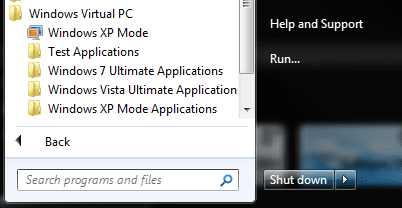
Virtual machines other than XP Mode do not create a shortcut to launch themselves from Start Menu, so a typical Windows Virtual PC submenu in Start Menu looks like this:
If you want to add shortcuts to other virtual machines, to start a virtual machine directly from Start Menu, follow these steps:
Go to Your_Usename > Virtual Machines folder
Right click the virtual machine in question, choose Create a shortcut from context menu
Copy the newly created shortcut
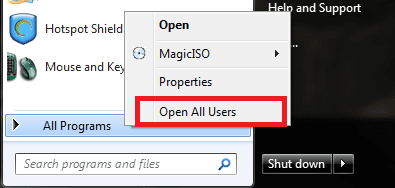
Click Start, right click All Programs, choose Open All Users:
.
Open the Programs folder
Open the Windows Virtual PC folder
Paste the shortcut
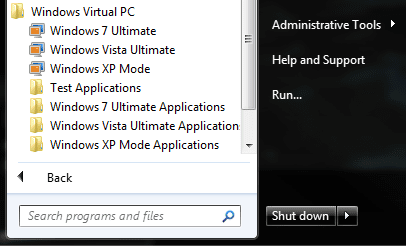
Now you can launch a virtual machine from Start Menu:
Kari
My Computer
Computer type
Laptop
Computer Manufacturer/Model Number
HP ENVY 17-1150eg
OS
Windows 10 Pro x64 EN-GB
CPU
1.6 GHz Intel Core i7-720QM Processor
Memory
6 GB
Graphics Card(s)
ATI Mobility Radeon HD 5850 Graphics
Sound Card
Beats sound system with integrated subwoofer
Monitor(s) Displays
17" laptop display, 22" LED and 32" Full HD TV through HDMI
Screen Resolution
1600*900 (1), 1920*1080 (2&3)
Hard Drives
Internal: 2 x 500 GB SATA Hard Disk Drive 7200 rpm
External: 2TB for backups, 3TB USB3 network drive for media
Cooling
As Envy runs a bit warm, I have it on a Cooler Master pad
Ok, but what If i installed any random app, then replaced it with the windows app I want to see. would that work.
And it worked for me Using Windows XP Mode on HP. I just deleted all the entried from VMAppExcludeList in the registry (HKLM/Software/Microsoft/WindowsNT/currentversion/Virtual Machine/VMAppExcludeList) and they showed up in the start menu.
My Computer
Computer Manufacturer/Model Number
Toshiba Satellite L505D-S9565
OS
Windows 7 Home Premium x64, Mac OS X 10.6.2 x64
CPU
AMD Athlon X2 Dual-Core 2.1 GHz
Motherboard
Toshiba Built-In with Insyde H20 BIOS 1.40
Memory
4 GB DDR2 800 MHz
Graphics Card(s)
ATI Radeon HD Mobility 3100 Graphics 256MB to 1468 MB Shared
Sound Card
Realtek Mobile ALC272 HD Audio
Monitor(s) Displays
15.6" TFT LCD with TruBrite, Samsung 1080p HDTV
Screen Resolution
1366x768, 1920x1080
Hard Drives
❶:Main: Toshiba 250 GB SATA 5400 RPM
PSU
N/A
Case
N/A
Cooling
Built-in/Open window in winter :P
Keyboard
Built-in
Mouse
Build-in Symantics SmartTouch Pad
Internet Speed
55 MB/sec Down, 9 MB/sec Up
Other Info
❷:Backup: Seagate FreeAgent Desk USB 2.0 5400 RPM
❸:Media: Toshiba 640 GB USB 2.0 5400 RPM Portable Edition
There are different ways to work around this. If registry hack worked for you earlier, I'll recommend you stick to it. Simply creating a shortcut to C:\Users\Your_Username\AppData\Local\Microsoft\Windows Virtual PC\Virtual Applications\ is not enough, that I have tested.
Kari
My Computer
Computer type
Laptop
Computer Manufacturer/Model Number
HP ENVY 17-1150eg
OS
Windows 10 Pro x64 EN-GB
CPU
1.6 GHz Intel Core i7-720QM Processor
Memory
6 GB
Graphics Card(s)
ATI Mobility Radeon HD 5850 Graphics
Sound Card
Beats sound system with integrated subwoofer
Monitor(s) Displays
17" laptop display, 22" LED and 32" Full HD TV through HDMI
Screen Resolution
1600*900 (1), 1920*1080 (2&3)
Hard Drives
Internal: 2 x 500 GB SATA Hard Disk Drive 7200 rpm
External: 2TB for backups, 3TB USB3 network drive for media
Cooling
As Envy runs a bit warm, I have it on a Cooler Master pad
I heard that as long as the app isnt in VMAppExcludeList, you can jsut create a shortcut to it in %allusersprofile% in the VM, and it will show up. That works for XP but not for Vista as far as I know.
My Computer
Computer Manufacturer/Model Number
Toshiba Satellite L505D-S9565
OS
Windows 7 Home Premium x64, Mac OS X 10.6.2 x64
CPU
AMD Athlon X2 Dual-Core 2.1 GHz
Motherboard
Toshiba Built-In with Insyde H20 BIOS 1.40
Memory
4 GB DDR2 800 MHz
Graphics Card(s)
ATI Radeon HD Mobility 3100 Graphics 256MB to 1468 MB Shared
Sound Card
Realtek Mobile ALC272 HD Audio
Monitor(s) Displays
15.6" TFT LCD with TruBrite, Samsung 1080p HDTV
Screen Resolution
1366x768, 1920x1080
Hard Drives
❶:Main: Toshiba 250 GB SATA 5400 RPM
PSU
N/A
Case
N/A
Cooling
Built-in/Open window in winter :P
Keyboard
Built-in
Mouse
Build-in Symantics SmartTouch Pad
Internet Speed
55 MB/sec Down, 9 MB/sec Up
Other Info
❷:Backup: Seagate FreeAgent Desk USB 2.0 5400 RPM
❸:Media: Toshiba 640 GB USB 2.0 5400 RPM Portable Edition
Because I always prefer not to use register hacks, I tried to find a simple solution. To my minor surprise, I found it.
It's really so amazingly simple I should have thought it long ago. Just right click Start (in Vista and XP virtual machines) or right click Start > All Programs (in Seven virtual machines), and choose Open All Users. Open Programs and add the shortcuts you want to to start directly from host's Start Menu.
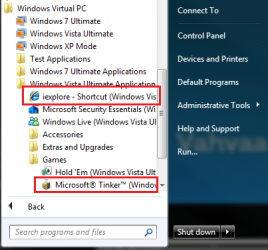
I tested this with a Vista virtual machine, adding virtual machine's Internet Explorer and Tinker game, and as you can see it works:
No need to play with VMAppExcludeList or AppAllowList.
Kari
Last edited:
My Computer
Computer type
Laptop
Computer Manufacturer/Model Number
HP ENVY 17-1150eg
OS
Windows 10 Pro x64 EN-GB
CPU
1.6 GHz Intel Core i7-720QM Processor
Memory
6 GB
Graphics Card(s)
ATI Mobility Radeon HD 5850 Graphics
Sound Card
Beats sound system with integrated subwoofer
Monitor(s) Displays
17" laptop display, 22" LED and 32" Full HD TV through HDMI
Screen Resolution
1600*900 (1), 1920*1080 (2&3)
Hard Drives
Internal: 2 x 500 GB SATA Hard Disk Drive 7200 rpm
External: 2TB for backups, 3TB USB3 network drive for media
Cooling
As Envy runs a bit warm, I have it on a Cooler Master pad
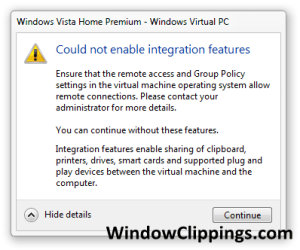
I tested it both integration disabled and enabled, no difference. However, that error message tells that something is not right. I would first concentrate to fix that issue.
You don't have to use integration features, but being not able to install or turn them on tells that the installation was not completely successful, or that something has changed. In my opinion it is essential you solve first that problem.
My Computer
Computer type
Laptop
Computer Manufacturer/Model Number
HP ENVY 17-1150eg
OS
Windows 10 Pro x64 EN-GB
CPU
1.6 GHz Intel Core i7-720QM Processor
Memory
6 GB
Graphics Card(s)
ATI Mobility Radeon HD 5850 Graphics
Sound Card
Beats sound system with integrated subwoofer
Monitor(s) Displays
17" laptop display, 22" LED and 32" Full HD TV through HDMI
Screen Resolution
1600*900 (1), 1920*1080 (2&3)
Hard Drives
Internal: 2 x 500 GB SATA Hard Disk Drive 7200 rpm
External: 2TB for backups, 3TB USB3 network drive for media
Cooling
As Envy runs a bit warm, I have it on a Cooler Master pad