Solved Adding a Plain Text to TOC in Word2010

hasanhizli

New member
Local time
8:14 PM
Messages
21
Hi all,

I trying to a add a plain text, which is not appearing in the original text, to my existing TOC list in microsoft word. I am trying to add a word "Chapters" to my TOC. But, I cannot. I typing it inside the TOC but when I update TOC list, the word "Chapters" disappears. Is there a way to solve this problem? This word should have no page number or dots.

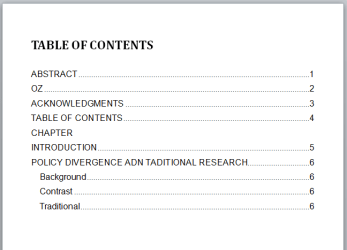
I have attached a sample TOC list corresponding to what I want.

Thanks.
 

Attachments

  • sample.jpg
    sample.jpg
    65.4 KB · Views: 6

My Computer

Computer Manufacturer/Model Number
ASUS
OS
Win7 Ultimate
CPU
T9600
Memory
4GB
Graphics Card(s)
Nvidea 240M
This is fairly easy / simple to do.

Questions for you:
1) Do you know how to make and use styles?
2) Do you know how to use / edit the TOC reference function?

Your reply will determine how much time I need to spend detailing the steps.

Regards,
GEWB
 

My Computer

Computer type
PC/Desktop
Computer Manufacturer/Model Number
(7 different computers booting up to 10 systems)
OS
Linux Mint / XP / Win7 Home, Pro, Ultimate / Win8.1 / Win10
Other Info
Four desktops, two laptops, one notebook and one tablet
Reply: Part 1 (of 2)

Part 1: Preparing for Two TOCs

The question was how to add several TOC entries, then a text entry, followed by additional TOC entries. I would approach this solution by using unique styles and customizing the TOC function in Word. The high level approach is:
  • Create the Table of Contents page to consist of:
    • A first TOC
    • Text formatted as the TOC, inserted below the first TOC
    • A second TOC inserted below the text

The following instructions make these assumptions:

  • The user has basic understanding and skills using styles
  • The user will assign Heading 1 as the default "Chapter" heading style
  • The user will assign Heading 2 as the default "Sub chapter" style
  • The user has basic understanding and skills using the References > TOC function in Word
  • The TOC "first level" text is Arial 11

As the instructions have a lot of graphics, it is broken into two parts.

Here I have created a new skeleton document just for these instructions.

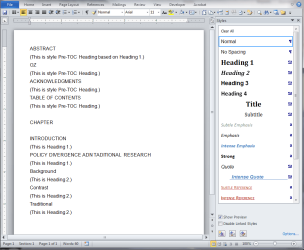
Enter the "framework" of topics
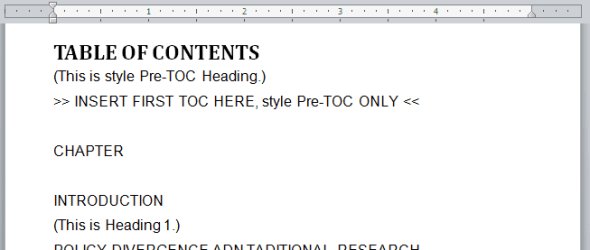
1.PNG
ABSTRACT
(This will be style Pre-TOC Heading based on Heading 1.)
OZ
(This will be style Pre-TOC Heading based on Heading 1.)
ACKNOWLEDGMENTS
(This will be style Pre-TOC Heading based on Heading 1.)
TABLE OF CONTENTS
(This will be style Pre-TOC Heading based on Heading 1.)

CHAPTER
(This will be text formated the same as the TOC text.)

INTRODUCTION
(This will be Heading 1.)
POLICY DIVERGENCE AND TRADITIONAL RESEARCH
(This will be Heading 1.)
Background
(This will be Heading 2.)
Contrast
(This will be Heading 2.)
Traditional
(This will be Heading 2.)
Create Style for First TOC
Here the user creates a unique style name for the headings to appear before the manually inserted text in the middle of the published TOC.

1. Select the first text for the heading of this new style.
2. Anchor the Style pane to the right side: Home tab > Styles (click arrow under Change Styles)

0-a.PNG

0-b.PNG

3. Click the New Style button in the lower left of the Style pane.
NewStyleButton.PNG

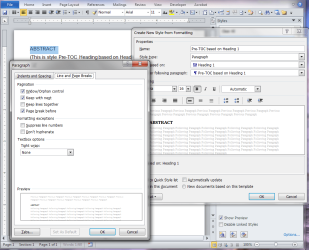
4. Create a new style:
Name: Pre-TOC based on Heading 1
Style type: Paragraph
Based on: Heading 1
Click the Format button, then select Paragraph...
Select the Line and Page Breaks tab.
Select (check) Page break before.
2.PNG

5. Click OK.
6. Click OK.

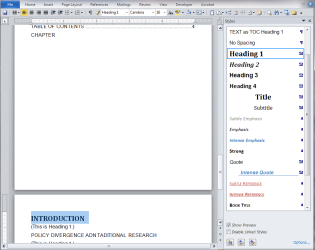
Apply this new style (Pre-TOC) to the "chapters" that precede the "text" entry in the published TOC (select text and apply style or use the format painter).

3.PNG

4.PNG

5.PNG

6.PNG


Insert the First TOC
10.PNG

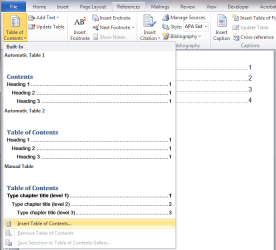
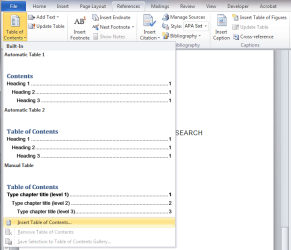
1. From the References tab, click Table of Contents.
2. Scroll down and click Insert Table of Contents...
11.PNG

3. Select the Table of Contents tab if not already selected.
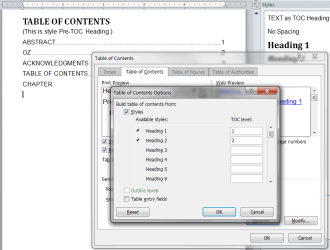
4. Click the Options button.
OptionsButton.PNG

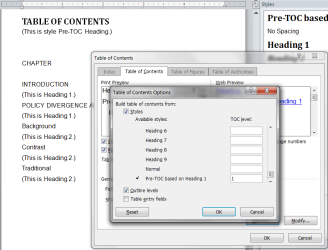
5. DELETE ALL NUMBERS from the TOC level column (don't forget to scroll all the way down).
6. Enter (insert) the number 1 next to Pre-TOC based on Heading 1.
12.PNG

7. Click OK.
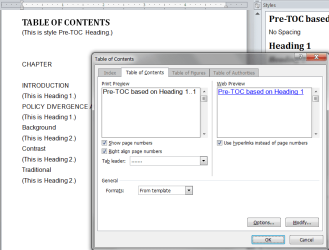
The Print Preview box should only have one entry, Pre-TOC based on Heading 1.
13.PNG

8. Click OK.
9. The TOC is generated.


Position the cursor on the line below the last TOC entry line - THIS LINE IS ACTUALLY PART OF THE TOC and needs to be removed.

Click the BACK button on the keyboard to remove this "blank" TOC line.
14-BACKSPACE_TO_LAST_TOC_ENTRY.PNG

1. Select the text "CHAPTER".
2. Click the New Style button in the lower left of the Style pane.
NewStyleButton.PNG

3. Create a new style:
Name: TEXT as TOC Heading 1
Style type: Paragraph
Based on: (no style)
Formatting: Arial 11

Click the Format button, then select Paragraph...
Select the Indents and Spacing tab.
Alignment: Left
Spacing After: 6 pt.
Line spacing: Single
Leave all the rest at default settings.
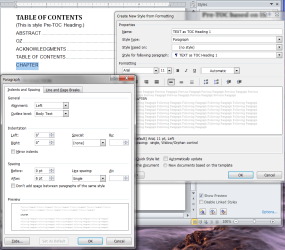
20.PNG

4. Click OK.
5. Click OK.

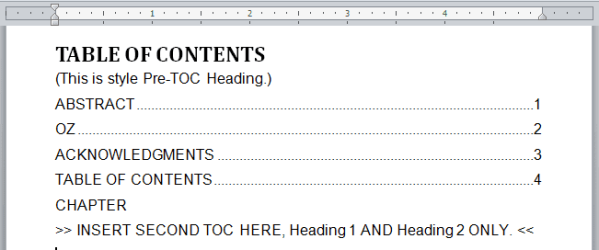
The word "CHAPTER" is now below the first TOC entry and formated the same as the TOC.

In Part 2: The Second TOC , the instructions add the second TOC to complete the desired published TOC.

 
Last edited:

My Computer

Computer type
PC/Desktop
Computer Manufacturer/Model Number
(7 different computers booting up to 10 systems)
OS
Linux Mint / XP / Win7 Home, Pro, Ultimate / Win8.1 / Win10
Other Info
Four desktops, two laptops, one notebook and one tablet
Reply: Part 2 (of 2)

Part 2: The Second TOC

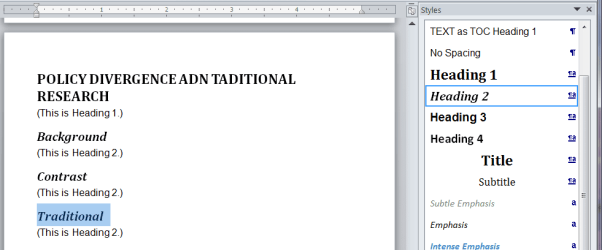
1. Select the first chapter heading that will appear in the TOC below the "text" entry made in Part 1.
2. Apply style Heading 1.
3. Repeat for all subsequent chapter headings.
21.PNG

Apply sub level headings as desired, such as Heading 2 in this instructional.
22.PNG

Insert the Second TOC

On the TOC page, insert a new "second" TOC below the text word "CHAPTER".

1. Click on the line just below "CHAPTER".
30.PNG

2. From the Reference tab, click Table of Contents.
3. Scroll down and click Insert Table of Contents...
31.PNG

4. Select the Table of Contents tab if not already selected.
5. Click the Options... button.
OptionsButton.PNG

6. DELETE ALL NUMBERS from the TOC level column (don't forget to scroll all the way down).
7. Enter (insert) the number 1 next to Heading 1.
8. Enter (insert) the number 2 next to Heading 2.
32.PNG

9. Click OK. The Print Preview box should only have two entries, Heading 1 and Heading 2.
33.PNG

10. Click OK. A warning dialog window pops up" "Do you want to replace the selected table of contents?"
34-NO.PNG

11. Click NO (you do not want to replace the TOC, you are adding another TOC).

The TOC is generated.
35-DONE.PNG

Done.

Regards,
GEWB
 
Last edited:

My Computer

Computer type
PC/Desktop
Computer Manufacturer/Model Number
(7 different computers booting up to 10 systems)
OS
Linux Mint / XP / Win7 Home, Pro, Ultimate / Win8.1 / Win10
Other Info
Four desktops, two laptops, one notebook and one tablet
Thank you very much GEWB. The solution really solved my problem. Thank you again.
 

My Computer

Computer Manufacturer/Model Number
ASUS
OS
Win7 Ultimate
CPU
T9600
Memory
4GB
Graphics Card(s)
Nvidea 240M
Thank you very much GEWB. The solution really solved my problem. Thank you again.

I'm pleased the solution works for you. Thanks for marking the thread as solved (helps others during a search).

Regards,
GEWB
 

My Computer

Computer type
PC/Desktop
Computer Manufacturer/Model Number
(7 different computers booting up to 10 systems)
OS
Linux Mint / XP / Win7 Home, Pro, Ultimate / Win8.1 / Win10
Other Info
Four desktops, two laptops, one notebook and one tablet
I would think that a TC field without page number would be a simpler solution than two Tables of Contents.

See TOC Tricks and Tips by Suzanne Barnhill.
 
Last edited:

My Computer

Computer type
PC/Desktop
Computer Manufacturer/Model Number
Dell
OS
Windows 10 x64
Memory
16 Gb
Hard Drives
1 TB
Browser
Firefox
Back
Top