Adding no-install apps to All Programs

mac5050

New member
Member
Local time
6:49 PM
Messages
41
I have quite a few programs which don't have installers - they merely unzip and are launched from their own folder. My problem is that I want to add them to the Start menu> All Programs, mainly so I can assign keyboard shortcuts to them and launch them with a CTRL-ALT-LETTER shortcut.

Does anyone know how I can do this in Windows 7? I can't find any way at all. In XP, it's done by right-clicking the taskbar and using the Start dialog. I know I can pin them to the start menu in W7, but I don't want to see them there, right in my face. I want them in All Programs out of the way.

I tried making a new toolbar and pinning them, but if I hide the toolbar, I lose the shortcuts. And if you're wondering why I would hide the toolbar or not pin apps to the taskbar... well, don't bother. I just don't like seeing all that junk on my desktop. Yes... I know it's a useful new feature for many people, but it's not for me.

TIA

mac
 

My Computer

OS
windows 7
Drag and drop while holding down ALT. It will create a shortcut inside Start, All Programs.

Or drag and drop with the right mouse button.
 

My Computer

OS
Windows 7
Hi Mac5050, Welcome to SF,

The All Program would be under C:\ProgramData\Microsoft\Windows\Start Menu\Programs
When your copying the Programs copy the shortcut of those Program then if you go to their Properties there you should be able to assign shortcuts.

Hope this helps,
Captain
 

My Computer

Computer Manufacturer/Model Number
Samsung NP550P5C-S02IN
OS
Windows 7 Ultimate - 64-bit | Windows 8 Pro - 64-bit
CPU
Intel® Core™ i7 Processor 3,610QM (2.30Hz, 6MB L3 Cach
Memory
8 GB
Graphics Card(s)
NVIDIA® GeForce® GT 650M 2GB Graphics, Optimus™ techno
Sound Card
SoundAlive™ JBL 3 Speakers (With sub-Woofer)
Monitor(s) Displays
39.62cm (15.6) SuperBright 300nit HD+ LED Display
Screen Resolution
1,600 x 900, Anti-Reflective
Hard Drives
1TB S-ATA II Hard Drive (5,400RPM)
Well, one way you can do it is by placing the app folder where you want to keep it
It is best to place these under Program Files, regardless of the app
Then Rigth Click Drag and Drop and select Create Shortcut to the Start menu where you want them
You can right click the all programs start menu and add a folder I believe.

and yeah, what Jack said.
 

My Computer

Computer Manufacturer/Model Number
Self Built
OS
Win 7 Ultimate 32bit
CPU
C2D E6600 2.4Ghz
Motherboard
Intel D965WH
Memory
4G Kingston KHX5400D2
Graphics Card(s)
EVGA GTX 570 HD SC (012-P3-1573-KR)
Sound Card
On-Board
Monitor(s) Displays
Samsung 226BW
Screen Resolution
1680 x 1050
Hard Drives
2 x 250 Seagate Barracuda
2 x 500 Seagate Barracuda (Raid1)
PSU
Corsair TX750W
Case
In-Win C589
Cooling
Stock Intel Cooling
Thanks to all of you for the prompt replies.

I forgot to mention that I'd already tried this, but I'm still having problems. If I drag an .exe to the Start Menu/Programs file, then right-click it in either that folder or the start menu, I get the usual file properties dialog, NOT the one which offers the option to use a shortcut. That dialog only seems to appear for installed programs because the other (installed) apps in the folder show the dialog where I can assign a shortcut.

Alt-dragging a program to the start menu just pins it there, which I don't want either.

Heh, I know I'm fussy, but I also know that Windows usually gives you a way to do most things. It's just finding it that's the problem. LOL.

mac
 

My Computer

OS
windows 7
When you ALT drag, hover over the Start button, the Start menu will then open up. Hover over All Programs, then that will open...
 

My Computer

OS
Windows 7
Ha!!

Update - I found a way to do it.

1. Right-click the program .exe and send it to Desktop.
2. Drag the icon from the desktop to C:\ProgramData\Microsoft\Windows\Start Menu\Programs
3. Right-click it (either in the folder or on the Start menu) and assign a shortcut.

Works perfectly now. Thanks to everyone for the help. Posting, thinking about it, and trying once more, helped me to find the trick.

cheers

mac
 

My Computer

OS
windows 7
hi surfasb,

You're quite correct. I misunderstood your instructions. Sorry. I just tried that and it worked as you said.

However, it didn't help because it gives me the wrong Properties dialog - ie. the normal file properties with no shortcut option.

Anyway, no matter. As you'll see in my post above, I figured it out.

Thanks

mac
 

My Computer

OS
windows 7
Even easier:

1. Click on Start, Right click on All Programs and select Open.
2. Right click on the program you want to add and drag it to All Programs window.
3. Release RMB and select Create shortcuts here.
4. Right click on the new shortcut, select Rename and call it whatever you want.
 

My Computer

Computer type
PC/Desktop
Computer Manufacturer/Model Number
Lenovo IdeaCenter 450
OS
Windows 10 Pro X64
CPU
Intel Quad Core i7-4770 @ 3.4Ghz
Memory
16.0GB PC3-12800 DDR3 SDRAM 1600 MHz
Graphics Card(s)
Intel Integrated HD Graphics
Sound Card
Realtek HD Audio
Monitor(s) Displays
HP 22" LCD
Screen Resolution
1680 x 1050
Hard Drives
250GB Samsung EVO SATA-3 SSD
2TB Seagate ST2000DM001 SATA-2
1.5TB Seagate ST3150041AS SATA
Keyboard
Dell USB
Mouse
Lenovo USB
Internet Speed
Cable via Road Runner 3MB Upload, 30MB Download
Antivirus
Windows Defender, MBAM Pro, MBAE
Browser
Seamonkey
Other Info
UEFI/GPT
PLDS DVD-RW DH16AERSH
Heh. Nice one, Ztruker!

That works perfectly. Obviously, MS knows more than one way to skin a cat.

mac
 

My Computer

OS
windows 7
Have you tried opening the program from its executable and then pinning the icon to the taskbar? That has worked for me.
 

My Computer

Computer type
PC/Desktop
Computer Manufacturer/Model Number
Custom
OS
7 x64 Ultimate
CPU
AMD Ryzen 5
Motherboard
Gigabyte GA-AB350-Gaming
Memory
16GB DDR4
Graphics Card(s)
Radeon R7 360
Monitor(s) Displays
2 x Dell U2518D
Screen Resolution
2560x1440 2560x1440
Hard Drives
WD 500GB x2
Samsung SSD 128MB (OS)
XPG SX8200 Pro M.2 2280 1TB
PSU
Antec 500
Cooling
Hyper 212 EVO
Keyboard
Logitech cordless K800
Mouse
Logitech M510
Antivirus
Avira
Sounds like the OP was placing the actual executable file in the menu, not a shortcut to it.
 

My Computer

Computer Manufacturer/Model Number
Custom
OS
Windows 7 Ultimate RTM (Technet)
CPU
3.00 gigahertz Intel Core2 Duo E8400
Motherboard
ASUSTeK Computer INC. P5K/EPU Rev 1.xx
Memory
4GB
Graphics Card(s)
ATI Radeon X1950 Pro
Sound Card
Built in HD Audio
Monitor(s) Displays
22" Gateway LCD
Screen Resolution
1920 x 1200
Hard Drives
ST3160023A [Hard drive] (160.04 GB) -- drive 0, rev 8.01, ST3500630AS [Hard drive] (500.11 GB) -- drive 2, rev 3.AAK
ST3500630AS [Hard drive] (500.11 GB) -- drive 1, rev 3.AAK
Keyboard
Logitech G11
Mouse
Microsoft Wireless Laser Mouse 5000
Internet Speed
13.44 Mbps
Hmmm..... this is becoming very annoying.

After booting up today, I find that all the shortcuts I assigned last night no longer work. The apps are in All Programs, their Properties show the correctly assigned shortuts, but none of them work.

Any suggestions?

Edit - I just double-checked this using Ztruker's method, and the assigned shortcut works, but after a reboot it doesn't.

mac
 

My Computer

OS
windows 7
hi surfasb,

You're quite correct. I misunderstood your instructions. Sorry. I just tried that and it worked as you said.

However, it didn't help because it gives me the wrong Properties dialog - ie. the normal file properties with no shortcut option.

Anyway, no matter. As you'll see in my post above, I figured it out.

Thanks

mac
Yeah, I know my method works cause I'm using it right now. A lot of programs, like process explorer, IP scanner, etc etc are similar programs to your that I am using the method for. The other methods may work.

The desktop method will work too. Send a shortcut to the desktop. Then move the shortcut into the start menu.
 

My Computer

OS
Windows 7
Yup. It looks as though the only way to make this work is to pin the apps to the start menu. Any other way doesn't work after a reboot.

But if someone can prove me wrong, I'm quite happy to be corrected.

mac
 

My Computer

OS
windows 7
If you don't mind Gadgets,,, App Launcher is a great Gadget
Honestly, I don't even use my start menu

The reason I say this is,, I have a lot of Portable Apps. And I love Portable Apps.
I don't have any problems with running them, using the App Launcher.
 

My Computer

Computer Manufacturer/Model Number
Self Built
OS
Win 7 Ultimate 32bit
CPU
C2D E6600 2.4Ghz
Motherboard
Intel D965WH
Memory
4G Kingston KHX5400D2
Graphics Card(s)
EVGA GTX 570 HD SC (012-P3-1573-KR)
Sound Card
On-Board
Monitor(s) Displays
Samsung 226BW
Screen Resolution
1680 x 1050
Hard Drives
2 x 250 Seagate Barracuda
2 x 500 Seagate Barracuda (Raid1)
PSU
Corsair TX750W
Case
In-Win C589
Cooling
Stock Intel Cooling
Thanks for the heads-up. I googled App Launcher and looked at it, but I'm not really keen on having a gadget on my desktop. Still, good to know it's available.

I've pinned all my apps to the Start menu and everything's working fine. I'd rather have them in All Programs, but it's not a huge issue. I rarely see the Start menu anyway, since I launch almost everything from the keyboard.

mac
 

My Computer

OS
windows 7
Well Basically, I have no major icons on my desktop. Just a couple gadgets and that's it. Thanks to that app.
 

My Computer

Computer Manufacturer/Model Number
Self Built
OS
Win 7 Ultimate 32bit
CPU
C2D E6600 2.4Ghz
Motherboard
Intel D965WH
Memory
4G Kingston KHX5400D2
Graphics Card(s)
EVGA GTX 570 HD SC (012-P3-1573-KR)
Sound Card
On-Board
Monitor(s) Displays
Samsung 226BW
Screen Resolution
1680 x 1050
Hard Drives
2 x 250 Seagate Barracuda
2 x 500 Seagate Barracuda (Raid1)
PSU
Corsair TX750W
Case
In-Win C589
Cooling
Stock Intel Cooling
That's so odd that your all Programs gets cleaned out. But oh well.
 

My Computer

OS
Windows 7
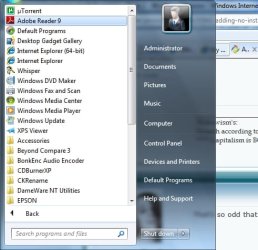
Are you talking about the ICON like the one here for Adobe Reader that I have highlighted in the screen shot?
 

Attachments

  • ProgramFiles1.jpg
    ProgramFiles1.jpg
    37.8 KB · Views: 7

My Computer

Computer type
PC/Desktop
Computer Manufacturer/Model Number
Dell OP7010
OS
Windows 7 Enterprise (x64); Windows Server 2008 R2 (x64)
Memory
16GB
Monitor(s) Displays
4 Dell 24" LCD
Screen Resolution
1280x1024
Keyboard
Dell
Mouse
Dell Optical
Internet Speed
40meg
Back
Top