
Administrative Tools - Add or Remove from Start Menu

How to Add or Remove Administrative Tools in Windows 7 Start Menu


   Information
Administrative Tools is a folder in Control Panel that contains tools for system administrators and advanced users. This will show you how to add or remove Administrative Tools from the Windows 7 Start Menu. By default, Adminsitrative Tools is not added to the Start Menu.
   Note
Some common administrative tools in this folder include:
  • Component Services - Configure and administer Component Object Model (COM) components. Component Services is designed for use by developers and administrators.
  • Computer Management - Manage local or remote computers by using a single, consolidated desktop tool. Using Computer Management, you can perform many tasks, such as monitoring system events, configuring hard disks, and managing system performance.
  • Data Sources (ODBC) - Use Open Database Connectivity (ODBC) to move data from one type of database (a data source) to another.
  • Event Viewer - View information about significant events, such as a program starting or stopping, or a security error, which are recorded in event logs.
  • iSCSI Initiator - Configure advanced connections between storage devices on a network.
  • Local Security Policy - View and edit Group Policy security settings.
  • Performance Monitor - View advanced system information about the central processing unit (CPU), memory, hard disk, and network performance.
  • Print Management - Manage printers and print servers on a network and perform other administrative tasks.
  • Services - Manage the different services that run in the background on your computer.
  • System Configuration - Identify problems that might be preventing Windows from running correctly.
  • Task Scheduler - Schedule programs or other tasks to run automatically.
  • Windows Firewall with Advanced Security - Configure advanced firewall settings on both this computer and remote computers on your network.
  • Windows Memory Diagnostic - Check your computer's memory to see if it's functioning properly.
   Warning
You will need to be logged on as an administrator to access the Administrative Tools.

EXAMPLE: Administrative Tools added Only to All Programs menu
Start_menu_All_Programs.jpg
EXAMPLE: Administrative Tools added to both Start Menu and All Programs menu
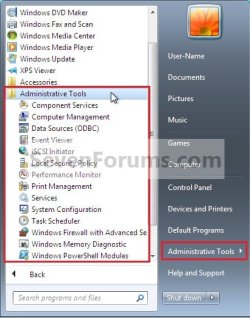
Start_Menu_Both.jpg Start_menu_All_Programs.jpg


OPTION ONE

Through Customize Start Menu Property Settings


1. Open the Customize Start Menu window, and scroll down to the System administrative tools option. (See screenshot below)
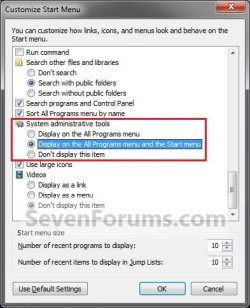
Customize.jpg
2. To Add "Administrative Tools" to All Programs Menu Only
A) Select (dot) Display on the All Programs menu. (See screenshot above)

B) Go to step 5.
3. To Add "Administrative Tools" to All Programs Menu and Start Menu
A) Select (dot) Display on the All Programs menu and the Start menu. (See screenshot below step 1)

B) Go to step 5.
4. To Not Display "Administrative Tools" in All Programs Menu and Start Menu
A) Select (dot) Don't display this item. (See screenshot below step 1)
5. Click on OK. (See screenshot below step 1)

6. Click on OK. (See screenshot below)
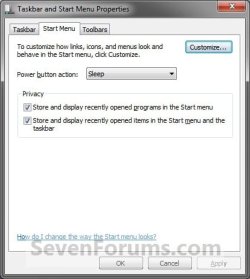
Properties.jpg


OPTION TWO

Through a REG file Download


1. To Add "Administrative Tools" to All Programs Menu Only
A) Click on the Download button below to download the file below.
Display_Admin_Tools_All_Programs.reg

Download


B) Go to step 4.
2. To Add "Administrative Tools" to All Programs Menu and Start Menu
A) Click on the Download button below to download the file below.
Display_Admin_Tools_All_Programs_and_Start Menu.reg

Download


B) Go to step 4.
3. To Not Display "Administrative Tools" in All Programs Menu and Start Menu
A) Click on the Download button below to download the file below.
Don't_Display_Admin_Tools.reg

Download


4. Click on Save, and save the .reg file to the desktop.

5. Right click on the downloaded .reg file and click on Merge.

6. Click on Run, Yes, Yes, and OK when prompted.

7. Log off and log on, or restart the computer to apply.

8. When done, you can delete the downloaded .reg file if you like.


OPTION THREE

Manually in Registry Editor


1. Open the Start Menu, then type regedit in the search box and press Enter.

2. If prompted by UAC, then click on Yes.

3. In regedit, navigate to the location below. (see screenshot below)
HKEY_CURRENT_USER\Software\Microsoft\Windows\CurrentVersion\Explorer\Advanced
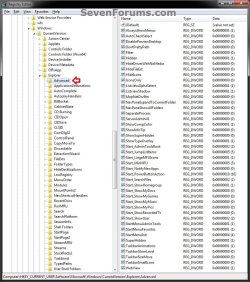
REG-1.jpg

REG-2.jpg
4. To Add "Administrative Tools" to All Programs Menu Only
A) In the right pane of Advanced, double click on Start_AdminToolsRoot, type 0 (number zero), and click on OK.
NOTE: If the Start_AdminToolsRoot DWORD is not here, then right click on a blank space in the right pane of Advanced, click on New and DWORD (32-bit) value, type in Start_AdminToolsRoot and press enter.

B) In the right pane of Advanced, right click on Start_AdminToolsTemp, click on Delete, and click on Yes.

C) In the right pane of Advanced, double click on StartMenuAdminTools, type 1, and click on OK.
NOTE: If the StartMenuAdminTools DWORD is not here, then right click on a blank space in the right pane of Advanced, click on New and DWORD (32-bit) value, type in StartMenuAdminToolsand press enter.

D) Go to step 7.
5. To Add "Administrative Tools" to All Programs Menu and Start Menu
A) In the right pane of Advanced, double click on Start_AdminToolsRoot, type 0 (number zero), and click on OK.
NOTE: If the Start_AdminToolsRoot DWORD is not here, then right click on a blank space in the right pane of Advanced, click on New and DWORD (32-bit) value, type in Start_AdminToolsRoot and press enter.

B) In the right pane of Advanced, double click on Start_AdminToolsTemp, type 2, and click on OK.
NOTE: If the Start_AdminToolsTemp DWORD is not here, then right click on a blank space in the right pane of Advanced, click on New and DWORD (32-bit) value, type in Start_AdminToolsTemp and press enter.

C) In the right pane of Advanced, double click on StartMenuAdminTools, type 1, and click on OK.
NOTE: If the StartMenuAdminTools DWORD is not here, then right click on a blank space in the right pane of Advanced, click on New and DWORD (32-bit) value, type in StartMenuAdminTools and press enter.

D) Go to step 7.
6. To Not Display "Administrative Tools" in All Programs Menu and Start Menu
A) In the right pane of Advanced, double click on Start_AdminToolsRoot, type 0 (number zero), and click on OK.
NOTE: If the Start_AdminToolsRoot DWORD is not here, then right click on a blank space in the right pane of Advanced, click on New and DWORD (32-bit) value, type in Start_AdminToolsRoot and press enter.

B) In the right pane of Advanced, right click on Start_AdminToolsTemp, click on Delete, and click on Yes.

C) In the right pane of Advanced, double click on StartMenuAdminTools, type 0 (number zero), and click on OK.
NOTE: If the StartMenuAdminTools DWORD is not here, then right click on a blank space in the right pane of Advanced, click on New and DWORD (32-bit) value, type in StartMenuAdminTools and press enter.
7. Close regedit.

8. Log off and log on, or restart the computer to apply.
That's it,
Shawn


Attachments

Last edited:
That`s great!! I am also working as a network administrator, but working in windows vista, so can I use the same procedure to add this tools in start menu with vista....? :confused:
 

My Computer

OS
na

My Computer

Computer type
PC/Desktop
Computer Manufacturer/Model Number
Self built custom
OS
64-bit Windows 11 Pro for Workstations
CPU
Intel i7-8700K OC'd to 5 GHz
Motherboard
ASUS ROG Maximus XI Formula Z390
Memory
64 GB (4x16GB) G.SKILL TridentZ RGB DDR4 3600 MHz
Graphics Card(s)
ASUS ROG-STRIX-GTX1080TI-O11G-GAMING
Sound Card
Integrated
Monitor(s) Displays
2 x Samsung Odyssey G7 27"
Screen Resolution
2560x1440
Hard Drives
1TB Samsung 990 PRO M.2,
4TB Samsung 990 PRO PRO M.2,
TerraMaster F8 SSD Plus NAS
PSU
Seasonic Prime Titanium 850W
Case
Thermaltake Core P3
Cooling
Corsair Hydro H115i
Keyboard
Logitech wireless K800
Mouse
Logitech MX Master 4
Internet Speed
2 Gb/s Download and 100 Mb/s Upload
Antivirus
Malwarebyte Anti-Malware Premium
Browser
Google Chrome
Other Info
Logitech Z625 speaker system,
Logitech BRIO 4K Pro webcam,
HP Color LaserJet Pro MFP M477fdn,
APC SMART-UPS RT 1000 XL - SURT1000XLI,
Galaxy S23 Plus phone
Join Date: Dec 2011
64
1 posts


I cannot believe that there is not a simpler way of doing this. Administrative Tools is surely a key component of Win 7. Why has it got lost in my system? Isn't there a download that I can get that will fix the problem? All the mumbo jumbo above is beyond my ken and I am very disappointed that there is not better support available for this issue. Please MS, can you make it easier?
 

My Computer

OS
64

My Computer

Computer type
PC/Desktop
Computer Manufacturer/Model Number
Self built custom
OS
64-bit Windows 11 Pro for Workstations
CPU
Intel i7-8700K OC'd to 5 GHz
Motherboard
ASUS ROG Maximus XI Formula Z390
Memory
64 GB (4x16GB) G.SKILL TridentZ RGB DDR4 3600 MHz
Graphics Card(s)
ASUS ROG-STRIX-GTX1080TI-O11G-GAMING
Sound Card
Integrated
Monitor(s) Displays
2 x Samsung Odyssey G7 27"
Screen Resolution
2560x1440
Hard Drives
1TB Samsung 990 PRO M.2,
4TB Samsung 990 PRO PRO M.2,
TerraMaster F8 SSD Plus NAS
PSU
Seasonic Prime Titanium 850W
Case
Thermaltake Core P3
Cooling
Corsair Hydro H115i
Keyboard
Logitech wireless K800
Mouse
Logitech MX Master 4
Internet Speed
2 Gb/s Download and 100 Mb/s Upload
Antivirus
Malwarebyte Anti-Malware Premium
Browser
Google Chrome
Other Info
Logitech Z625 speaker system,
Logitech BRIO 4K Pro webcam,
HP Color LaserJet Pro MFP M477fdn,
APC SMART-UPS RT 1000 XL - SURT1000XLI,
Galaxy S23 Plus phone
Hello George, and welcome to Seven Forums.

I'm not sure what you mean. OPTION ONE in the tutorial above would be the simplist way to add "Administrative Tools" to the Start Menu.

If you like, I find the tutorial below makes using "Administrative Tools" a lot easier to use.

http://www.sevenforums.com/tutorials/159764-administrative-tools-cascading-desktop-context-menu.html
Thanks for your prompt response. I followed the instructions as per the link. The file came down into a folder called Downloads and I followed the instructions from there - starting with the right click/merge/Run. Everything seemed to go OK but nothing happened.
 

My Computer

OS
64
George,

Is "Administrative Tools" there now when you right click on the Desktop like in the example screenshot in that tutorial?
 

My Computer

Computer type
PC/Desktop
Computer Manufacturer/Model Number
Self built custom
OS
64-bit Windows 11 Pro for Workstations
CPU
Intel i7-8700K OC'd to 5 GHz
Motherboard
ASUS ROG Maximus XI Formula Z390
Memory
64 GB (4x16GB) G.SKILL TridentZ RGB DDR4 3600 MHz
Graphics Card(s)
ASUS ROG-STRIX-GTX1080TI-O11G-GAMING
Sound Card
Integrated
Monitor(s) Displays
2 x Samsung Odyssey G7 27"
Screen Resolution
2560x1440
Hard Drives
1TB Samsung 990 PRO M.2,
4TB Samsung 990 PRO PRO M.2,
TerraMaster F8 SSD Plus NAS
PSU
Seasonic Prime Titanium 850W
Case
Thermaltake Core P3
Cooling
Corsair Hydro H115i
Keyboard
Logitech wireless K800
Mouse
Logitech MX Master 4
Internet Speed
2 Gb/s Download and 100 Mb/s Upload
Antivirus
Malwarebyte Anti-Malware Premium
Browser
Google Chrome
Other Info
Logitech Z625 speaker system,
Logitech BRIO 4K Pro webcam,
HP Color LaserJet Pro MFP M477fdn,
APC SMART-UPS RT 1000 XL - SURT1000XLI,
Galaxy S23 Plus phone
George,

Is "Administrative Tools" there now when you right click on the Desktop like in the example screenshot in that tutorial?

Once again, thanks for your exceptionally fast response. Yes - when I right click on the Desktop the Administrative Tools are there! But the Control Panel entry says the folder is empty!
 

My Computer

OS
64

My Computer

Computer type
PC/Desktop
Computer Manufacturer/Model Number
Self built custom
OS
64-bit Windows 11 Pro for Workstations
CPU
Intel i7-8700K OC'd to 5 GHz
Motherboard
ASUS ROG Maximus XI Formula Z390
Memory
64 GB (4x16GB) G.SKILL TridentZ RGB DDR4 3600 MHz
Graphics Card(s)
ASUS ROG-STRIX-GTX1080TI-O11G-GAMING
Sound Card
Integrated
Monitor(s) Displays
2 x Samsung Odyssey G7 27"
Screen Resolution
2560x1440
Hard Drives
1TB Samsung 990 PRO M.2,
4TB Samsung 990 PRO PRO M.2,
TerraMaster F8 SSD Plus NAS
PSU
Seasonic Prime Titanium 850W
Case
Thermaltake Core P3
Cooling
Corsair Hydro H115i
Keyboard
Logitech wireless K800
Mouse
Logitech MX Master 4
Internet Speed
2 Gb/s Download and 100 Mb/s Upload
Antivirus
Malwarebyte Anti-Malware Premium
Browser
Google Chrome
Other Info
Logitech Z625 speaker system,
Logitech BRIO 4K Pro webcam,
HP Color LaserJet Pro MFP M477fdn,
APC SMART-UPS RT 1000 XL - SURT1000XLI,
Galaxy S23 Plus phone
Ah, ok. They are missing in the Administrative Tools folder. The tutorial below will help show you how to restore the missing ones for your edition of Windows 7. :)

http://www.sevenforums.com/tutorials/29965-administrative-tools-restore-shortcuts.html

Maybe I spoke too soon - when I right click on the Desktop then click Adminstrative Tools, they are listed but when I click on any of them I get a message saying: 'Windows cannot find C:\ProgramData\Windows\Start Menu\Programs\Adminstrative Tools\Computer Management.lnk’
 

My Computer

OS
64
Ah, ok. They are missing in the Administrative Tools folder. The tutorial below will help show you how to restore the missing ones for your edition of Windows 7. :)

http://www.sevenforums.com/tutorials/29965-administrative-tools-restore-shortcuts.html

Maybe I spoke too soon - when I right click on the Desktop then click Adminstrative Tools, they are listed but when I click on any of them I get a message saying: 'Windows cannot find C:\ProgramData\Windows\Start Menu\Programs\Adminstrative Tools\Computer Management.lnk’

Strange. As a test, download and merged the EXE and LNK (lnk) options in the tutorial below.
http://www.sevenforums.com/tutorials/19449-default-file-type-associations-restore.html
Next, do this tutorial below to restore all of the items in Administrative Tools.
http://www.sevenforums.com/tutorials/29965-administrative-tools-restore-shortcuts.html
 
Last edited:

My Computer

Computer type
PC/Desktop
Computer Manufacturer/Model Number
Self built custom
OS
64-bit Windows 11 Pro for Workstations
CPU
Intel i7-8700K OC'd to 5 GHz
Motherboard
ASUS ROG Maximus XI Formula Z390
Memory
64 GB (4x16GB) G.SKILL TridentZ RGB DDR4 3600 MHz
Graphics Card(s)
ASUS ROG-STRIX-GTX1080TI-O11G-GAMING
Sound Card
Integrated
Monitor(s) Displays
2 x Samsung Odyssey G7 27"
Screen Resolution
2560x1440
Hard Drives
1TB Samsung 990 PRO M.2,
4TB Samsung 990 PRO PRO M.2,
TerraMaster F8 SSD Plus NAS
PSU
Seasonic Prime Titanium 850W
Case
Thermaltake Core P3
Cooling
Corsair Hydro H115i
Keyboard
Logitech wireless K800
Mouse
Logitech MX Master 4
Internet Speed
2 Gb/s Download and 100 Mb/s Upload
Antivirus
Malwarebyte Anti-Malware Premium
Browser
Google Chrome
Other Info
Logitech Z625 speaker system,
Logitech BRIO 4K Pro webcam,
HP Color LaserJet Pro MFP M477fdn,
APC SMART-UPS RT 1000 XL - SURT1000XLI,
Galaxy S23 Plus phone
Phew – I’ve done it – I can’t believe I was able to follow those instructions - my earlier cri de couer wasn’t an exaggeration - but all’s well – thanks!
 

My Computer

OS
64
That's great news Greorge. I'm happy to hear that all is well now. :)
 

My Computer

Computer type
PC/Desktop
Computer Manufacturer/Model Number
Self built custom
OS
64-bit Windows 11 Pro for Workstations
CPU
Intel i7-8700K OC'd to 5 GHz
Motherboard
ASUS ROG Maximus XI Formula Z390
Memory
64 GB (4x16GB) G.SKILL TridentZ RGB DDR4 3600 MHz
Graphics Card(s)
ASUS ROG-STRIX-GTX1080TI-O11G-GAMING
Sound Card
Integrated
Monitor(s) Displays
2 x Samsung Odyssey G7 27"
Screen Resolution
2560x1440
Hard Drives
1TB Samsung 990 PRO M.2,
4TB Samsung 990 PRO PRO M.2,
TerraMaster F8 SSD Plus NAS
PSU
Seasonic Prime Titanium 850W
Case
Thermaltake Core P3
Cooling
Corsair Hydro H115i
Keyboard
Logitech wireless K800
Mouse
Logitech MX Master 4
Internet Speed
2 Gb/s Download and 100 Mb/s Upload
Antivirus
Malwarebyte Anti-Malware Premium
Browser
Google Chrome
Other Info
Logitech Z625 speaker system,
Logitech BRIO 4K Pro webcam,
HP Color LaserJet Pro MFP M477fdn,
APC SMART-UPS RT 1000 XL - SURT1000XLI,
Galaxy S23 Plus phone
I have a follow up question on this topic.

We have restricted the users so that they cannot change the settings for taskbar and start menu trough an GPO.

Now we do want to give them the option to change the taskbar settings, this also comes with the option to change the start menu. No worries so far, through the same GPO I took away most of the menu items we don’t want to show. But the administrative tools option is the only one we can’t remove from that setting list.

So I have written 2 ADM files based upon the reg settings that you give here(see below).
They hide the administrative menu just fine, but and this is my biggest problem, they still can make it visible again through the start menu options.

Now here is the pickle, is there a way to completely hide it from the users without changing the image we use?

Start of ADM file1:
CLASS USER
CATEGORY "Start Menu Administrative Tools(CustomADM)"
POLICY "Remove Administrative Tools from Start Menu"
EXPLAIN !!ADMHelp
KEYNAME Software\Microsoft\Windows\CurrentVersion\Explorer\Advanced
PART !!ADM_Configure DROPDOWNLIST REQUIRED
VALUENAME "Start_AdminToolsRoot"
ITEMLIST
NAME !!ADMoff VALUE NUMERIC 0 DEFAULT
NAME !!ADMon VALUE NUMERIC 1
END ITEMLIST
END PART
END POLICY
END CATEGORY

[strings]
ADM_Configure="Set the Administrative Tools to:"
ADMoff="Hidden"
ADMon="Visible"

; explains
ADMhelp="Set Administrative Tools to be shown or hidden on the Start Menu."


Start of ADM file2:

CLASS USER
CATEGORY "All Programs Administrative Tools(CustomADM)"
POLICY "Remove Administrative Tools from All Programs"
EXPLAIN !!ADMHelp
KEYNAME Software\Microsoft\Windows\CurrentVersion\Explorer\Advanced
PART !!ADM_Configure DROPDOWNLIST REQUIRED
VALUENAME "StartMenuAdminTools"
ITEMLIST
NAME !!ADMoff VALUE NUMERIC 0 DEFAULT
NAME !!ADMon VALUE NUMERIC 1
END ITEMLIST
END PART
END POLICY
END CATEGORY

[strings]
ADM_Configure="Set the Administrative Tools to:"
ADMoff="Hidden"
ADMon="Visible"

; explains
ADMhelp="Set Administrative Tools to be shown or hidden in All Programs."
 

My Computer

Computer type
PC/Desktop
OS
Windows 7
Hello DPG, and welcome to Seven Forums.

Administrative Tools that you see in the Start Menu is just a hidden system folder located at the path below with shortcuts in it. You could add a line to delete this folder to have it no longer be available in the Start Menu.


C:\ProgramData\Microsoft\Windows\Start Menu\Programs\Administrative Tools


Do note that the shortcuts in this folder point to system files in the "C:\Windows\System32" folder that could be used instead if they really wanted to run them. Luckily, most require you to be an administrator to open and/or use.

Hope this helps, :)
Shawn
 

My Computer

Computer type
PC/Desktop
Computer Manufacturer/Model Number
Self built custom
OS
64-bit Windows 11 Pro for Workstations
CPU
Intel i7-8700K OC'd to 5 GHz
Motherboard
ASUS ROG Maximus XI Formula Z390
Memory
64 GB (4x16GB) G.SKILL TridentZ RGB DDR4 3600 MHz
Graphics Card(s)
ASUS ROG-STRIX-GTX1080TI-O11G-GAMING
Sound Card
Integrated
Monitor(s) Displays
2 x Samsung Odyssey G7 27"
Screen Resolution
2560x1440
Hard Drives
1TB Samsung 990 PRO M.2,
4TB Samsung 990 PRO PRO M.2,
TerraMaster F8 SSD Plus NAS
PSU
Seasonic Prime Titanium 850W
Case
Thermaltake Core P3
Cooling
Corsair Hydro H115i
Keyboard
Logitech wireless K800
Mouse
Logitech MX Master 4
Internet Speed
2 Gb/s Download and 100 Mb/s Upload
Antivirus
Malwarebyte Anti-Malware Premium
Browser
Google Chrome
Other Info
Logitech Z625 speaker system,
Logitech BRIO 4K Pro webcam,
HP Color LaserJet Pro MFP M477fdn,
APC SMART-UPS RT 1000 XL - SURT1000XLI,
Galaxy S23 Plus phone
Thx although this is a working solution, and i also have played with rights and SetACL, wich also works. I am still looking for a solution through a GPO.

Thx for helping :)
 

My Computer

Computer type
PC/Desktop
OS
Windows 7
You're welcome.
 

My Computer

Computer type
PC/Desktop
Computer Manufacturer/Model Number
Self built custom
OS
64-bit Windows 11 Pro for Workstations
CPU
Intel i7-8700K OC'd to 5 GHz
Motherboard
ASUS ROG Maximus XI Formula Z390
Memory
64 GB (4x16GB) G.SKILL TridentZ RGB DDR4 3600 MHz
Graphics Card(s)
ASUS ROG-STRIX-GTX1080TI-O11G-GAMING
Sound Card
Integrated
Monitor(s) Displays
2 x Samsung Odyssey G7 27"
Screen Resolution
2560x1440
Hard Drives
1TB Samsung 990 PRO M.2,
4TB Samsung 990 PRO PRO M.2,
TerraMaster F8 SSD Plus NAS
PSU
Seasonic Prime Titanium 850W
Case
Thermaltake Core P3
Cooling
Corsair Hydro H115i
Keyboard
Logitech wireless K800
Mouse
Logitech MX Master 4
Internet Speed
2 Gb/s Download and 100 Mb/s Upload
Antivirus
Malwarebyte Anti-Malware Premium
Browser
Google Chrome
Other Info
Logitech Z625 speaker system,
Logitech BRIO 4K Pro webcam,
HP Color LaserJet Pro MFP M477fdn,
APC SMART-UPS RT 1000 XL - SURT1000XLI,
Galaxy S23 Plus phone
Back
Top