Solved Aero peek box missing from performance setting window..

Azazel

New member
Local time
1:03 PM
Messages
3
I just reformat my pc today. I have had windows 7 sense it came out and never had trouble with aero peek. Well now it is checked but greyed out in the taskbar setting and I have done troubleshooting trick shows up with nothing wrong, I went to advance system setting/ performance and there is no check box for aero peek enable. So i am thinking that is my problem can any please tell me how to get it work.

Thanks

desktop.jpg
 

My Computer

OS
windows 7 64 bit
CPU
AMD Phenom II x4 940 Deneb 45nm Technology
Motherboard
AsusTek M3A79-T Deluxe
Memory
8 GB
Graphics Card(s)
1024MB Geforce GTX 285 {XFX pine Group}
Sound Card
HD audio Device {on board }
Monitor(s) Displays
Asus VH242H
Screen Resolution
1920x1080 @60Hz
Hard Drives
147GB Western Digital WDC WE1500HLFS-01G6U0 ATA device {SATA}
PSU
Tagen EZ 800W
Cooling
5 fans/Air cooled
Internet Speed
Wimax 3Mb 768k
Azazei,

Welcome to SevenForums.

Would you please help us by filling out your system specs? Here is how:

UPDATE YOUR SEVENFORUMS SYSTEM SPECS


User CP (3rd item in the top menu bar) |
in left-hand column, under Your Profile, Edit System Spec |


Use Speccy - System Information - Free Download
and/or SIW to gather info for filling in the blanks.

Do me a favor. Please add the word laptop or desktop to the “system manufacturer” block.

Provide full windows version info, such as provided by Speccy:
MS Windows 7 Ultimate 64-bit SP1

Use the “Other Info” block for Optical Reader, Mouse, touchpad, wifi adapter, speakers, monitor

Scroll down and click on the SAVE CHANGES button.
 

My Computer

Computer Manufacturer/Model Number
Toshiba Satellite S875D-S7239 laptop
OS
MS Windows 7 Ultimate SP1 64-bit
CPU
AMD A10-4600M
Motherboard
AMD Pumori (Socket FT1)
Memory
6.00 GB Dual-Channel DDR3 @ 798MHz (11-11-12-28)
Graphics Card(s)
AMD Radeon HD 7660G
Sound Card
High Definition Audio Device
Monitor(s) Displays
Generic PnP Monitor (1600x900@60Hz)
Screen Resolution
1600x900@60Hz
Hard Drives
SSD 119GB Corsair CSSD-V128GB2 ATA Device
Keyboard
Standard PS/2 Keyboard
Mouse
HP Wireless Optical Mobile Mouse Model FHA-3410
Internet Speed
What the local pub, local coffee shop offers.
Other Info
Optical Drive:MATSHITA BD-CMB UJ160B ATA Device


Also have an Asus ha1002xp netbook with Win 7 Ultimate installed.
I just reformat my pc today. I have had windows 7 sense it came out and never had trouble with aero peek. Well now it is checked but greyed out in the taskbar setting and I have done troubleshooting trick shows up with nothing wrong, I went to advance system setting/ performance and there is no check box for aero peek enable. So i am thinking that is my problem can any please tell me how to get it work.

Thanks

desktop.jpg

Hello!

Did you try to check the radio button "Adjust for Best Appearance" ? Maybe it does wat you want to do automatically!


Grtz
Martin
 

My Computer

Computer type
Laptop
Computer Manufacturer/Model Number
HP Probook 4710s
OS
Windows 7 Home Premium 32 bit
Hard Drives
Fujitsu
Mouse
Touchpad
Updated my system specs. I have tried all 3 of the setting to adjust it and none has worked.
 

My Computer

OS
windows 7 64 bit
CPU
AMD Phenom II x4 940 Deneb 45nm Technology
Motherboard
AsusTek M3A79-T Deluxe
Memory
8 GB
Graphics Card(s)
1024MB Geforce GTX 285 {XFX pine Group}
Sound Card
HD audio Device {on board }
Monitor(s) Displays
Asus VH242H
Screen Resolution
1920x1080 @60Hz
Hard Drives
147GB Western Digital WDC WE1500HLFS-01G6U0 ATA device {SATA}
PSU
Tagen EZ 800W
Cooling
5 fans/Air cooled
Internet Speed
Wimax 3Mb 768k

My Computer

Computer type
Laptop
Computer Manufacturer/Model Number
HP Probook 4710s
OS
Windows 7 Home Premium 32 bit
Hard Drives
Fujitsu
Mouse
Touchpad
I tired that also last night and it didnt work, But I did find a fix that wasnt to bad. I had to create a new admin user account and just switch over to it and delete the orginal account I started.

Everything working fine now, So if it happens to anyone else and the above solutions don't work creating a new user account will do the trick for this problem.

Thanks for replying giving me things to try.

see you guys around.
 

My Computer

OS
windows 7 64 bit
CPU
AMD Phenom II x4 940 Deneb 45nm Technology
Motherboard
AsusTek M3A79-T Deluxe
Memory
8 GB
Graphics Card(s)
1024MB Geforce GTX 285 {XFX pine Group}
Sound Card
HD audio Device {on board }
Monitor(s) Displays
Asus VH242H
Screen Resolution
1920x1080 @60Hz
Hard Drives
147GB Western Digital WDC WE1500HLFS-01G6U0 ATA device {SATA}
PSU
Tagen EZ 800W
Cooling
5 fans/Air cooled
Internet Speed
Wimax 3Mb 768k
OK.

Weird though. Another proof that computers aren't perfect.

If this "case is closed", please click the solved button under this reply.

Have a good day (or night :p )

Martin
 

My Computer

Computer type
Laptop
Computer Manufacturer/Model Number
HP Probook 4710s
OS
Windows 7 Home Premium 32 bit
Hard Drives
Fujitsu
Mouse
Touchpad
The fix for Aero Peek

First of all you need to make sure that your computer has a rating.
1. Start > Control Panel > System & Security > System. You should have a "Windows Experience Index". Once you have this, windows will automatically add the check book for Aero Peek in Performance Options window.
The mouse over the Icons on the taskbar will appear correctly.

Hope this helps.

Ted
 

My Computer

OS
Window 7 Professional 32 bit
A Fix

I had the same problem with Aero Peek being disabled and greyed out (cannot select enable or disable).

This was the fix for me:

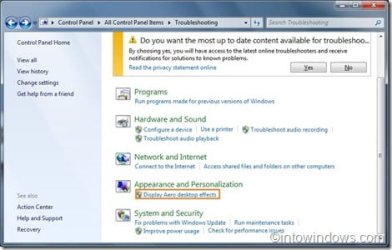
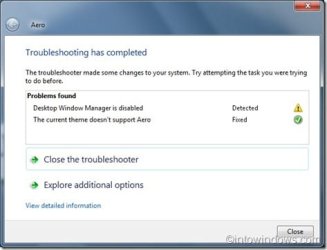
"Desktop Window Manager Session Manager" System Service was apparently not enabled or running/started. It was possibly set to disabled or manual and would not load when the system booted up and loaded my Windows 7 Home Premium 64bit.

I found this out running the troubleshooter program and it automatically fixed the problem so I'm not sure what exactly changed to fix the problem because I didn't make the change myself, windows 7 did it automatically through the trouble shooter, but my guess is that it was somehow disabled in the services.msc run command tool.

How do I know that it is fixed? The troubleshooter said something along the lines of: "Service Started. Problem Fixed."

I right clicked the "desktop" and went to "personalize" to load the "themes" and went to the "Aero Themes" and selected the first one called "Windows 7" in order to enable the default settings which have "Aero Peek" and after I selected that theme all the windows changed to the blue color with what looked like "Transparency" enabled.

I looked to see if Aero was available in the "system properties" - "appearance settings" and it was NOT there in the list of appearance options.

I right clicked the taskbar and went to properties and the enable/disable check box was still greyed out and wouldn't work.

So then it occurred to me. If the fix was done, the computer system probably needed to be restarted to activate all the options that were missing and/or disabled. After a restart, sure enough "Aero Peek" was found in the "System Properties" / "Appearance Settings Options List" and the "Taskbar Properties" "Aero Peek" enable/disable option was working with "Aero Peek" enabled (the checkbox was checked).

I went to themes and loaded my primary customized theme with a glossy black taskbar and top window border, and dark charcoal background of a window logo/symbol and it loaded perfectly and the transparency option was available in the "color settings" and I was able to choose different colors which wasn't possible when the service was turned off and was one of the source of problems that caused me to go search online about what was causing the disabled and broken appearance settings.

So there you have it. A potential fix for you. Either use the troubleshooter or load the services in the run command or search "services" in the search box in the start menu and make sure "Desktop Window Manager Session Manager" or "Desktop Window Manager" is set to automatic and restart the computer if this is the case.

When the problem occurred it seemed to be after I installed some new drivers for the graphics chipset and/or when I hooked up a tv to the computer via HDMI. It was around that time that I noticed the windows and taskbar were blue and my desktop background image was changed. I remember that when I installed the new chipset drivers it said something about "Aero Peek" in the installation menu tool and provided an option to deselect a check box next to that option. My best guess is that this driver is what caused the problem and shut down the system service or disabled it all together.

The trouble shooter said the service was called "Desktop Window Manager". However, when I looked in the services the only service close to that name was "Desktop Window Manager Session Manager" and it was "running" or "started" and set to automatic (after running the troubleshooter) so I am guessing it was the right service that needed to be changed.

This should be the fix for most people out there with this problem.
 

My Computer

Computer type
Laptop
Computer Manufacturer/Model Number
HP Pavilion g6
OS
Windows 7 Home Premium Edition 64bit Tweaked to the max!
CPU
Intel Core i3-2350M 2.30ghz/2 Core/4 Thread/3mb Level3 Cache
Motherboard
HP 1695 KBC Version 15.1F Intel 6/c200 Series Chipset Family
Memory
Ramaxel Technology 6GB's of DDR3/665mhz/1:5 (fsb:dram)/2011
Graphics Card(s)
Intel(R) HD Graphics 3000 Hewlett-Packard/SandyBridge/648mhz
Hard Drives
Hitachi HTS547575A9E384/Bytes/Sector 512/Size 698 GB/1 System Partition, 1 Storage Partition, 1 OS Setup Partition, 1 Restore Point Virtual Partition.
Antivirus
Kaspersky Lab Free Antivirus
Browser
Firefox
Back
Top