Aero Peek - Turn On or Off

How to Turn Aero Peek On or Off in Windows 7


   Information
This will show you how to turn Windows 7 Aero Peek, also known as Desktop Preview, On or Off to temporarily make all open windows on the desktop transparent when you place the mouse pointer on the button at the far right end of the taskbar.
   Warning

  • When turned on, Desktop Preview will only work if you have more than one window opened.
  • You will need to have a Aero Theme selected and not one of the Basic and High Contrast Themes for Desktop Preview to work.
Aero Requirements to be Enabled in Windows 7

NOTE: If Aero is not enabled, then Aero Peek will not work even when turned on.
  • Aero is not included in Windows 7 Home Basic or Windows 7 Starter editions.
  • 1 GHz 32-bit or 64-bit processor
  • 1 GB of system memory
  • Support for DirectX 9 graphics with 128 MB memory (in order to enable Aero theme)
  • You must be have True Color (32 bit) set instead of High Color (16 bit).
  • The Desktop Window Manager Session Manager and Themes Services need to be set as Started and Automatic.
  • Refresh or update your WEI score. You will need an WEI score minimum of 2.0 in both Graphics & Gaming graphics in order for Aero to be activated.
  • The desktop composition and Animate controls and elements inside windows options need to be enabled in Visual Effects.

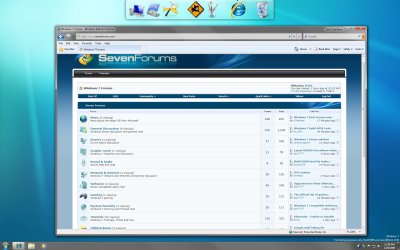
EXAMPLE: Aero Peek
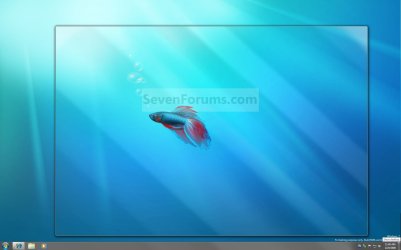
NOTE: This is before (left screenshot) and after (right screenshot) hovering the mouse pointer over the Show Desktop button on the taskbar, or pressing the Windows Key + Spacebar. Before.jpg
Preview.jpg


OPTION ONE

Turn Aero Peek On or Off in Taskbar and Start Menu Properties

1. Right click on the Start button and click on Properties. A) Go to step 3.
OR

2. Right click on a empty area on the taskbar and click on Properties.

3. Click on the Taskbar tab. (See screenshot below) Properties.jpg
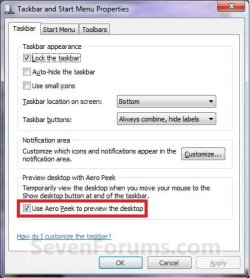
4. To Turn Off Aero Peek A) Uncheck the Use Aero Peek to preview the desktop box. (See screenshot above)

B) Go to step 6.
5. To Turn On Aero Peek
NOTE: By default, Desktop is turned on in Windows 7. A) Check the Use Aero Peek to preview the desktop box. (See screenshot below step 3)
6. Click on OK. (See screenshot below step 3)


OPTION TWO

Turn Aero Peek On or Off with Show Desktop Button on Taskbar
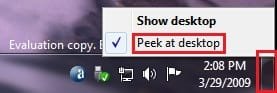
1. Right click on the button at the far right of the taskbar. (See screenshot below) Taskbar-2.jpg
2. To Turn Off Aero Peek A) Right click on the far right taskbar button and select Peek at desktop to uncheck it. (See screenshot above)
3. To Turn On Aero Peek
NOTE: By default, Preview desktop is checked in Windows 7. A) Right click on the far right taskbar button and select Peek at desktop to check it. (See screenshot below step 1)


OPTION THREE

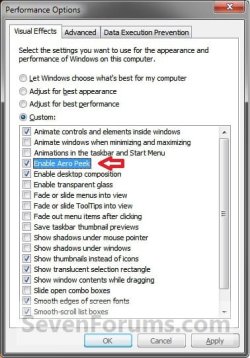
Turn Aero Peek On or Off in Visual Effects


NOTE: This option will also enable or disable taskbar thumbnail live previews. 1. Open the Visual Effects settings.

2. To Enable Areo Peek A) Check the Enable Aero Peek box. (See screenshot below step 4)

B) Go to step 4.
3. To Disable Areo Peek
NOTE: This will gray out the settings in OPTION ONE and OPTION TWO above. A) Uncheck the Enable Aero Peek box. (See screenshot below step 4)
4. Click on OK. Visual_Effects.jpg


OPTION FOUR

Turn Aero Peek On or Off Using a REG File Download


NOTE: This option will not work if Aero Peek was disabled using OPTION THREE above. 1. To Enable Aero Peek A) Click on the Download button below to download the file below. Enabled_Aero_Peek.reg

Download


B) Go to step 3.
2. To Disable Aero Peek A) Click on the Download button below to download the file below. Disabled_Aero_Peek.reg


Download


3. Click on Save, and save the .reg file to the desktop.

4. Right click on the downloaded .reg file and click on Merge.

5. Click on Run, Yes, Yes, and OK when prompted.

6. Log off and log on, or restart the computer.

7. When done, you can delete the downloaded .reg file if you like.
That's it,
Shawn


Attachments

Last edited:
Is it possible to turn off the shimmering rays that appear when you hover over the show desktop icon without turning off aero peek?
 
Hello Themainevent,

Sorry, but not that I know of. :(
 

My Computer My Computer

At a glance

64-bit Windows 11 Pro for WorkstationsIntel i7-8700K OC'd to 5 GHz64 GB (4x16GB) G.SKILL TridentZ RGB DDR4 3600...ASUS ROG-STRIX-GTX1080TI-O11G-GAMING
Computer type
PC/Desktop
Computer Manufacturer/Model Number
Self built custom
OS
64-bit Windows 11 Pro for Workstations
CPU
Intel i7-8700K OC'd to 5 GHz
Motherboard
ASUS ROG Maximus XI Formula Z390
Memory
64 GB (4x16GB) G.SKILL TridentZ RGB DDR4 3600 MHz
Graphics Card(s)
ASUS ROG-STRIX-GTX1080TI-O11G-GAMING
Sound Card
Integrated
Monitor(s) Displays
2 x Samsung Odyssey G7 27"
Screen Resolution
2560x1440
Hard Drives
1TB Samsung 990 PRO M.2,
4TB Samsung 990 PRO PRO M.2,
TerraMaster F8 SSD Plus NAS
PSU
Seasonic Prime Titanium 850W
Case
Thermaltake Core P3
Cooling
Corsair Hydro H115i
Keyboard
Logitech wireless K800
Mouse
Logitech MX Master 4
Internet Speed
2 Gb/s Download and 100 Mb/s Upload
Antivirus
Malwarebyte Anti-Malware Premium
Browser
Google Chrome
Other Info
Logitech Z625 speaker system,
Logitech BRIO 4K Pro webcam,
HP Color LaserJet Pro MFP M477fdn,
APC SMART-UPS RT 1000 XL - SURT1000XLI,
Galaxy S23 Plus phone
Aero Peek grayed out

My aero peek is grayed out, it is also checked. I have the proper desk top selected.
I recently had some malware issues and was helped by HP help. I gave the tech control and they performed their majic and voila, I had some issues removed. Now all I get is the name of the window that is open when I move my cursor over the icons. I've tried to reset it and I get an error about needing to turn off the "remote access". well, I've tried to find where it is turned on but can't seem to find anything that shows it is active. any suggestions?
 

My Computer My Computer

At a glance

windows 7Intel(R) Core(TM) i5 CPU 750 @ 2.67GHz8gbNVIDIA GeForce GT 230
Computer Manufacturer/Model Number
hp Pavillion elite e9260f
OS
windows 7
CPU
Intel(R) Core(TM) i5 CPU 750 @ 2.67GHz
Motherboard
Chipset Intel PCH P55
Memory
8gb
Graphics Card(s)
NVIDIA GeForce GT 230
Sound Card
Realtek High Definition Audio
Monitor(s) Displays
HP w2207 (HP w2207 Wide LCD Monitor)
Hard Drives
Seagate ST31000528AS
Hello Cporet, and welcome to Seven Forums.

It sounds like you may not have Aero working. Check the items in the red Warning box at the top of the turorial to see if any of that may be the issue.

Hope this helps for now,
Shawn
 

My Computer My Computer

At a glance

64-bit Windows 11 Pro for WorkstationsIntel i7-8700K OC'd to 5 GHz64 GB (4x16GB) G.SKILL TridentZ RGB DDR4 3600...ASUS ROG-STRIX-GTX1080TI-O11G-GAMING
Computer type
PC/Desktop
Computer Manufacturer/Model Number
Self built custom
OS
64-bit Windows 11 Pro for Workstations
CPU
Intel i7-8700K OC'd to 5 GHz
Motherboard
ASUS ROG Maximus XI Formula Z390
Memory
64 GB (4x16GB) G.SKILL TridentZ RGB DDR4 3600 MHz
Graphics Card(s)
ASUS ROG-STRIX-GTX1080TI-O11G-GAMING
Sound Card
Integrated
Monitor(s) Displays
2 x Samsung Odyssey G7 27"
Screen Resolution
2560x1440
Hard Drives
1TB Samsung 990 PRO M.2,
4TB Samsung 990 PRO PRO M.2,
TerraMaster F8 SSD Plus NAS
PSU
Seasonic Prime Titanium 850W
Case
Thermaltake Core P3
Cooling
Corsair Hydro H115i
Keyboard
Logitech wireless K800
Mouse
Logitech MX Master 4
Internet Speed
2 Gb/s Download and 100 Mb/s Upload
Antivirus
Malwarebyte Anti-Malware Premium
Browser
Google Chrome
Other Info
Logitech Z625 speaker system,
Logitech BRIO 4K Pro webcam,
HP Color LaserJet Pro MFP M477fdn,
APC SMART-UPS RT 1000 XL - SURT1000XLI,
Galaxy S23 Plus phone
Mine works now

Mine is completely opposite of what one person says, that if you enable the save taskbar thumbnails.
If I disable mine, aero peek works. If I enable it, it doesn't work. Very weird to me.
 

My Computer My Computer

At a glance

Windows 7 Home Premium X64AMD Athlon II Dual-Core M300, 2000 MHz(2.0 GHz)Installed: 4.00GB Total Physical: 3.75ATI Mobility Radeon HD 4200
Computer Manufacturer/Model Number
Gateway
OS
Windows 7 Home Premium X64
CPU
AMD Athlon II Dual-Core M300, 2000 MHz(2.0 GHz)
Memory
Installed: 4.00GB Total Physical: 3.75
Graphics Card(s)
ATI Mobility Radeon HD 4200
Disable Aero Peek: nothings works

I tried Option 3 and also Option 4, but Aero Peek refuses to be disabled. What is the solution?
thanks
IJmir
 

My Computer My Computer

At a glance

Windows 7
OS
Windows 7
Hello IJmir, and welcome to Seven Forums.

I have updated the Disable REG file in OPTION 4. Please download and try it again to see if it may help. Be sure to restart the computer afterwards to apply.

Hope this helps,
Shawn
 

My Computer My Computer

At a glance

64-bit Windows 11 Pro for WorkstationsIntel i7-8700K OC'd to 5 GHz64 GB (4x16GB) G.SKILL TridentZ RGB DDR4 3600...ASUS ROG-STRIX-GTX1080TI-O11G-GAMING
Computer type
PC/Desktop
Computer Manufacturer/Model Number
Self built custom
OS
64-bit Windows 11 Pro for Workstations
CPU
Intel i7-8700K OC'd to 5 GHz
Motherboard
ASUS ROG Maximus XI Formula Z390
Memory
64 GB (4x16GB) G.SKILL TridentZ RGB DDR4 3600 MHz
Graphics Card(s)
ASUS ROG-STRIX-GTX1080TI-O11G-GAMING
Sound Card
Integrated
Monitor(s) Displays
2 x Samsung Odyssey G7 27"
Screen Resolution
2560x1440
Hard Drives
1TB Samsung 990 PRO M.2,
4TB Samsung 990 PRO PRO M.2,
TerraMaster F8 SSD Plus NAS
PSU
Seasonic Prime Titanium 850W
Case
Thermaltake Core P3
Cooling
Corsair Hydro H115i
Keyboard
Logitech wireless K800
Mouse
Logitech MX Master 4
Internet Speed
2 Gb/s Download and 100 Mb/s Upload
Antivirus
Malwarebyte Anti-Malware Premium
Browser
Google Chrome
Other Info
Logitech Z625 speaker system,
Logitech BRIO 4K Pro webcam,
HP Color LaserJet Pro MFP M477fdn,
APC SMART-UPS RT 1000 XL - SURT1000XLI,
Galaxy S23 Plus phone
Thanks Shawn,

I downloaded it again (by clicking on the original button under option 4) but Aero Peek is still (annoyingly) there. Why would it be so difficult to remove a feature that nobody asked for in the first place (as far as I'm aware). At least when I buy a house and it comes with mosquitos I can use a spray to get rid of them. But when I buy Windows 7 and it comes with Aero Peek, there is no way to get rid of it?
IJmir

.... I followed the steps as given in the original advice and also shut down the laptop and started it again after following those steps.
IJmir
 
Last edited by a moderator:

My Computer My Computer

At a glance

Windows 7
OS
Windows 7
IJmir,

Were you not able to do Option 1 and/or Option 2 to turn off Aero Peek?
 

My Computer My Computer

At a glance

64-bit Windows 11 Pro for WorkstationsIntel i7-8700K OC'd to 5 GHz64 GB (4x16GB) G.SKILL TridentZ RGB DDR4 3600...ASUS ROG-STRIX-GTX1080TI-O11G-GAMING
Computer type
PC/Desktop
Computer Manufacturer/Model Number
Self built custom
OS
64-bit Windows 11 Pro for Workstations
CPU
Intel i7-8700K OC'd to 5 GHz
Motherboard
ASUS ROG Maximus XI Formula Z390
Memory
64 GB (4x16GB) G.SKILL TridentZ RGB DDR4 3600 MHz
Graphics Card(s)
ASUS ROG-STRIX-GTX1080TI-O11G-GAMING
Sound Card
Integrated
Monitor(s) Displays
2 x Samsung Odyssey G7 27"
Screen Resolution
2560x1440
Hard Drives
1TB Samsung 990 PRO M.2,
4TB Samsung 990 PRO PRO M.2,
TerraMaster F8 SSD Plus NAS
PSU
Seasonic Prime Titanium 850W
Case
Thermaltake Core P3
Cooling
Corsair Hydro H115i
Keyboard
Logitech wireless K800
Mouse
Logitech MX Master 4
Internet Speed
2 Gb/s Download and 100 Mb/s Upload
Antivirus
Malwarebyte Anti-Malware Premium
Browser
Google Chrome
Other Info
Logitech Z625 speaker system,
Logitech BRIO 4K Pro webcam,
HP Color LaserJet Pro MFP M477fdn,
APC SMART-UPS RT 1000 XL - SURT1000XLI,
Galaxy S23 Plus phone
Turning Aero peek off

Shawn,

Yes, Options 1 and 2 work, but they only disable Aero Peek for a peek at the Desktop. So I am still stuck with annoying windows popping up every time I move the cursor too low
Is there really no way to get rid of this feature?
IJmir
 

My Computer My Computer

At a glance

Windows 7
OS
Windows 7
Shawn,

Yes, Options 1 and 2 work, but they only disable Aero Peek for a peek at the Desktop. So I am still stuck with annoying windows popping up every time I move the cursor too low
Is there really no way to get rid of this feature?
IJmir


Oh, I see. You were wanting to stop the "Show Desktop" pop-up instead. The tutorial is not for that, but only to turn the Aero Peek feature on or off for the transparent window look.

Sorry, but there is no way to stop this pop-up other than not hovering over the Aero Peek/Show Desktop button on the taskbar. :(
 
Last edited:

My Computer My Computer

At a glance

64-bit Windows 11 Pro for WorkstationsIntel i7-8700K OC'd to 5 GHz64 GB (4x16GB) G.SKILL TridentZ RGB DDR4 3600...ASUS ROG-STRIX-GTX1080TI-O11G-GAMING
Computer type
PC/Desktop
Computer Manufacturer/Model Number
Self built custom
OS
64-bit Windows 11 Pro for Workstations
CPU
Intel i7-8700K OC'd to 5 GHz
Motherboard
ASUS ROG Maximus XI Formula Z390
Memory
64 GB (4x16GB) G.SKILL TridentZ RGB DDR4 3600 MHz
Graphics Card(s)
ASUS ROG-STRIX-GTX1080TI-O11G-GAMING
Sound Card
Integrated
Monitor(s) Displays
2 x Samsung Odyssey G7 27"
Screen Resolution
2560x1440
Hard Drives
1TB Samsung 990 PRO M.2,
4TB Samsung 990 PRO PRO M.2,
TerraMaster F8 SSD Plus NAS
PSU
Seasonic Prime Titanium 850W
Case
Thermaltake Core P3
Cooling
Corsair Hydro H115i
Keyboard
Logitech wireless K800
Mouse
Logitech MX Master 4
Internet Speed
2 Gb/s Download and 100 Mb/s Upload
Antivirus
Malwarebyte Anti-Malware Premium
Browser
Google Chrome
Other Info
Logitech Z625 speaker system,
Logitech BRIO 4K Pro webcam,
HP Color LaserJet Pro MFP M477fdn,
APC SMART-UPS RT 1000 XL - SURT1000XLI,
Galaxy S23 Plus phone

My Computer My Computer

At a glance

64-bit Windows 11 Pro for WorkstationsIntel i7-8700K OC'd to 5 GHz64 GB (4x16GB) G.SKILL TridentZ RGB DDR4 3600...ASUS ROG-STRIX-GTX1080TI-O11G-GAMING
Computer type
PC/Desktop
Computer Manufacturer/Model Number
Self built custom
OS
64-bit Windows 11 Pro for Workstations
CPU
Intel i7-8700K OC'd to 5 GHz
Motherboard
ASUS ROG Maximus XI Formula Z390
Memory
64 GB (4x16GB) G.SKILL TridentZ RGB DDR4 3600 MHz
Graphics Card(s)
ASUS ROG-STRIX-GTX1080TI-O11G-GAMING
Sound Card
Integrated
Monitor(s) Displays
2 x Samsung Odyssey G7 27"
Screen Resolution
2560x1440
Hard Drives
1TB Samsung 990 PRO M.2,
4TB Samsung 990 PRO PRO M.2,
TerraMaster F8 SSD Plus NAS
PSU
Seasonic Prime Titanium 850W
Case
Thermaltake Core P3
Cooling
Corsair Hydro H115i
Keyboard
Logitech wireless K800
Mouse
Logitech MX Master 4
Internet Speed
2 Gb/s Download and 100 Mb/s Upload
Antivirus
Malwarebyte Anti-Malware Premium
Browser
Google Chrome
Other Info
Logitech Z625 speaker system,
Logitech BRIO 4K Pro webcam,
HP Color LaserJet Pro MFP M477fdn,
APC SMART-UPS RT 1000 XL - SURT1000XLI,
Galaxy S23 Plus phone
Aero peek

Looking at your earlier reply, I think we may have misunderstood each other. You wrote "You were wanting to stop the "Show Desktop" pop-up instead. The tutorial is not for that, but only to turn the Aero Peek feature on or off for the transparent window look." The "Show Desktop" pop-up I managed to disable without any problem (even though I don't mind it so much because it's just one pop-up and it only pops up when the cursor is in the extreme lower-right corner of the screen - which hardly ever happens so it's not such a nuisance).

It is in fact "turn the Aero Peek feature on or off for the transparent window look." that I am looking for - so I can turn it off. But it is simply not happening. Nothing works. The tutorial doesn't do it either. So every time the cursor goes too low, a host of mini windows pop up which I find very distracting

IJmir
 

My Computer My Computer

At a glance

Windows 7
OS
Windows 7
IJmir,

As a test, create a new administrator account and see if you are able to turn Aero Peek off while logged in it.
 

My Computer My Computer

At a glance

64-bit Windows 11 Pro for WorkstationsIntel i7-8700K OC'd to 5 GHz64 GB (4x16GB) G.SKILL TridentZ RGB DDR4 3600...ASUS ROG-STRIX-GTX1080TI-O11G-GAMING
Computer type
PC/Desktop
Computer Manufacturer/Model Number
Self built custom
OS
64-bit Windows 11 Pro for Workstations
CPU
Intel i7-8700K OC'd to 5 GHz
Motherboard
ASUS ROG Maximus XI Formula Z390
Memory
64 GB (4x16GB) G.SKILL TridentZ RGB DDR4 3600 MHz
Graphics Card(s)
ASUS ROG-STRIX-GTX1080TI-O11G-GAMING
Sound Card
Integrated
Monitor(s) Displays
2 x Samsung Odyssey G7 27"
Screen Resolution
2560x1440
Hard Drives
1TB Samsung 990 PRO M.2,
4TB Samsung 990 PRO PRO M.2,
TerraMaster F8 SSD Plus NAS
PSU
Seasonic Prime Titanium 850W
Case
Thermaltake Core P3
Cooling
Corsair Hydro H115i
Keyboard
Logitech wireless K800
Mouse
Logitech MX Master 4
Internet Speed
2 Gb/s Download and 100 Mb/s Upload
Antivirus
Malwarebyte Anti-Malware Premium
Browser
Google Chrome
Other Info
Logitech Z625 speaker system,
Logitech BRIO 4K Pro webcam,
HP Color LaserJet Pro MFP M477fdn,
APC SMART-UPS RT 1000 XL - SURT1000XLI,
Galaxy S23 Plus phone
Aero Peak Solution

Hello,

There is one more option you can try to get Aero Peek working. Go to 'Control Panel\All Control Panel Items\Personalization' and select one of the Aero Themes. If you do not have an Aero Theme selected here, Aero Peek won't work no matter what selections you have made elsewhere.

Check items in the red Warning box at the top of the tutorial.

Tenne
 

My Computer My Computer

At a glance

Windows 7 Ultimate x64AMD Phenom II x6 1055T 2.8 GHzDDRIII 1333MHz 8GBATI Radeon HD5750
OS
Windows 7 Ultimate x64
CPU
AMD Phenom II x6 1055T 2.8 GHz
Motherboard
Asus M4A77TD AM3 AMD 770 ATX AMD
Memory
DDRIII 1333MHz 8GB
Graphics Card(s)
ATI Radeon HD5750
Monitor(s) Displays
Dual
My issue solved

Hi, Thankyou so much for this solution. I have been trying to fix this myself since a long time. I got my issue solved in 5 mins just by following your instructions. My Aero features are working great now. Keep up your good work :)
 

My Computer My Computer

At a glance

Windows7 Ultimate 32biti5 Second Generation4 GB1 GB NVEDIA
Computer Manufacturer/Model Number
Dell Inspiron R15
OS
Windows7 Ultimate 32bit
CPU
i5 Second Generation
Memory
4 GB
Graphics Card(s)
1 GB NVEDIA
Hard Drives
SATA 500GB
You're most welcome NaughtybyNature, and welcome to Seven Forums. :)
 

My Computer My Computer

At a glance

64-bit Windows 11 Pro for WorkstationsIntel i7-8700K OC'd to 5 GHz64 GB (4x16GB) G.SKILL TridentZ RGB DDR4 3600...ASUS ROG-STRIX-GTX1080TI-O11G-GAMING
Computer type
PC/Desktop
Computer Manufacturer/Model Number
Self built custom
OS
64-bit Windows 11 Pro for Workstations
CPU
Intel i7-8700K OC'd to 5 GHz
Motherboard
ASUS ROG Maximus XI Formula Z390
Memory
64 GB (4x16GB) G.SKILL TridentZ RGB DDR4 3600 MHz
Graphics Card(s)
ASUS ROG-STRIX-GTX1080TI-O11G-GAMING
Sound Card
Integrated
Monitor(s) Displays
2 x Samsung Odyssey G7 27"
Screen Resolution
2560x1440
Hard Drives
1TB Samsung 990 PRO M.2,
4TB Samsung 990 PRO PRO M.2,
TerraMaster F8 SSD Plus NAS
PSU
Seasonic Prime Titanium 850W
Case
Thermaltake Core P3
Cooling
Corsair Hydro H115i
Keyboard
Logitech wireless K800
Mouse
Logitech MX Master 4
Internet Speed
2 Gb/s Download and 100 Mb/s Upload
Antivirus
Malwarebyte Anti-Malware Premium
Browser
Google Chrome
Other Info
Logitech Z625 speaker system,
Logitech BRIO 4K Pro webcam,
HP Color LaserJet Pro MFP M477fdn,
APC SMART-UPS RT 1000 XL - SURT1000XLI,
Galaxy S23 Plus phone
another option

system was set to High Colour. Changed to True Colour (right click desktop --> Screen Resolution --> Advanced Settings --> List All Modes) and voila!; back in business.
 

My Computer My Computer

At a glance

Windows 7 Ultimate x64AMD Athlon II X2 240 2.8GHz4 GB OCZ GoldNVIDIA GeForce 8800 GT
OS
Windows 7 Ultimate x64
CPU
AMD Athlon II X2 240 2.8GHz
Motherboard
ASUS M4A785-M
Memory
4 GB OCZ Gold
Graphics Card(s)
NVIDIA GeForce 8800 GT
Sound Card
OnBoard HD Audio
Hard Drives
Western Digital Caviar Black 7200rpm 1TB
PSU
700W
Cooling
CoolerMaster - GeminII S
I've just noticed on my new build of 7600, strangely, that the options (options 4-6) aren't actually there.

Maybe the auto-fix will magically restore it, maybe it was my over-zealous optimising that has achieved this "state" - will check in a sec ala reboots, first trying to manually ascertain (as I fear regfromapp.exe will fail as usual even when running with a winpatch... again we'll see).

New build exhibiting the anomaly is mounted on f: sw and sys hives are loaded.
Quick comparison tells me it's not UxSms, it's not the shake disable setting, NoWindowMinimizingShortcuts I added (AFAIK!)....

first thing, reboot into backup (before tweaks:)
I'm a dab hand with diskpart and bcdedit now at least!
 

My Computer My Computer

At a glance

Windows 7 Ultimate 64bit2.28GbNVIDIA
Computer type
Laptop
Computer Manufacturer/Model Number
Dell
OS
Windows 7 Ultimate 64bit
CPU
2.2
Memory
8Gb
Graphics Card(s)
NVIDIA
Screen Resolution
1280/762
Mouse
built in pad || iphone || MS wireless
Internet Speed
100MB
Antivirus
Avast
Browser
Chrome, Chrome portable
Last edited:

My Computer My Computer

At a glance

64-bit Windows 11 Pro for WorkstationsIntel i7-8700K OC'd to 5 GHz64 GB (4x16GB) G.SKILL TridentZ RGB DDR4 3600...ASUS ROG-STRIX-GTX1080TI-O11G-GAMING
Computer type
PC/Desktop
Computer Manufacturer/Model Number
Self built custom
OS
64-bit Windows 11 Pro for Workstations
CPU
Intel i7-8700K OC'd to 5 GHz
Motherboard
ASUS ROG Maximus XI Formula Z390
Memory
64 GB (4x16GB) G.SKILL TridentZ RGB DDR4 3600 MHz
Graphics Card(s)
ASUS ROG-STRIX-GTX1080TI-O11G-GAMING
Sound Card
Integrated
Monitor(s) Displays
2 x Samsung Odyssey G7 27"
Screen Resolution
2560x1440
Hard Drives
1TB Samsung 990 PRO M.2,
4TB Samsung 990 PRO PRO M.2,
TerraMaster F8 SSD Plus NAS
PSU
Seasonic Prime Titanium 850W
Case
Thermaltake Core P3
Cooling
Corsair Hydro H115i
Keyboard
Logitech wireless K800
Mouse
Logitech MX Master 4
Internet Speed
2 Gb/s Download and 100 Mb/s Upload
Antivirus
Malwarebyte Anti-Malware Premium
Browser
Google Chrome
Other Info
Logitech Z625 speaker system,
Logitech BRIO 4K Pro webcam,
HP Color LaserJet Pro MFP M477fdn,
APC SMART-UPS RT 1000 XL - SURT1000XLI,
Galaxy S23 Plus phone
Back
Top