After new Win 7 install - msg: Operating System Not Found

jesbkemp

New member
Local time
8:31 PM
Messages
16
Hi first time on the forum so if I don't give all the necessary info. let me know and I'll provide what I can.
System : eMachines G640
Disk Drive : WD3200BEVT
O/S : Win 7 Home Premium x64 (from heidoc.net)

Original disk drive failed with read errors so was replaced with above (like for like).

Installing from USB stick - no problems during the install.

After first reboot, system displays Operating System Not found unless the USB stick is present,
and the let it go through press any key to install from USB WITHOUT pressing any key.

Performed multiple installs, BIOS boot list is correct Hard Drive is top of boot list, BIOS set to AHCI Mode.

I have read multiple forums and tried the following to no avail:
Re-formatted drive from another computer (USB to SATA Cable) via windows 7 O/S
diskpart clear all
diskpart to set up partitions
Formatted during the install process
Manual bootrec /rebuildbcd, bootrec /fixmbr, bootrec /fixboot
Fix via Visual BCD Editor
Fix via install USB advanced repair options

Been at this for a few days now and probably can't see the wood for the trees.
Not a total novice more of a Unix man but this is really doing my head in....

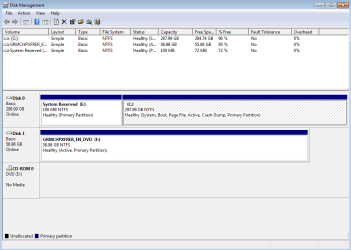
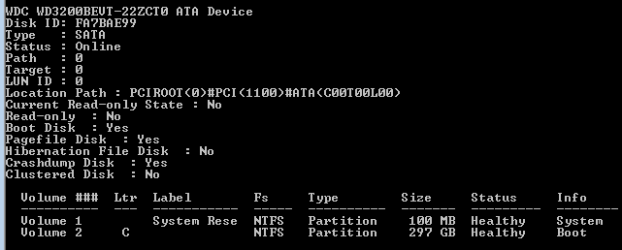
Screenshots of diskpart detail disk and disk management below:
diskpart.png

DiskMgmt.png
 

My Computer

Computer type
Laptop
Computer Manufacturer/Model Number
eMachines
OS
Windows 7 Home Premium x64
CPU
P320 AMD Athlon II X2
Memory
3 GB DDR3
Hard Drives
Western Digital 3200 BEVT
The reserved partition should be marked active and should not have a letter assigned, thats why its not booting correctly.
 

My Computer

Computer type
PC/Desktop
OS
Microsoft Windows 10 Professional / Windows 7 Professional
CPU
Intel i5-3570
Motherboard
Lenovo Mahobay
Memory
16GB DDR3
Graphics Card(s)
AMD Radeon HD 7850 2GB
Sound Card
(1) Realtek HD Audio (2) AMD HD Audio
Monitor(s) Displays
LG LS192WS
Screen Resolution
1440 x 900 @ 32bit color
Hard Drives
(1) SUV300S37A/120G (2) ST3500413AS SATA Disk Device AHCI mode enabled.
PSU
Corsair HX620
Case
Thermaltake V4 Black Edition
Cooling
Cooler Master Hyper 212 + Artic Silver 5 on CPU/GPU
Keyboard
Dell SK-8115
Mouse
Razer Copperhead with MAPED mat (awesome!)
Internet Speed
100 Mbps up/down
Browser
Chrome
Thanks for the quick response OldMX. Did what you said then did:
bootrec /rebuildbcd
bootrec /fixmbr
bootrec /fixboot

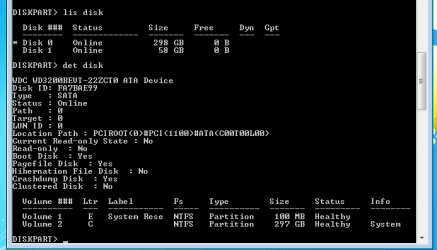
This is what I have now:
diskpart.png

diskmgmg.png
 

My Computer

Computer type
Laptop
Computer Manufacturer/Model Number
eMachines
OS
Windows 7 Home Premium x64
CPU
P320 AMD Athlon II X2
Memory
3 GB DDR3
Hard Drives
Western Digital 3200 BEVT
Sorry, forgot to add I still have the same problem. Operating system not found.
 

My Computer

Computer type
Laptop
Computer Manufacturer/Model Number
eMachines
OS
Windows 7 Home Premium x64
CPU
P320 AMD Athlon II X2
Memory
3 GB DDR3
Hard Drives
Western Digital 3200 BEVT
Hmm, this is indeed strange. I wonder how the C partition ended up as active in the first place.

You did the right thing activating the system reserved partition Whether it has a drive letter or not is irrelevant. But the 3 commands you used (although often recommended) may not work to recreate the bootmgr. It is better to run startup/repair 3 times.
 

My Computer

Computer Manufacturer/Model Number
HP, Dell, Gateway, Toshiba - 4 laptops and 2 desktops
OS
Vista, Windows7, Mint Mate, Zorin, Windows 8
CPU
from 1.6GHz Duo to i7
Monitor(s) Displays
2x HP w2207
Hard Drives
5x HDD, 7x SSD, 12x Externals
Keyboard
with trackball - no mices
Mouse
Trackball mice
Internet Speed
DSL 6000
OK Chaps. I performed a clean all via diskpart then a new install.
Performed the 3x startup repair.

Still got the same problem.

System is per the second lot of screen shots.
i.e. System reserved partition is active without a volume identifier.
Both are healthy.
 

My Computer

Computer type
Laptop
Computer Manufacturer/Model Number
eMachines
OS
Windows 7 Home Premium x64
CPU
P320 AMD Athlon II X2
Memory
3 GB DDR3
Hard Drives
Western Digital 3200 BEVT

My Computer

Computer Manufacturer/Model Number
HP, Dell, Gateway, Toshiba - 4 laptops and 2 desktops
OS
Vista, Windows7, Mint Mate, Zorin, Windows 8
CPU
from 1.6GHz Duo to i7
Monitor(s) Displays
2x HP w2207
Hard Drives
5x HDD, 7x SSD, 12x Externals
Keyboard
with trackball - no mices
Mouse
Trackball mice
Internet Speed
DSL 6000
OK, used partition wizard and still have the same problem.
From system rec options I used the command line to run >bootrec /scanos
No O/S is detected however I can still boot to the disk O/S with the install USB plugged in.
Does this mean the MBR is not being written properly? If this is the case I don't understand as I
have tried manually to do it, rebuild it with two different partition tools and with the rec options
on the install USB.
 

My Computer

Computer type
Laptop
Computer Manufacturer/Model Number
eMachines
OS
Windows 7 Home Premium x64
CPU
P320 AMD Athlon II X2
Memory
3 GB DDR3
Hard Drives
Western Digital 3200 BEVT
The complication is most likely using the USB installer. Did you set it as I suggested earlier? Please confirm.

If so do you have a DVD option for install?

Try unplugging the flash stick at first reboot during install.

Clean the HDD and define an Active partition as shown in Step 2.2 of SSD - HDD Optimize for Windows Reinstallation
 
@GREGROCKER, I followed as close as my system would allow.
The BIOS does not me allow a one time boot of a device. I left the boot list as default with the following order:
Disk
DVD
Network
USB

If I have the USB installed it eventually finds it and allows me to boot from that device or, after install has completed, from the disk.

It's my sisters computer so no recovery disk (either she never made one or she lost the one it came with or both).
Am using the ISO image from heidoc.net so can make a bootable USB or DVD.
I will try the following then update the post:
1. before each install >diskpart clean
2. try with USB stick and remove it on first reboot.
3. create bootable install DVD and try the install.
4. follow SSD / HDD : Optimize for Windows Reinstallation and perform the installation.
 

My Computer

Computer type
Laptop
Computer Manufacturer/Model Number
eMachines
OS
Windows 7 Home Premium x64
CPU
P320 AMD Athlon II X2
Memory
3 GB DDR3
Hard Drives
Western Digital 3200 BEVT
OK, I have tried the above suggestions always with a >diskpart clean all and reboot between..
1. Downloaded and made a USB and DVD boot disk with X17-58997.iso image. Cannot install
with error msg "setup was unable to create a new system partition or locate an existing system partition.."
This was after the install with and without using the eficfg tool.
2. Downloaded and made a USB and DVD boot disk with X15-65733.iso (RTM) image.
From USB without the eficfg tool being run, install works but then no reboot without the USB plugged in.
USB and DVD with eficfg tool same message as above.
Looking at the log files with wrong partitions the drive passes all install reqs but gets a warning message:
Computer Hardware may not support booting to this disk. Ensure that the disk controller is enabled in the computer
BIOS menu.

I have also tried using diskpart to manually create the system reserved part at 200 MB made active
and a 100 Gb for O/S. all to no avail.
 

My Computer

Computer type
Laptop
Computer Manufacturer/Model Number
eMachines
OS
Windows 7 Home Premium x64
CPU
P320 AMD Athlon II X2
Memory
3 GB DDR3
Hard Drives
Western Digital 3200 BEVT
Create a partition, mark it active and install to that partition.
 

My Computers

System One System Two

  • Computer type
    PC/Desktop
    OS
    7 X64
    CPU
    i5 8400
    Motherboard
    gigabyte b365m ds3h
    Memory
    2x8gb 3200mhz
    Hard Drives
    various
    PSU
    pure power 11 400w cm
    Case
    Coolermaster
    Cooling
    cryorig m9i
  • Computer type
    PC/Desktop
    OS
    7x64
    CPU
    g5400
    Motherboard
    ga b365m ds3h
    Memory
    8gb ddr4 2400
    PSU
    xfx pro 450w
Unplug all other HD's and peripherals,

Boot into BIOS setup, reset to defaults, save changes. If an EFI BIOS you'll need to decide if you want UEFI BIOS vs. Legacy BIOS. If UEFI follow these special steps for Install, otherwise enable Legacy BIOS or Compatibility Support Module to proceed with normal install:

Set DVD drive first to boot, HD second, set SATA controller to AHCI, Save changes and Exit.

Then boot into Windows 7 installer DVD or flash stick burned or written using tool and latest ISO for your licensed OS version here. I would use a fresh ISO written with tool in Step 2 as yours is in question.

At first installer screen Press Shift + F10, or enter System Recovery Options to open a Command Box, type:

DISKPART
LIST DISK
SELECT DISK 0 (after confirming Windows 7 target HD #)
CLEAN
CREATE PARTITION PRIMARY
FORMAT FS=NTFS LABEL="WINDOWS 7"
ACTIVE
EXIT
EXIT

Next click Install Now, then Custom install to Clean Install Windows 7 to the partition you created. If it fails then report back at which step and the verbatim error message.

In addition read over these steps to understand the tools and methods which work best to get and maintain a perfect Clean Reinstall - Factory OEM Windows 7. The steps are the same for retail.

After install you can adjust partition size or Create new partitions for data, etc. in Disk Mgmt. You are creating the partition here for the purpose of wiping the HD and marking Active which overcomes certain install failures.

If these steps all fail, then test the HD with the maker's HD Diagnostic extended CD scan.
 
Right, I have installed in various different ways as previous posts suggested and many/all other ways that
I could come up with myself. If I use diskpart to make partitions one partition is always active (The 100 or 200 Mb)!
The BIOS is Phoenix V1.18 (The latest available which I upgraded as I though that might have been the problem).
It's a pretty basic BIOS. No UEFI support. No switch for legacy or compatibility support.
SATA Mode is set to AHCI (although for giggles I tried it in IDE mode, didn't work so set it back to AHCI).
It's a laptop with no other devices attached unless booting from the USB stick. Therefore 1 x SATA Drive and
1 x Internal ATAPI DVD Drive (no other devices to disconnect).
Boot Order is as follows (default):
HDD
DVD
Network
USB HDD
(Again, I have messed around with the boot order and it makes no difference to the outcome. It does
perform as expected to a degree and boots from the first available boot source but never the HDD so is
back to default now).
Latest steps taken as per GREGROCKER:-
I have re-downloaded Windows Home Premium x64 SP1 U (Media Refresh), image X17-58997.iso
I have ran the eicfg remove tool on this image
I have created a new bootable USB stick
Used the 1 time boot option (F10) to select the USB HDD
From the first install screen hit shift F10 for cmd window then:
DISKPART
LIST DISK
SELECT DISK 0 (after confirming Windows 7 target HD #)
CLEAN
CREATE PARTITION PRIMARY
FORMAT FS=NTFS LABEL="WINDOWS 7"
ACTIVE
EXIT
EXIT

Install worked but problem still exists on reboot.
"Operating System not found"
 

My Computer

Computer type
Laptop
Computer Manufacturer/Model Number
eMachines
OS
Windows 7 Home Premium x64
CPU
P320 AMD Athlon II X2
Memory
3 GB DDR3
Hard Drives
Western Digital 3200 BEVT
What is Disk 1 ? Unplug it, get it out of the loop, boot the dvd and delete all the partitions, then install windows. That`s it, you should be done in 15 minutes.

Change your boot order to dvd\cd 1st, hdd 2nd or just use the one time boot key as suggested.

I would burn the untouched iso to dvd, that`s the easiest way to do it, if you have a dvd drive to start the install.
 

My Computer

Computer type
PC/Desktop
Computer Manufacturer/Model Number
Skylake Special #666
OS
Windows 10 Pro x64
CPU
Intel Core i7 6700K
Motherboard
Asus Sabertooth Z170 Mark 1
Memory
GSkill TridentZ RGB 16GB 3600 16-16-16-36
Graphics Card(s)
EVGA GTX 980 Ti SC x2
Sound Card
Realtek High Definition
Monitor(s) Displays
AOC G2460PG
Screen Resolution
1920 x 1080 144Hz
Hard Drives
Samsung 860 Pro 256GB, Seagate Barracuda 4TB x2
PSU
EVGA 1000 P2, EVGA White Custom Braided Cables
Case
Corsair Vengeance C70 Gunmetal Black
Cooling
Corsair H100i v2, Corsair ML120 x2, Thermal Grizzly Kryonaut
Keyboard
Logitech G910 Orion Spectrum
Mouse
Logitech G700s
Internet Speed
Verizon Fios Quantum Gateway 75/75
Antivirus
Windows Defender, Malwarebytes Free 3.8.3
Browser
Chrome
Other Info
Corsair SP120 x4, LG Blu-ray Drive, Durabrand HT-395 100 Watt Dolby Digital Amp, Corsair H2100 Wireless 7.1 Headset
Disk 1 is my USB memory stick with a bootable ISO image.

If I try to use the DVD I never get the chance to install as I get the message:
"Windows cannot be installed to Disk 0 Partition 1"
Same message with two different DVD Bootable ISO images (X17-58997.iso and X15-65733.iso) created
using the using the Windows USB DVD Download tool.
 

My Computer

Computer type
Laptop
Computer Manufacturer/Model Number
eMachines
OS
Windows 7 Home Premium x64
CPU
P320 AMD Athlon II X2
Memory
3 GB DDR3
Hard Drives
Western Digital 3200 BEVT
Did you delete all the partitions on disk 0 ??????

It sounds and looks like you`re trying to install windows on a system reserved partition, which of course is too small.

Delete all partitions down to unallocated space, then install windows on it. ( Disk 0 )
 
Last edited:

My Computer

Computer type
PC/Desktop
Computer Manufacturer/Model Number
Skylake Special #666
OS
Windows 10 Pro x64
CPU
Intel Core i7 6700K
Motherboard
Asus Sabertooth Z170 Mark 1
Memory
GSkill TridentZ RGB 16GB 3600 16-16-16-36
Graphics Card(s)
EVGA GTX 980 Ti SC x2
Sound Card
Realtek High Definition
Monitor(s) Displays
AOC G2460PG
Screen Resolution
1920 x 1080 144Hz
Hard Drives
Samsung 860 Pro 256GB, Seagate Barracuda 4TB x2
PSU
EVGA 1000 P2, EVGA White Custom Braided Cables
Case
Corsair Vengeance C70 Gunmetal Black
Cooling
Corsair H100i v2, Corsair ML120 x2, Thermal Grizzly Kryonaut
Keyboard
Logitech G910 Orion Spectrum
Mouse
Logitech G700s
Internet Speed
Verizon Fios Quantum Gateway 75/75
Antivirus
Windows Defender, Malwarebytes Free 3.8.3
Browser
Chrome
Other Info
Corsair SP120 x4, LG Blu-ray Drive, Durabrand HT-395 100 Watt Dolby Digital Amp, Corsair H2100 Wireless 7.1 Headset
Back
Top