An invincible Windows 7 boot problem

Rausku

New member
Local time
2:59 AM
Messages
8
Before everything went wrong: I had XP and 7 installed on same 465 GB HDD like this

C: XP ~40GB
D: W7 ~130GB
I: other stuff like movies etc ~293GB

Xp became useless and I decided to format it and allocate the 40BG between C: and I: using some partition program which name I can't even remember. So I applied the process and everything went ok until at 77% a powercut shut my pc down.

Situation after the powercut:

At startup bios gives me error which says something about selecting proper boot device or something and nothing happens. I booted from Ubuntu live cd and using gparted I got a screenshot of partition table:

partitiontable.PNG

The I-partition is pretty much ****ed up but the W7 partition seems to be ok. I added the boot flag to W7 partition (didn't exactly know if that was the right thing to do).

W7 install DVD won't help

I've tried to fix this boot issue by using the W7 install DVD but so far it's been useless. After clicking the Repair your computer the W7 installation doesn't show up in System Recovery Options list but I clicked next anyway. I ran the Repair startup -thing at least 4 times and it didn't work (maybe because the recovery tool doesn't recognise the W7 installation). I also tried this BOOTREC thing on Command Prompt:

C:\>BOOTREC /FIXMBR
The operation completed successfully.

C:\>BOOTREC /FIXBOOT
Element not found.

C:\>BOOTREC /REBUILDBCD
Scanning all disks for Windows installations.

Please wait, since this may take a while...

Succesfully scanned Windows installations.
Total indetified Windows isntallations: 1
[1] C:\Windows
Add installation to boot list? Yes(Y)/NO(N)/All(A):Y
Element not found.

I also noticed there's no boot-folder on C: (should there be?)

Any ideas?

At the moment I just want to get my Windows working again, the lost files on I-partition aren't so important. All suggestions are highly welcome. Thx..
 

My Computer

OS
Windows 7 ultimate 64bit
I may not be reading the GParted window correctly, but are all the partitions except the small one in front in an extended partition?

Can you get GParted to clean the drive up and get rid of the extra space?

Can you make the Win 7 partition primary?

Don't try to do all the operations at the same time. Do one or two then apply and more later.
 

My Computer

Computer Manufacturer/Model Number
Homebuilt
OS
Windows 7 x64
CPU
i7-2600K
Motherboard
Asus P8Z77-v Pro
Memory
8 G
Graphics Card(s)
GTX 480
Sound Card
Onboard
Monitor(s) Displays
LG W2753V
Screen Resolution
1920x1080
Hard Drives
Crucial M4 128 G SSD
Before everything went wrong: I had XP and 7 installed on same 465 GB HDD like this

C: XP ~40GB
D: W7 ~130GB
I: other stuff like movies etc ~293GB

Xp became useless and I decided to format it and allocate the 40BG between C: and I: using some partition program which name I can't even remember. So I applied the process and everything went ok until at 77% a powercut shut my pc down.

Situation after the powercut:

At startup bios gives me error which says something about selecting proper boot device or something and nothing happens. I booted from Ubuntu live cd and using gparted I got a screenshot of partition table:

View attachment 48225

The I-partition is pretty much ****ed up but the W7 partition seems to be ok. I added the boot flag to W7 partition (didn't exactly know if that was the right thing to do).

W7 install DVD won't help

I've tried to fix this boot issue by using the W7 install DVD but so far it's been useless. After clicking the Repair your computer the W7 installation doesn't show up in System Recovery Options list but I clicked next anyway. I ran the Repair startup -thing at least 4 times and it didn't work (maybe because the recovery tool doesn't recognise the W7 installation). I also tried this BOOTREC thing on Command Prompt:

C:\>BOOTREC /FIXMBR
The operation completed successfully.

C:\>BOOTREC /FIXBOOT
Element not found.

C:\>BOOTREC /REBUILDBCD
Scanning all disks for Windows installations.

Please wait, since this may take a while...

Succesfully scanned Windows installations.
Total indetified Windows isntallations: 1
[1] C:\Windows
Add installation to boot list? Yes(Y)/NO(N)/All(A):Y
Element not found.

I also noticed there's no boot-folder on C: (should there be?)

Any ideas?

At the moment I just want to get my Windows working again, the lost files on I-partition aren't so important. All suggestions are highly welcome. Thx..
Hello Rausku, and welcome to Windows Seven Forums!

When you deleted the XP partition, you removed the boot code from your computer. Now your W7 partition is a "Logical" partition inside an "Extended" partition and cannot boot, even if it had the boot code. I would suggest the simplest repair would be to use GParted to extend the 7.84MB unallocated space to a 100MB primary, active, system partition and follow this from MS to create the 100MB bootable "Reserved System" partition. Then you will have the ability to boot to W7 again.

How to create a seperate system partition for dual booting Windows Vista and Windows 7

Cheers!
Robert
 

My Computer

OS
...
The partitioning tool which works best with Win7 is free bootable Partition Wizard CD, which has helped remove over 150 dual boots here since Win7 release.

Your partitioning is pretty messed up with what has been done to it already, with the primary problem being what Robert observes above: you have Win7 on a logical partition which cannot be marked active so that the MBR can be recovered into it using Win7 DVD Startup Repair.

When booted, Partition Wizard has the ability to convert a logical partition to Primary using rightclick>Modify>Convert to Primary. Then you can rightclick>Modify>Set active. Resize partitions as you wish. Apply all steps.

Now boot into the Win7 DVD Repair console, click through to Recovery tools to run Startup Repair up to 3 separate times with reboots so the MBR can be rewritten to Win7.
 
before everything went wrong: i had xp and 7 installed on same 465 gb hdd like this

c: Xp ~40gb
d: W7 ~130gb
i: Other stuff like movies etc ~293gb

xp became useless and i decided to format it and allocate the 40bg between c: And i: Using some partition program which name i can't even remember. So i applied the process and everything went ok until at 77% a powercut shut my pc down.

situation after the powercut:

at startup bios gives me error which says something about selecting proper boot device or something and nothing happens. I booted from ubuntu live cd and using gparted i got a screenshot of partition table:

View attachment 48225

the i-partition is pretty much ****ed up but the w7 partition seems to be ok. I added the boot flag to w7 partition (didn't exactly know if that was the right thing to do).

w7 install dvd won't help

i've tried to fix this boot issue by using the w7 install dvd but so far it's been useless. After clicking the repair your computer the w7 installation doesn't show up in system recovery options list but i clicked next anyway. I ran the repair startup -thing at least 4 times and it didn't work (maybe because the recovery tool doesn't recognise the w7 installation). I also tried this bootrec thing on command prompt:

c:\>bootrec /fixmbr
the operation completed successfully.

c:\>bootrec /fixboot
element not found.

c:\>bootrec /rebuildbcd
scanning all disks for windows installations.

Please wait, since this may take a while...

Succesfully scanned windows installations.
Total indetified windows isntallations: 1
[1] c:\windows
add installation to boot list? Yes(y)/no(n)/all(a):y
element not found.

I also noticed there's no boot-folder on c: (should there be?)

any ideas?

at the moment i just want to get my windows working again, the lost files on i-partition aren't so important. All suggestions are highly welcome. Thx..


hey my friend ! You have trouble with error code 5 ? Or ?
 

My Computer

Computer Manufacturer/Model Number
K7VT4A PRO
OS
windows 7
CPU
AMD Barton 3000+
Motherboard
ASRock
Memory
2 GB DDR
Graphics Card(s)
NVIDIA 6200 (Asus)
Sound Card
AC'97
Monitor(s) Displays
19'' Asus LCD
Screen Resolution
1280-1024
Hard Drives
Samsung KJ321
PSU
450w Zalman
Case
ATX
Cooling
ICE
Keyboard
Microsoft
Mouse
Microsoft
Internet Speed
80MB/s
You may be lucky - depends at what stage the data moving on the 7 partition was interrupted.

Some partitioners have a safety feature that will allow it to pick up and continue after just such an event - if you were using a recent Paragon app. - they will.

Partition Wizard is free , so it's worth a go.

Good luck.
 

My Computers

System One System Two

  • Computer type
    PC/Desktop
    OS
    7 X64
    CPU
    i5 8400
    Motherboard
    gigabyte b365m ds3h
    Memory
    2x8gb 3200mhz
    Hard Drives
    various
    PSU
    pure power 11 400w cm
    Case
    Coolermaster
    Cooling
    cryorig m9i
  • Computer type
    PC/Desktop
    OS
    7x64
    CPU
    g5400
    Motherboard
    ga b365m ds3h
    Memory
    8gb ddr4 2400
    PSU
    xfx pro 450w
The partitioning tool which works best with Win7 is free bootable Partition Wizard CD, which has helped remove over 150 dual boots here since Win7 release.

Your partitioning is pretty messed up with what has been done to it already, with the primary problem being what Robert observes above: you have Win7 on a logical partition which cannot be marked active so that the MBR can be recovered into it using Win7 DVD Startup Repair.

When booted, Partition Wizard has the ability to convert a logical partition to Primary using rightclick>Modify>Convert to Primary. Then you can rightclick>Modify>Set active. Resize partitions as you wish. Apply all steps.

Now boot into the Win7 DVD Repair console, click through to Recovery tools to run Startup Repair up to 3 separate times with reboots so the MBR can be rewritten to Win7.

Actually this was the program I used for partitioning process at the first place :)

So I booted the Partition wizard cd and set the W7 partition as primary and active. After that the W7 DVD recognised the installation and I was able to run the startup repair succesfully. Thx for help...W7 boots now like it should!

But that wasn't the end of the story. When I try to log on to my user account I get this Welcome... -text and like 2 sec after that Logging off... and it returns back to the welcome screen. With admin account the Preparing your desktop... process runs about 30sec and after that all I get is a blue screen with a Windows 7 -text on the bottom right corner.

Ctrl+Alt+Del though works, task manager process list looks like this:

csrss.exe
taskhost.exe
taskmgr.exe
winlogon.exe

Any ideas why I can't log on and why there's only those 4 processes running?
 

My Computer

OS
Windows 7 ultimate 64bit
I am afraid PW didn't complete the partitioning successfully in the first place.

At least you are able to get to the logon screen now.

Download the free Rescue Kit 9.0 Express

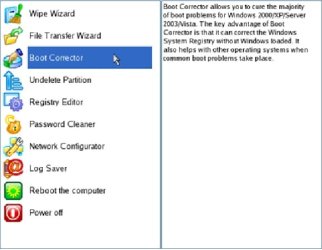
Boot the Paragon cd , select Normal Mode, then Boot Corrector. Select Correct drive letters in the system Registry. Assign D ( or the letter 7 saw itself as ) to your 7 partition.

Close Paragon and restart.

( Edit : instructions below)
 
Last edited:

My Computers

System One System Two

  • Computer type
    PC/Desktop
    OS
    7 X64
    CPU
    i5 8400
    Motherboard
    gigabyte b365m ds3h
    Memory
    2x8gb 3200mhz
    Hard Drives
    various
    PSU
    pure power 11 400w cm
    Case
    Coolermaster
    Cooling
    cryorig m9i
  • Computer type
    PC/Desktop
    OS
    7x64
    CPU
    g5400
    Motherboard
    ga b365m ds3h
    Memory
    8gb ddr4 2400
    PSU
    xfx pro 450w
Definitely try SIW2's fix above as it has worked for others with similar problems.

If that fails and you can still get to Task Manager, then insert Win7 DVD, start New Task and run D:setup (replace D with your DVD drive letter) to do a http://www.sevenforums.com/tutorials/3413-repair-install.html?ltr=R

This worked for me before, however the fix Si gives above has worked for everyone who has tried it since, so try it first.
 
Boot the cd. Select Normal Mode. Select Boot Corrector.

BOOTCORRECT-1-2010-01-18_162958.jpg

Select Search for Windows installations to correct.

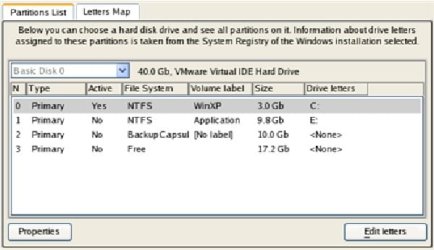
Choose the required Windows installation. Select Correct Drive Letters in the System Registry

BOOTCORRECT-2-2010-01-18_163059.jpg

Choose a hard disk from the pull-down list (if several), then the required partition. Click the Edit Letters button to correct an existing drive letter or assign a new one in the Windows System Registry.

BOOTCORRECT-4-2010-01-18_163153.jpg

Once you’ve assigned the drive letter, close the dialog, then click the Apply button. Confirm the operation. Click the Finish button to close Boot Corrector. Eject the CD. Reboot the computer.
 

My Computers

System One System Two

  • Computer type
    PC/Desktop
    OS
    7 X64
    CPU
    i5 8400
    Motherboard
    gigabyte b365m ds3h
    Memory
    2x8gb 3200mhz
    Hard Drives
    various
    PSU
    pure power 11 400w cm
    Case
    Coolermaster
    Cooling
    cryorig m9i
  • Computer type
    PC/Desktop
    OS
    7x64
    CPU
    g5400
    Motherboard
    ga b365m ds3h
    Memory
    8gb ddr4 2400
    PSU
    xfx pro 450w
Good idea to run checkdisk afterwards.
 

My Computers

System One System Two

  • Computer type
    PC/Desktop
    OS
    7 X64
    CPU
    i5 8400
    Motherboard
    gigabyte b365m ds3h
    Memory
    2x8gb 3200mhz
    Hard Drives
    various
    PSU
    pure power 11 400w cm
    Case
    Coolermaster
    Cooling
    cryorig m9i
  • Computer type
    PC/Desktop
    OS
    7x64
    CPU
    g5400
    Motherboard
    ga b365m ds3h
    Memory
    8gb ddr4 2400
    PSU
    xfx pro 450w
Not looking so good at the moment...

I followed SIW2's instructions but The Boot corrector didn't solve the problem.

And guess what, even the repair install won't work! The F:\setup.exe -command just returns an error message:

F:\setup.exe
The specified path does not exist

Check the path, and then try again.


The weird thing is when I click Browse.. and double-click the setup.exe on F drive it gives the exactly same error message. How is it possible that the path doesn't exist if I can see it?

And obviously I can't run the repair install from W7 DVD?

Thx for your help..
 

My Computer

OS
Windows 7 ultimate 64bit
When you boot the Win7 DVD and select Repair My Computer, does it show you an installation to repair?

Try running Startup Repair several times with reboot to see if it will sort it out.

Also from the Recovery Tools list select System Restore to see if any restore points are available.

Next check what functionality you have in Safe Mode, by tapping F8 at bootup.
 
When you boot the Win7 DVD and select Repair My Computer, does it show you an installation to repair?
Yes it does.
Try running Startup Repair several times with reboot to see if it will sort it out.
This won't help.
Also from the Recovery Tools list select System Restore to see if any restore points are available.
It says I haven't created any restore points.
Next check what functionality you have in Safe Mode, by tapping F8 at bootup.
The safe mode helped a little. Still, I can't log on to my user account and admin account takes very long time to log on. The difference is that now the screen is black instead of blue and there's a Safe mode -text in every corner and there's 19 processes running (4 processes in normal mode). But I still can't run the repair install! This time it tries to start up the setup.exe but an error message shows up:

F:\Sources\SPWIZENG.DLL is either not designed to run on Windows or it contains an error. Try installing the program again using the original installation media or contact your system administrator or the software vendor for support.


Clicking OK gives another error:

The file 'autorun.dll' could not be loaded or is corrupt. Setup cannot continue. Error code is [0xC1]


After that setup terminates. What could that mean?
 

My Computer

OS
Windows 7 ultimate 64bit
Repair Install won't run in Safe Mode.

See if you can enable administrator account in Safe Mode. Type CMD in start search box, right click result above and Run as Admin. Type: net user administrator /active:yes

Now reboot computer and attempt to run F:Setup for Repair Install via New Task in Task Manager.
 
Repair Install won't run in Safe Mode.

See if you can enable administrator account in Safe Mode. Type CMD in start search box, right click result above and Run as Admin. Type: net user administrator /active:yes

Now reboot computer and attempt to run F:Setup for Repair Install via New Task in Task Manager.
The problem is there's no start search box, actually there's nothing else than a black screen with 'Safe mode' text in every corner of it. So far Ctrl+Alt+Del has been the only thing that works. I selected the "run as administrator" (or something like that) when trying to run the setup.exe from task manager. It didn't help out.

Is there any other ways to run the repair install or should I just give up and use the 'format c:' solution? :huh:
 

My Computer

OS
Windows 7 ultimate 64bit
Do you have any reason to suspect a virus might be involved?

If not, possibly some files were courrupted during the interrupted partition changes.

Maybe another GParted picture would help, although it seems you have your partition problem corrected.

Can you open a command window from any point by using shift+F10? If you can get into a command window, maybe checking the system files would help:

SFC /scannow
 
Last edited:

My Computer

Computer Manufacturer/Model Number
Homebuilt
OS
Windows 7 x64
CPU
i7-2600K
Motherboard
Asus P8Z77-v Pro
Memory
8 G
Graphics Card(s)
GTX 480
Sound Card
Onboard
Monitor(s) Displays
LG W2753V
Screen Resolution
1920x1080
Hard Drives
Crucial M4 128 G SSD
Do you have any reason to suspect a virus might be involved?

If not, possibly some files were courrupted during the interrupted partition changes.

Maybe another GParted picture would help, although it seems you have your partition problem corrected.

Can you open a command window from any point by using shift+F10? If you can get into a command window, maybe checking the system files would help:

SFC /scannow
Yea I think the problem isn't with partitioning, corrupted files might be the reason.

Shift+F10 did nothing, the task manager is all I have..
 

My Computer

OS
Windows 7 ultimate 64bit
Can you run sfc /scannow by running a New Task in Task Manager? Try it in both the Run box which comes up and by typing CMD in run box.

There are several tutorials on the web for running an elevated CMD from the command line, which may be what you need to run sfc or F:setup to trigger Win7 DVD for Repair Install. Try typing CMD into the run box, then hit Cntrl+Shift+Enter to see if it opens an Admin Command box. Or try the run box the same way. If prompted by User Account Cntrl then hit Cntrl+C to continue. Now you can try sfc /scannow or F:Setup to run Repair Install.

If you decide to clean install, since you have lost your data partition anyway, suggest you use booted Win7 DVD Custom>Drive Tools to delete all partitions, create New as you wish, then format before installing Win7 to first partition.

http://www.sevenforums.com/tutorials/1649-clean-install-windows-7-a.html

This is an example of the importance of always backing up data and taking repartitioning more seriously than "using some partition program which name I can't even remember." We can always help you with exact steps here by posting a screenshot of Disk mgmt.
 
Last edited:
It doesn't look good. I think you sare better copying off anything you can - use a bootable Paragon cd - select Normal Mode > File Transfer Wizard.

Just in case you need to reinstall.:(
 

My Computers

System One System Two

  • Computer type
    PC/Desktop
    OS
    7 X64
    CPU
    i5 8400
    Motherboard
    gigabyte b365m ds3h
    Memory
    2x8gb 3200mhz
    Hard Drives
    various
    PSU
    pure power 11 400w cm
    Case
    Coolermaster
    Cooling
    cryorig m9i
  • Computer type
    PC/Desktop
    OS
    7x64
    CPU
    g5400
    Motherboard
    ga b365m ds3h
    Memory
    8gb ddr4 2400
    PSU
    xfx pro 450w
Back
Top