Any chance in recovering files if I have formatted the drive?

riffwraith

New member
Member
VIP
Local time
2:19 PM
Messages
240
Not exactly sure how I got here - I must have screwed up somehow while re-imaging my OS drive.

Anyway, my D drive, which had files saved to it on Nov 29, wound up showing as unallocated space in comp mgmt on Nov 30. I r-clicked, made a new simple vol., and did a quick format, knowing that the entire drive is backed up - save for the few files saved on the 29th. :cry: I am now looking to try and get those few newer files back.

I have tried a few file recovery sw options, but none of them can find those files.

Any chance here, or should I quit while I am not that far behind? :huh:

Thanks in advance.
 

My Computer My Computer

At a glance

W7 64 UltIntel Core i9-7940xGSkill 128GBAMD Radeon RX 560
Computer type
PC/Desktop
Computer Manufacturer/Model Number
Custom
OS
W7 64 Ult
CPU
Intel Core i9-7940x
Motherboard
ASUS x299 TUF
Memory
GSkill 128GB
Graphics Card(s)
AMD Radeon RX 560
Sound Card
RME
Screen Resolution
1920x1080
Hard Drives
5
PSU
BeQuiet!
Case
BeQuiet!
Keyboard
HyperX
Mouse
Logitech
Browser
IE - what else is there?
Hi @riffwraith

As for the present problem, if you had n't quickformatted and left the disk as unallocated, we could have perhaps recovered the partition and restored the disk.

Since you have quickformatted, the original volume boot record at the start sector and its backup in the last sector of that partition would have been rewritten. Also some new space would have been reserved for the new Master File table. The original Master File Table could have been lost wholly or in parts.

I would suggest you run the trial version of Get Data Back, scan the drives. Select your 1TB disk (?) and run level 4 scan. Check whether the files are shown. . To copy of course you have to buy a license. I do not think there is any freeware that can recover the files in the original structure

Here is the experiment I did on my 500GB HDD to replicate your disk condition and check whether data recovery is possible.

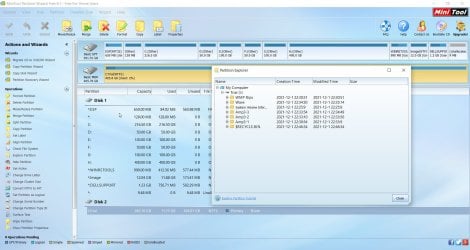
The first screenshot shows the disk with data before quickformatting. Exploring the disk in Partition Wizard shows all the folders present.
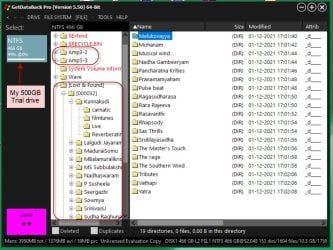
After quick formatting, I ran GetDataBack. In level 2 scan itself it showed some files as it exists and some under "lost" These folders/files can definitely be copied with a licensed version.I recommend that you run level 4 Scan , that could perhaps show all files.

My disk with data before quickformatting:

01-12-2021 22-56-46.jpg

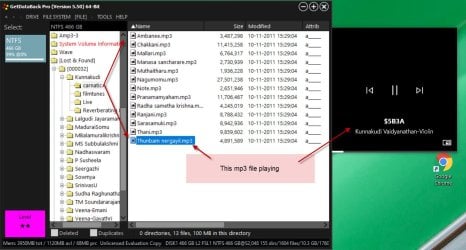
GetData back shows some files as existing and some under lost. You can preview the files before you buy a licence and satisfy yourself about the file integrity.
01-12-2021 23-10-18.jpg

02-12-2021 00-17-25.jpg


If you do not want to spend, you can recover those files with Photorec. (You will not get the original folder/file names.) After copying the data to another disk, you will have to open and check the files and rename those.. Check TestDisk/PhotoRec website for the list of file formats PhotoRec can recover.

( You may also try active@ file recovery that may cost USD30 as against GDB's USD80.)

Good Luck.
 
Last edited:

My Computer My Computer

At a glance

Windows 7 Home Premium 32 bit
OS
Windows 7 Home Premium 32 bit
Thanks so much!

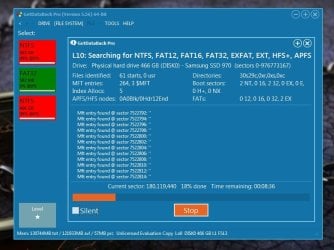
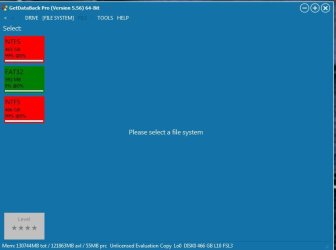
I start a L4 scan, and I see the scan happening:

dat1.jpg


When it's done, it simply goes back at the main screen.

dat2.jpg

Does this mean it has not found anything?
 

My Computer My Computer

At a glance

W7 64 UltIntel Core i9-7940xGSkill 128GBAMD Radeon RX 560
Computer type
PC/Desktop
Computer Manufacturer/Model Number
Custom
OS
W7 64 Ult
CPU
Intel Core i9-7940x
Motherboard
ASUS x299 TUF
Memory
GSkill 128GB
Graphics Card(s)
AMD Radeon RX 560
Sound Card
RME
Screen Resolution
1920x1080
Hard Drives
5
PSU
BeQuiet!
Case
BeQuiet!
Keyboard
HyperX
Mouse
Logitech
Browser
IE - what else is there?
@riffwraith

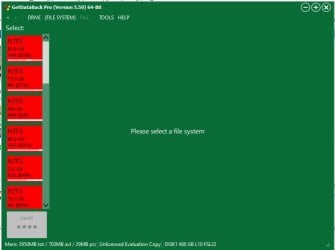
Note: Referring to your last screenshot after completing the L4 scan, try clicking on the two NTFS partitions one by one and check what it shows.
( "Please select a file system" I think the level 4 tab is greyed out. When you select a file system, it may show the files. It may not run the Level 4 scan again)

When you run GetDataBack, it scans your PC and presents the drives connected.
When you select the drive to be recovered, it immediately runs a default Level 1 scan and shows the partitions, rather the volumes found. You then selected Level 4, the deepest scan, and at the end of it , it shows that it sees the same two NTFS volumes. Now click on each partition ( volumes shown) and check whether it shows your files.

Just for the record and information:

When I ran Level 4 scan on my 500GB Trial Disk, at the end of it showed umpteen volumes. Each volume pertains to the previous formats. ( My Trial drive has undergone innumerable wipes and formats but only one of them pertaining to the last format shows the files that were there in the previous format.) Screenshots below.

02-12-2021 12-46-13.jpg


Only one of those shows the files in the previous format.
02-12-2021 12-59-05.jpg

I hope that one of the two volumes shown in your case, shows all your files or atleast some files.( depends on what actually has happened to the previous MFT)
 
Last edited:

My Computer My Computer

At a glance

Windows 7 Home Premium 32 bit
OS
Windows 7 Home Premium 32 bit
Thank you so much for the time.

Unfortunately, I was unable to recover anything.

Cheers.
 

My Computer My Computer

At a glance

W7 64 UltIntel Core i9-7940xGSkill 128GBAMD Radeon RX 560
Computer type
PC/Desktop
Computer Manufacturer/Model Number
Custom
OS
W7 64 Ult
CPU
Intel Core i9-7940x
Motherboard
ASUS x299 TUF
Memory
GSkill 128GB
Graphics Card(s)
AMD Radeon RX 560
Sound Card
RME
Screen Resolution
1920x1080
Hard Drives
5
PSU
BeQuiet!
Case
BeQuiet!
Keyboard
HyperX
Mouse
Logitech
Browser
IE - what else is there?
Back
Top