
Apps keep installing on both the SSD & HDD, how do I choose just one?
Why is it when I install applications on my E:\ drive (HDD), some of the applications files still install on the C:\ drive (SDD where Win7 is installed)? Example, I installed PokIt, it's a screen capture program. I installed it on the SSD: "E:\Users\******\Program Files (x86)\PokIt". However, when I took a screenshot, it stores the jpg in the "C:\Users\****\AppData\Local\PokIt" folder on my SSD where Win7 is. Why won't it store it on my HDD along with the other files? I noticed this happens a lot with other applications.
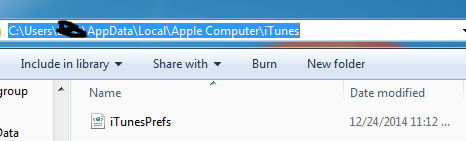
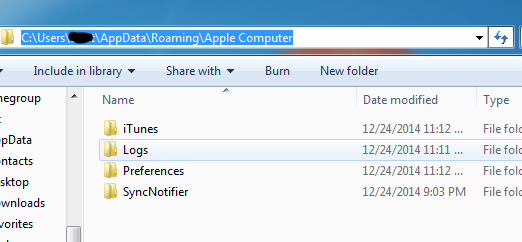
Another example, I installed iTunes on my HDD. However, any time I open iTunes a "Apple Computer" folder is created at this path "C:\Users\****\AppData\Local". Why are files being created or put on my SSD when I set the installation path of iTunes on my HDD?
Here are some screenshots...
1. First I created some folders on my E:\ drive (My HDD), the E:\ drive was empty before no folders, nothing.
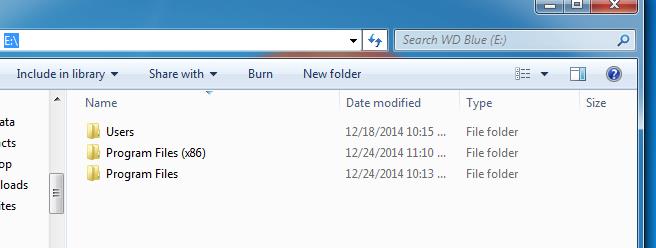
2. I tried to make the E:\ drive look similar to the C:\ drive.

3. I then installed iTunes on the E:\ drive (HDD) like I would as If I was installing it on my C:\ drive. I created Program Files & Program FIles (x86) folders.
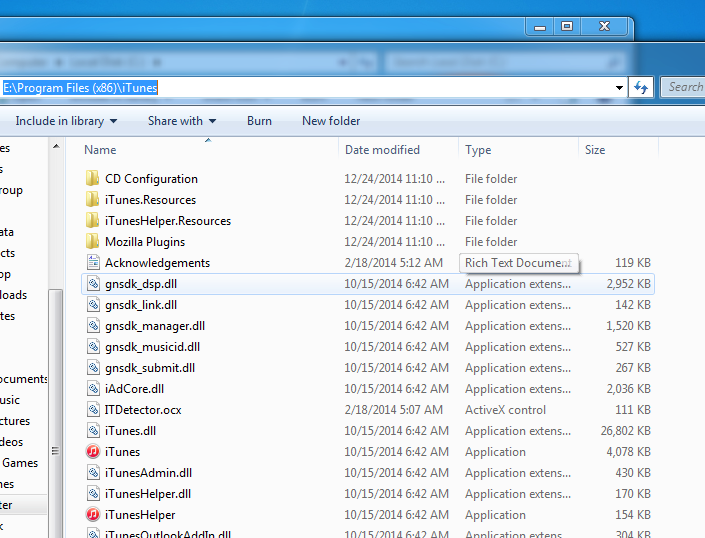
4. Then I noticed other iTunes files where installed over on the C: drive (SSD) in several locations.
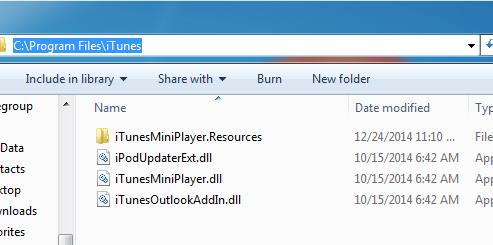


If I install Photoshop say tomorrow, how do I make sure all the files from the entire Photoshop install stay on the HDD away from Windows and the SSD?
Why is it when I install applications on my E:\ drive (HDD), some of the applications files still install on the C:\ drive (SDD where Win7 is installed)? Example, I installed PokIt, it's a screen capture program. I installed it on the SSD: "E:\Users\******\Program Files (x86)\PokIt". However, when I took a screenshot, it stores the jpg in the "C:\Users\****\AppData\Local\PokIt" folder on my SSD where Win7 is. Why won't it store it on my HDD along with the other files? I noticed this happens a lot with other applications.
Another example, I installed iTunes on my HDD. However, any time I open iTunes a "Apple Computer" folder is created at this path "C:\Users\****\AppData\Local". Why are files being created or put on my SSD when I set the installation path of iTunes on my HDD?
Here are some screenshots...
1. First I created some folders on my E:\ drive (My HDD), the E:\ drive was empty before no folders, nothing.
2. I tried to make the E:\ drive look similar to the C:\ drive.
3. I then installed iTunes on the E:\ drive (HDD) like I would as If I was installing it on my C:\ drive. I created Program Files & Program FIles (x86) folders.
4. Then I noticed other iTunes files where installed over on the C: drive (SSD) in several locations.
If I install Photoshop say tomorrow, how do I make sure all the files from the entire Photoshop install stay on the HDD away from Windows and the SSD?
My Computer
At a glance
Windows 7 x64Intel Core i5-4440 3.1GHz Quad-CoreG.Skill Ripjaws X Series 8GB (2 x 4GB) DDR3-1600HIS Radeon R9 270 2GB IceQ X²
- Computer type
- PC/Desktop
- Computer Manufacturer/Model Number
- Custom build
- OS
- Windows 7 x64
- CPU
- Intel Core i5-4440 3.1GHz Quad-Core
- Motherboard
- ASRock Z97 PRO4 ATX LGA1150
- Memory
- G.Skill Ripjaws X Series 8GB (2 x 4GB) DDR3-1600
- Graphics Card(s)
- HIS Radeon R9 270 2GB IceQ X²
- Monitor(s) Displays
- Asus VE247H 23.6"
- Screen Resolution
- 1920x1080
- Hard Drives
- Crucial M500 240GB SSD, Western Digital Caviar Blue 1TB HDD & Western Digital My Book Essential 1TB External HDD
- PSU
- Rosewill 750W
- Case
- Corsair 200R ATX Mid Tower
- Cooling
- Cooler Master Hyper 212 EVO 82.9 CFM Sleeve Bearing
- Keyboard
- Logitech Wireless Illuminated Keyboard K800
- Mouse
- Logitech Anywhere Mouse MX
- Internet Speed
- Verizon FiOS 75/75 Mbps
- Antivirus
- MSE & Malwarebytes
- Browser
- Chrome 39.0.2171.95 m


