Argh - Cloned HD on Wrong Partition After Upgrade

adt2

New member
Local time
1:28 PM
Messages
4
Help, please!

The PC at my office is several years old, and had a 75GB hard drive. Company wouldn't spring for a bigger drive, so I brought in one of my own. Used CloneZilla to clone the 75GB drive, then swapped out the small drive for a much larger unit. Used CZ again to restore the cloned drive onto the new, larger drive.

Now, I have three entries in Disk Management: one 75GB partition with a clone of my original HD, one 300MB partition with god-knows-what on it, and then one partition with all the extra, unused space on my new disk.

Problem is, I can't join the 75GB partition with the extra space to make one large C: drive, because the partitions aren't contiguous. I know I'm not the first person to ever upgrade to a larger hard drive - which tells me I'm missing something here. I still have the original smaller drive, plus several large external drives to move things to and from. How do I get my big new drive to be one big honkin' C: drive, complete with a carbon copy of my current setup? I have access to Macrium, CloneZilla, and GParted, if that helps.

Thanks in advance for your help.
 

My Computer My Computer

At a glance

Win7 Pro x64
OS
Win7 Pro x64

My Computer My Computer

At a glance

Windows 7 Home Premium 32-Bit - Build 7600 SP1Intel Core i3-2120 3.30GhzKingston 4 GB DDR3 1333 mhzAMD Radeon HD6670
Computer type
PC/Desktop
Computer Manufacturer/Model Number
Custom Build
OS
Windows 7 Home Premium 32-Bit - Build 7600 SP1
CPU
Intel Core i3-2120 3.30Ghz
Motherboard
Asus P8Z68-V LX Intel Z68 Socket H2 ATX
Memory
Kingston 4 GB DDR3 1333 mhz
Graphics Card(s)
AMD Radeon HD6670
Sound Card
Sound Blaster Audigy SE 24-Bit
Monitor(s) Displays
Asus VE228
Screen Resolution
1440 X 900
Hard Drives
OCZ Vertex 3 120 GB Sata 3 SSD ==
Kingston SH103/S3 120 G Hyper X 120 GB SSD ==
Western Digital 500 GB Caviar Green 7200 RPM ==
PSU
Corsair CX600M == 600 Watt
Case
NZXT Apollo - Silver with Clear Side Panel
Cooling
Three 120 mm Fans
Keyboard
Microsoft Natural 4000
Mouse
Microsoft Custom Optical 3000
Internet Speed
AT&T Fiber Optic Wireless Network
Antivirus
Microsoft Security Essentials
Browser
Chrome
Other Info
120 mm Blue LED Fan -- Three Blue LED Lazer Light Sticks
If you haven't wiped the 75 Gb HDD, you could boot into it and install either Paragon Migrate OS to SSD, or Aomei Partition Assistant, which has a Migrate OS to SSD or HDD feature. They are both easy to use and will get the job for you. The Paragon software is $19, but Aomei is free. If you choose to use one of them, I would first use the diskpart clean command to wipe your new HDD and then reformat it.

http://www.sevenforums.com/tutorials/52129-disk-clean-clean-all-diskpart-command.html?ltr=D

Free Partition Manager Software for Windows 8/7/Vista/XP, 32/64 bit - AOMEI Partition Assistant Home Edition

Paragon Migrate OS to SSD - System migration to Solid State Drives (SSD) - Overview
 

My Computer My Computer

At a glance

Windows 7 Home Premium 64bit SP 1Intel i5 2500k8 gigabytes Corsair PC3-12800 DDR3EVGA GeForce GTX 460 superclocked
Computer Manufacturer/Model Number
Customized build from CyberPower
OS
Windows 7 Home Premium 64bit SP 1
CPU
Intel i5 2500k
Motherboard
Asus P8P67 Deluxe
Memory
8 gigabytes Corsair PC3-12800 DDR3
Graphics Card(s)
EVGA GeForce GTX 460 superclocked
Sound Card
Integrated
Monitor(s) Displays
ViewSonic 23" LCD
Screen Resolution
1980 x 1080
Hard Drives
120 Gb Samsung 840 Pro SSD
120 Gb Kingston Hyper X SSD
1 Tb WD Caviar Black HDD
PSU
Coolermaster 1000 watt modular
Case
Coolermaster HAF X full tower
Cooling
Coolermaster Hyper 212 plus
Keyboard
Logitech USB
Mouse
Microsoft 3 button
Internet Speed
download 1.5 Mb/sec upload 300Kb/sec
Okay, I have an update but still need a little help. I used Aomei and it worked like a charm....sort of. The application was easy enough to use, and allowed me to go from a 65GB Windows partition, a 300MB "hidden" partition, and 1.5TB of unallocated space to a 1TB Windows partition, a 300MB "hidden" partition, and a 950GB "extra" partition in about 5 minutes. There wasn't even a re-start required.

I used the machine for several days without incident. Then, when I got to work this morning, I booted up...to nothing but a blinking cursor in the top left corner of the monitor. Whoops.

Luckily, I still had the original 65GB Windows drive in the machine, so I just opened it up, plugged in the old drive, and the machine booted right up. I can see and access the larger hard drive (after putting it "online" using Disk Management), so I was able to access a couple of files I needed to make sure were saved.

Now, I'm back to my original problem: How do I turn my 65GB Windows partition into a larger partition? It's the 300MB "hidden" partition that's causing the trouble; it's right "after" the Windows partition and therefore won't allow me to expand the Windows volume to the unallocated space (which is "after" the hidden partition).

What is this "hidden" partition? Do I need it? Can I get rid of it? Or is there some other trick I need to perform to get the larger hard disk to simply boot correctly?
 

My Computer My Computer

At a glance

Win7 Pro x64
OS
Win7 Pro x64
It would be helpful if you posted a screen shot of your disk management. You can use the snipping tool in windows to take a screen shot and then attach it to your next post using the paper clip in the above forum menu.
 

My Computer My Computer

At a glance

Windows 7 Home Premium 64bit SP 1Intel i5 2500k8 gigabytes Corsair PC3-12800 DDR3EVGA GeForce GTX 460 superclocked
Computer Manufacturer/Model Number
Customized build from CyberPower
OS
Windows 7 Home Premium 64bit SP 1
CPU
Intel i5 2500k
Motherboard
Asus P8P67 Deluxe
Memory
8 gigabytes Corsair PC3-12800 DDR3
Graphics Card(s)
EVGA GeForce GTX 460 superclocked
Sound Card
Integrated
Monitor(s) Displays
ViewSonic 23" LCD
Screen Resolution
1980 x 1080
Hard Drives
120 Gb Samsung 840 Pro SSD
120 Gb Kingston Hyper X SSD
1 Tb WD Caviar Black HDD
PSU
Coolermaster 1000 watt modular
Case
Coolermaster HAF X full tower
Cooling
Coolermaster Hyper 212 plus
Keyboard
Logitech USB
Mouse
Microsoft 3 button
Internet Speed
download 1.5 Mb/sec upload 300Kb/sec
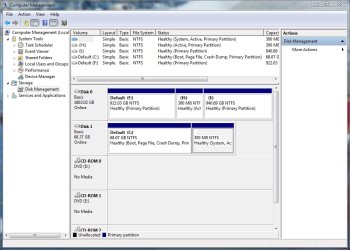
Ask and ye shall receive.
Computer Management_2012-12-10_09-46-44.jpg

Disk0 is the new, larger hard drive.
Disk1 is the old, smaller hard drive (and the one currently in use, since Disk0 won't boot).
 

My Computer My Computer

At a glance

Win7 Pro x64
OS
Win7 Pro x64
According to your screen shot the 300 Mb partition is active and where the system files are located. So, in order to make your the partition where Windows is installed you will need to make that partition active and then use either of the two procedures to transfer the boot manager from the 300 mb partition to the OS partition.

To make the OS partition active and you can follow the this tutorial. Except you will want to make the OS partition active. http://www.sevenforums.com/tutorials/197157-partition-mark-inactive.html?ltr=P

http://www.sevenforums.com/tutorials/681-startup-repair.html Please note that you may have to run startup repair 3 times for it to work.

http://www.sevenforums.com/tutorials/209885-bootmgr-move-c-easybcd.html?ltr=B

Once you are sure Windows will boot from the OS partition, then you can delete the 300 Mb partition.

PS I would mark the 300 mb partition inactive first, so you will know for sure that Windows will boot from the OS partition before you delete. If it doesn't work for some reason, then you can always make the 300 Mb partition active once again.
 

My Computer My Computer

At a glance

Windows 7 Home Premium 64bit SP 1Intel i5 2500k8 gigabytes Corsair PC3-12800 DDR3EVGA GeForce GTX 460 superclocked
Computer Manufacturer/Model Number
Customized build from CyberPower
OS
Windows 7 Home Premium 64bit SP 1
CPU
Intel i5 2500k
Motherboard
Asus P8P67 Deluxe
Memory
8 gigabytes Corsair PC3-12800 DDR3
Graphics Card(s)
EVGA GeForce GTX 460 superclocked
Sound Card
Integrated
Monitor(s) Displays
ViewSonic 23" LCD
Screen Resolution
1980 x 1080
Hard Drives
120 Gb Samsung 840 Pro SSD
120 Gb Kingston Hyper X SSD
1 Tb WD Caviar Black HDD
PSU
Coolermaster 1000 watt modular
Case
Coolermaster HAF X full tower
Cooling
Coolermaster Hyper 212 plus
Keyboard
Logitech USB
Mouse
Microsoft 3 button
Internet Speed
download 1.5 Mb/sec upload 300Kb/sec
So...to summarize:
  • Boot using Windows 7 Repair Disc
  • Select "Startup Repair"
  • Go through repair process
  • Re-boot
  • Download EasyBCD
  • Select BCD Backup/Repair
  • Select Change Boot Drive
  • Click Perform Action
  • Verify new startup disk letter and click OK

Is that about right?
 

My Computer My Computer

At a glance

Win7 Pro x64
OS
Win7 Pro x64
If you use start up repair to add the boot loader to the OS partition, then you don't need to use BCD Edit. BCD Edit is just another option to do the same job. But when you boot up into the repair disk, don't forget to first use the command prompt to make the OS drive active and the 300 Mb partition inactive. And be sure you can boot from the OS partition before you delete the 300 Mb system partition. If you like, post another screen shot of disk management after you are done so we can have a look.
 
Last edited:

My Computer My Computer

At a glance

Windows 7 Home Premium 64bit SP 1Intel i5 2500k8 gigabytes Corsair PC3-12800 DDR3EVGA GeForce GTX 460 superclocked
Computer Manufacturer/Model Number
Customized build from CyberPower
OS
Windows 7 Home Premium 64bit SP 1
CPU
Intel i5 2500k
Motherboard
Asus P8P67 Deluxe
Memory
8 gigabytes Corsair PC3-12800 DDR3
Graphics Card(s)
EVGA GeForce GTX 460 superclocked
Sound Card
Integrated
Monitor(s) Displays
ViewSonic 23" LCD
Screen Resolution
1980 x 1080
Hard Drives
120 Gb Samsung 840 Pro SSD
120 Gb Kingston Hyper X SSD
1 Tb WD Caviar Black HDD
PSU
Coolermaster 1000 watt modular
Case
Coolermaster HAF X full tower
Cooling
Coolermaster Hyper 212 plus
Keyboard
Logitech USB
Mouse
Microsoft 3 button
Internet Speed
download 1.5 Mb/sec upload 300Kb/sec
One thing I just thought of. It might be good to unhook the second drive while you are working on the other. It will make things easier if it is the only drive online.
 
Last edited:

My Computer My Computer

At a glance

Windows 7 Home Premium 64bit SP 1Intel i5 2500k8 gigabytes Corsair PC3-12800 DDR3EVGA GeForce GTX 460 superclocked
Computer Manufacturer/Model Number
Customized build from CyberPower
OS
Windows 7 Home Premium 64bit SP 1
CPU
Intel i5 2500k
Motherboard
Asus P8P67 Deluxe
Memory
8 gigabytes Corsair PC3-12800 DDR3
Graphics Card(s)
EVGA GeForce GTX 460 superclocked
Sound Card
Integrated
Monitor(s) Displays
ViewSonic 23" LCD
Screen Resolution
1980 x 1080
Hard Drives
120 Gb Samsung 840 Pro SSD
120 Gb Kingston Hyper X SSD
1 Tb WD Caviar Black HDD
PSU
Coolermaster 1000 watt modular
Case
Coolermaster HAF X full tower
Cooling
Coolermaster Hyper 212 plus
Keyboard
Logitech USB
Mouse
Microsoft 3 button
Internet Speed
download 1.5 Mb/sec upload 300Kb/sec
Back
Top