can some one please explain to me how to install this device on my pc please
if i don't install this device my PC might be slow or might often crash a lot
so can some one please explain me how to install this device for windows 7 ultimate 32 bit edition thanks a lot and here is a screen shot
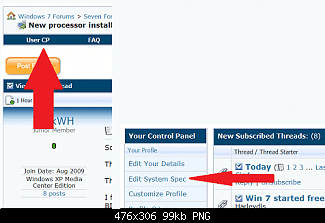
Please fill in all your sytem specs under User CP top of the page so we can know all your systems hardware.
Here
The driver yourr efering to is a Winsock service having to do with your network. You might want to check for updated network drivers and /or chipset drivers.
Step 3: Show hidden device and uninstall all the hidden network devices
====================
1. Click "Start", input "sysdm.cpl" (without quotation marks) in the Start Search bar and press Enter. Click Continue if necessary.
2. Click the "Advanced" tab, and then click "Environment Variables" button.
3. Click "New" under the "System Variables"
4. Enter "DEVMGR_SHOW_NONPRESENT_DEVICES" (without quotations) in the Variable Name, and set Variable Value to 1.
5. Click OK to apply the change.
6. Click "Start", input "devmgmt.msc" (without quotation marks) in the Start Search bar and press Enter.
7. In Device Manager, choose View from the tab and "Click Show Hidden Devices".
8. Please browse the Device Manager to check if there are network devices (hidden device displays as grey), right click on it and choose uninstall if any.
9. Please also uninstall all devices listed in the "Other devices" and "Non-Plug and Play Drivers" category.
10. Restart your computer.
Step 4: Manually Start the service in Safe Mode ========================= 1. Click Start menu and type CMD in the open box, and then press enter. 2. Type the following command to start the Ancillary Function Driver for Winsock service.
Net Start AFD
3. Then, please restart the computer for a test again. 4. If the computer cannot boot up normally in Normal Mode, let's replace the afd.sys file from a normal computer and test the issue again.
Logitech Z2300 Speakers/ Bose Noise Cancelling Headphones/Avermedia PCI-e Hybrid TV Bravo/Epson NX415 all in one/ 4 Port Powered USB Hub/ LG 10x Bluray Burner /TSST Corp DVDRW External