Asus EEE 1015bx shuts down during clean Win 7 installation

mantodor

New member
Local time
8:39 AM
Messages
6
Hi, Guys!

Here is my case. A friend asked me to help with an Asus EEE 1015bx he recently bought second hand on ebay.

It seemed to be stuck with viruses and adware - took ages to skip from folder to folder in the explorer. In the same time it worked pretty decently under Safe Mode.

So I decided to download all drivers from Asus support page and try with a clean Win 7 installation.
I used my original Win 7 CD which I imaged with ImgBurn 2.5.8.0 and then I created a bootable USB stick with Windows 7 USB DVD Download Tool.

Reset it, F2 to enter BIOS and change boot order - set it to the USB device.
Installation started, when I reached the partitioning point, I deleted all previous partitions, then created and formated 2 new ones. Clicked next and Windows started copying and expanding files. At some point it just shut down. It does it over and over again at the same point, no error message.

Only thing I can think of is maybe I shouldn't have deleted all old partitions, that including the RECOVERY partition or system partition, or whatever that was installed originally.

Any ideas?
 

My Computer My Computer

Computer type
PC/Desktop
Computer Manufacturer/Model Number
HP
OS
Windows 7 32bit
Hi,

I have nearly the same Notebook (Asus EEE-PC 1015PEM).

The first thing I can tell is its specs are short to install Windows 7, this is why it comes with Windows 7 Starter that is lighter.

But in theory, it should be possible to install it.

When I installed Windows XP, I remember I had troubles with the IDE Configuration. Check that ATA/IDE configuration is set on Compatible in BIOS. If it has no effect, reset it like it was.

You can also try to set the first boot priority on your HDD when your PC restarts.
 
Last edited:

My Computer My Computer

Computer type
PC/Desktop
OS
Windows 7 Home Premium 32 bits
Confirm the ISO HASH and make sure you are formatting the stick correctly - from Step 1 of Clean Reinstall Windows 7. Most important is if you have an EFI BIOS then the stick must be specially formatted as specified and booted as an EFI flash device.

Set the hard drive first to boot in BIOS, then trigger the stick using the one-time BIOS Boot menu key.

Other than bad media, the PC may be shutting down due to overheating so boot into BIOS setup to check the temps and shutdown parameters.

Install the licensed version on the COA sticker affixed to the PC, following Clean Reinstall Windows 7 which always results in a perfect install and stays that way exactly as long as you stick with those steps. Pay special attention to the steps in red about how drivers are handled as you seem to be under the impression this is XP by downloading a bunch of drivers that Win7 may not want. You only might need the network driver to get online to get all of your updates done.
 
OliTheTrueOne, You are right about the Win 7 version - the sticker on the laptop says Win 7 Starter.

gregrocker, the ASUS Screen saver which appears upon pushing the power button says "PRESS F2 TO ETER EFI BIOS SYSTEM". I assume we are talking EFI.
Next I follow How To Use UltraISO Software To Create Bootable USB Flash Drive

Strangely, BIOS recognizes the usb stick as UEFI. And of course I end up in the same situation.
Could that be the reason? I mean is there a way to double make sure that I really format the stick in EFI?

Oh, and one more thing. While in BIOS, I noticed the laptop would also shut down on its own...It's getting complicated, but somehow I feel like we're talking about the right formattig of the usb stick, so any further advise here?

Regards
 

My Computer My Computer

Computer type
PC/Desktop
Computer Manufacturer/Model Number
HP
OS
Windows 7 32bit
You missed that an EFI BIOS flash stick must be formatted using only Option One of UEFI Bootable USB Flash Drive - Create in Windows.

OPTl.PNG
Step 1
OPTR.PNG

Find the right Windows 7 .iso


Microsoft has taken down the Digital River ISO download servers and are only providing ISO's to retail customers. This leaves those who bought a PC with Win7 at the mercy of OEM Tech Support who except for Dell rarely will provide clean Reinstallation media, to borrow a retail copy, or search for a torrent download which can be risky if not checked for add-ins.

If you have a retail copy of Windows 7, then you could try to download an ISO directly from Microsoft at the link below.

:ar: Microsoft Software Recovery


You can borrow a friend's disk to reinstall, even extract the ISO image file using ImgBurn and then burn a new DVD using ImgBurn at 4x speed, write ISO to 4gb+ flash stick using UltraISO Software To Create Bootable USB Flash Drive, or for UEFI installs use Option One of UEFI Bootable USB Flash Drive - Create in Windows

If you are forced to download the ISO from a torrent you can compare the SHA1 signature available freely on the MSDN Downloads page "Details" links, using a checker like HashTab which adds a HASH calculator to the ISO file Properties tabs. Having these sums match assures that nothing was added to the file.

If your licensed version is unavailable you can unlock all versions in any ISO using ei.cfg removal tool or by deleting ei.cfg from Sources folder on bootable flash stick.

I would use 64-bit for 4gb or more RAM, 32-bit (x86) for 3gb or less RAM.

You can slipstream the latest Updates into the installer ISO to save at least an hour's Updating after install using Update 7 installation media. However it may take an hour to do this so consider how much you want this.

Burn ISO to DVD or
to USB flash stick (minimum size of 4GB required) using Windows 7 USB-DVD Download Tool which is sometimes fussy about the ISO, or to DVD using ImgBurn at 4x speed, to flash stick using UltraISO Software To Create Bootable USB Flash Drive.

For UEFI installs format flash stick with Option One of UEFI Bootable USB Flash Drive - Create in Windows
making sure the settings shown in picture don't jump around after adding the ISO. You have a UEFI install if Disk Management shows an EFI System partition on the hard drive. Remember that the stick needs to be booted as a UEFI device.
 
gregrocker, I follow the Option 1 guide and once I hit the "START" button in Rufus, I get the error message saying "When using UEFI Target type, only EFI Bootable ISO images are supported. Please select an EFI bootable ISO or set the target type to BIOS".

Sounds like the ISO image I am trying to use is not EFI bootable. However it does have a folder string efi/microsoft/boot/fonts. In that folder there are various .tttf files.

So does that make the ISO imsge efi bootable? If not:
-should i use other Rufus settings?
-how to make an efi bootable image?

Regards
 

My Computer My Computer

Computer type
PC/Desktop
Computer Manufacturer/Model Number
HP
OS
Windows 7 32bit
Oh, and further question, now that I continue to dig into the BIOS/UEFI topic.

If I understand correct Win 7 32 bit does not support UEFI. So do I overcome this one as well?
 

My Computer My Computer

Computer type
PC/Desktop
Computer Manufacturer/Model Number
HP
OS
Windows 7 32bit
I would install 32 bit only if you have 3gb RAM or less. It must be in Legacy mode because UEFI does not support 64 bit.

It discusses how to find the latest ISO in Step 1 of Clean Reinstall Windows 7. Download 32 bit Home Premium and unlock all versions with eicfg removal tool

Try a new ISO written to stick using Windows 7 USB-DVD Download Tool and set the BIOS to CSM, Legacy install then boot the stick as a non-UEFI device.
 
Last edited:
Thanks for continuing support so far, gregrocker.

No success so far, but at least by now I am sure this is something to do with the proper formatting of the stick.

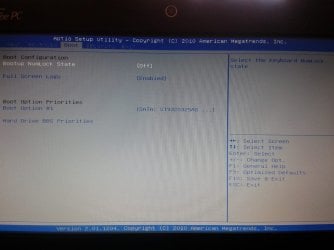
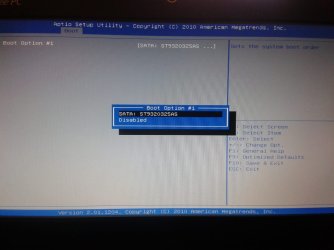
Here is the problem - I searched and searched over and over - my UEFI BIOS has no such place where I can switch to legacy.
It's very strange because when in BIOS on the bottom it says AMERICAN MEGATRENDS version 2.01.1204. When I google this BIOS there are manuals for this BIOS which have this option in the BOOT menu and I don't have it :mad:

So I am now in a vicious circle:
Win 7 32 bit must be formatted as legacy BIOS. However I can switch to legacy mode in BIOS
I also tried the 64 bit Win (not really sure if it is supported, certainly it's not on ASUS support page, but I gave it a try)...I ended up with blue error screens...

So, any ideas now?
 

My Computer My Computer

Computer type
PC/Desktop
Computer Manufacturer/Model Number
HP
OS
Windows 7 32bit
What about the overheating which is most common reason for shutting down? Are the fans all working? Is the temperature reported in BIOS setup? I've now asked about this three times with no reply. Do not skip steps as the fix is often the skipped step.

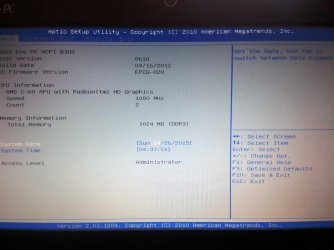
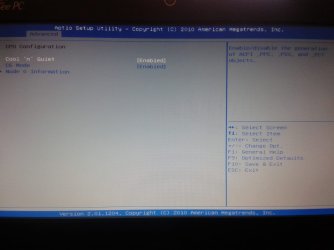
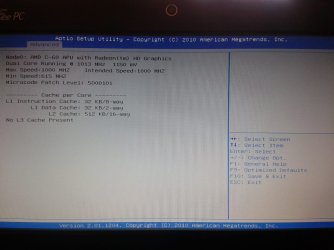
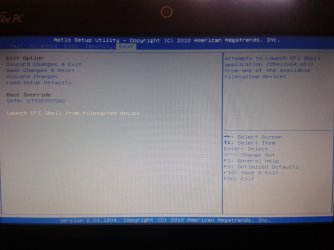
If you want to continue I'd like to see camera snaps of all tabs in the BIOS so we can look at the settings closely. We're looking for anything related to UEFI, EFI, Legacy BIOS, CSM, Secure Boot, and BIOS Boot choices. Screenshots and Files - Upload and Post in Seven Forums - Windows 7 Forums

Is there a newer BIOS update?
 
Last edited:
20150426_093723.jpg

20150426_093752.jpg

20150426_093821.jpg

20150426_093910.jpg

20150426_093942.jpg

20150426_094031.jpg

Unfortunately there is no option for checking the temperature, so I can't really deny the overheating hypothesis.
 

My Computer My Computer

Computer type
PC/Desktop
Computer Manufacturer/Model Number
HP
OS
Windows 7 32bit
I see now that the PC only has 1gb RAM which makes 64 bit and UEFI out of the question.

So try burning a new 32 bit DVD with fresh ISO, using ImgBurn at 4x speed or Windows 7 USB-DVD Download Tool. Unlock any Win7 version ISO using eicfg removal tool to choose Starter during install.

Reset the BIOS to defaults, use the partitioning commands in Troubleshoot Windows 7 Installation Failures - Windows 7 Help Forums

If one install media method fails, try the other.

Boot the media as a non-UEFI device if it gives a UEFI option for it. This may be the only way to select or deselect UEFI in that BIOS.

If all else fails, I would update the BIOS to the latest at Notebooks & Ultrabooks | Eee PC 1015BX | ASUS Global to see if this resolves problems. I am wondering why there is UEFI BIOS when 1gb will not run 64 bit Win7 stably at all.
 
That model does NOT have a UEFI BIOS. It is a regular bios. Max ram is 2GB and I run Windows 7 Pro 32 bit on my Intel version with Atom CPU, 120GB SSD and that makes it a capable surfer or on holiday PC. I suspect the cooling fan could be bunged up with crud so you may need to use one of the dismantle and cleaning guides online......


My Computer My Computer

Computer type
PC/Desktop
Computer Manufacturer/Model Number
Bluethunder II
OS
Windows 7 x64 Ultimate and numerous virtual machines
CPU
AMD FX-8350 Vishera 32nm Technology @ 4.2 GHz default
Motherboard
ASUSTeK COMPUTER INC. SABERTOOTH 990FX R2.0 (Socket 942)
Memory
G Skill 32.0GB Dual-Channel DDR3 @ 1204MHz (11-13-13-31)
Graphics Card(s)
EVGA GeForce GTX 960 4GB Super SC ACX 2.0+ with Back Plate
Sound Card
Creative X-Fi Titanium HD Audiophile PCIe
Monitor(s) Displays
LG L227WTG x 3
Screen Resolution
1680 x 1050 16:10
Hard Drives
238GB Samsung850 PRO SATA Disk Device (SSD)
1863GB Seagate ST2000DM 001-1CH164 (SATA)
1397GB Seagate ST1500DL 003-9VT16L(SATA)
466GB Western Digital WDC WD50 03AZEX-00K1GA0 (SATA) x 2
932GB Seagate ST310005 28AS SATA Disk Device (SATA)
PSU
Enermax Revolution87+ 1000 Watts Gold Certified Power Supply
Case
Rocketfish Full Tower
Cooling
Cooler Master Hyper 212 EVO Push Pull 120mm Fans
Keyboard
Logitech K740
Mouse
Logitech G100S Laser LED + Logitech Gamepad F310
Internet Speed
500 mbs down and 30mbs up
Antivirus
Malwarebytes Pro & Avast and MSE on certain Virtual Machines
Browser
Firefox (Main) Chrome, Internet Explorer (Back Up)
Other Info
Logitech X 230 2.1 Stereo System and 5.1 Yamaha RX V2090
B&W DM6 Monitor Speakers + Center and Surround Speakers
Using Mouse Without Borders (Google it)
Back
Top