The reason why I want both screens to show the same thing is because while I work on one screen, the client is watching and making suggestions while looking at the other screen. Its easier for the client to see another screen and have a work area instead of both of us trying to work and look at one screen and no room to work at the desk.
I understand.
I have a similar situation involving a bridge club, where the director sits at a desk with a 19" 4:3 1280x1024 monitor in front of him while a second 22" 16x9 monitor is mounted on a wall for the players to look at while the director scores the match. The setup is also CLONE mode, to duplicate the output on both monitors simultaneously.
However the constraints and results are exactly as I described, due to the mismatched sizes and native resolutions of the two monitors. The 22" monitor is not really a monster, and if the resolution chosen is too small for the 19" desktop monitor then the duplicate resolution sent to the 22" LCD is simply visibly too small to read. So 1280x1024 was selected for the desktop, which is the "primary" monitor in the CLONE arrangement.
This 1280x1024 is then also sent to the CLONE, which "distorts" it to use up all of the entire 16x9 screen shape real estate (because 1280x1024 is not normally a 16x9 resolution), but in effect this is like a ZOOM mode. So it actually makes the characters appear LARGER than they would otherwise appear if some 16x9 native resolution be in use (as it would be in EXTEND mode).
So this sort of satisfies the goal of allowing the players to not hover over the director at the desk where the smaller 19" CRT monitor lives, while still being able to see the scores on the wall-mounted LCD. And the 1280x1024 CLONE display provides "acceptable" size, clarity, visibility and readability.
So when you try whatever you try, you may want to experiment a bit to see exactly the results of what you've done. But no question you're right, that CLONE mode is what you want for the situation you describe. But the fact that your two monitors have different shapes is going to have consequences. Though it might not have been in your plans, having BOTH monitors have the same 16x9 or 16x10 shape and capable of accepting the same much more appropriate common native resolution for CLONE mode using rectangular screens... well, buying a new modern rectangular monitor for your second duplicate may be a good idea.
So your case is reversed from the bridge center story. Your primary desktop screen is the rectangular one, and the second intended CLONE is the older 4:3. You're just going to have to see for yourself what it looks like, and whether the constraints forced because of the two different screen shapes and native resolutions is acceptable, or whether just picking up an inexpensive second rectangular monitor might not be the best thing for your business situation use.
If I understand correctly, the EXTEND method wouldn't work for me this way. Where the client and I see the same thing on the screen at the same time.
Right. Not for the situation you're describing.
Ok. You'll just have to look at the CLONE results and decide for yourself.
Now just some questions. Are you running with the latest v13.9 Catalyst driver suite?
Also, can you provide the model numbers of both of your monitors?
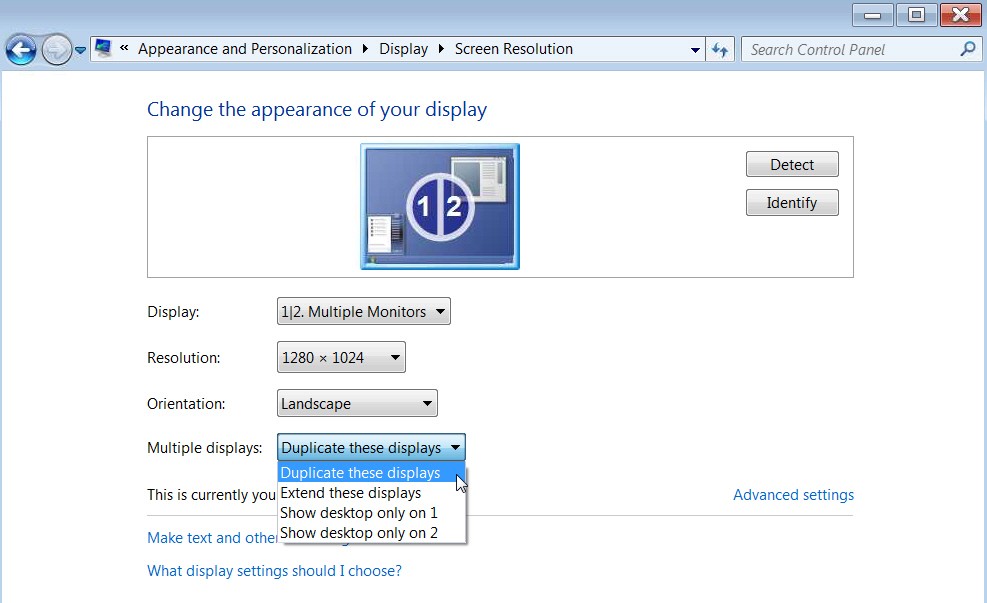
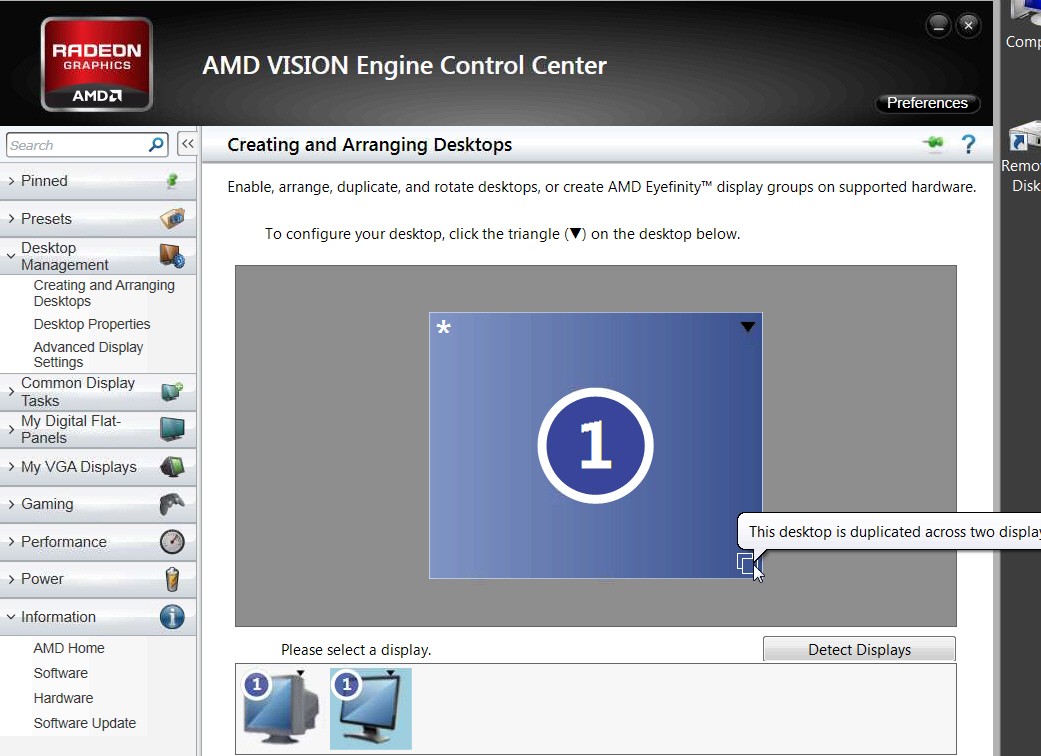
Here is the example of how to set up CLONE mode, from the bridge club, using v13.9 "legacy" (since the ATI graphics card in the Compaq machine is an older HD3* model, which uses the "legacy" drivers). Again, remember the primary monitor here is the rectangular one, the setup for you should be the same... once both monitors are plugged into your HD5450.
(1) Windows desktop properties -> screen resolution
(2) Catalyst Control Center setup: