Solved auto backup Word file periodically

BlancheBC

New member
Local time
1:41 PM
Messages
2
Hello.

I know that I can backup Word files when saving and closing your file by checking "Always create backup copy" box in Word Options.
But can I make it auto backup periodically ? For example, every 5 minutes when I'm editing the file . It will much more safer to me. Any help will be appreciated. I'm using office2010
 

My Computer

Computer type
PC/Desktop
OS
win7x64
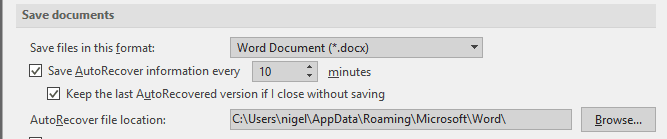
There is a built in function that has been in Word from the very beginning - this creates a hidden copy of the working file that is recoverable (automatically usually), after restarting work following a system failure

Have not used Office 2010 in a long time but the control for this feature is under save in the options in Word 2016

Capture.PNG
 

My Computers

System One System Two

  • Computer type
    PC/Desktop
    Computer Manufacturer/Model Number
    ChillBlast - Custom to my design
    OS
    Windows 11 Pro x64 [Latest Release and Release Preview]
    CPU
    Ryzen 9 5950X, 3.8 - 5.2 MHz
    Motherboard
    Asus Prime X570-Pro
    Memory
    64GB [2 x 32GB] DDR4 3200MHz
    Graphics Card(s)
    4GB NVIDIA GEFORCE GTX 1650 Ti
    Sound Card
    On-board SPDIF to 5.1 System + HDMI [5.1 system]
    Monitor(s) Displays
    32" UHD 32 Bit HDR Monitor + 43" UHD 4K 32Bit HDR TV
    Screen Resolution
    2 x 3840 x 2160 @60Hz
    Hard Drives
    1TB M2 SSD OS, 500GB Fast Access SSD, 2 x 8TB Data + Various Externals from 1TB to 4TB, 10TB NAS
    PSU
    NZXT C750 80 PLUS Gold 750W Modular PSU
    Case
    Workstation Case [Matt Black]
    Cooling
    NZXT Kraken X63 280mm CPU Cooler +2x Quiet Case fans
    Keyboard
    Logitech Wireless MX Keys & K400 + others
    Mouse
    Logitech Wireless MX Master 3S
    Internet Speed
    920 MB Down 50 MB Up
    Antivirus
    BitDefender Total Security Pro
    Browser
    Chrome (always run latest Non-Beta)
    Other Info
    Also run ...
    Laptop - Quad 8GB - Windows 10 Pro x64
    Nexus 7 Android tablet x2
    Samsung 10.2" tablet
    Blackview TAB 8 4G Android Tablet c/w Keyboard
    Wacom Intuos Pro Medium Pen Pad
    Wacom Intuos Pro Small Pen Pad
    Wacom Expresskeys Remote
    Loopdeck+ Graphics Controller
    Shuttle Pro v2 Control
  • Computer type
    Laptop
    System Manufacturer/Model Number
    Dell XPS 17 10750H
    OS
    Windows 11 Pro x64 Latest RP
    CPU
    Intel I7 10750H 5.0GHz
    Motherboard
    Dell XPS
    Memory
    32GB [2x16GB] DDR4 2933 MHz
    Graphics Card(s)
    nVidia GTX1650Ti 4 GB GDDR6
    Sound Card
    Stock [Realtek] 4 Speaker
    Monitor(s) Displays
    17" IPS UHD+ Infinity Edge Touchscreen
    Screen Resolution
    3840 x 2400
    Hard Drives
    2TB M2 NVMe, 4TB External + various 500GB & 1TB External NVMe (also have access to spinner HDD from
    PSU
    Stock
    Case
    Stock XPS Aluminium & Carbon Fibre
    Cooling
    Stock - Active Fan Control
    Keyboard
    Backlit + Various Logitech
    Mouse
    Stock Track Pad + Logitech MX Trackball
    Internet Speed
    72 MB Down 18MB Up
    Browser
    Chrome
    Other Info
    Also run ...
    Laptop - Quad 8GB - Windows 10 Pro x64
    Nexus 7 Android tablet x2
    10.2" tablet
    Sony Z3 Android Smartphone
    Wacom Intuos Pro Medium Pen Pad
    Wacom Intuos Pro Small Pen Pad
    Wacom Expresskeys Remote
    Loopdeck+ Graphics Controller
    Shuttle Pro v2 Control Pad
    10TB NAS
Hi,BlancheBC

As Barman said, in Word 2016 there is a auto save option to do that for you. But this is not available in word 2010. So if you want to do that in word 2010, you can write vba code as a workaround. Here is a close macro which may meet your needs, you can try it:

Code:
Sub AutoOpen()
  Dim strBackupPath As String
 
  nReturnValue = MsgBox("Do you want to open AutoBackupDocument?", 4, "Auto Backup Document")
  If nReturnValue = 6 Then
    Call AutoBackupDocument
  End If

End Sub

Sub AutoBackupDocument()
  Dim dtNewBackupTime As Date
  Dim strFilePath, strFileName As String
  Dim strFileFormate As String

  strFileFormat = Right(ActiveDocument.Name, 4)
 
  If StrComp(strFileFormat, ".doc", vbTextCompare) = 0 Then
    dtNewBackupTime = Now + TimeValue("00:05:00") ' Change the "00:05:00" to the real backup interval time you want.
    strFilePath = ActiveDocument.Path
    strFileName = Left(ActiveDocument.Name, Len(ActiveDocument.Name) - 4)
    ChangeFileOpenDirectory strFilePath
    ActiveDocument.SaveAs FileName:="C:\Users\Public\Documents\New folder\Test2\" & strFileName & "_backup.doc", ReadOnlyRecommended:=True ' Change the "C:\Users\Public\Documents\New folder\Test2\" as the real path which you need to put the backup file.
    ActiveDocument.SaveAs FileName:=strFileName & ".doc", ReadOnlyRecommended:=False
    Application.OnTime When:=dtNewBackupTime, Name:="AutoBackupDocument"
    CreateObject("Wscript.shell").popup "An new backup:" & strFileName & "_backup.doc", 2, "Auto close this box after 2s"
    Else
    If StrComp(strFileFormat, "docx", vbTextCompare) = 0 Then
      dtNewBackupTime = Now + TimeValue("00:05:00") ' Change the "00:05:00" to the real backup interval time you want.
      strFilePath = ActiveDocument.Path
      strFileName = Left(ActiveDocument.Name, Len(ActiveDocument.Name) - 5)
      ChangeFileOpenDirectory strFilePath
      ActiveDocument.SaveAs FileName:="C:\Users\Public\Documents\New folder\Test2\" & strFileName & "_backup.docx", ReadOnlyRecommended:=True ' Change the "E:\Temp\backup\" as the real path which you need to put the backup file.
      ActiveDocument.SaveAs FileName:=strFileName & ".docx", ReadOnlyRecommended:=False
      Application.OnTime When:=dtNewBackupTime, Name:="AutoBackupDocument"
      CreateObject("Wscript.shell").popup "An new backup:" & strFileName & "_backup.docx", 2, "Auto close this box after 2s"
    End If
  End If
End Sub

I just find that in this link, also attach it here

https://www.datanumen.com/blogs/2-quick-ways-auto-back-word-document-periodically/

Hope it will also help.
 
Last edited:

My Computer

Computer type
PC/Desktop
OS
windows 7
The autosave has been present in every word version I have supported - Starting from Word (long before they added Year numbers ;)

Microsoft Word Autosave
 

My Computers

System One System Two

  • Computer type
    PC/Desktop
    Computer Manufacturer/Model Number
    ChillBlast - Custom to my design
    OS
    Windows 11 Pro x64 [Latest Release and Release Preview]
    CPU
    Ryzen 9 5950X, 3.8 - 5.2 MHz
    Motherboard
    Asus Prime X570-Pro
    Memory
    64GB [2 x 32GB] DDR4 3200MHz
    Graphics Card(s)
    4GB NVIDIA GEFORCE GTX 1650 Ti
    Sound Card
    On-board SPDIF to 5.1 System + HDMI [5.1 system]
    Monitor(s) Displays
    32" UHD 32 Bit HDR Monitor + 43" UHD 4K 32Bit HDR TV
    Screen Resolution
    2 x 3840 x 2160 @60Hz
    Hard Drives
    1TB M2 SSD OS, 500GB Fast Access SSD, 2 x 8TB Data + Various Externals from 1TB to 4TB, 10TB NAS
    PSU
    NZXT C750 80 PLUS Gold 750W Modular PSU
    Case
    Workstation Case [Matt Black]
    Cooling
    NZXT Kraken X63 280mm CPU Cooler +2x Quiet Case fans
    Keyboard
    Logitech Wireless MX Keys & K400 + others
    Mouse
    Logitech Wireless MX Master 3S
    Internet Speed
    920 MB Down 50 MB Up
    Antivirus
    BitDefender Total Security Pro
    Browser
    Chrome (always run latest Non-Beta)
    Other Info
    Also run ...
    Laptop - Quad 8GB - Windows 10 Pro x64
    Nexus 7 Android tablet x2
    Samsung 10.2" tablet
    Blackview TAB 8 4G Android Tablet c/w Keyboard
    Wacom Intuos Pro Medium Pen Pad
    Wacom Intuos Pro Small Pen Pad
    Wacom Expresskeys Remote
    Loopdeck+ Graphics Controller
    Shuttle Pro v2 Control
  • Computer type
    Laptop
    System Manufacturer/Model Number
    Dell XPS 17 10750H
    OS
    Windows 11 Pro x64 Latest RP
    CPU
    Intel I7 10750H 5.0GHz
    Motherboard
    Dell XPS
    Memory
    32GB [2x16GB] DDR4 2933 MHz
    Graphics Card(s)
    nVidia GTX1650Ti 4 GB GDDR6
    Sound Card
    Stock [Realtek] 4 Speaker
    Monitor(s) Displays
    17" IPS UHD+ Infinity Edge Touchscreen
    Screen Resolution
    3840 x 2400
    Hard Drives
    2TB M2 NVMe, 4TB External + various 500GB & 1TB External NVMe (also have access to spinner HDD from
    PSU
    Stock
    Case
    Stock XPS Aluminium & Carbon Fibre
    Cooling
    Stock - Active Fan Control
    Keyboard
    Backlit + Various Logitech
    Mouse
    Stock Track Pad + Logitech MX Trackball
    Internet Speed
    72 MB Down 18MB Up
    Browser
    Chrome
    Other Info
    Also run ...
    Laptop - Quad 8GB - Windows 10 Pro x64
    Nexus 7 Android tablet x2
    10.2" tablet
    Sony Z3 Android Smartphone
    Wacom Intuos Pro Medium Pen Pad
    Wacom Intuos Pro Small Pen Pad
    Wacom Expresskeys Remote
    Loopdeck+ Graphics Controller
    Shuttle Pro v2 Control Pad
    10TB NAS
Thanks all! I think I get my answer! thanks a lot!
 

My Computer

Computer type
PC/Desktop
OS
win7x64
Back
Top