auto-merge .reg @boot

wahnsinn

New member
Member
Local time
6:51 PM
Messages
27
Hi,
Is it possible to have my w7 Pro x64 automatically merge a .reg file into the registry at every boot (or, on every login if thats easier.. I only use one account so far).
(Its supposed to clear a bunch of history and MRU entries and those sort of things).

In XP i used to do it via .bat file, but there has to be a more elegant solution, I figure ;)

thanks in advance
 

My Computer My Computer

At a glance

W7 Pro x64
Computer type
PC/Desktop
OS
W7 Pro x64
Hi wahnsinn,

I too would use a batch file and I'd s also use the windows scheduler with triggers to set it so that it runs automatically.

I can't think of any "more elegant" way.

- Timo
 

My Computer My Computer

At a glance

Windows 7 Ultimate 64 bitIntel(R) Core(TM)2 Quad CPU Q8200 @ 2.33GHz8 GB KingstonNvidia GeForce 9600GT
Computer Manufacturer/Model Number
Custom Hack job
OS
Windows 7 Ultimate 64 bit
CPU
Intel(R) Core(TM)2 Quad CPU Q8200 @ 2.33GHz
Motherboard
GigaByte EP45-UD3
Memory
8 GB Kingston
Graphics Card(s)
Nvidia GeForce 9600GT
Sound Card
Soundblaster Audigy
Monitor(s) Displays
AOC x2 22"
Hard Drives
2 x Samsung 500GB (RAID)
2 x Samsung 2TB
1 x WD Green 2TB
1 x Seagate 1TB
1 x Samsung 500GB
PSU
Thermaltake QFan 750W
Case
CM Scout Gaming
Cooling
Coolermaster V10
Keyboard
Microsoft Wireless Keyboard 1000
Mouse
Microsoft Wireless Optical 2000
Internet Speed
320
Other Info
Winfast PVR2000CP
LG DVD-RAM DVD/RW/DL Super Multi
Linksys WMP300Nx2 Wireless Adapter
Hi wahnsinn,

If the batch file works, then there is no reason to change it.

What you can do is to arrange for it to execute automatically and, instead of using the Task Scheduler, I would suggest the following. It involves editing the Registry.

Log onto the account(s) that you wish execute the batch file on and open the Registry Editor. Next, browse to the following key:

HKEY_CURRENT_USER\Software\Microsoft\Windows\CurrentVersion\Run

In the right-hand panel, right- click and choose New > String Value. Name it Batch (or whatever you want, this doesn't matter but it is helpful to have meaningful names). Next, right-click on the new entry and choose Modify... (alternatively, double-click it). Enter the following code:

C:\<Path to batch file>\Batch.bat
 

My Computer My Computer

At a glance

Windows 8.1 Pro RTM x64Intel Core-i5-3570K 4-core @ 3.4GHz (Ivy Brid...4 x 4GB DDR3-1600 Corsair Vengeance CMZ8GX3M2...MSI GeForce GTX770 Gaming OC 2GB
Computer type
PC/Desktop
Computer Manufacturer/Model Number
Dwarf Dwf/11/2012 r09/2013
OS
Windows 8.1 Pro RTM x64
CPU
Intel Core-i5-3570K 4-core @ 3.4GHz (Ivy Bridge) (OC 4.4GHz)
Motherboard
ASRock Z77 Extreme4-M
Memory
4 x 4GB DDR3-1600 Corsair Vengeance CMZ8GX3M2A1600C9B (16GB)
Graphics Card(s)
MSI GeForce GTX770 Gaming OC 2GB
Sound Card
Realtek High Definition on board solution (ALC 898)
Monitor(s) Displays
ViewSonic VA1912w Widescreen (VGA)
Screen Resolution
1440x900
Hard Drives
OCZ Agility 3 SSD 120GB SATA III x2 (RAID 0)
Samsung HD501LJ 500GB SATA II x2
Hitachi HDS721010CLA332 1TB SATA II
Iomega 1.5TB Ext USB 2.0
WD 2.0TB Ext USB 3.0
PSU
XFX Pro Series 850W Semi-Modular
Case
Gigabyte IF233
Cooling
1 x 120mm Front Inlet 1 x 120mm Rear Exhaust
Keyboard
Microsoft Comfort Curve Keyboard 3000 (USB)
Mouse
Microsoft Comfort Mouse 3000 for Business (USB)
Internet Speed
NetGear DG834Gv3 ADSL Modem/Router (Ethernet) ~4.0 Mb/s (O2)
Antivirus
Avast! 8.0.1497
Browser
IE 11
Other Info
Optical Drive: HL-DT-ST BD-RE BH10LS30 SATA Bluray
Lexmark S305 Printer/Scanner/Copier (USB)
WEI Score: 8.1/8.1/8.5/8.5/8.25
Asus Eee PC 1011PX Netbook (Windows 7 x86 Starter)
Thanks for your answers.
I have not actually tried the batch file on w7, but am confident it would work.
But I still feel this is a quite clumsy way of doing it, and would prefer a solution that doesnt feel so much like a work-around.

In my search for another solution I came upon the idea of using a logon script..
I know in theory how to set one up - cant script myself though, and wouldnt know how to make it merge a .reg either..
but that, I think, would be a good, elegant, solution .. maybe anyone here knows how to do that..?
 

My Computer My Computer

At a glance

W7 Pro x64
Computer type
PC/Desktop
OS
W7 Pro x64
Hi Wahnsinn,

Let me point you in the right direction and then you can let me know if you get stuck and I'll elaborate.

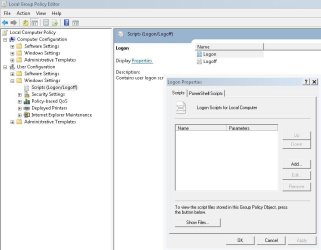
1. Create your script in vbs or Powershell.
2. Open gpedit.msc (by typing it into RUN or SEARCH and pressing ENTER)
3. Navigate to USER CONFIGURATION | WINDOWS SETTINGS | SCRIPTS | LOGON
4. Double click on LOGON to bring up the properties and link it to your script.

I'm yet to try this on Windows 7 on a stand alone install (I've set up many logon scripts via DC's), so I look forward to hearing how you go with this one.

Good Luck

Timo
 

Attachments

  • logon.JPG
    logon.JPG
    55.1 KB · Views: 49

My Computer My Computer

At a glance

Windows 7 Ultimate 64 bitIntel(R) Core(TM)2 Quad CPU Q8200 @ 2.33GHz8 GB KingstonNvidia GeForce 9600GT
Computer Manufacturer/Model Number
Custom Hack job
OS
Windows 7 Ultimate 64 bit
CPU
Intel(R) Core(TM)2 Quad CPU Q8200 @ 2.33GHz
Motherboard
GigaByte EP45-UD3
Memory
8 GB Kingston
Graphics Card(s)
Nvidia GeForce 9600GT
Sound Card
Soundblaster Audigy
Monitor(s) Displays
AOC x2 22"
Hard Drives
2 x Samsung 500GB (RAID)
2 x Samsung 2TB
1 x WD Green 2TB
1 x Seagate 1TB
1 x Samsung 500GB
PSU
Thermaltake QFan 750W
Case
CM Scout Gaming
Cooling
Coolermaster V10
Keyboard
Microsoft Wireless Keyboard 1000
Mouse
Microsoft Wireless Optical 2000
Internet Speed
320
Other Info
Winfast PVR2000CP
LG DVD-RAM DVD/RW/DL Super Multi
Linksys WMP300Nx2 Wireless Adapter
Sorry for not responding sooner, I have in fact not had any time to investigate this matter any further so far!

Thanks for your response, TimStitt, but, as I pointed out earlier, I already knew HOW to add a script basically, my problem lies in your step 1. "Create your script ..." ;)

Also, coming back to the original "batch file" thing, could it be that Windows accepts batch files as logon scripts?
I'll definitely need to check that out at some point.. that obviously would be the easiest way, and if thats what you were trying to tell me in your first post, I apologize for misunderstanding ;)
 

My Computer My Computer

At a glance

W7 Pro x64
Computer type
PC/Desktop
OS
W7 Pro x64
Hi wahnsinn,

No problem of the delay in getting back. I get a notification and am happy to take it up when you're available. :)

However, I admit to be there being some confusion as to what you require. SO I will give you a lot of information and a few guesses here in an effort to hit the right spot! :)

Batch (CMD) Scripting
If you already have a batch file that imports a registry entry. Just add this as your logon script in gpedit. To answer your question, as far as I am aware 'Yes' windows accepts batch files (if you check in the adding s startup script area you'll see that the file type is "all file types"). You can easily verify this by adding your batch file, rebooting and letting us know. If this doesn't work then task scheduler would be the best move forward. When you set this up via gpedit, ensure that SYSTEM has read permissions on the file and don;t store the batch file in thes directory as this will make windows prompt for admin rights to run it.

If you wish to run a *.reg file from inside a batch, or even create the regfile during the batch file running, then we need to consider checking the registry and file permissions first, which is no big problem, but let me know and we'll take it from there.

Powershell (PS) and Visual Basic (VB) Scripting [VBS]
If you are wishing to learn another scripting language (such as VB or PS) then please say exactly that, post your batch file up so that I can see what it does (feel free to PM me if it's a file that you want to keep private) and we can talk about the next steps. However using powershell or VB is neither more or less elegant than a command script (for most functions).

Lastly, if we're not on the same page yet :o, please break it down to baby steps. Here's an example, feel free to edit it or write your own.

Enviroment
1. I have this script xxxxxx
2. It works in XP when added to the start menu folder
3. I am using this script in Windows 7 Ultimate 64bit and Windows 7 HP 32bit
Job Scope
I would like the script to work in the above environment with the following requirements:
1. Low installation time
2. work Automatically
3. Low maintenance
Questions
1. Is this possible?
2. Is there another method (a better method?) that I can use to configure this scenario?


-Timo

 

My Computer My Computer

At a glance

Windows 7 Ultimate 64 bitIntel(R) Core(TM)2 Quad CPU Q8200 @ 2.33GHz8 GB KingstonNvidia GeForce 9600GT
Computer Manufacturer/Model Number
Custom Hack job
OS
Windows 7 Ultimate 64 bit
CPU
Intel(R) Core(TM)2 Quad CPU Q8200 @ 2.33GHz
Motherboard
GigaByte EP45-UD3
Memory
8 GB Kingston
Graphics Card(s)
Nvidia GeForce 9600GT
Sound Card
Soundblaster Audigy
Monitor(s) Displays
AOC x2 22"
Hard Drives
2 x Samsung 500GB (RAID)
2 x Samsung 2TB
1 x WD Green 2TB
1 x Seagate 1TB
1 x Samsung 500GB
PSU
Thermaltake QFan 750W
Case
CM Scout Gaming
Cooling
Coolermaster V10
Keyboard
Microsoft Wireless Keyboard 1000
Mouse
Microsoft Wireless Optical 2000
Internet Speed
320
Other Info
Winfast PVR2000CP
LG DVD-RAM DVD/RW/DL Super Multi
Linksys WMP300Nx2 Wireless Adapter
If you already have a batch file that imports a registry entry. Just add this as your logon script in gpedit. To answer your question, as far as I am aware 'Yes' windows accepts batch files (if you check in the adding s startup script area you'll see that the file type is "all file types"). You can easily verify this by adding your batch file, rebooting and letting us know.
Thanks Tim, that works like a charm.

When you set this up via gpedit, ensure that SYSTEM has read permissions on the file and don;t store the batch file in thes directory as this will make windows prompt for admin rights to run it.

If you wish to run a *.reg file from inside a batch, or even create the regfile during the batch file running, then we need to consider checking the registry and file permissions first, which is no big problem, but let me know and we'll take it from there.
Both of these things turned out to be no problem on my system, i have the .bat stored in C:\Windows\System32\GroupPolicy\User\Scripts\Logon , the permissions of which seem to be quite heavily restricted (for example, I cannot edit the file with a text editor directly), but it runs without a hitch from that location nonetheless.

I also used a little trick I picked up on Batch files - Use REGEDIT to add, read or delete registry values, which he calls "Self-contained registry scripts":

Code:
[I][B]registry.bat:[/B][/I]
 
REGEDIT4
; @ECHO OFF
; CLS
; REGEDIT.EXE /S "%~f0"
; EXIT
[HKEY_CURRENT_USER\Software\Microsoft\etc]
"etc"=etcetera

..which allows for the .bat file to include the information otherwise included in the .reg :D


thanks again for all your help, this thread can be closed if that is the normal policy on here.
 

My Computer My Computer

At a glance

W7 Pro x64
Computer type
PC/Desktop
OS
W7 Pro x64
If you already have a batch file that imports a registry entry. Just add this as your logon script in gpedit. To answer your question, as far as I am aware 'Yes' windows accepts batch files (if you check in the adding s startup script area you'll see that the file type is "all file types"). You can easily verify this by adding your batch file, rebooting and letting us know.
Thanks Tim, that works like a charm.

When you set this up via gpedit, ensure that SYSTEM has read permissions on the file and don;t store the batch file in thes directory as this will make windows prompt for admin rights to run it.

If you wish to run a *.reg file from inside a batch, or even create the regfile during the batch file running, then we need to consider checking the registry and file permissions first, which is no big problem, but let me know and we'll take it from there.
Both of these things turned out to be no problem on my system, i have the .bat stored in C:\Windows\System32\GroupPolicy\User\Scripts\Logon , the permissions of which seem to be quite heavily restricted (for example, I cannot edit the file with a text editor directly), but it runs without a hitch from that location nonetheless.

I also used a little trick I picked up on Batch files - Use REGEDIT to add, read or delete registry values, which he calls "Self-contained registry scripts":

Code:
[I][B]registry.bat:[/B][/I]
 
REGEDIT4
; @ECHO OFF
; CLS
; REGEDIT.EXE /S "%~f0"
; EXIT
[HKEY_CURRENT_USER\Software\Microsoft\etc]
"etc"=etcetera

..which allows for the .bat file to include the information otherwise included in the .reg :D


thanks again for all your help, this thread can be closed if that is the normal policy on here.

Your welcome mate and thanks for the additional info.

BTW - If you can;t edit the batch file normally in that location. Open notepad with admin privileges and then open the bat file from notepad. This usually works. :D

Cheers

Timo
 

My Computer My Computer

At a glance

Windows 7 Ultimate 64 bitIntel(R) Core(TM)2 Quad CPU Q8200 @ 2.33GHz8 GB KingstonNvidia GeForce 9600GT
Computer Manufacturer/Model Number
Custom Hack job
OS
Windows 7 Ultimate 64 bit
CPU
Intel(R) Core(TM)2 Quad CPU Q8200 @ 2.33GHz
Motherboard
GigaByte EP45-UD3
Memory
8 GB Kingston
Graphics Card(s)
Nvidia GeForce 9600GT
Sound Card
Soundblaster Audigy
Monitor(s) Displays
AOC x2 22"
Hard Drives
2 x Samsung 500GB (RAID)
2 x Samsung 2TB
1 x WD Green 2TB
1 x Seagate 1TB
1 x Samsung 500GB
PSU
Thermaltake QFan 750W
Case
CM Scout Gaming
Cooling
Coolermaster V10
Keyboard
Microsoft Wireless Keyboard 1000
Mouse
Microsoft Wireless Optical 2000
Internet Speed
320
Other Info
Winfast PVR2000CP
LG DVD-RAM DVD/RW/DL Super Multi
Linksys WMP300Nx2 Wireless Adapter
Back
Top