I was also tearing my hair out trying to get my new BT phones to be recognized consistently (or at all) and looked at a good many posts in sevenforums without actually finding a fix that worked for me, so I'm posting here as it seems to be the most recent similar incident reported.
I found these were the main breakthroughs:
(a) I downloaded and installed the very latest Bluetooth software from the manufacturer (in my case Lenovo, at
http://support.lenovo.com/en_US/detail.page?LegacyDocID=MIGR-74582). This included uninstalling the old version, then rebooting, then installing the new version, then rebooting again. All those reboots were important even when not requested.
(b) On my headphones you have to press and hold a button to put them into the mode where they can be recognized by the computer/phone. I had been doing this, but found that I really needed to press and hold for a ridiculously long time (well at least a minute) whereupon the little light started blinking rapidly not just in green but in both green and blue. The phones are "NIA Q7" from Shenzhen Lezfon in China on
http://www.avkoy.com/. Now I have got them working they are very good, but the point is that the instructions for numerous other brands might just need a little more clarity on this point.
(c) Having installed the latest software and enabled Bluetooth radio on the computer, we put the headphones into pairing mode (see step (b) above), and tell the computer to add a Bluetooth device (right-click the Bluetooth icon on the task tray and select Add a Device). After a few moments the computer identifies the headphones and displays their name (in my case "Q7"). DO NOT CLICK NEXT! Instead right-click the Q7 icon and wait a moment while it finds its internal bits and pieces, and displays a list of services. I had 5 and checked the box next to each of them, then clicked OK. The software then installed whatever it needed to for these services etc, which took several minutes. Once it was all done there was a little tool-tip saying the new hardware had been installed and was ready for use.
(d) At this stage we may still not have paired the device. I say "may" because on one laptop it did seem to skip through and just get going, but on others it need more manual help.
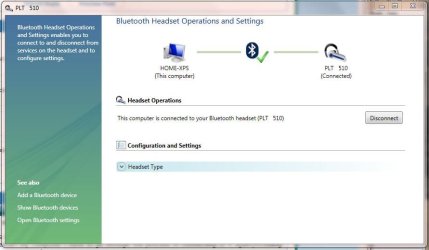
(e) Now we select Show Bluetooth Devices from a right-click on the BT icon in the system tray, we right-click the Q7 icon for the headphones and select Control. That brings up the display showing graphically the computer and the device, with the device being Disconnected. Below that you should see Headset Operations and a Connect button, then farther down Configuration and Settings and below that Headset Type. Click the down-arrow next to Headset Type and ensure that the correct options are selected/checked.
(f) Then once more we put the headphones into pairing mode (see (b) above), and this time click the Connect button on the displayed panel. If you're feeling lucky there might (or might not) be a request to enter the pairing code (such as 0000 or whatever value is in your headphones' documentation) and then you should see confirmation that the device has been paired and is available.
(g) If you right-click the sound icon in the system tray and select Playback Devices, your new headphones should be listed. You can set them as the default and you can change their name from Speakers to Headset or whatever else you want.
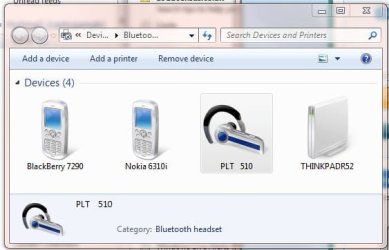
(h) If you make a mistake somewhere along the way, your best bet is to go into the Devices & Printers dialog from Control Panel and Remove the bluetooth headphones device. Then start over from step (c) above.
(i) Job done!
It doesn't surprise me that there are so many views of posts like this, given the numerous steps involved in all this rigmarole. It's great now that it's over though!
I hope this is useful to dustyshouri and others.