Automatically delete files

Bigsplash

New member
Local time
8:49 PM
Messages
11
I am using this program to record TV shows (BeyondTV) and for every recording it creates extra files that are not need. These are the extra filests1.index, ts0.timeindex and ts1.header. I only use the *.td files which are the actual recording.

Is there a way to automatically delete these files?
 

My Computer

OS
Windows 7 Ultimate x64
Create .bat script (and have a desktop icon for it) of something like:

REM execute the BeyondTV executablet
START /WAIT drive:\folder\subfolder\.....\executable.exe (runs the executable but waits/suspends the rest of this .bat from running)

REM point to directory that TV shows are saved in
CD "folderpath" to the directory where these files are save

REM delete unnecessary file
del filests1.index
del ts0.timeindex
ts1.header
 

My Computer

Computer type
PC/Desktop
Computer Manufacturer/Model Number
Custom
OS
Windows 7
CPU
AMD Phenom II X2 (dual-core)
Motherboard
GA-MA785GM-US2H
Memory
4G
Graphics Card(s)
integrated ATI HD 4200
Sound Card
integrated
Monitor(s) Displays
Samsung 24"
Screen Resolution
1920x1080
Hard Drives
1 SSD - Samsung 840 - 500 GB - OS and DATA partitions
1 SSD - Intel 320 - 120 GB (used for backups) - Misc/BACKUP
1 SATA HD - WD, 500 GB - BACKUP
PSU
Ultra X4 500W
Case
Ultra X-blaster
Keyboard
Microsoft Digital Media Pro
Mouse
Logitech WIRED!
Internet Speed
15 Mbps FIOS
Thank you Jim for your speedy reply, I am a bit of a noob when it comes to programming, so please have patience with me.

The name of the files will change depending on the name of the Tv show the only thing that is constant would be the file type, *.index, *.timeindex and *.header.

So if I understand correctly I create a text file and rename it to a *.bat file.

In this batch file I will have the following text:

REM execute the BeyondTV executablet
START /WAIT C:\RecordedTV\MyBatchFile.bat (runs the executable but waits/suspends the rest of this .bat from running)

REM point to directory that TV shows are saved in
CD C:\RecordedTV to the directory where these files are save

REM delete unnecessary file
del *.index
del *.timeindex
del *.header


Then I could have task manager run this script every hour, or I could just click a link on the desktop.
 

My Computer

OS
Windows 7 Ultimate x64
Thank you Jim for your speedy reply, I am a bit of a noob when it comes to programming, so please have patience with me.

The name of the files will change depending on the name of the Tv show the only thing that is constant would be the file type, *.index, *.timeindex and *.header.

So if I understand correctly I create a text file and rename it to a *.bat file.

In this batch file I will have the following text:

REM execute the BeyondTV executablet
START /WAIT C:\RecordedTV\MyBatchFile.bat (runs the executable but waits/suspends the rest of this .bat from running)

REM point to directory that TV shows are saved in
CD C:\RecordedTV to the directory where these files are save

REM delete unnecessary file
del *.index
del *.timeindex
del *.header

Then I could have task manager run this script every hour, or I could just click a link on the desktop.

No need to rename a txt to bat. Start with bat. Edit using notepad. From command line "notepad whateveryourbatiscalled.bat".

The START /WAIT command will point to your .exe file that launches your TV Recorder software (GUI). It does not point to another .bat file.

Your wildcard deletes will work. I believe you'll need a del command with the /Q option (quiet mode, to ignore prompts from wildcard delete).

No need to have task manager run unless you want those files deleted within that hour. Once you exit the application, it would then delete the files. Then again, maybe you leave this app up all the time so the task scheduler would work. No reason to not have that task run with an even short duration. This task would then call the .bat file WITHOUT the START /WAIT part. It would simply CD to the directory and wildcard delete.
 

My Computer

Computer type
PC/Desktop
Computer Manufacturer/Model Number
Custom
OS
Windows 7
CPU
AMD Phenom II X2 (dual-core)
Motherboard
GA-MA785GM-US2H
Memory
4G
Graphics Card(s)
integrated ATI HD 4200
Sound Card
integrated
Monitor(s) Displays
Samsung 24"
Screen Resolution
1920x1080
Hard Drives
1 SSD - Samsung 840 - 500 GB - OS and DATA partitions
1 SSD - Intel 320 - 120 GB (used for backups) - Misc/BACKUP
1 SATA HD - WD, 500 GB - BACKUP
PSU
Ultra X4 500W
Case
Ultra X-blaster
Keyboard
Microsoft Digital Media Pro
Mouse
Logitech WIRED!
Internet Speed
15 Mbps FIOS
Hi Jim
Yes i keep the recording program running 24/7.

So then my batch file would look like this?

REM point to directory that TV shows are saved in
CD C:\RecordedTV to the directory where these files are save

REM delete unnecessary file
del/q *.index
del/q *.timeindex
del/q *.header
 

My Computer

OS
Windows 7 Ultimate x64
Yes. But space between del and /Q.

DEL /Q .......
 

My Computer

Computer type
PC/Desktop
Computer Manufacturer/Model Number
Custom
OS
Windows 7
CPU
AMD Phenom II X2 (dual-core)
Motherboard
GA-MA785GM-US2H
Memory
4G
Graphics Card(s)
integrated ATI HD 4200
Sound Card
integrated
Monitor(s) Displays
Samsung 24"
Screen Resolution
1920x1080
Hard Drives
1 SSD - Samsung 840 - 500 GB - OS and DATA partitions
1 SSD - Intel 320 - 120 GB (used for backups) - Misc/BACKUP
1 SATA HD - WD, 500 GB - BACKUP
PSU
Ultra X4 500W
Case
Ultra X-blaster
Keyboard
Microsoft Digital Media Pro
Mouse
Logitech WIRED!
Internet Speed
15 Mbps FIOS
Doesn't work. :confused:

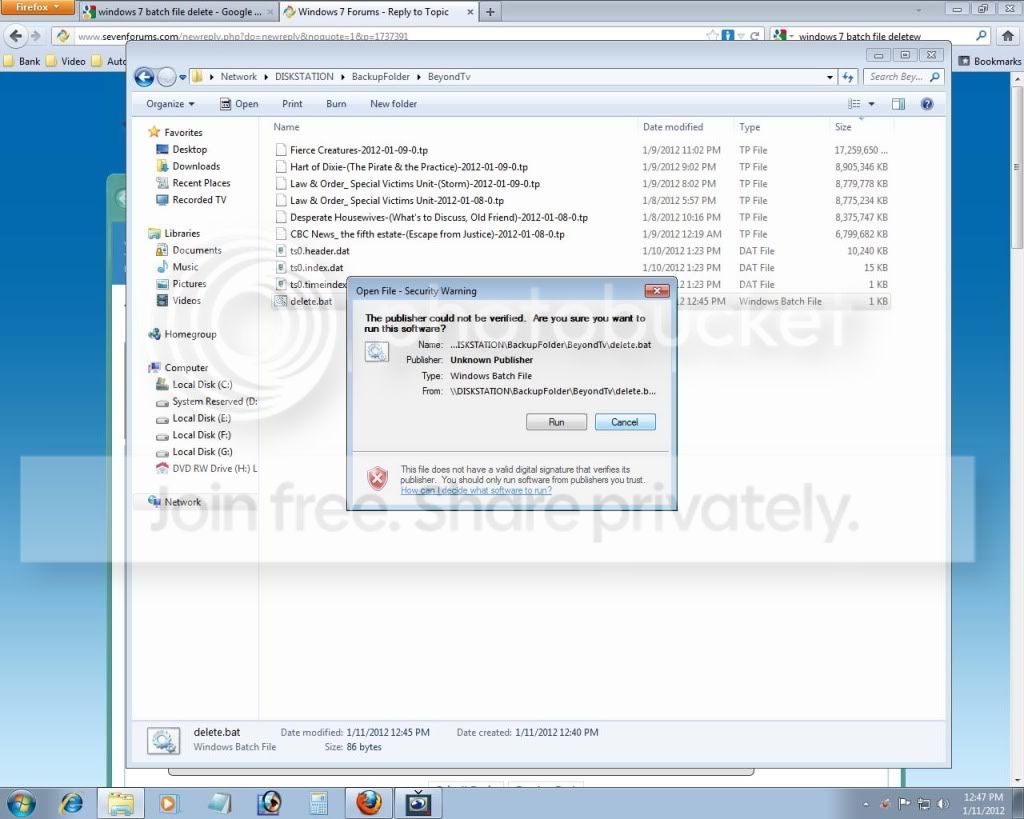
Windows will ask whether I am sure if i want to run this software, since the publisher can not be verified?
I click OK, I see the batch file execute, but nothing happens.

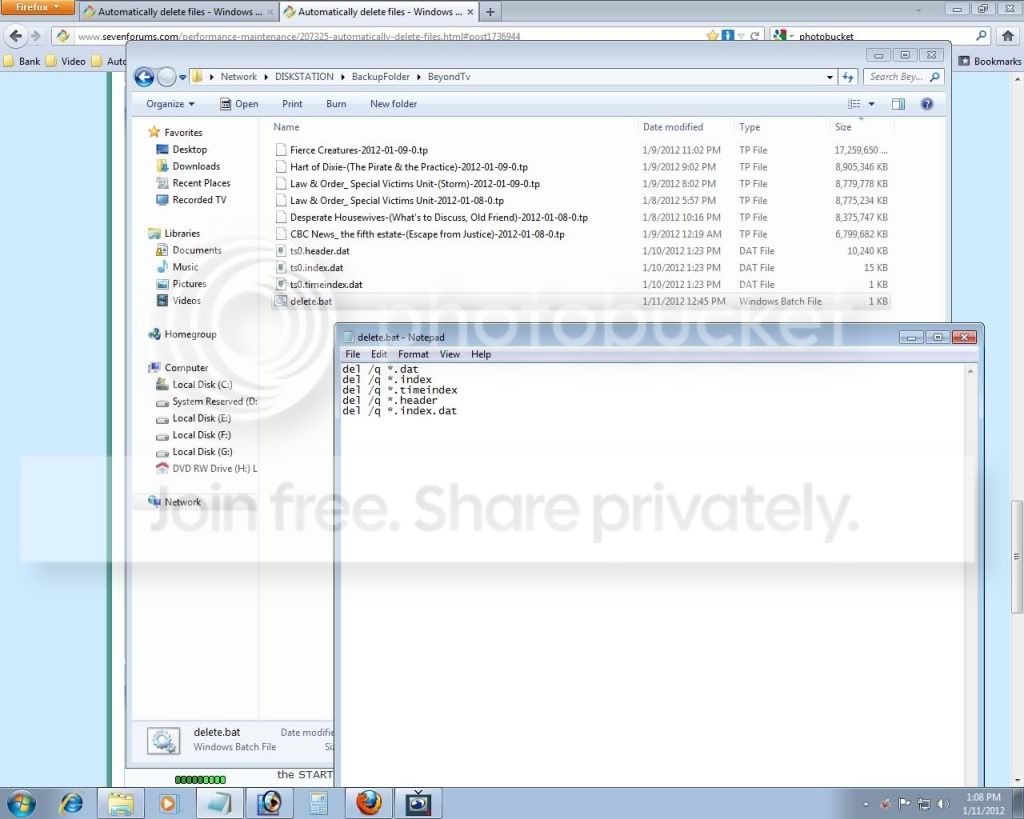
This is the content of the delete.bat, this batch file is also in the same folder where it is deleting the files.

Windows7_2.jpg


del /q *.dat
del /q *.index
del /q *.timeindex
del /q *.header
del /q *.index.dat


Windows7-1.jpg
 

My Computer

OS
Windows 7 Ultimate x64
I can't see the photobucket image at work. Post them as regular attachments using the Attachment option on EDIT post (GO ADVANCED option).

You're just running a .bat script via task scheduler every hour. Are going with the solution in the 2nd post with the START /WAIT part??

So, for the task in Task Scheduler do you have it setup to simply run a command:

C:\RecordedTV\MyBatchFile.bat

There is no publisher or anything involved. It's a simple .bat script with some delete commands in it. Do you have the CD C:\RecordedTV\ line in that .bat script? When things run from task scheduler, the default directory is C:\Windows\System32.
 

My Computer

Computer type
PC/Desktop
Computer Manufacturer/Model Number
Custom
OS
Windows 7
CPU
AMD Phenom II X2 (dual-core)
Motherboard
GA-MA785GM-US2H
Memory
4G
Graphics Card(s)
integrated ATI HD 4200
Sound Card
integrated
Monitor(s) Displays
Samsung 24"
Screen Resolution
1920x1080
Hard Drives
1 SSD - Samsung 840 - 500 GB - OS and DATA partitions
1 SSD - Intel 320 - 120 GB (used for backups) - Misc/BACKUP
1 SATA HD - WD, 500 GB - BACKUP
PSU
Ultra X4 500W
Case
Ultra X-blaster
Keyboard
Microsoft Digital Media Pro
Mouse
Logitech WIRED!
Internet Speed
15 Mbps FIOS
At this point I am just trying to get the script to work, so I am not using task scheduler, as of yet.

Sorry, don't quite understand the START /WAIT part, like I said I am a noob at this stuff. :o
 

My Computer

OS
Windows 7 Ultimate x64
Repeat: your bat script as called via task scheduler OR the CMD line prompt contains:


CD C:\RecordedTV\

del /q *.dat
del /q *.index
del /q *.timeindex
del /q *.header
del /q *.index.dat

From the CMD line or prompt, enter:

C:\RecordedTV\MyBatchFile.bat (or you seem to be testing with one called "delete.bat")


There is no START command in this .bat script as you said RecorderTV runs 24x7 so is virtually never shutdown. So, we decided to simply have the CD and DEL statements in the .bat script.
 

My Computer

Computer type
PC/Desktop
Computer Manufacturer/Model Number
Custom
OS
Windows 7
CPU
AMD Phenom II X2 (dual-core)
Motherboard
GA-MA785GM-US2H
Memory
4G
Graphics Card(s)
integrated ATI HD 4200
Sound Card
integrated
Monitor(s) Displays
Samsung 24"
Screen Resolution
1920x1080
Hard Drives
1 SSD - Samsung 840 - 500 GB - OS and DATA partitions
1 SSD - Intel 320 - 120 GB (used for backups) - Misc/BACKUP
1 SATA HD - WD, 500 GB - BACKUP
PSU
Ultra X4 500W
Case
Ultra X-blaster
Keyboard
Microsoft Digital Media Pro
Mouse
Logitech WIRED!
Internet Speed
15 Mbps FIOS
Still can't get it working :cry:

Here is the content of my delete.bat

CD \\DISKSTATION\BackupFolder\BeyondTv

del /q *.dat
del /q *.index
del /q *.timeindex
del /q *.header
del /q *.index.dat


Command prompt:

Microsoft Windows [Version 6.1.7601]
Copyright (c) 2009 Microsoft Corporation. All rights reserved.

C:\Users\Lawrence>\\DISKSTATION\BackupFolder\BeyondTv\delete.bat

C:\Users\Lawrence>CD \\DISKSTATION\BackupFolder\BeyondTv
'\\DISKSTATION\BackupFolder\BeyondTv'
CMD does not support UNC paths as current directories.

C:\Users\Lawrence>del /q *.dat

C:\Users\Lawrence>del /q *.index
Could Not Find C:\Users\Lawrence\*.index

C:\Users\Lawrence>del /q *.timeindex
Could Not Find C:\Users\Lawrence\*.timeindex

C:\Users\Lawrence>del /q *.header
Could Not Find C:\Users\Lawrence\*.header

C:\Users\Lawrence>del /q *.index.dat
Could Not Find C:\Users\Lawrence\*.index.dat

C:\Users\Lawrence>

 

My Computer

OS
Windows 7 Ultimate x64
Still can't get it working :cry:

Here is the content of my delete.bat

CD \\DISKSTATION\BackupFolder\BeyondTv

C:\Users\Lawrence>

Originally (prior post in this thread) you had this:

CD C:\RecordedTV


In your script shown above, CD \\DISK..... the double-backslash \\ is to denote a NETWORK drive/path. In your test above, you can prove your CD (Change Directory) command did not work because the command prompt shown after each unsuccessful del /q command still has:

C:\Users\Lawrence>


The format for your path should be:

logicaldrive:\directorynode1\directorynode2\..... - see above CD C:\RecordedTV


It sounds like you want:

CD C:\DISKSTATION\BackupFolder\BeyondTv


Let's say you were in DOS and had your current directory pointing your F drive, your command prompt would show this:

F:\>

If you issued the CD C:\DISK..... command above it would not work. You need to add a / switch to the DIR command to tell it that you are not just changing the current working directory PATH, but are also changing the drive.

CD /D C:\DISKSTATION\BackupFolder\BeyondTv


If you only have your C drive/partition, no need to have the /D option in there on the CD command.
 
Last edited:

My Computer

Computer type
PC/Desktop
Computer Manufacturer/Model Number
Custom
OS
Windows 7
CPU
AMD Phenom II X2 (dual-core)
Motherboard
GA-MA785GM-US2H
Memory
4G
Graphics Card(s)
integrated ATI HD 4200
Sound Card
integrated
Monitor(s) Displays
Samsung 24"
Screen Resolution
1920x1080
Hard Drives
1 SSD - Samsung 840 - 500 GB - OS and DATA partitions
1 SSD - Intel 320 - 120 GB (used for backups) - Misc/BACKUP
1 SATA HD - WD, 500 GB - BACKUP
PSU
Ultra X4 500W
Case
Ultra X-blaster
Keyboard
Microsoft Digital Media Pro
Mouse
Logitech WIRED!
Internet Speed
15 Mbps FIOS
Thanks for all your patient help!

Diskstation actually is referring to my synology network attached storage, which is connected to my router via cat 6 cable.

Is it still possible to make this work?

What kind of command would I need at the command prompt to change to the NAT drive?
 

My Computer

OS
Windows 7 Ultimate x64

My Computer

Computer type
PC/Desktop
Computer Manufacturer/Model Number
Custom
OS
Windows 7
CPU
AMD Phenom II X2 (dual-core)
Motherboard
GA-MA785GM-US2H
Memory
4G
Graphics Card(s)
integrated ATI HD 4200
Sound Card
integrated
Monitor(s) Displays
Samsung 24"
Screen Resolution
1920x1080
Hard Drives
1 SSD - Samsung 840 - 500 GB - OS and DATA partitions
1 SSD - Intel 320 - 120 GB (used for backups) - Misc/BACKUP
1 SATA HD - WD, 500 GB - BACKUP
PSU
Ultra X4 500W
Case
Ultra X-blaster
Keyboard
Microsoft Digital Media Pro
Mouse
Logitech WIRED!
Internet Speed
15 Mbps FIOS
Back
Top