
Solved Autoplay Disabled

Birdulike

New member
Member
Local time
1:01 AM
Messages
62
:mad:
Hi everyone,
my autoplay function refuses to work despite following instructions in these forums!
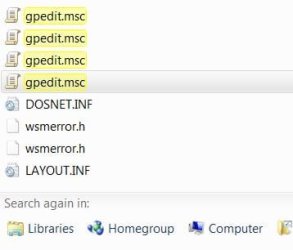
I typed gpedit.msc in the search box as per the instruction all I got was gpedit.msc repeated three times so how am I supposed to then browse to Computer Configuration\ Administrative Templates\ Windows Components\ Autoplay Policies\ Turn off Autoplay.

None of the above works on my machine can anyone help please!
 

My Computer

OS
VISTA HP UPGRADED TO WIN7 HP
CPU
AND PHENOM II X4 965 BLACK EDITION 3.4 GHZSOCKET AM3CACHE
Motherboard
ASUS® CROSSHAIR II FORMULA: SATA II, 3 x PCI-Ex, 2 x PCI
Memory
8GB CORSAIR XMS2 DUAL-DDR2 800MHz - LIFETIME WARRANTY!
Graphics Card(s)
1GB NVIDIA GEFORCE 9600GT PCI EXPRESS
Screen Resolution
SONY TN 1024X768
Hard Drives
X2 1TB SERIAL ATA 3-Gb/s HARD DRIVE WITH 16MB CACHE (7,200rpm)
PSU
700W Quiet Quad Rail PSU + 120mm Case Fan
Other Info
Power Supply & Case Cooling
22x DUAL LAYER DVD WRITER ±R/±RW/RAM


700W Quiet Quad Rail PSU + 120mm Case Fan
Hi,

When you say "repeated 3 times" can't you just close 2 of them down? Depending on your machine It can take a few seconds for it to open up.


OS
 

My Computer

Computer Manufacturer/Model Number
Compaq Desktop
OS
Windows 7 Ultimate x64
CPU
AMD Sempron Dual Core
Memory
3GB
Graphics Card(s)
NVIDIA GeForce 6150SE nForce 430
Screen Resolution
1024x768
Hard Drives
150GB Sata
What type of device are you wanting to AutoPlay? Is it a flash drive or Cd?

Was there a Windows Update released last month that restricted some AutoPlay feature? I can't remember if I noticed the summary of the update in Windows 7 or XP.

Maybe someone with a bit more knowledge of past updates can fill us in.
 

My Computer

Computer Manufacturer/Model Number
Toshiba P300
OS
Windows 8 Pro
CPU
Intel Centrino Dual Core P7450 2.13GHz
Memory
4gb
Graphics Card(s)
ATI Mobility Raedon HD3650
Hard Drives
Toshiba MK3252GSX ATA
Internet Speed
Wish it were faster
Thanks guys I m trying to get the cd to start up and play
 

My Computer

OS
VISTA HP UPGRADED TO WIN7 HP
CPU
AND PHENOM II X4 965 BLACK EDITION 3.4 GHZSOCKET AM3CACHE
Motherboard
ASUS® CROSSHAIR II FORMULA: SATA II, 3 x PCI-Ex, 2 x PCI
Memory
8GB CORSAIR XMS2 DUAL-DDR2 800MHz - LIFETIME WARRANTY!
Graphics Card(s)
1GB NVIDIA GEFORCE 9600GT PCI EXPRESS
Screen Resolution
SONY TN 1024X768
Hard Drives
X2 1TB SERIAL ATA 3-Gb/s HARD DRIVE WITH 16MB CACHE (7,200rpm)
PSU
700W Quiet Quad Rail PSU + 120mm Case Fan
Other Info
Power Supply & Case Cooling
22x DUAL LAYER DVD WRITER ±R/±RW/RAM


700W Quiet Quad Rail PSU + 120mm Case Fan
When you open 'Computer' (from the Start Menu) and right-click your CD drive do you get 'Open Autoplay...' in the context menu list?
 

My Computer

Computer Manufacturer/Model Number
Compaq Desktop
OS
Windows 7 Ultimate x64
CPU
AMD Sempron Dual Core
Memory
3GB
Graphics Card(s)
NVIDIA GeForce 6150SE nForce 430
Screen Resolution
1024x768
Hard Drives
150GB Sata
No autoplay in context menu just open
 

My Computer

OS
VISTA HP UPGRADED TO WIN7 HP
CPU
AND PHENOM II X4 965 BLACK EDITION 3.4 GHZSOCKET AM3CACHE
Motherboard
ASUS® CROSSHAIR II FORMULA: SATA II, 3 x PCI-Ex, 2 x PCI
Memory
8GB CORSAIR XMS2 DUAL-DDR2 800MHz - LIFETIME WARRANTY!
Graphics Card(s)
1GB NVIDIA GEFORCE 9600GT PCI EXPRESS
Screen Resolution
SONY TN 1024X768
Hard Drives
X2 1TB SERIAL ATA 3-Gb/s HARD DRIVE WITH 16MB CACHE (7,200rpm)
PSU
700W Quiet Quad Rail PSU + 120mm Case Fan
Other Info
Power Supply & Case Cooling
22x DUAL LAYER DVD WRITER ±R/±RW/RAM


700W Quiet Quad Rail PSU + 120mm Case Fan
Type Autoplay in the search box of your start menu. The first one listed should take you to the Autoplay settings menu you will find in control panel. In the window that opens there will be a check box at the very top to use "Autoplay for all media" and a reset to defaults at the bottom.

If you select "Computer" from your start menu, clicking the ICON for your optical drive should launch the autoplay if there is a disk in the drive that supports it. Even if autoply is disabled.

I believe the update mentioned above was for XP and disabled autoplay for thumbdrives.
 

My Computer

Computer type
PC/Desktop
Computer Manufacturer/Model Number
Home Built
OS
Windows 10 Education 64 bit
CPU
AMD Phenom II X4 980 Black Edition Deneb 3.7GHz
Motherboard
Asus M4N68T-M V2 µATX Motherboard
Memory
8GB 4GBx2 Kingston PC10600 DDR3 1333 Memory
Graphics Card(s)
Zotac NVIDIA Geforce GT640 2 Gig DDR3 PCIe
Sound Card
VIA VT1708s High Definition Audio 8-channel Onboard
Monitor(s) Displays
22" LG E2242 1080p and 2 19" I-INC AG191D
Screen Resolution
1280x1024 - 1920x1080 - 1280x1024
Hard Drives
Crucial M100 256 GB SSD and 500 GB WD Blue SATA
PSU
Thermaltake TR 620
Case
Power Up Black ATX Mid-Tower Case
Cooling
Stock heatsink and fan
Keyboard
Logitech Wireless K350 Wave
Mouse
Logitech Wireless M570 Trackman Wheel
Internet Speed
80 Mbps Down 30 Mbps Up
Antivirus
Windows Defender
Browser
Internet Explorer 11
Other Info
HP DVD1040e Lightscribe - External USB2
Try the following (from Microsoft Knowledge Base)...

How to use Group Policy settings to disable all Autorun features in Windows Server 2008 or Windows Vista
Use either of the following methods:

Method 1
  1. Click Start VistaStartButton.jpg, type Gpedit.msc in the Start Search box, and then press ENTER.
  2. SecurityShield.jpg If you are prompted for an administrator password or for confirmation, type the password, or click Allow.
  3. Under Computer Configuration, expand Administrative Templates, expand Windows Components, and then click Autoplay Policies.
  4. In the Details pane, double-click Turn off Autoplay.
  5. Click Enabled, and then select All drives in the Turn off Autoplay box to disable Autorun on all drives.
  6. Restart the computer.
Method 2
  1. Click Start VistaStartButton.jpg, type Gpedit.msc in the Start Search box, and then press ENTER.
  2. SecurityShield.jpg If you are prompted for an administrator password or for confirmation, type the password, or click Allow.
  3. Under Computer Configuration, expand Administrative Templates, expand Windows Components, and then click Autoplay Policies.
  4. In the Details pane, double-click Default Behavior for AutoRun.
  5. Click Enabled, and then select Do not execute any autorun commands in the Default Autorun behavior box to disable Autorun on all drives.
  6. Restart the computer.

   Warning
Neither Home Basic or Home Premium have access to the Group Policy Editor (gpedit.msc) please check the version you have installed


OS
 

My Computer

Computer Manufacturer/Model Number
Compaq Desktop
OS
Windows 7 Ultimate x64
CPU
AMD Sempron Dual Core
Memory
3GB
Graphics Card(s)
NVIDIA GeForce 6150SE nForce 430
Screen Resolution
1024x768
Hard Drives
150GB Sata
Try the following (from Microsoft Knowledge Base)...

How to use Group Policy settings to disable all Autorun features in Windows Server 2008 or Windows Vista
Use either of the following methods:


Method 1
  1. Click Start View attachment 140969, type Gpedit.msc in the Start Search box, and then press ENTER.
  2. View attachment 140970 If you are prompted for an administrator password or for confirmation, type the password, or click Allow.
  3. Under Computer Configuration, expand Administrative Templates, expand Windows Components, and then click Autoplay Policies.
  4. In the Details pane, double-click Turn off Autoplay.
  5. Click Enabled, and then select All drives in the Turn off Autoplay box to disable Autorun on all drives.
  6. Restart the computer.
Method 2
  1. Click Start View attachment 140969, type Gpedit.msc in the Start Search box, and then press ENTER.
  2. View attachment 140970 If you are prompted for an administrator password or for confirmation, type the password, or click Allow.
  3. Under Computer Configuration, expand Administrative Templates, expand Windows Components, and then click Autoplay Policies.
  4. In the Details pane, double-click Default Behavior for AutoRun.
  5. Click Enabled, and then select Do not execute any autorun commands in the Default Autorun behavior box to disable Autorun on all drives.
  6. Restart the computer.

   Warning
Neither Home Basic or Home Premium have access to the Group Policy Editor (gpedit.msc) please check the version you have installed


OS

Thank you for your efforts and done all that still doesnt work typeing Gpedit.msc doesnt take me anywhere
 

Attachments

  • 01.JPG
    01.JPG
    18.4 KB · Views: 6

My Computer

OS
VISTA HP UPGRADED TO WIN7 HP
CPU
AND PHENOM II X4 965 BLACK EDITION 3.4 GHZSOCKET AM3CACHE
Motherboard
ASUS® CROSSHAIR II FORMULA: SATA II, 3 x PCI-Ex, 2 x PCI
Memory
8GB CORSAIR XMS2 DUAL-DDR2 800MHz - LIFETIME WARRANTY!
Graphics Card(s)
1GB NVIDIA GEFORCE 9600GT PCI EXPRESS
Screen Resolution
SONY TN 1024X768
Hard Drives
X2 1TB SERIAL ATA 3-Gb/s HARD DRIVE WITH 16MB CACHE (7,200rpm)
PSU
700W Quiet Quad Rail PSU + 120mm Case Fan
Other Info
Power Supply & Case Cooling
22x DUAL LAYER DVD WRITER ±R/±RW/RAM


700W Quiet Quad Rail PSU + 120mm Case Fan
What version of 7 are you running? You cannot access GPEDIT.MSC from home premium or home basic.
 

My Computer

Computer Manufacturer/Model Number
Compaq Desktop
OS
Windows 7 Ultimate x64
CPU
AMD Sempron Dual Core
Memory
3GB
Graphics Card(s)
NVIDIA GeForce 6150SE nForce 430
Screen Resolution
1024x768
Hard Drives
150GB Sata
I'm thinking the only way to get Autoplay Policies is via regedit but i dont know how to start and I'm runing Home Basic
 
Last edited:

My Computer

OS
VISTA HP UPGRADED TO WIN7 HP
CPU
AND PHENOM II X4 965 BLACK EDITION 3.4 GHZSOCKET AM3CACHE
Motherboard
ASUS® CROSSHAIR II FORMULA: SATA II, 3 x PCI-Ex, 2 x PCI
Memory
8GB CORSAIR XMS2 DUAL-DDR2 800MHz - LIFETIME WARRANTY!
Graphics Card(s)
1GB NVIDIA GEFORCE 9600GT PCI EXPRESS
Screen Resolution
SONY TN 1024X768
Hard Drives
X2 1TB SERIAL ATA 3-Gb/s HARD DRIVE WITH 16MB CACHE (7,200rpm)
PSU
700W Quiet Quad Rail PSU + 120mm Case Fan
Other Info
Power Supply & Case Cooling
22x DUAL LAYER DVD WRITER ±R/±RW/RAM


700W Quiet Quad Rail PSU + 120mm Case Fan
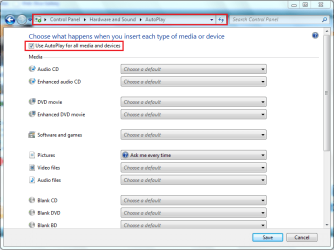
Control Panel > Hardware and Sound > Autoplay
If nothings greyed out you shouldn't have to resort to regedit.
 

My Computer

Computer type
PC/Desktop
Computer Manufacturer/Model Number
Home Built
OS
Windows 10 Education 64 bit
CPU
AMD Phenom II X4 980 Black Edition Deneb 3.7GHz
Motherboard
Asus M4N68T-M V2 µATX Motherboard
Memory
8GB 4GBx2 Kingston PC10600 DDR3 1333 Memory
Graphics Card(s)
Zotac NVIDIA Geforce GT640 2 Gig DDR3 PCIe
Sound Card
VIA VT1708s High Definition Audio 8-channel Onboard
Monitor(s) Displays
22" LG E2242 1080p and 2 19" I-INC AG191D
Screen Resolution
1280x1024 - 1920x1080 - 1280x1024
Hard Drives
Crucial M100 256 GB SSD and 500 GB WD Blue SATA
PSU
Thermaltake TR 620
Case
Power Up Black ATX Mid-Tower Case
Cooling
Stock heatsink and fan
Keyboard
Logitech Wireless K350 Wave
Mouse
Logitech Wireless M570 Trackman Wheel
Internet Speed
80 Mbps Down 30 Mbps Up
Antivirus
Windows Defender
Browser
Internet Explorer 11
Other Info
HP DVD1040e Lightscribe - External USB2
Also, checking the option in the image below should have the same effect as using GPEDIT

Autoplay.PNG


OS
 

My Computer

Computer Manufacturer/Model Number
Compaq Desktop
OS
Windows 7 Ultimate x64
CPU
AMD Sempron Dual Core
Memory
3GB
Graphics Card(s)
NVIDIA GeForce 6150SE nForce 430
Screen Resolution
1024x768
Hard Drives
150GB Sata
yes done all the above still no joy
 

My Computer

OS
VISTA HP UPGRADED TO WIN7 HP
CPU
AND PHENOM II X4 965 BLACK EDITION 3.4 GHZSOCKET AM3CACHE
Motherboard
ASUS® CROSSHAIR II FORMULA: SATA II, 3 x PCI-Ex, 2 x PCI
Memory
8GB CORSAIR XMS2 DUAL-DDR2 800MHz - LIFETIME WARRANTY!
Graphics Card(s)
1GB NVIDIA GEFORCE 9600GT PCI EXPRESS
Screen Resolution
SONY TN 1024X768
Hard Drives
X2 1TB SERIAL ATA 3-Gb/s HARD DRIVE WITH 16MB CACHE (7,200rpm)
PSU
700W Quiet Quad Rail PSU + 120mm Case Fan
Other Info
Power Supply & Case Cooling
22x DUAL LAYER DVD WRITER ±R/±RW/RAM


700W Quiet Quad Rail PSU + 120mm Case Fan
I've just found an old thread Here which outlines a registry solution.

Open regedit and navigate to:

HKEY_LOCAL_MACHINE\Software\Microsoft\Windows\CurrentVersion\Policies\Explorer

and then,

HKEY_CURRENT_USER\Software\Microsoft\Windows\CurrentVersion\Policies\Explorer

Here you will find a key called "NoDriveTypeAutoRun" and probably set to 255. THATS THE PROBLEM.

Double click, change this to 145, then hit OK. Immediately you can plug in your USB or whatever other media ... and Notice autoplay is back!

If you want to enable autoplay foy ANY type of media what-so-ever, set it to 0 instead. Use 149 for Win XP.

Credit for this fix goes to a google search of mine, that landed on this thread. Next time I"m just gonna come here and search!!

   Warning
Changing certain registry settings can make your system unresponsive. Please make sure that you only change what is required, and nothing else.
 

My Computer

Computer Manufacturer/Model Number
Compaq Desktop
OS
Windows 7 Ultimate x64
CPU
AMD Sempron Dual Core
Memory
3GB
Graphics Card(s)
NVIDIA GeForce 6150SE nForce 430
Screen Resolution
1024x768
Hard Drives
150GB Sata
Does the CD suport autorun? Does it have an autorun.inf file in its root directory?
 

My Computer

Computer type
PC/Desktop
Computer Manufacturer/Model Number
Home Built
OS
Windows 10 Education 64 bit
CPU
AMD Phenom II X4 980 Black Edition Deneb 3.7GHz
Motherboard
Asus M4N68T-M V2 µATX Motherboard
Memory
8GB 4GBx2 Kingston PC10600 DDR3 1333 Memory
Graphics Card(s)
Zotac NVIDIA Geforce GT640 2 Gig DDR3 PCIe
Sound Card
VIA VT1708s High Definition Audio 8-channel Onboard
Monitor(s) Displays
22" LG E2242 1080p and 2 19" I-INC AG191D
Screen Resolution
1280x1024 - 1920x1080 - 1280x1024
Hard Drives
Crucial M100 256 GB SSD and 500 GB WD Blue SATA
PSU
Thermaltake TR 620
Case
Power Up Black ATX Mid-Tower Case
Cooling
Stock heatsink and fan
Keyboard
Logitech Wireless K350 Wave
Mouse
Logitech Wireless M570 Trackman Wheel
Internet Speed
80 Mbps Down 30 Mbps Up
Antivirus
Windows Defender
Browser
Internet Explorer 11
Other Info
HP DVD1040e Lightscribe - External USB2
I've just found an old thread Here which outlines a registry solution.

Open regedit and navigate to:

HKEY_LOCAL_MACHINE\Software\Microsoft\Windows\CurrentVersion\Policies\Explorer

and then,

HKEY_CURRENT_USER\Software\Microsoft\Windows\CurrentVersion\Policies\Explorer

Here you will find a key called "NoDriveTypeAutoRun" and probably set to 255. THATS THE PROBLEM.

Double click, change this to 145, then hit OK. Immediately you can plug in your USB or whatever other media ... and Notice autoplay is back!

If you want to enable autoplay foy ANY type of media what-so-ever, set it to 0 instead. Use 149 for Win XP.

Credit for this fix goes to a google search of mine, that landed on this thread. Next time I"m just gonna come here and search!!

:D:D:D:D:D:D:D:D:D:D:D:D:D:D:D:D:D:D:D:D:D:D:D:D:D

WELL DONE ORBITAL u the man:D 145 did the trick.

Many thanks to all your kind help:picnic:
 

My Computer

OS
VISTA HP UPGRADED TO WIN7 HP
CPU
AND PHENOM II X4 965 BLACK EDITION 3.4 GHZSOCKET AM3CACHE
Motherboard
ASUS® CROSSHAIR II FORMULA: SATA II, 3 x PCI-Ex, 2 x PCI
Memory
8GB CORSAIR XMS2 DUAL-DDR2 800MHz - LIFETIME WARRANTY!
Graphics Card(s)
1GB NVIDIA GEFORCE 9600GT PCI EXPRESS
Screen Resolution
SONY TN 1024X768
Hard Drives
X2 1TB SERIAL ATA 3-Gb/s HARD DRIVE WITH 16MB CACHE (7,200rpm)
PSU
700W Quiet Quad Rail PSU + 120mm Case Fan
Other Info
Power Supply & Case Cooling
22x DUAL LAYER DVD WRITER ±R/±RW/RAM


700W Quiet Quad Rail PSU + 120mm Case Fan
Excellent news, glad it worked for you :D
 

My Computer

Computer Manufacturer/Model Number
Compaq Desktop
OS
Windows 7 Ultimate x64
CPU
AMD Sempron Dual Core
Memory
3GB
Graphics Card(s)
NVIDIA GeForce 6150SE nForce 430
Screen Resolution
1024x768
Hard Drives
150GB Sata
Back
Top