hi
I download RogueKiller and saved it to the desktop and performed the first scan with windows and browsers open. then realized that they should be closed so did another scan with everything closed. you can find both reports attached.
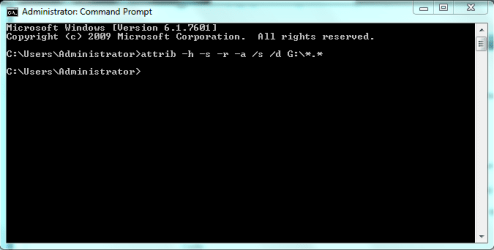
then as you instructed I used the "attrib -h -s -r -a /s /d G:\*.*"
my flash drive name is G:\
nothing seemed to happen in the command prompt as you see in the attached photo
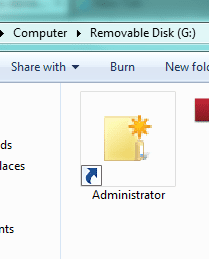
then I checked my G:\ drive
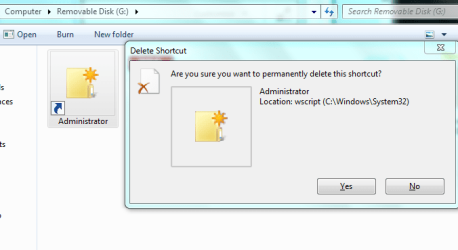
the administrator shortcut still exists but the autorun.ini is gone for now. not sure if its permenantly gone though.
when i double click on the administrator shortcut i recevie this error: can not find script file "G:\Microsoft.exe".
at some point in the middle of these steps an unnamed folder showed up in the G:\ drive and a file with this extention: ".init" or something and one more file which sadly i can not recall its name. i shift+deleted them successfully.
after these steps I downloaded Rkill and ran scan. you can also find the report attached to this post.
I shoud also inform you that prior to these steps I used autorun exterminator for killing the autorun.ini but it did no good and kept cycling in a loop which the program deleted the autorun file but it kept regenerating itself over and over again.
oh and my anti virus does not detect any threats. it is ESET Smart Security.
there is also this wierd thing about my flash drive! the other day I inserted it into a pc at coffe net and on that pc I could see some stuff on my flash drive which I have deleted really long time ago(over 3years ago). what is wrong? how to fix it?
Is it possible that the virus aslo spread to my other flash drives or even my external hard drive?
one more thing! every time I insert this flash drive into my laptop, it says that it is recommanded to scan and fix the flash drive which I have done in a few times but the problem seems to resist no matter what!
could you plz check these out and help me with my problem?
cottonball, thanks for your reply I will follow your instructions and post the results for you. As you said, I have quoted your reply from the other thread below.
cottonball:
I download RogueKiller and saved it to the desktop and performed the first scan with windows and browsers open. then realized that they should be closed so did another scan with everything closed. you can find both reports attached.
then as you instructed I used the "attrib -h -s -r -a /s /d G:\*.*"
my flash drive name is G:\
nothing seemed to happen in the command prompt as you see in the attached photo
then I checked my G:\ drive
the administrator shortcut still exists but the autorun.ini is gone for now. not sure if its permenantly gone though.
when i double click on the administrator shortcut i recevie this error: can not find script file "G:\Microsoft.exe".
at some point in the middle of these steps an unnamed folder showed up in the G:\ drive and a file with this extention: ".init" or something and one more file which sadly i can not recall its name. i shift+deleted them successfully.
after these steps I downloaded Rkill and ran scan. you can also find the report attached to this post.
I shoud also inform you that prior to these steps I used autorun exterminator for killing the autorun.ini but it did no good and kept cycling in a loop which the program deleted the autorun file but it kept regenerating itself over and over again.
oh and my anti virus does not detect any threats. it is ESET Smart Security.
there is also this wierd thing about my flash drive! the other day I inserted it into a pc at coffe net and on that pc I could see some stuff on my flash drive which I have deleted really long time ago(over 3years ago). what is wrong? how to fix it?
Is it possible that the virus aslo spread to my other flash drives or even my external hard drive?
one more thing! every time I insert this flash drive into my laptop, it says that it is recommanded to scan and fix the flash drive which I have done in a few times but the problem seems to resist no matter what!
could you plz check these out and help me with my problem?
cottonball, thanks for your reply I will follow your instructions and post the results for you. As you said, I have quoted your reply from the other thread below.
cottonball:
tooca,
Please start your own topic right in this forum:
System Security - Windows 7 Help Forums
Just press the orange New Thread button.
:info: Also, plug in the infected USB drive in your computer while pressing the left Shift key so that autorun is disabled (if present).
:info: Press on with RogueKiller as follows...
•Quit all programs
•Right-click the RogueKiller file and select: Run as Administrator
•Wait until the Prescan finishes
•Press: Scan
•Then, press the [Delete] button.
Please post the new RKreport (Mode: Delete) (created on the Desktop) in your reply. <<---
:info: Next, to find the User Name you are currently using, click the Start menu.
In the top right corner Windows 7 displays the current Windows profile that is running, right below your account picture.
:info: Now, go to Start > All Programs > Accessories > Command Prompt
Right-click Command Prompt, and select: Run as Administrator
Please copy (with mouse) the entire contents of the quote box below, paste it at the blinking cursor of the Command Prompt, and press: Enter
Quote:
g:
attrib -s -h -a -r /s /d *.*
dir/b /s > C:\Users\username\Desktop\dirlist.txt
Note: Assumes g, on the first line, is the letter of your USB drive.
Replace username with yours.
Please provide the contents of the dirlist.txt (created on the Desktop) in your reply.
:info: Also, please quote this post in the new thread you create.
Thanks!
Attachments
My Computer
At a glance
Windows 7 Ultimate service pack 1 64bitIntel(R) Core(TM) i3
- Computer type
- Laptop
- Computer Manufacturer/Model Number
- HP
- OS
- Windows 7 Ultimate service pack 1 64bit
- CPU
- Intel(R) Core(TM) i3
- Antivirus
- ESET Smart Security
- Browser
- internet explorer / firefox