Solved Avoiding double navigation

perkinw

New member
Member
Local time
8:19 AM
Messages
83
I'm sure there's a way to do this, but I haven't found it.

Let's say I download a file from a web site (FYI I'm using Chrome). In the "Save As" explorer window, I navigate to the directory where I want the download to be saved. Now let's say I want to rename the file. I open another Explorer window. But now I have to repeat the navigation to get to the same directory -- assuming I can remember where I saved the file!

There is a pseudo-directory in Windows Explorer under Favorites called Recent Places which seems like it ought to avoid the double navigation, but the "recent" directories it shows are always a few days old. The truly most recent directory is never in the list.

So how do you solve the double navigation problem?
 
Last edited:

My Computer

Computer type
PC/Desktop
Computer Manufacturer/Model Number
Dell Studio MT
OS
Microsoft Windows 7 Professional 64-bit 7601 Multiprocessor Free Service Pack 1
CPU
Intel(R) Core(TM) i7-4790 CPU @ 3.60GHz
Motherboard
Dell Inc. 0KWVT8
Memory
24.00 GB
Graphics Card(s)
AMD Radeon(TM) R9 270
Sound Card
(1) AMD High Definition Audio Device (2) Realtek High Defi
Monitor(s) Displays
Sun CRT
Screen Resolution
1920 x 1200 x 32 bits (4294967296 colors) @ 60 Hz
Hard Drives
(1) Crucial_ CT256MX100SSD1 SCSI Disk Device (2) Intel Raid 1 Volume SCSI Disk Device (3) SK hynix SC210 mSAT SCSI Disk Device (4) CF/MD Card (5) MS/Pro/Duo Card (6) SD/mini-MMC/RS Card (7) SM/xD Card
Why don't you change the name from within the download dialog? That's what I do.

Regardless, in Chrome, after you download the file, look at the bottom right of the browser window and you'll see the file name of what you just downloaded, right-click on the filename and select "Show in folder" to open the folder where the file is located.
 

My Computer

Computer type
PC/Desktop
Computer Manufacturer/Model Number
Home Built desktop, Dell G15 5511 Gaming laptop,MS Surface Pro 7 tablet
OS
W10 Pro desktop, W11 laptop, W11 Pro tablet (all 64-bit)
CPU
3.7Ghz 8700K i7, i7-11800H, i7-1065G7
Motherboard
ASUS TUF Z370-Pro Gaming in desktop
Memory
16G desktop, 16G laptop, 4G tablet
Graphics Card(s)
AMD Radeon RX580, RTX 3060, Intel Iris Plus
Sound Card
High Definition Audio (Built-in to mobo)
Monitor(s) Displays
Samsung U32J59 32" (2x), 15.6", 12"
Screen Resolution
3840x2160, 3840x2160, 1920x1080, 2160x1440
Hard Drives
500G SSD for OS; 2T, 10T & 15T HDDs for Data on Desktop, 1TB SSD laptop, 128G SSD tablet.
PSU
Corsair CX 750M
Case
Antec 100
Cooling
CM 212+
Keyboard
IBM Model M - used continuously since 1986
Mouse
Microsoft Pro IntelliMouse
Internet Speed
400M down 8M up
Antivirus
Windows Defender
Browser
FireFox
Other Info
Built my first computer (8Mhz 8088cpu, 640K RAM, 20MB HDD, 2 360K floppy drives) in 1985 and have been building them for myself, relatives and friends ever since.
To set the default folder to where you want, say, C:\Download.
In the menu (top right 3 horizontal bar) click -> Setting -> go right to the bottom, click on "Show advanced settings...
Scroll down to "Download" -> Download location -> either you input the folder or click "Change..."
Any filename either download &or save to, it will go to this default folder.

If you want to download the filename to another folder, then at "Save to" you need to select the folder where to put the filename.
This is only for the current session.
The next time when open chrome again, the download folder will use the default as in the chrome setting.
 

My Computer

Computer type
Laptop
Computer Manufacturer/Model Number
Toshiba L630 and L735
OS
Windows 7 x64
Hard Drives
240 GB SSD
I intentionally do not use a default download folder. I prefer to navigate during the download to the folder where I want the file to ultimately be saved. The download folder will be different for every download. So my question is: After the download is complete, how do I get back to that folder without what I called a "double navigation?"
 

My Computer

Computer type
PC/Desktop
Computer Manufacturer/Model Number
Dell Studio MT
OS
Microsoft Windows 7 Professional 64-bit 7601 Multiprocessor Free Service Pack 1
CPU
Intel(R) Core(TM) i7-4790 CPU @ 3.60GHz
Motherboard
Dell Inc. 0KWVT8
Memory
24.00 GB
Graphics Card(s)
AMD Radeon(TM) R9 270
Sound Card
(1) AMD High Definition Audio Device (2) Realtek High Defi
Monitor(s) Displays
Sun CRT
Screen Resolution
1920 x 1200 x 32 bits (4294967296 colors) @ 60 Hz
Hard Drives
(1) Crucial_ CT256MX100SSD1 SCSI Disk Device (2) Intel Raid 1 Volume SCSI Disk Device (3) SK hynix SC210 mSAT SCSI Disk Device (4) CF/MD Card (5) MS/Pro/Duo Card (6) SD/mini-MMC/RS Card (7) SM/xD Card
"I intentionally do not use a default download folder. I prefer to navigate during the download to the folder where I want the file to ultimately be saved. The download folder will be different for every download."
That works. With your navigation plan, almost always you are allowed to rename the to be downloaded file just before you click the Save or Download button. I have a c:\downloads directory because I often have numerous downloads. And by having a c:\downloads directory, I have already once "told" each anti-virus/anti-malware: do not scan that directory, scan the downloaded files while I move said files to their appropriate directory. Sometimes I do not exactly what folders I want certain files to go into until later. Sometimes I realize I have to create new folders for new files, amidst the numerous downloads in progress.

"So my question is: After the download is complete, how do I get back to that folder without what I called a "double navigation?"" Walk me through just one download of one file into one folder -- and why you are not allowed to rename that one file just before you click Save or Download.

I ask this because I am confused as to why you have to parallel Explorer.exe to rename a file when you have a choice just before Save As within Chrome. I double-checked both Firefox, IE, and Chrome: once I set the settings to allow me to choose the directory [even though everything goes into c:\downloads], the operation allows me to change the file name just before Save, Save As, Download.
 

My Computer

Computer type
PC/Desktop
Computer Manufacturer/Model Number
Antec desktop; Acer Aspire laptops
OS
Windows 7 Professional 64-bit
CPU
Desktop i5; Acers i5 & i7
Memory
desktop 16GB; 1 Acer 8GB & 1 Acer 16GB
Hard Drives
1TB split into 2 equal partitions [OS and data] usable by RJS
Internet Speed
AT&T DSL
Browser
FF, GChrome, msIE
Other Info
Windows 7 Firewall, Emsisoft AM/AV, MSE [scan-only], SpywareBlaster, Ruiware/BillP combine
I have attempted (unsuccessfully) to present a use case that can't be done during download. So I'll try again.

Say I download a file and then shut down the computer. I reboot the computer and decide to work on the downloaded file in some application. It's the last file I navigated to in explorer. Is there a way to get back to the file without redundantly navigating? It seems to me that "Recent Places" was designed for exactly this use case, but it does not work for me as expected.

The actual use case is less extreme. I rarely shut down, but I often want to revisit a downloaded file within a short time after downloading. But the only way I am able to get to it is by laboriously navigating from the root of the file system. It seems like a Windows oversight, because when I close and reopen a MS Windows document, the current location is remembered.
 

My Computer

Computer type
PC/Desktop
Computer Manufacturer/Model Number
Dell Studio MT
OS
Microsoft Windows 7 Professional 64-bit 7601 Multiprocessor Free Service Pack 1
CPU
Intel(R) Core(TM) i7-4790 CPU @ 3.60GHz
Motherboard
Dell Inc. 0KWVT8
Memory
24.00 GB
Graphics Card(s)
AMD Radeon(TM) R9 270
Sound Card
(1) AMD High Definition Audio Device (2) Realtek High Defi
Monitor(s) Displays
Sun CRT
Screen Resolution
1920 x 1200 x 32 bits (4294967296 colors) @ 60 Hz
Hard Drives
(1) Crucial_ CT256MX100SSD1 SCSI Disk Device (2) Intel Raid 1 Volume SCSI Disk Device (3) SK hynix SC210 mSAT SCSI Disk Device (4) CF/MD Card (5) MS/Pro/Duo Card (6) SD/mini-MMC/RS Card (7) SM/xD Card
The Download Folder is the default location for all downloads, unless you change it. I can't see why you don't use the Download Folder as you will be able to find the file easily later if you need to. The Download Folder is just one folder with all downloads listed within it, there is not a separate folder for each download.

When I download a program or whatever to the Download Folder, I then run the extraction process & usually it will be installed to the correct Directory, or can change that if I wish.

To prevent the Download Folder becoming cumbersome with heaps of downloads I delete the completed ones when I am sure everything is working properly.
 

My Computer

Computer type
PC/Desktop
Computer Manufacturer/Model Number
Self built using existing case
OS
Windows 7 Home Premium 64 bit sp1
CPU
Intel i5 3570 3.4Ghz Ivy Bridge SKT 1155 quad core
Motherboard
Gigabyte Z77-HD3 SKT 1155 2xSata 3, 4x USB 3.0
Memory
G-Skill Rip Jaws 16Gb (8x2) DDR3 -1600 PC3 12800 CL 10 red
Graphics Card(s)
Gigabyte NVIDIA GT610 1Gb DDR3 810/1200 PCI-E 2.0 Silent
Sound Card
NVIDIA High Definition & Realtech High Definition Audio
Monitor(s) Displays
2 x Philips 226V4L 16:9 aspect ratio
Screen Resolution
1920 x 1080 HD
Hard Drives
Samsung 840 Pro 256gb SSD, SATA 3.
Hitachi Touro Portable 1tb, USB 3.0 HDD used for image b/ups.
PSU
Corsair VS450
Case
Codeng
Cooling
PSU fan & CPU fan
Keyboard
Logitech
Mouse
Logitech Wireless trackball M570
Internet Speed
Wireless 3G. 3mg down & 550kb up.
Antivirus
Bitdefender Internet Security 2020
Browser
Opera (Current Version) & Firefox
Other Info
MS Office 2013 Pro. Davis weather station software. MGE Nova 600 avr UPS.
...Say I download a file and then shut down the computer....
Open Chrome and press Ctrl + J to see a list of recent downloads. The "show in folder" link* is one way to prevent double navigation. If that list is not to your liking, then let's see what others come up with.

*the same link mentioned by strollin - only in the recent downloads list and I was not sure if you knew that the list stays around until you clear it.


...I can't see why you don't use the Download Folder...
What if the downloaded file needs to be saved to a server so that coworkers can get to it? Are you suggesting that people should download one file to their local Download Folder and then use Windows Explorer to move that one file to the desired location? Then repeat that download/move for every file downloaded?


...there is not a separate folder for each download.
Why would I download/save the July sales figures for store #16843 in the same folder as the June inventory data for store #74204? Those downloaded files are saved to different/separate folders.


Let's say that lecture videos are downloaded/saved directly to the folder for that class. The OP might want to grab a snack before watching the video. The OP wants a shorter way to navigate to the file of interest.


You mentioned installation files.
I have a folder for those types of files...
...and a sub-folder named after each app
...and another sub-folder named after the app's version.
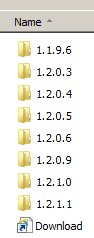
In that folder structure are my notes** about the install and a download link shortcut documenting the source of the installation file. Here are my folders for UltraVNC's installation files:
uvnc.PNG

There are several problems with the latest version. I'm working my way thru the older versions via VMs to see where one major problem was introduced.

Each uVNC version folder contains multiple files:
uvnc2.PNG


**my notes for Oracle's VirtualBox remind me which options not to install.
e.g.
Do not install:
VB Python.
VB Host-Only.


My point is:
There are plenty of scenarios where it is not efficient nor desired to download/save a file to the Downloads Folder. The OP has a valid point about having to navigate to the folders at least twice (once for the download/save and once to watch the file).
 
Last edited:

My Computer

Computer type
Laptop
Computer Manufacturer/Model Number
Employer provided Dell Latitude
OS
W7 Pro SP1 64bit
CPU
i7
Memory
8GB
Graphics Card(s)
Intel HD Graphics
Hard Drives
crappy SSD
Antivirus
Employer mandated Symantec Endpoint Protection
Browser
Pale Moon 64bit, IE11 64bit & Chrome 64bit
Think I found an answer, for Windows 7 Professional at least. Explorer.exe's shortcut. Tools. Folder Options. View. Click [check] box for Restore previous folder windows at login. Right above it is: Launch folder windows as a separate process. I do not know which is better for you -- checking that box or leaving it un-checked.
And you are certainly correct! If you are downloading numerous similar named, differing edition/differing version, as posted earlier, it certainly make sense to not have just one folder for such downloads. I forgot momentarily that I too use different download directories during such download projects.
 

My Computer

Computer type
PC/Desktop
Computer Manufacturer/Model Number
Antec desktop; Acer Aspire laptops
OS
Windows 7 Professional 64-bit
CPU
Desktop i5; Acers i5 & i7
Memory
desktop 16GB; 1 Acer 8GB & 1 Acer 16GB
Hard Drives
1TB split into 2 equal partitions [OS and data] usable by RJS
Internet Speed
AT&T DSL
Browser
FF, GChrome, msIE
Other Info
Windows 7 Firewall, Emsisoft AM/AV, MSE [scan-only], SpywareBlaster, Ruiware/BillP combine
Just to be fair, Ranger and I were not considering such complicated download projects that are very common for business, industry, government, agencies, and so on. Because the opening post by the thread starter gave no indication of the level of complicated downloads as given by our friend UsernameIssues [later in the thread]-- Ranger and I were thinking about the majority of downloads by average home users. I believe Ranger and I agree, after we have read successive posts following our initial post -- there certainly is a need for having numerous download folders!
And, regardless of the number of download folders, one can still change the file name on the fly if the browser is set up to specify for each file the desired download folder.
 

My Computer

Computer type
PC/Desktop
Computer Manufacturer/Model Number
Antec desktop; Acer Aspire laptops
OS
Windows 7 Professional 64-bit
CPU
Desktop i5; Acers i5 & i7
Memory
desktop 16GB; 1 Acer 8GB & 1 Acer 16GB
Hard Drives
1TB split into 2 equal partitions [OS and data] usable by RJS
Internet Speed
AT&T DSL
Browser
FF, GChrome, msIE
Other Info
Windows 7 Firewall, Emsisoft AM/AV, MSE [scan-only], SpywareBlaster, Ruiware/BillP combine
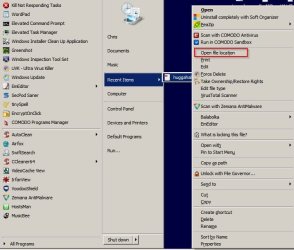
I just use "Recent Items" in Start Menu. Unless you clear recent items using Ccleaner or similar the most recent files remain in the list. So if you downloaded and save a file anywhere - it should appear in the list (even after a reboot). The list can only display 60 items maximum.

Recent Items.jpg

Open File Location (right click menu) opens the containing folder with the file highlighted.

Open File Location.jpg
 

My Computer

Computer type
Laptop
Computer Manufacturer/Model Number
ASUS
OS
Microsoft Windows 7 Home Premium 64-bit 7601 Multiprocessor Free Service Pack 1
CPU
AMD C-60 APU with Radeon(tm) HD Graphics
Motherboard
ASUSTeK COMPUTER INC. X501U
Memory
4.00 GB
Graphics Card(s)
AMD Radeon HD 6290 Graphics
Sound Card
(1) AMD High Definition Audio Device (2) Realtek High Defi
Screen Resolution
1366 x 768 x 32 bits (4294967296 colors) @ 60 Hz
Hard Drives
Hitachi HTS545050A7E380 SATA Disk Device
Antivirus
Comodo CIS & FW, SecureAplus App Whitelisting, Threatfire
Browser
Cyberfox 64bit, Opera 64bit, Airfox
Other Info
Spy-The-Spy, HitmanPro.Alert, Norton Connect Safe, MJRegWatcher, BitDefender TrafficLight, Voodoo Shield, Zemana AntiMalware
Interesting Callender. I erroneously dismissed the idea of working with the "Recent Items" menu on the Start Menu after reading the comments in the original post about the "Recent Places" link not populating for the OP. I'm not sure what the relationship is between that "Recent Places" link within Explorer's navigation pane and the "Recent Items" menu on the Start Menu.

For what it is worth: Chrome populates that "Recent Items" menu on the Start Menu when the "Save As" dialog box is used - even if Chrome is in the incognito mode.
 

My Computer

Computer type
Laptop
Computer Manufacturer/Model Number
Employer provided Dell Latitude
OS
W7 Pro SP1 64bit
CPU
i7
Memory
8GB
Graphics Card(s)
Intel HD Graphics
Hard Drives
crappy SSD
Antivirus
Employer mandated Symantec Endpoint Protection
Browser
Pale Moon 64bit, IE11 64bit & Chrome 64bit
@UsernameIssues The ctrl-J solution is exactly what I was looking for. Thanks! I am an "average home user," so much of the ensuing discussion was beyond me.

@RolandJS I also checked the "Restore previous folder windows at login" option, although it caters to a an extreme use case, not a typical one. The typical one I had been trying describe would be titled "Going back later to a previously downloaded file."

Thanks to all for your help.
 

My Computer

Computer type
PC/Desktop
Computer Manufacturer/Model Number
Dell Studio MT
OS
Microsoft Windows 7 Professional 64-bit 7601 Multiprocessor Free Service Pack 1
CPU
Intel(R) Core(TM) i7-4790 CPU @ 3.60GHz
Motherboard
Dell Inc. 0KWVT8
Memory
24.00 GB
Graphics Card(s)
AMD Radeon(TM) R9 270
Sound Card
(1) AMD High Definition Audio Device (2) Realtek High Defi
Monitor(s) Displays
Sun CRT
Screen Resolution
1920 x 1200 x 32 bits (4294967296 colors) @ 60 Hz
Hard Drives
(1) Crucial_ CT256MX100SSD1 SCSI Disk Device (2) Intel Raid 1 Volume SCSI Disk Device (3) SK hynix SC210 mSAT SCSI Disk Device (4) CF/MD Card (5) MS/Pro/Duo Card (6) SD/mini-MMC/RS Card (7) SM/xD Card
Just to be fair,...
Sorry. I let the frustrations of the OP set the adversarial tone for my post. Also, I agree that most* home users just put downloaded files in the Download Folder.

*not that I have asked most home users or even a significant number of home users. I don't happen to use the download folder, even for personal downloads.


As for renaming the downloaded file...
...yes, that can be done during the download process
...but my guess is:
the OP regrets using that task as the example.

That said, for a user that did not know that the file could be renamed before being saved, your info would be most helpful and would probably cause the user to say, "DOH! Why didn't I think of that? I've been renaming files via Explorer all of these years - when I could have just been renaming it before saving it."


As the OP stated in post #4:
So my question is: After the download is complete, how do I get back to that folder without what I called a "double navigation?"
No matter the reason for the folder structure. No matter the reason for the time that lapsed between when the file was downloaded and when that same file is to be accessed again. No matter why the file is to be accessed after being downloaded --- the question is: how does the OP get to the file without navigating thru the same folder structure that the OP went thru to save the file? Let's see of the "Recent Items" menu on the Start Menu works for the OP.
 

My Computer

Computer type
Laptop
Computer Manufacturer/Model Number
Employer provided Dell Latitude
OS
W7 Pro SP1 64bit
CPU
i7
Memory
8GB
Graphics Card(s)
Intel HD Graphics
Hard Drives
crappy SSD
Antivirus
Employer mandated Symantec Endpoint Protection
Browser
Pale Moon 64bit, IE11 64bit & Chrome 64bit
@UsernameIssues The ctrl-J solution is exactly what I was looking for. Thanks! I am an "average home user," so much of the ensuing discussion was beyond me.

@RolandJS I also checked the "Restore previous folder windows at login" option, although it caters to a an extreme use case, not a typical one. The typical one I had been trying describe would be titled "Going back later to a previously downloaded file."

Thanks to all for your help.
Glad that "Ctrl + J" works for you :-)
 

My Computer

Computer type
Laptop
Computer Manufacturer/Model Number
Employer provided Dell Latitude
OS
W7 Pro SP1 64bit
CPU
i7
Memory
8GB
Graphics Card(s)
Intel HD Graphics
Hard Drives
crappy SSD
Antivirus
Employer mandated Symantec Endpoint Protection
Browser
Pale Moon 64bit, IE11 64bit & Chrome 64bit
Just to be fair, Ranger and I were not considering such complicated download projects that are very common for business, industry, government, agencies, and so on. Because the opening post by the thread starter gave no indication of the level of complicated downloads as given by our friend UsernameIssues [later in the thread]-- Ranger and I were thinking about the majority of downloads by average home users. I believe Ranger and I agree, after we have read successive posts following our initial post -- there certainly is a need for having numerous download folders!
And, regardless of the number of download folders, one can still change the file name on the fly if the browser is set up to specify for each file the desired download folder.

Thanks Roland for explaining that & I agree with you. The average home user should find the Download Folder adequate for their normal use.
 

My Computer

Computer type
PC/Desktop
Computer Manufacturer/Model Number
Self built using existing case
OS
Windows 7 Home Premium 64 bit sp1
CPU
Intel i5 3570 3.4Ghz Ivy Bridge SKT 1155 quad core
Motherboard
Gigabyte Z77-HD3 SKT 1155 2xSata 3, 4x USB 3.0
Memory
G-Skill Rip Jaws 16Gb (8x2) DDR3 -1600 PC3 12800 CL 10 red
Graphics Card(s)
Gigabyte NVIDIA GT610 1Gb DDR3 810/1200 PCI-E 2.0 Silent
Sound Card
NVIDIA High Definition & Realtech High Definition Audio
Monitor(s) Displays
2 x Philips 226V4L 16:9 aspect ratio
Screen Resolution
1920 x 1080 HD
Hard Drives
Samsung 840 Pro 256gb SSD, SATA 3.
Hitachi Touro Portable 1tb, USB 3.0 HDD used for image b/ups.
PSU
Corsair VS450
Case
Codeng
Cooling
PSU fan & CPU fan
Keyboard
Logitech
Mouse
Logitech Wireless trackball M570
Internet Speed
Wireless 3G. 3mg down & 550kb up.
Antivirus
Bitdefender Internet Security 2020
Browser
Opera (Current Version) & Firefox
Other Info
MS Office 2013 Pro. Davis weather station software. MGE Nova 600 avr UPS.
perkinw, we are all glad you got the solution; I'm sure many other home and office users will find the various posts useful. This has been teamwork from start to finish.
 
Last edited:

My Computer

Computer type
PC/Desktop
Computer Manufacturer/Model Number
Antec desktop; Acer Aspire laptops
OS
Windows 7 Professional 64-bit
CPU
Desktop i5; Acers i5 & i7
Memory
desktop 16GB; 1 Acer 8GB & 1 Acer 16GB
Hard Drives
1TB split into 2 equal partitions [OS and data] usable by RJS
Internet Speed
AT&T DSL
Browser
FF, GChrome, msIE
Other Info
Windows 7 Firewall, Emsisoft AM/AV, MSE [scan-only], SpywareBlaster, Ruiware/BillP combine
Back
Top