Backup and restore question...

Cr00zng

New member
Pro User
Local time
1:26 AM
Messages
568
I've been using Windows 7 for about two years now, including BETA testing, and just started to use the backup and imaging features of the OS. You could say that my knowledge in this area is lacking...

I've created system restore CD, image, and run backup on the weekly scheduled basis and manually, if there are major changes to the system. While doing this, it is not entirely clear how the restore would work if and when the OS drive would break? In another word, would it really restore the system if I replace the current disk 4 with a new one? Since I am not backing up the other drives, will the system restore process leave them alone?

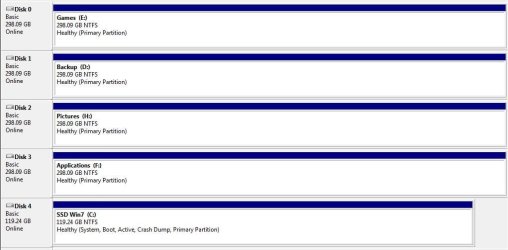
These are the drives I have:
dm.JPG

Disk 4 is the OS partition where the boot records reside and all applications, most games, etc installed. Both the image and the backup is made from the "C" drive only.

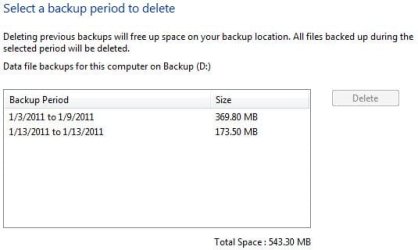
While I understand that both the user files and the image are created during backup, I don't understand why it would be different size? For example, managing disk space shows this:
backup.JPG

The smaller backup was created by manually starting the schedule backup while the larger one is the result of a scheduled backup completed. It does seem that manual backup did create an image on my back drive, in the root directory.

Why is there such size difference between the backups and which one should I use for fully restoring the system?

Neither the image backup file/folder with the NetBIOS name, nor the "WindowsImageBackup" folder is accessible. While I could gain access to these folders, will it cause some issues during the restore process? Most certainly, I'd like to make a backup of the backup offline to have an archive for the backup. After all, disk 1 could break at the same time as well.

I did read the tutorials for this subject, they are very good describing the process of backing up and restoring the system. I am just looking for the feedback as to how reliable these process are and what is actually restored?
TIA...
 

My Computer

Computer type
PC/Desktop
Computer Manufacturer/Model Number
Custom built at Home
OS
Windows 7 64-bit, Windows 8.1 64-bit, OSX El Capitan, Windows 10 (VMware)
CPU
Intel i5-3350P 3.1 GHz
Motherboard
Gigabyte GA-Z77X-UP5 TH
Memory
16 GBs GSkill Sniper
Graphics Card(s)
Radeon HD 7850
Sound Card
VIA HD Audio
Monitor(s) Displays
Dell U2410 24"
Screen Resolution
1920x1200
Hard Drives
1 x Intel 520 240 GBs
1 x Seagate 1TBs SATA 2.0,
1 x Seagate 1TBs eSATA 2.0
PSU
Thermaltake 850W
Case
Antec P183
Cooling
Noctua NH-D14 Heatsink 2 x 120mm fans, 4 x 120mm case fans
Keyboard
Dell Multimedia keyboard
Mouse
Logitech Trackball
Internet Speed
28.5 Mb/s
If you've selected "Let Windows choose what to backup" a system image will be created automatically, along with your user data backup. The image you've posted above depicts your user data, not your images. If you look closely, you'll see that each of those two backups have a date range, the first being 1/3/2011 - 1/9/2011. That's important to note as this date range is called a backup "period". Data backups are incremental backups that appear within the date ranges shown. When you see another date range appear, Windows has done another full backup, called a "period. There will be differences in the sises of the files.

So far, in my experience, the Windows 7 backup utility has proven very reliable. I have no third party backup software installed on my system.
 
Last edited:

My Computer

Computer Manufacturer/Model Number
Custom Build
OS
Windows 7 Pro/32 Academic. Build 7600
CPU
Intel 2.3 Duo core
Motherboard
EliteGroup G31T-M
Memory
4 GB DDR
Graphics Card(s)
Nvidia GeForce 9500 GT
Sound Card
Built in
Monitor(s) Displays
Viewsonic 15" 4:3
Screen Resolution
1280 x 1024
Hard Drives
WD Caviar Black 750 GB
WD 250 GB External
PSU
Antec 450w
Keyboard
Standard windows
Mouse
Logitech USB
Internet Speed
Bellsouth DSL 6.0
Maybe I am just having hard time understanding the difference between backup and image....

To my knowledge, having the image should be sufficient for restoring the system, that includes programs and the user data. If that is true, then in theory at least no backup is necessary. Provided that relatively frequent image is created, like when there are changes to the system, applications, etc, then this should be sufficient for my needs.

Since most, if not all data is stored on the traditional spindle based hard drive in my case, there would be little or no data lost, if the SSD drive is restored. Keep in mind that this system does not house any critical data that I'd miss, if the system drive breaks.

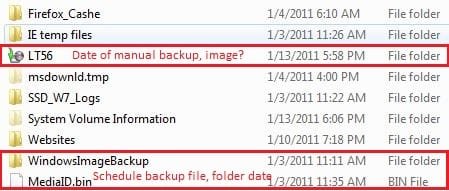
The backup partition has this, related to the Win 7 backup:

backupfolders.jpg

The folder named "LT56" seems to be an image folder that had been created when the scheduled backup was initiated manually. The "WindowsImageBackup" has been created when the backup schedule was setup.

While I intend to keep the backup schedule in place, that will create a full backup on a weekly basis, it seems that keeping it might not be necessary. Again, provided that the image is sufficient for restoring the system, that would be correct.

Alternatively, if the system would need to be restored from the backup, this would be the proper order:

1. restore from the latest full backup
2. restore the incremental backup, if any

Would that be correct?
TIA...
 

My Computer

Computer type
PC/Desktop
Computer Manufacturer/Model Number
Custom built at Home
OS
Windows 7 64-bit, Windows 8.1 64-bit, OSX El Capitan, Windows 10 (VMware)
CPU
Intel i5-3350P 3.1 GHz
Motherboard
Gigabyte GA-Z77X-UP5 TH
Memory
16 GBs GSkill Sniper
Graphics Card(s)
Radeon HD 7850
Sound Card
VIA HD Audio
Monitor(s) Displays
Dell U2410 24"
Screen Resolution
1920x1200
Hard Drives
1 x Intel 520 240 GBs
1 x Seagate 1TBs SATA 2.0,
1 x Seagate 1TBs eSATA 2.0
PSU
Thermaltake 850W
Case
Antec P183
Cooling
Noctua NH-D14 Heatsink 2 x 120mm fans, 4 x 120mm case fans
Keyboard
Dell Multimedia keyboard
Mouse
Logitech Trackball
Internet Speed
28.5 Mb/s
Maybe I am just having hard time understanding the difference between backup and image....


Alternatively, if the system would need to be restored from the backup, this would be the proper order:

1. restore from the latest full backup
2. restore the incremental backup, if any

Would that be correct?
TIA...

I'm not sure it is correct.

I don't use Windows for backup or imaging, but my understanding was that a SYSTEM (eg a Windows installation) cannot be restored from a "backup". You must use an image. I thought Windows "backup" referred to a file by file backup of each individual file--which cannot be used to restore anything other than those individual files.

An image, on the other hand, is a file. A mirror image of the entire partition. It is not a bunch of files.

But maybe I don't understand how Microsoft uses those terms.

I do know that "backup" is tossed around very loosely--on this forum and elsewhere. You often don't know what is meant when you see the term.
 

My Computer

Computer type
PC/Desktop
Computer Manufacturer/Model Number
Ignatz Special; 4 speed manual gearbox; factory air conditioning; one of one
OS
Windows 7 Home Premium SP1, 64-bit
CPU
Intel Skylake i5-6600K, not overclocked
Motherboard
AsRock Z170M Extreme 4, micro ATX
Memory
8 GB HyperX DDR4-2666 (2 x 4 GB)
Graphics Card(s)
none; graphics are integrated on CPU
Sound Card
onboard: Realtek ALC1150; external: USB Behringer UF0-202
Monitor(s) Displays
Dell S2340M 23 inch IPS
Screen Resolution
1600 x 900
Hard Drives
System: Crucial MX100 series SSD, 128 GB;
Data: Samsung Spinpoint 103SJ, 1 TB;
Backup: WD Caviar Green WD30EZRX-00D8PB0, 3 TB
PSU
Rosewill SilentNight 500 watt fanless, semi-modular
Case
Antec Solo II
Cooling
Noctua NH-U12S; Noctua F12 intake, Noctua S12A exhaust
Keyboard
Microsoft 200 6JH-00001 USB
Mouse
Dell or Microsoft optical wired; USB
Antivirus
Microsoft Security Essentials and Malwarebytes Premium
Browser
Pale Moon
Other Info
All fans PWM; speeds at idle: CPU circa 500 rpm; intake circa 600 rpm; exhaust circa 600 rpm; CPU temps 27 idle and 47 C load in a warm room (27 C/81 F) when running Intel Extreme Tuning Utility stress test.
Unfortunately, Windows 7's backup utility will not let you do a "full" backup on your schedule. Windows decides if and when a full backup is necessary. Generally, a simple backup plan would be to run your incremental backups everyday, or, perhaps once a week, then, run a system image backup once a month or once every other month. In case of catastrophe, you would restore your PC using your most recent image, then, restore your data using your most recent data backup. In most cases, you could bring your PC back to within a day or two of your disk failure. Keep in mind, if you let Windows decide what to backup (recommended) it will create a system image automatically, along with the backup.
 

My Computer

Computer Manufacturer/Model Number
Custom Build
OS
Windows 7 Pro/32 Academic. Build 7600
CPU
Intel 2.3 Duo core
Motherboard
EliteGroup G31T-M
Memory
4 GB DDR
Graphics Card(s)
Nvidia GeForce 9500 GT
Sound Card
Built in
Monitor(s) Displays
Viewsonic 15" 4:3
Screen Resolution
1280 x 1024
Hard Drives
WD Caviar Black 750 GB
WD 250 GB External
PSU
Antec 450w
Keyboard
Standard windows
Mouse
Logitech USB
Internet Speed
Bellsouth DSL 6.0
If LT56 is the name of your computer then that is where the data backups are stored. The WindowsImageBackup folder is where your images are stored. If you are allowing windows to do this backup along with your data backup it limits the number of images to that which will fit into approximately one third of the size of the disk you are backing up to. I do thing rather differently.

1. I schedule a data backup daily. The data backup is configured to specific folders which I need to be up to date (documents, images and videos mainly). The imaging is excluded from this backup.

2. I manually do an image backup weekly. To avoid overwriting the previous image I rename the folder before I run the image backup.

3. I generally keep about a months worth of images and a few weeks worth of backup sets in the data backup.


If I ever need to restore I would restore the previous image (or an earlier one by renaming the folder back to WindowsImageBackup before the restore, it has to be called that for the restore program to find it). The data would then be restored to the latest from the data backup. In this way it is never more than a day out of date.
 

My Computer

Computer type
Laptop
Computer Manufacturer/Model Number
Hewlett-Packard/G62-107SA Notebook
OS
Microsoft Windows 7 Home Premium 64-bit Service Pack 1
CPU
Intel(R) Core(TM) i3 CPU M 330 @ 2.13GHz
Motherboard
Hewlett-Packard 1425
Memory
8 GB DDR3
Graphics Card(s)
Intel(R) HD Graphics
Sound Card
Realtek High Definition Audio
Monitor(s) Displays
Builtin
Screen Resolution
1366 x 768 x 32 bits (4294967296 colors) @ 60 Hz
Hard Drives
250 GB SATA Hard Disk Drive 7200 rpm
2TB Seagate GoFlex USB 2 Drive
1TB Iomega Prestige USB 2 Drive
1.5TB Iomega Prestige USB 2 Drive (Samsung)
2TB WD MyBook Live NAS.
Mouse
Logitech Anywhere MX
Internet Speed
152 Mbs download 10 Mbs upload
Antivirus
Norton 360
Browser
Chrome
I manage images myself and have the "include image" box under the general backup and restore automatic work flow permanently unticked. I rename images using the date they were created eg WindowsImageBackup_1_1_11 and periodically delete excess images. Windows imaging ignores renamed images. You can also move them to folders.
Provided the move is not across disk partitions it is a directory/MFT change only and very safe and "instant". A move across partitions is a physical move like a copy - I would only do this under exceptional circumstances.

Windows restore wants to see a folder named precisely WindowsImageBackup in a root of a partition for recovery. If you cannot rename from Windows you can do it after a boot from the System Repair disk. Some changes have been made to the tutorial I suggest you have a read if you haven't read it recently.
http://www.sevenforums.com/tutorials/675-system-image-recovery.html
Be careful in selecting the "reformat disk" if it's presented as an option.

Because images are so important I also use Macrium Reflect free (just in case) plus Macrium is more flexible for some jobs.

I also use the Windows file/folder backup which uses .zips (images uses vhds).
A full backup can be SLOW but incrementals for me a quite quick. These backups are good for keeping files in between images.
 

My Computer

Computer type
PC/Desktop
Computer Manufacturer/Model Number
Own build
OS
Windows 7x64 Home Premium SP1
CPU
Intel i7 2600k
Motherboard
ASUS P8Z68 Deluxe
Memory
G.Skill Ripjaws (DDR3-1600) 2x4GB
Graphics Card(s)
Nvidia GeForce GTS 450; Intel HD Graphics 3000(GT2+)
Monitor(s) Displays
Dell Ultrasharp IPS panel U2311H, Samsung SyncMaster P2350
Screen Resolution
1920x1080
Hard Drives
Samsung 850 Pro SSD 256GB, Samsung SSD 840 120GB, Seagates 1TB Barracuda ST31000528AS x2
PSU
Seasonic M12II 520W
Case
Lian Li Lancool PC-K60
Cooling
Case: 1x120mm, 3x140mm CPU: Hyper 212+
Keyboard
Logitech MK520 (wireless)
Mouse
Logitech MK520
Internet Speed
6-7 Mbps
Antivirus
Norton Security Premium, Malwarebytes on 2 (MSE on 3rd PC)
Browser
FireFox
Other Info
Audio: Logitech Z523 2.1
That has been helpful, thanks guys...

Now I know more about Windows 7 backup, image and sort of understand what needs to be done...

Just run the image creation on a weekly basis and run another one between, if there's an important software that had been installed. Important, as in licensed and would be a pain reinstalling it on a new drive with the one-time license keys nowadays. The folder can be renamed and that will basically allow creating different versions for the image. At the time of restoring the image, just make sure that the latest version's folder is named "WindowsImageBackup", or whichever version I'd decide to restore. This folder can be anywhere, internal or external as long as the system repair disk can find it.

The image in itself is similar, at least in principal, to Symantec Ghost which I am somewhat more familiar with. Basically, the image includes all of the content for the drive at the time it had been created. That includes the OS, programs, users' data, and whatever the drive had at the time. If the root-kit was on the drive, Windows would restore it as well. That's not to say I have it, just an example; that's what I think and sticking to it...:huh:
As stated in my earlier post, there isn't any data that would need to be backed up on a daily basis from the "C" drive. Pictures, videos, and websites that I work on are stored on conventional drives.

The question is, will the license become invalid if and when the image is restored to new drive? Like the Windows 7, Office 2010, Visio, etc? While I still have one or two license keys for them, I'd hate to use them up unless I'd have to.

mjf... Since Windows 7 includes image creation and restore, I didn't really want to install anything else. I have access to Ghost and Apricorn ez-gig III, but it seems that Windows 7 will do just fine for me..

kado... Yes, the LT56 is the NetBIOS name of the system, it's kind of given for Giants fans...;)
 

My Computer

Computer type
PC/Desktop
Computer Manufacturer/Model Number
Custom built at Home
OS
Windows 7 64-bit, Windows 8.1 64-bit, OSX El Capitan, Windows 10 (VMware)
CPU
Intel i5-3350P 3.1 GHz
Motherboard
Gigabyte GA-Z77X-UP5 TH
Memory
16 GBs GSkill Sniper
Graphics Card(s)
Radeon HD 7850
Sound Card
VIA HD Audio
Monitor(s) Displays
Dell U2410 24"
Screen Resolution
1920x1200
Hard Drives
1 x Intel 520 240 GBs
1 x Seagate 1TBs SATA 2.0,
1 x Seagate 1TBs eSATA 2.0
PSU
Thermaltake 850W
Case
Antec P183
Cooling
Noctua NH-D14 Heatsink 2 x 120mm fans, 4 x 120mm case fans
Keyboard
Dell Multimedia keyboard
Mouse
Logitech Trackball
Internet Speed
28.5 Mb/s
mjf... Since Windows 7 includes image creation and restore, I didn't really want to install anything else. I have access to Ghost and Apricorn ez-gig III, but it seems that Windows 7 will do just fine for me..
My View:
I use Windows imaging all the time and it hasn't let me down. The reality is it has let others down at times. Even though I use it I don't trust it 100%. I keep Macrium Reflect (free) images as well - maybe not as many.
You only appreciate images I think when you first recover using one.
 

My Computer

Computer type
PC/Desktop
Computer Manufacturer/Model Number
Own build
OS
Windows 7x64 Home Premium SP1
CPU
Intel i7 2600k
Motherboard
ASUS P8Z68 Deluxe
Memory
G.Skill Ripjaws (DDR3-1600) 2x4GB
Graphics Card(s)
Nvidia GeForce GTS 450; Intel HD Graphics 3000(GT2+)
Monitor(s) Displays
Dell Ultrasharp IPS panel U2311H, Samsung SyncMaster P2350
Screen Resolution
1920x1080
Hard Drives
Samsung 850 Pro SSD 256GB, Samsung SSD 840 120GB, Seagates 1TB Barracuda ST31000528AS x2
PSU
Seasonic M12II 520W
Case
Lian Li Lancool PC-K60
Cooling
Case: 1x120mm, 3x140mm CPU: Hyper 212+
Keyboard
Logitech MK520 (wireless)
Mouse
Logitech MK520
Internet Speed
6-7 Mbps
Antivirus
Norton Security Premium, Malwarebytes on 2 (MSE on 3rd PC)
Browser
FireFox
Other Info
Audio: Logitech Z523 2.1
My View:
I use Windows imaging all the time and it hasn't let me down. The reality is it has let others down at times. Even though I use it I don't trust it 100%. I keep Macrium Reflect (free) images as well - maybe not as many.
You only appreciate images I think when you first recover using one.
Now, you are scaring me...:shock:

Is there one that you'd trust 100%? Ghost had never let me down back in the days I've used to work with it...
 

My Computer

Computer type
PC/Desktop
Computer Manufacturer/Model Number
Custom built at Home
OS
Windows 7 64-bit, Windows 8.1 64-bit, OSX El Capitan, Windows 10 (VMware)
CPU
Intel i5-3350P 3.1 GHz
Motherboard
Gigabyte GA-Z77X-UP5 TH
Memory
16 GBs GSkill Sniper
Graphics Card(s)
Radeon HD 7850
Sound Card
VIA HD Audio
Monitor(s) Displays
Dell U2410 24"
Screen Resolution
1920x1200
Hard Drives
1 x Intel 520 240 GBs
1 x Seagate 1TBs SATA 2.0,
1 x Seagate 1TBs eSATA 2.0
PSU
Thermaltake 850W
Case
Antec P183
Cooling
Noctua NH-D14 Heatsink 2 x 120mm fans, 4 x 120mm case fans
Keyboard
Dell Multimedia keyboard
Mouse
Logitech Trackball
Internet Speed
28.5 Mb/s
My View:
I use Windows imaging all the time and it hasn't let me down. The reality is it has let others down at times. Even though I use it I don't trust it 100%. I keep Macrium Reflect (free) images as well - maybe not as many.
You only appreciate images I think when you first recover using one.
Now, you are scaring me...:shock:

Is there one that you'd trust 100%? Ghost had never let me down back in the days I've used to work with it...
Simply No
 

My Computer

Computer type
PC/Desktop
Computer Manufacturer/Model Number
Own build
OS
Windows 7x64 Home Premium SP1
CPU
Intel i7 2600k
Motherboard
ASUS P8Z68 Deluxe
Memory
G.Skill Ripjaws (DDR3-1600) 2x4GB
Graphics Card(s)
Nvidia GeForce GTS 450; Intel HD Graphics 3000(GT2+)
Monitor(s) Displays
Dell Ultrasharp IPS panel U2311H, Samsung SyncMaster P2350
Screen Resolution
1920x1080
Hard Drives
Samsung 850 Pro SSD 256GB, Samsung SSD 840 120GB, Seagates 1TB Barracuda ST31000528AS x2
PSU
Seasonic M12II 520W
Case
Lian Li Lancool PC-K60
Cooling
Case: 1x120mm, 3x140mm CPU: Hyper 212+
Keyboard
Logitech MK520 (wireless)
Mouse
Logitech MK520
Internet Speed
6-7 Mbps
Antivirus
Norton Security Premium, Malwarebytes on 2 (MSE on 3rd PC)
Browser
FireFox
Other Info
Audio: Logitech Z523 2.1
Simply No
Well, I can understand that...

The Macrium Reflect is simply no for my system. While it did create an image of the "C" drive; however, it failed to create the Linux rescue disc. In one of my CD/DVD burners it didn't like any of the CDs or DVDs, while in the other drive, Reflect seemingly did finish but nothing was written to the CD.

Oh Well, Ghost it is...
 

My Computer

Computer type
PC/Desktop
Computer Manufacturer/Model Number
Custom built at Home
OS
Windows 7 64-bit, Windows 8.1 64-bit, OSX El Capitan, Windows 10 (VMware)
CPU
Intel i5-3350P 3.1 GHz
Motherboard
Gigabyte GA-Z77X-UP5 TH
Memory
16 GBs GSkill Sniper
Graphics Card(s)
Radeon HD 7850
Sound Card
VIA HD Audio
Monitor(s) Displays
Dell U2410 24"
Screen Resolution
1920x1200
Hard Drives
1 x Intel 520 240 GBs
1 x Seagate 1TBs SATA 2.0,
1 x Seagate 1TBs eSATA 2.0
PSU
Thermaltake 850W
Case
Antec P183
Cooling
Noctua NH-D14 Heatsink 2 x 120mm fans, 4 x 120mm case fans
Keyboard
Dell Multimedia keyboard
Mouse
Logitech Trackball
Internet Speed
28.5 Mb/s
That has been helpful, thanks guys...
The question is, will the license become invalid if and when the image is restored to new drive? Like the Windows 7, Office 2010, Visio, etc? While I still have one or two license keys for them, I'd hate to use them up unless I'd have to.
Giants fans...;)

You shouldn't have any problem with licences even on a replacement disk. I'm not sure you would even have to reactivate.
 

My Computer

Computer type
Laptop
Computer Manufacturer/Model Number
Hewlett-Packard/G62-107SA Notebook
OS
Microsoft Windows 7 Home Premium 64-bit Service Pack 1
CPU
Intel(R) Core(TM) i3 CPU M 330 @ 2.13GHz
Motherboard
Hewlett-Packard 1425
Memory
8 GB DDR3
Graphics Card(s)
Intel(R) HD Graphics
Sound Card
Realtek High Definition Audio
Monitor(s) Displays
Builtin
Screen Resolution
1366 x 768 x 32 bits (4294967296 colors) @ 60 Hz
Hard Drives
250 GB SATA Hard Disk Drive 7200 rpm
2TB Seagate GoFlex USB 2 Drive
1TB Iomega Prestige USB 2 Drive
1.5TB Iomega Prestige USB 2 Drive (Samsung)
2TB WD MyBook Live NAS.
Mouse
Logitech Anywhere MX
Internet Speed
152 Mbs download 10 Mbs upload
Antivirus
Norton 360
Browser
Chrome
Back
Top