Backup Complete Computer - Create an Image Backup

How to Create a System Image Backup in Windows 7

   Information
A system image is an exact copy of a drive. By default, a system image includes the drives required for Windows to run. A system image would include all NTFS formatted partitions with an operating system installed on it (ex: C ), as well as the System Reserved partition. These system partitions cannot be unselected. It also includes Windows and your system settings, programs, and files. You can use a system image to restore the contents of your computer if your hard disk or computer ever stops working. When you restore your computer from a system image, it's a complete restoration—you can't choose individual items to restore, and all of your current programs, system settings, and files are replaced with the contents of the system image.

This tutorial will show you how to create a system image (clone) backup of the entire hard drive or partition that Windows 7 is on, and any other selected drive or partition. You can use this image to be able to do a system image recovery to restore the hard drive or partition at boot back to the way it was at the time the backup image was created.

If you want to include additional drives in the system image, you can manually create a system image. If you manually create a system image, it can be saved on a USB flash drive, CDs, DVDs, or a hard drive.

If a system image was created through Windows Backup instead with the Include a System Image of Drives box checked, you can set Windows to retain as many system images as it has space for on the backup disk or to only keep the most recent system image.

   Note
Keeping different versions of system images

If you're saving your system images on an internal or external drive, or on CDs or DVDs, you can keep several versions of system images. On internal and external hard drives, older system images will be deleted when the drive runs out of space. To help conserve disk space, you can manually delete older system images.

Backup images are saved as backup periods in this format at the selected saved to location like the example below.

drive letter:\WindowsImageBackup\computer name\Backup YYYY-MM-DD HHMMSS

For example, if your computer name is Computer, your backup image location is on hard disk or partition (network or local) D: , and you backed up on 11/22/2008 at 1:00:50 PM (It uses 24 hour time), then that backup image would be located in the folder below.
D:\WindowsImageBackup\Computer\Backup 2008-11-22 130050
If you're saving your system images in a network location, you can only keep the most current system image for each computer. If you have an existing system image for a computer and are creating a new one for the same computer, the new system image will overwrite the existing one.


   Tip
If you want to keep multiple system image versions on the same drive or partition, then you can use either method below to do so.

METHOD ONE:
Change the maximum space used for system images on the drive letter you are saving the Windows Backup to by changing the maximum space used by System Protection for the same drive letter. This is the same setting.

You do not have to have System Protection turned on for the drive letter, but do need to adjust the maximum space to what you like.

The size of a system image can be quite large since it will include all system drives in the image by default plus any drives you have included. If you want to keep multiple system images, be sure to increase the max size accordingly.

METHOD TWO:

1. Navigate to the backup location above for where you saved a system image that you want to keep before creating a new system image.

2. Right click, or press and hold, on the WindowsImageBackup folder, and click/tap on Rename.

3. Rename it to something like WindowsImageBackup-Copy-1, press Enter, and click//tap on Yes if prompted by UAC.
NOTE: This way you can just easily change the 1 an the end of the name to 2, 3, 4, etc... for each new system image that you make a copy of.

4. You now have a different system image version that you can leave at this location to be able to keep multiple versions.


warnsmall.png
NOTE: When you want to restore a system image in a renamed WindowsImageBackup-Copy-1 folder in the future, then you must rename the current WindowsImageBackup folder first, then rename the WindowsImageBackup-Copy-1 folder back to WindowsImageBackup in order to be able to restore it. The WindowsImageBackup folder must be in the root directory of the drive, and not within another folder.

   Warning

  • Windows 7 can only include drives formatted with the NTFS file system in the system image.
  • Windows 7 cannot include the partition or drive that you are saving the backup image to in the image.
  • All "system" or "boot" drives/partitions are included in the system image by default, so you will not be able to save the system image to a system or boot drive/partition.
  • If you are saving the system image to a HDD or partition, then you can only save the system image on a separate hard drive (recommended) or partition than what Windows 7 is installed on. It cannot be saved to the C: drive.
  • Only the Windows 7 Professional, Ultimate, and Enterprise editions can backup to a network location.
  • You cannot restore a 64-bit Windows 7 backup image on a 32-bit system.
  • You cannot restore a 64-bit Windows 7 backup image with a 32 bit Windows 7 installation DVD or recovery partition, or the other way around. You must use the same 32-bit or 64-bit Windows 7 installation DVD or recovery partition as the backup image is.
  • A system image that was created on a computer using EFI cannot be restored on a computer using BIOS. It can only be restored on a computer using EFI.
  • When restoring a system image from a dynamic volume, the disks on your computer cannot be formatted to match the layout of the disks on the backup. To have full functionality, select a volume (partition) on a basic disk as your backup location instead.
  • I would recommend to create a system image on a separate HDD, or a separate partition on a separate HDD, for the best reliability to restore from it. CDs or DVDs are just not as reliable. A scratch one just one of them could ruin the whole image.


Here's How:
1. Open the Control Panel (icons view).

2. Click on the Backup and Restore icon.

3. Click on the Create a system image link. (See screenshot below)
Step1.jpg
4. If prompted by UAC, click on Yes.

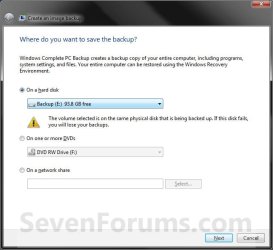
5. Select the location to where you would like to save the backup image at, and click on the Next button. (See screenshot below)
NOTE: See the Warning box at the top of the tutorial. Only the Windows 7 Professional, Ultimate, and Enterprise editions can backup to a network location.
Step2.jpg
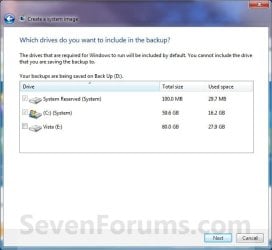
6. If available, check any additional hard drives or partitions (ex: Vista) that you would like to include in the backup image with the Windows 7 (System and C: ) partition or hard drive, and click on the Next button. (See screenshot below)
NOTE: See the WARNING box at the top of the tutorial. If you do not want to add any additional hard drives or partitions, then just leave the others unchecked. You will not see this, if you do not have any other OS installed other than Windows 7.
Step3.jpg
7. Click on the Start backup button. (See screenshot below)
Step4.jpg
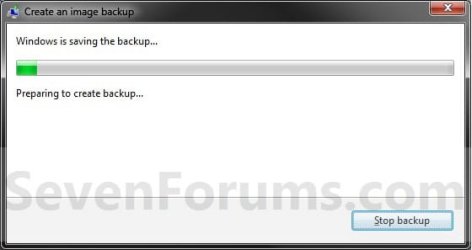
8. You will now see this window. (See screenshot below)
NOTE: If you wish to stop creating the backup image during this point, click on the Stop backup, Stop, and Close buttons.
Step5.jpg
9. When it is finished you will see this create a System Repair disc pop-up window. Click on No. (See screenshot below)
NOTE: For how to always hide or show this message, see this tutorial.
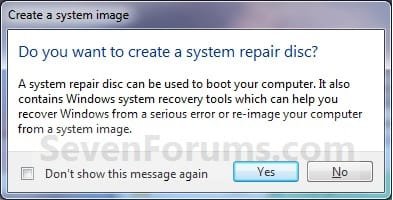
Step7.jpg
10. Click on the Close button. (See screenshot below)
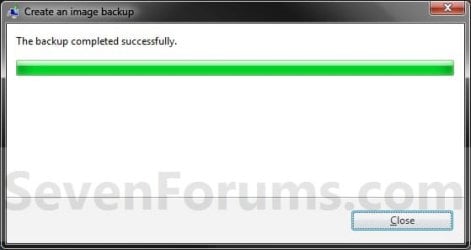
Step8.jpg
11. Close the Backup and Restore window. (See screenshot below step 3)
That's it,
Shawn


Last edited:
Hello Jdop, and welcome to Seven Forums.

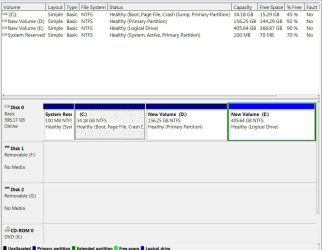
Could you post a screenshot of your Disk Management window showing your drive layout? This can help determine what may be happening better. :)
 

My Computer

Computer type
PC/Desktop
Computer Manufacturer/Model Number
Self built custom
OS
64-bit Windows 11 Pro for Workstations
CPU
Intel i7-8700K OC'd to 5 GHz
Motherboard
ASUS ROG Maximus XI Formula Z390
Memory
64 GB (4x16GB) G.SKILL TridentZ RGB DDR4 3600 MHz
Graphics Card(s)
ASUS ROG-STRIX-GTX1080TI-O11G-GAMING
Sound Card
Integrated
Monitor(s) Displays
2 x Samsung Odyssey G7 27"
Screen Resolution
2560x1440
Hard Drives
1TB Samsung 990 PRO M.2,
4TB Samsung 990 PRO PRO M.2,
TerraMaster F8 SSD Plus NAS
PSU
Seasonic Prime Titanium 850W
Case
Thermaltake Core P3
Cooling
Corsair Hydro H115i
Keyboard
Logitech wireless K800
Mouse
Logitech MX Master 4
Internet Speed
2 Gb/s Download and 100 Mb/s Upload
Antivirus
Malwarebyte Anti-Malware Premium
Browser
Google Chrome
Other Info
Logitech Z625 speaker system,
Logitech BRIO 4K Pro webcam,
HP Color LaserJet Pro MFP M477fdn,
APC SMART-UPS RT 1000 XL - SURT1000XLI,
Galaxy S23 Plus phone
Here you go.
 

Attachments

  • Clipboard01.jpg
    Clipboard01.jpg
    77.4 KB · Views: 373

My Computer

OS
windows 7 64bit
The best answer is to use a different app. Try Macrium Reflect free - it is much faster, more flexible, etc.

Macrium Reflect FREE Edition - Information and download

You do need to backup the 100mb system partition as well as C. If using Macrium, in Disk Management , rt click the 100mb partition and give it a drive letter. Tick both when selecting what to back up. It won't force you to backup D as well.

If you still want to use Windows to do it - try making sure nothing to do with Office is running. Look in Task Manager and stop it.

See if that helps.
 

My Computers

System One System Two

  • Computer type
    PC/Desktop
    OS
    7 X64
    CPU
    i5 8400
    Motherboard
    gigabyte b365m ds3h
    Memory
    2x8gb 3200mhz
    Hard Drives
    various
    PSU
    pure power 11 400w cm
    Case
    Coolermaster
    Cooling
    cryorig m9i
  • Computer type
    PC/Desktop
    OS
    7x64
    CPU
    g5400
    Motherboard
    ga b365m ds3h
    Memory
    8gb ddr4 2400
    PSU
    xfx pro 450w
I just attempted to create an Image, and it looks like it should have completed properly, BUT....

Whe I go look at the file size of the "WindowsImageBackup" Folder it reads 4.00 KB (4,096 bytes), Not the 50 GB I was expecting... BUT the available space on my Harddrive DID decrease by 50 GB... so what's up with this? Why can't I see the 50Gb in the folder properties? Is this normal? Did I sucessfully create an image????

Any explanation will be most graciously appreciated.

Confused,
CS
 

My Computer

OS
Windows 7 Pro RTM
CPU
Intel Core2Duo E6750 @ 2.66 GHz
Motherboard
ASUS P5KR
Memory
2x 1GB + 2x 500MB = 3GB GEIL DDR2
Graphics Card(s)
EVGA GeoForce 9500GT 1GB DDR2 PCI
Sound Card
Creative Sound Blaster X-Fi Xtreme Audio
Monitor(s) Displays
Samsung 22" LCD 2232GW 2ms
Screen Resolution
3000:1
Hard Drives
Internal:
Seagate 80 GB SATA/7200/32MB-O/S
Seagate 250 GB SATA/7200/32MB-Applications
2x Seagate 1 TB SATA/7200/32MB-Data
Externals (3x Cases):
Seagate 1 TB SATA/7200/32MB-Data
2x Seagate 500GB SATA/7200/32MB/RAID1-Backups
Maxtor 250GB/EDI-Old
PSU
Enermax 460
Case
Thermaltake Kandalf SL
Cooling
7x Internal Fans in Case
Keyboard
Microsoft Wired RT2300
Mouse
Logitech Trackman
Other Info
Internet Modem/Router -
Linksys ADSL2 Gateway 4-Port
AG241
Probably not ... follow SIW2's advice... ;)
 

My Computer

Computer type
PC/Desktop
Computer Manufacturer/Model Number
LENOVO K450 @3.0GHZ
OS
64-bit Windows 8.1 Pro
CPU
Core(TM) i5 CPU 4330 Haswell @ 3.20GHz
Motherboard
LENOVO
Memory
12.00 GB
Graphics Card(s)
Intel(R) HD Graphics
Sound Card
Intel HD integtrated
Monitor(s) Displays
HP 25' ISP Monitor
Screen Resolution
1900/1020
Hard Drives
(1) ST1000DM003-1CH162 (2) Generic STORAGE DEVICE USB Device (3) Generic STORAGE DEVICE USB Device
Internet Speed
100mb down/10mb up
I just attempted to create an Image, and it looks like it should have completed properly, BUT....

Whe I go look at the file size of the "WindowsImageBackup" Folder it reads 4.00 KB (4,096 bytes), Not the 50 GB I was expecting... BUT the available space on my Harddrive DID decrease by 50 GB... so what's up with this? Why can't I see the 50Gb in the folder properties? Is this normal? Did I sucessfully create an image????

Any explanation will be most graciously appreciated.

Confused,
CS

CS,

This folder will not show you it's complete folder size on the Properties page unless you have opened the folder and all subfolders and clicking Continue for each one to grant access. Afterwards, the size should show. :)

Hope this helps,
Shawn
 

My Computer

Computer type
PC/Desktop
Computer Manufacturer/Model Number
Self built custom
OS
64-bit Windows 11 Pro for Workstations
CPU
Intel i7-8700K OC'd to 5 GHz
Motherboard
ASUS ROG Maximus XI Formula Z390
Memory
64 GB (4x16GB) G.SKILL TridentZ RGB DDR4 3600 MHz
Graphics Card(s)
ASUS ROG-STRIX-GTX1080TI-O11G-GAMING
Sound Card
Integrated
Monitor(s) Displays
2 x Samsung Odyssey G7 27"
Screen Resolution
2560x1440
Hard Drives
1TB Samsung 990 PRO M.2,
4TB Samsung 990 PRO PRO M.2,
TerraMaster F8 SSD Plus NAS
PSU
Seasonic Prime Titanium 850W
Case
Thermaltake Core P3
Cooling
Corsair Hydro H115i
Keyboard
Logitech wireless K800
Mouse
Logitech MX Master 4
Internet Speed
2 Gb/s Download and 100 Mb/s Upload
Antivirus
Malwarebyte Anti-Malware Premium
Browser
Google Chrome
Other Info
Logitech Z625 speaker system,
Logitech BRIO 4K Pro webcam,
HP Color LaserJet Pro MFP M477fdn,
APC SMART-UPS RT 1000 XL - SURT1000XLI,
Galaxy S23 Plus phone
CS,

This folder will not show you it's complete folder size on the Properties page unless you have opened the folder and all subfolders and clicking Continue for each one to grant access. Afterwards, the size should show. :)

Hope this helps,
Shawn

Thanks Shawn.... :D

50.4GB.. exactly what should be there.. Guess it works after all.

Happy Now,
CS
 

My Computer

OS
Windows 7 Pro RTM
CPU
Intel Core2Duo E6750 @ 2.66 GHz
Motherboard
ASUS P5KR
Memory
2x 1GB + 2x 500MB = 3GB GEIL DDR2
Graphics Card(s)
EVGA GeoForce 9500GT 1GB DDR2 PCI
Sound Card
Creative Sound Blaster X-Fi Xtreme Audio
Monitor(s) Displays
Samsung 22" LCD 2232GW 2ms
Screen Resolution
3000:1
Hard Drives
Internal:
Seagate 80 GB SATA/7200/32MB-O/S
Seagate 250 GB SATA/7200/32MB-Applications
2x Seagate 1 TB SATA/7200/32MB-Data
Externals (3x Cases):
Seagate 1 TB SATA/7200/32MB-Data
2x Seagate 500GB SATA/7200/32MB/RAID1-Backups
Maxtor 250GB/EDI-Old
PSU
Enermax 460
Case
Thermaltake Kandalf SL
Cooling
7x Internal Fans in Case
Keyboard
Microsoft Wired RT2300
Mouse
Logitech Trackman
Other Info
Internet Modem/Router -
Linksys ADSL2 Gateway 4-Port
AG241
You're welcome CS. It's just Windows way of protecting the backup by hiding it. :)
 

My Computer

Computer type
PC/Desktop
Computer Manufacturer/Model Number
Self built custom
OS
64-bit Windows 11 Pro for Workstations
CPU
Intel i7-8700K OC'd to 5 GHz
Motherboard
ASUS ROG Maximus XI Formula Z390
Memory
64 GB (4x16GB) G.SKILL TridentZ RGB DDR4 3600 MHz
Graphics Card(s)
ASUS ROG-STRIX-GTX1080TI-O11G-GAMING
Sound Card
Integrated
Monitor(s) Displays
2 x Samsung Odyssey G7 27"
Screen Resolution
2560x1440
Hard Drives
1TB Samsung 990 PRO M.2,
4TB Samsung 990 PRO PRO M.2,
TerraMaster F8 SSD Plus NAS
PSU
Seasonic Prime Titanium 850W
Case
Thermaltake Core P3
Cooling
Corsair Hydro H115i
Keyboard
Logitech wireless K800
Mouse
Logitech MX Master 4
Internet Speed
2 Gb/s Download and 100 Mb/s Upload
Antivirus
Malwarebyte Anti-Malware Premium
Browser
Google Chrome
Other Info
Logitech Z625 speaker system,
Logitech BRIO 4K Pro webcam,
HP Color LaserJet Pro MFP M477fdn,
APC SMART-UPS RT 1000 XL - SURT1000XLI,
Galaxy S23 Plus phone
That's OK, thanks anyway and if you do find a way let me know. Here is the screen I have.
Why can't you disconnect the Vista drive until you've made the backup then connect it back?
 

My Computer

Computer Manufacturer/Model Number
home built
OS
Windows 7 Professional x64
CPU
AMD Athlon 64 X2 6000 3.1GHz
Motherboard
Asus M3A78-EM
Memory
G.SKILL 4GB (2 x 2GB) 240-Pin DDR2 SDRAM DDR2 800 (PC2 6400)
Graphics Card(s)
ATI Radeon HD4350 512mb
Sound Card
on board
Monitor(s) Displays
Samsung SyncMaster 206bw
Screen Resolution
1680x1050
Hard Drives
Seagate 250gb
WD 160gb
WD 250gb USB
Maxtor 40gb (backup)
PSU
Thermaltake PurePower 500watt
Case
Apevia
Cooling
2x120 case fans
Keyboard
wireless Logitech
Mouse
wireless Logitech
Internet Speed
DSL (best I can do in the boonies)
Other Info
Lord make my word sweet, in case I have to eat them later...
I do believe Mr Grim is using a 3rd party app. for his backup and imaging .

I am sure he will correct me if that's not the case.
 

My Computers

System One System Two

  • Computer type
    PC/Desktop
    OS
    7 X64
    CPU
    i5 8400
    Motherboard
    gigabyte b365m ds3h
    Memory
    2x8gb 3200mhz
    Hard Drives
    various
    PSU
    pure power 11 400w cm
    Case
    Coolermaster
    Cooling
    cryorig m9i
  • Computer type
    PC/Desktop
    OS
    7x64
    CPU
    g5400
    Motherboard
    ga b365m ds3h
    Memory
    8gb ddr4 2400
    PSU
    xfx pro 450w
Does this compress files before it creates the image?

Does this compress files before it creates the image? If so, anyone know at what ratio? Or does it tell you somewhere during usage how much space you need or how many DVDs you need?
 

My Computer

Computer Manufacturer/Model Number
Homebrew PC - "Alpha_Dawg"
OS
Windows 7 Ultimate 64 bit Steve Ballmer Signature Edition
CPU
Intel Core 2 Quad - Q9550 - 2.83GHz stock - OC'd to 3.6GHz
Motherboard
Gigabyte EP45-UD3P
Memory
4GB DDR2 800MHz (PC6400) OCZ Reaper
Graphics Card(s)
Nvidia GE Force 8800 GTS
Sound Card
Asus Xonar DX
Monitor(s) Displays
Samsung SyncMaster 2333HD
Screen Resolution
1920 x 1080
Hard Drives
WD Caviar Black 750GB - 7200RPM - 32MB cache
WD Caviar Green 1.5TB - 5400RPM - 64MB cache
WD Caviar Green 2.0TB - 5400RPM - 64MB cache
PSU
PC Power & Cooling Silencer 750
Case
Gigabyte 3D Aurora
Cooling
Case is Air - 5ea. 120mm fans (mix of Arctic and Xigmatec)
Keyboard
MS Natural Wireless KB
Mouse
MS Wireless Mouse
Internet Speed
50 mbps down/5 mbps up
Other Info
AVerMedia - AVerTVHD G2 Dual Tuner Card
Hello Darryl,

The system image is placed into a VHD (vitual hard drive) file, so there's only a small amount of compression. I'm not sure how much, but it's not much.

Hope this helps,
Shawn
 

My Computer

Computer type
PC/Desktop
Computer Manufacturer/Model Number
Self built custom
OS
64-bit Windows 11 Pro for Workstations
CPU
Intel i7-8700K OC'd to 5 GHz
Motherboard
ASUS ROG Maximus XI Formula Z390
Memory
64 GB (4x16GB) G.SKILL TridentZ RGB DDR4 3600 MHz
Graphics Card(s)
ASUS ROG-STRIX-GTX1080TI-O11G-GAMING
Sound Card
Integrated
Monitor(s) Displays
2 x Samsung Odyssey G7 27"
Screen Resolution
2560x1440
Hard Drives
1TB Samsung 990 PRO M.2,
4TB Samsung 990 PRO PRO M.2,
TerraMaster F8 SSD Plus NAS
PSU
Seasonic Prime Titanium 850W
Case
Thermaltake Core P3
Cooling
Corsair Hydro H115i
Keyboard
Logitech wireless K800
Mouse
Logitech MX Master 4
Internet Speed
2 Gb/s Download and 100 Mb/s Upload
Antivirus
Malwarebyte Anti-Malware Premium
Browser
Google Chrome
Other Info
Logitech Z625 speaker system,
Logitech BRIO 4K Pro webcam,
HP Color LaserJet Pro MFP M477fdn,
APC SMART-UPS RT 1000 XL - SURT1000XLI,
Galaxy S23 Plus phone
Hello Brink !

Thanks for your tutorial, very clear, no problem here.

Richwa
 
Last edited by a moderator:

My Computer

Computer Manufacturer/Model Number
DiTech
OS
Windows 7
CPU
Intel Core 2 Duo 8400
Motherboard
Asus P5WDG2 WS
Memory
4000
Graphics Card(s)
Nvidia Geforce 9600
Sound Card
Realtek om board
Monitor(s) Displays
Philips 19" LCD
Hard Drives
2 x Seagate 320 GB
Matrix-Raid
40 GB Raid-0
Rest Raid-1
You're welcome Richwa. :)
 

My Computer

Computer type
PC/Desktop
Computer Manufacturer/Model Number
Self built custom
OS
64-bit Windows 11 Pro for Workstations
CPU
Intel i7-8700K OC'd to 5 GHz
Motherboard
ASUS ROG Maximus XI Formula Z390
Memory
64 GB (4x16GB) G.SKILL TridentZ RGB DDR4 3600 MHz
Graphics Card(s)
ASUS ROG-STRIX-GTX1080TI-O11G-GAMING
Sound Card
Integrated
Monitor(s) Displays
2 x Samsung Odyssey G7 27"
Screen Resolution
2560x1440
Hard Drives
1TB Samsung 990 PRO M.2,
4TB Samsung 990 PRO PRO M.2,
TerraMaster F8 SSD Plus NAS
PSU
Seasonic Prime Titanium 850W
Case
Thermaltake Core P3
Cooling
Corsair Hydro H115i
Keyboard
Logitech wireless K800
Mouse
Logitech MX Master 4
Internet Speed
2 Gb/s Download and 100 Mb/s Upload
Antivirus
Malwarebyte Anti-Malware Premium
Browser
Google Chrome
Other Info
Logitech Z625 speaker system,
Logitech BRIO 4K Pro webcam,
HP Color LaserJet Pro MFP M477fdn,
APC SMART-UPS RT 1000 XL - SURT1000XLI,
Galaxy S23 Plus phone
Partitioning vista for 7 backup

Hi I have just put a new hard drive in for win7 :D so I can keep vista just incase now I am thinking of partitioning the vista drive to use as a backup for win7 :geek:. 2 things is this a good idea and how much space is needed next to how much in on the main win7 drive to do a backup:confused:
 

My Computer

Computer Manufacturer/Model Number
Home build
OS
Windows 7 Home Premium x64
CPU
AMD Athlon II 635 64 X4 2900
Motherboard
MSI MS-7640
Memory
8 GB
Graphics Card(s)
MSI NVIDIA GEFORCE GTX 460
Monitor(s) Displays
GATEWAY FPD1975W-UK
Screen Resolution
1920 X 1080
Hard Drives
1 TB SATA running
500 GB BACKUP DRIVE
PSU
550w
Case
ZALMAN Z7 plus
Cooling
4 Fans
Keyboard
Saitek Cyborg (keys are backlit I like to work in the dark)
Mouse
Microsoft wireless laser mouse 5000
Internet Speed
10 GB
I think you will find Windows Image backup demands the same amount of space on the target location as the used space on the source.

The image will ba alitt;le smaller than that, but not much.

It is a good idea to make an image of your Vista partition.

For better compression and flexiblity, you might look at using a free 3rd party alternative to the windows one.

http://www.sevenforums.com/software/31019-new-free-backup-app-paragon.html#post324736


Macrium Reflect FREE Edition - Information and download
 

My Computers

System One System Two

  • Computer type
    PC/Desktop
    OS
    7 X64
    CPU
    i5 8400
    Motherboard
    gigabyte b365m ds3h
    Memory
    2x8gb 3200mhz
    Hard Drives
    various
    PSU
    pure power 11 400w cm
    Case
    Coolermaster
    Cooling
    cryorig m9i
  • Computer type
    PC/Desktop
    OS
    7x64
    CPU
    g5400
    Motherboard
    ga b365m ds3h
    Memory
    8gb ddr4 2400
    PSU
    xfx pro 450w
Hello Darryl,

The system image is placed into a VHD (vitual hard drive) file, so there's only a small amount of compression. I'm not sure how much, but it's not much.

Hope this helps,
Shawn

Shawn:

If it stores the image as a vhd file, can that be opened by using Virtual PC?
 

My Computer

Computer Manufacturer/Model Number
Homebrew PC - "Alpha_Dawg"
OS
Windows 7 Ultimate 64 bit Steve Ballmer Signature Edition
CPU
Intel Core 2 Quad - Q9550 - 2.83GHz stock - OC'd to 3.6GHz
Motherboard
Gigabyte EP45-UD3P
Memory
4GB DDR2 800MHz (PC6400) OCZ Reaper
Graphics Card(s)
Nvidia GE Force 8800 GTS
Sound Card
Asus Xonar DX
Monitor(s) Displays
Samsung SyncMaster 2333HD
Screen Resolution
1920 x 1080
Hard Drives
WD Caviar Black 750GB - 7200RPM - 32MB cache
WD Caviar Green 1.5TB - 5400RPM - 64MB cache
WD Caviar Green 2.0TB - 5400RPM - 64MB cache
PSU
PC Power & Cooling Silencer 750
Case
Gigabyte 3D Aurora
Cooling
Case is Air - 5ea. 120mm fans (mix of Arctic and Xigmatec)
Keyboard
MS Natural Wireless KB
Mouse
MS Wireless Mouse
Internet Speed
50 mbps down/5 mbps up
Other Info
AVerMedia - AVerTVHD G2 Dual Tuner Card

My Computer

Computer type
PC/Desktop
Computer Manufacturer/Model Number
Self built custom
OS
64-bit Windows 11 Pro for Workstations
CPU
Intel i7-8700K OC'd to 5 GHz
Motherboard
ASUS ROG Maximus XI Formula Z390
Memory
64 GB (4x16GB) G.SKILL TridentZ RGB DDR4 3600 MHz
Graphics Card(s)
ASUS ROG-STRIX-GTX1080TI-O11G-GAMING
Sound Card
Integrated
Monitor(s) Displays
2 x Samsung Odyssey G7 27"
Screen Resolution
2560x1440
Hard Drives
1TB Samsung 990 PRO M.2,
4TB Samsung 990 PRO PRO M.2,
TerraMaster F8 SSD Plus NAS
PSU
Seasonic Prime Titanium 850W
Case
Thermaltake Core P3
Cooling
Corsair Hydro H115i
Keyboard
Logitech wireless K800
Mouse
Logitech MX Master 4
Internet Speed
2 Gb/s Download and 100 Mb/s Upload
Antivirus
Malwarebyte Anti-Malware Premium
Browser
Google Chrome
Other Info
Logitech Z625 speaker system,
Logitech BRIO 4K Pro webcam,
HP Color LaserJet Pro MFP M477fdn,
APC SMART-UPS RT 1000 XL - SURT1000XLI,
Galaxy S23 Plus phone
One thing I don't understand. What I'm seeing in the Backup & Restore center is that only the default data file folders are backed up along with the system image. It also does not backup program files since "these can be restored easily from the original disk" or something similar. I'm not quite understanding this. Does this mean the backup is not quite complete?

With Vista I was able to do a full backup, get a new hard drive, and restore the full backup (the entire C: drive -- I lost nothing, no matter what the folder and I never had to go searching for a manufacturer's disk). Is this doing the same thing as that backup did, or am I misunderstanding something?

Many thanks.
 

My Computer

OS
Win 7 HP64bit
Hello Ben, and welcome to Seven Forums.

I think you mean you are seeing what is in this tutorial instead of the tutorial on the first page of this thread.

A system image creates a clone of the hard drives or partitions that you select, while a normal backup only backups your user and system files instead of a clone.

Hope this helps,
Shawn
 

My Computer

Computer type
PC/Desktop
Computer Manufacturer/Model Number
Self built custom
OS
64-bit Windows 11 Pro for Workstations
CPU
Intel i7-8700K OC'd to 5 GHz
Motherboard
ASUS ROG Maximus XI Formula Z390
Memory
64 GB (4x16GB) G.SKILL TridentZ RGB DDR4 3600 MHz
Graphics Card(s)
ASUS ROG-STRIX-GTX1080TI-O11G-GAMING
Sound Card
Integrated
Monitor(s) Displays
2 x Samsung Odyssey G7 27"
Screen Resolution
2560x1440
Hard Drives
1TB Samsung 990 PRO M.2,
4TB Samsung 990 PRO PRO M.2,
TerraMaster F8 SSD Plus NAS
PSU
Seasonic Prime Titanium 850W
Case
Thermaltake Core P3
Cooling
Corsair Hydro H115i
Keyboard
Logitech wireless K800
Mouse
Logitech MX Master 4
Internet Speed
2 Gb/s Download and 100 Mb/s Upload
Antivirus
Malwarebyte Anti-Malware Premium
Browser
Google Chrome
Other Info
Logitech Z625 speaker system,
Logitech BRIO 4K Pro webcam,
HP Color LaserJet Pro MFP M477fdn,
APC SMART-UPS RT 1000 XL - SURT1000XLI,
Galaxy S23 Plus phone
Back
Top