
Backup - Make a "Create Incremental Backup" Shortcut

How to Make a "Create Incremental Backup" Shortcut in Vista, Windows 7, and Windows 8

   Information
This will show how to download a Create Incremental Backup shortcut that will instantly create a incremental backup of the last previously created Windows backup set, and show a progress bar in Vista, Windows 7, and Windows 8.

   Note
Each new backup is saved in this format:

drive letter:\computer name\Backup Set YYYY-MM-DD HHMMSS

Inside each new Backup Set folder will be Backup Files YYYY-MM-DD HHMMSS folders that are incremental backups of that specific backup set.

When this shortcut is used, it will instantly create a new Backup Files folder in the Backup Set folder for the last (newest) backup set created. This is the same as clicking on the Back up now button in "Backup and Restore" to manually create another backup of what you already had setup.
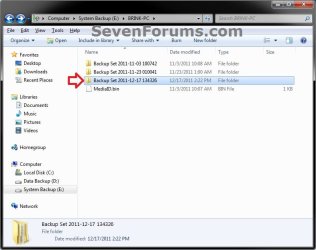
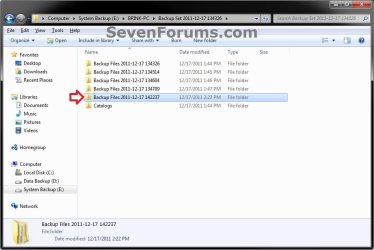
Backup_Set.jpg

Backup_Files.jpg
   Warning
To be able to use this shortcut:
  • You must be logged in as an administrator.

  • You would have needed to previously set up backup and created a Windows backup since this shortcut creates a new incremental backup of this backup set.

EXAMPLE: Progress bar
NOTE: This is the progress bar that you will see when you run the shortcut indicating that the backup is in progress and at what percentage complete. InProgress.jpg
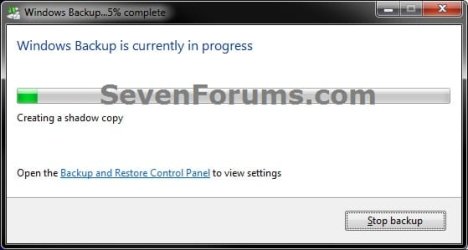
Complete.jpg


OPTION ONE

To Download and Setup the "Create Incremental Backup" Shortcut

1. Click on the Download button below to download the file below. Create_Incremental_Backup_for_Last_Backup_Set.zip


Download


2. Click on Save and save the .zip file to your desktop.

3. Open the downloaded .zip file, and extract (drag and drop) all of it's contents to your desktop.

4. Right click on the extracted Create Incremental Backup for Last Backup Set.vbs file, click on Properties, General tab, and click on the Unblock button if available.
NOTE: If you do not have a Unblock button under the General tab, then the file is already unblocked and you can continue on.

5. Right click on the now unblocked Create Incremental Backup for Last Backup Set.vbs file, and click on Cut.

6. Navigate to C:\Windows in Windows Explorer, then right click on a empty area of the window and click on Paste to move the .vbs file here.

7. If prompted by UAC, then click on Continue and Yes.

8. Right click on the extracted Create Incremental Backup shortcut, click on Properties, General tab, and click on the Unblock button if available.
NOTE: If you do not have a Unblock button under the General tab, then the file is already unblocked and you can continue on.

9. You can now assign a keyboard shortcut, place in Quick Launch, or move this Create Incremental Backup shortcut to where you like for easy use.


OPTION TWO

To Remove the "Create Incremental Backup" Shortcut

1. Delete the Create Incremental Backup shortcut.

2. In Windows Explorer, navigate to the .vbs file below, right click on it, and click on Delete. C:\Windows\Create Incremental Backup for Last Backup Set.vbs
3. If prompted by UAC, then click on Yes.
That's it,
Shawn


Attachments

Last edited:
Good One, Shawn !!! This Incremental Backup can save a lot of space and time .. Thank U (again) :)
 

My Computer

Computer type
Laptop
OS
Windows 7 Home Premium
WIN 7 Incremental backup refuses to comply

Shawn,
I hope this gets to you. I know this thread is somewhat dated, but it seems appropriate to my struggles.

I have created a backup of one of my partitions on the drive I designate for my data which is separate from the system partition. I have in the past created incremental backups via WIN7 BACKUP utility, but now it simply refuses & it only will do a full backup.

I have read all of the mixed threads about the effectiveness of the WIN 7 BACKUP utility & the 1 common theme that seems to hinder incremental backups is the file sharing of the WINDOWS MEDIA PLAYER. I disabled it & still seem to have trouble.

At this moment I double checked that the WINDOWS MEDIA PLAYER NETWORK SHARING service is disabled & rebooted my system. I have downloaded the tool Create_Incremental_Backup_for_Last_Backup_Set.zip. I am recreating a FULL backup to an external USB drive. I will then merge more files to the partition via WINMERGE utility & will try your tool, but I am pessimistic.

Is there anything else I should do? At this juncture I am about to abandon the WIN7 BACKUP utility & simply go to the CMD mode & use XCOPY.
 

My Computer

Computer type
PC/Desktop
OS
Windows 7 Enterprise 32 bit
Hello Husker,

If this shortcut doesn't do the trick for you, then you might try the Macrium Reflect Free program to see how it may work for you. It's a good backup program. :)
 

My Computer

Computer type
PC/Desktop
Computer Manufacturer/Model Number
Self built custom
OS
64-bit Windows 11 Pro for Workstations
CPU
Intel i7-8700K OC'd to 5 GHz
Motherboard
ASUS ROG Maximus XI Formula Z390
Memory
64 GB (4x16GB) G.SKILL TridentZ RGB DDR4 3600 MHz
Graphics Card(s)
ASUS ROG-STRIX-GTX1080TI-O11G-GAMING
Sound Card
Integrated
Monitor(s) Displays
2 x Samsung Odyssey G7 27"
Screen Resolution
2560x1440
Hard Drives
1TB Samsung 990 PRO M.2,
4TB Samsung 990 PRO PRO M.2,
TerraMaster F8 SSD Plus NAS
PSU
Seasonic Prime Titanium 850W
Case
Thermaltake Core P3
Cooling
Corsair Hydro H115i
Keyboard
Logitech wireless K800
Mouse
Logitech MX Master 4
Internet Speed
2 Gb/s Download and 100 Mb/s Upload
Antivirus
Malwarebyte Anti-Malware Premium
Browser
Google Chrome
Other Info
Logitech Z625 speaker system,
Logitech BRIO 4K Pro webcam,
HP Color LaserJet Pro MFP M477fdn,
APC SMART-UPS RT 1000 XL - SURT1000XLI,
Galaxy S23 Plus phone
Does the MACRIUM free version do incremental backups? I thought that it did not.
 

My Computer

Computer type
PC/Desktop
OS
Windows 7 Enterprise 32 bit

My Computer

Computer type
PC/Desktop
Computer Manufacturer/Model Number
Self built custom
OS
64-bit Windows 11 Pro for Workstations
CPU
Intel i7-8700K OC'd to 5 GHz
Motherboard
ASUS ROG Maximus XI Formula Z390
Memory
64 GB (4x16GB) G.SKILL TridentZ RGB DDR4 3600 MHz
Graphics Card(s)
ASUS ROG-STRIX-GTX1080TI-O11G-GAMING
Sound Card
Integrated
Monitor(s) Displays
2 x Samsung Odyssey G7 27"
Screen Resolution
2560x1440
Hard Drives
1TB Samsung 990 PRO M.2,
4TB Samsung 990 PRO PRO M.2,
TerraMaster F8 SSD Plus NAS
PSU
Seasonic Prime Titanium 850W
Case
Thermaltake Core P3
Cooling
Corsair Hydro H115i
Keyboard
Logitech wireless K800
Mouse
Logitech MX Master 4
Internet Speed
2 Gb/s Download and 100 Mb/s Upload
Antivirus
Malwarebyte Anti-Malware Premium
Browser
Google Chrome
Other Info
Logitech Z625 speaker system,
Logitech BRIO 4K Pro webcam,
HP Color LaserJet Pro MFP M477fdn,
APC SMART-UPS RT 1000 XL - SURT1000XLI,
Galaxy S23 Plus phone
I tried a simple experiment by copying one of the subdirectories or subfolder & pasted it on the root directory of that partition. I then used your incremental backup tool, and the incremental backup worked. I will now try to merge updated files from another partition to this one & repeat. I will get back to you with the results.
 

My Computer

Computer type
PC/Desktop
OS
Windows 7 Enterprise 32 bit
Good news so far. :)
 

My Computer

Computer type
PC/Desktop
Computer Manufacturer/Model Number
Self built custom
OS
64-bit Windows 11 Pro for Workstations
CPU
Intel i7-8700K OC'd to 5 GHz
Motherboard
ASUS ROG Maximus XI Formula Z390
Memory
64 GB (4x16GB) G.SKILL TridentZ RGB DDR4 3600 MHz
Graphics Card(s)
ASUS ROG-STRIX-GTX1080TI-O11G-GAMING
Sound Card
Integrated
Monitor(s) Displays
2 x Samsung Odyssey G7 27"
Screen Resolution
2560x1440
Hard Drives
1TB Samsung 990 PRO M.2,
4TB Samsung 990 PRO PRO M.2,
TerraMaster F8 SSD Plus NAS
PSU
Seasonic Prime Titanium 850W
Case
Thermaltake Core P3
Cooling
Corsair Hydro H115i
Keyboard
Logitech wireless K800
Mouse
Logitech MX Master 4
Internet Speed
2 Gb/s Download and 100 Mb/s Upload
Antivirus
Malwarebyte Anti-Malware Premium
Browser
Google Chrome
Other Info
Logitech Z625 speaker system,
Logitech BRIO 4K Pro webcam,
HP Color LaserJet Pro MFP M477fdn,
APC SMART-UPS RT 1000 XL - SURT1000XLI,
Galaxy S23 Plus phone
So far it is working. Is there something different about your tool as opposed to running the backup straight from the WIN7 BACKUP utility? The WIN7 BACKUP utility pops up after I run the tool you supplied to this tutorial.
 

My Computer

Computer type
PC/Desktop
OS
Windows 7 Enterprise 32 bit
Hmm, I am not really a friend of incrementals. They are much more difficult to manage than full images. Today you can buy a 2TB USB3 external disk for $69, so space should not be a real argument. And time neither because you can continue working whilst the image is being written.

Today I setup Macrium for a friend of my wife. We took the first image of all partitions (but not the recovery partition) of this new 8.1 system. It took exactly 4.4 minutes. Write speeds hovered between 1.1 and 1.2Gb/sec. And that on a $299 desktop upgraded with a $60 SSD.

But if you want to make the differential images as suggested by Shawn, you can make your first image with this command:

wbadmin start backup -backupTarget:X: -include:C: -AllCritical -quiet

You have to replace "X" with the volume letter of your backup device. All partitions relevant for proper operations will be includded (AllCritical).
 

My Computer

Computer Manufacturer/Model Number
HP, Dell, Gateway, Toshiba - 4 laptops and 2 desktops
OS
Vista, Windows7, Mint Mate, Zorin, Windows 8
CPU
from 1.6GHz Duo to i7
Monitor(s) Displays
2x HP w2207
Hard Drives
5x HDD, 7x SSD, 12x Externals
Keyboard
with trackball - no mices
Mouse
Trackball mice
Internet Speed
DSL 6000
Hmm, I am not really a friend of incrementals. They are much more difficult to manage than full images. Today you can buy a 2TB USB3 external disk for $69, so space should not be a real argument. And time neither because you can continue working whilst the image is being written.

Today I setup Macrium for a friend of my wife. We took the first image of all partitions (but not the recovery partition) of this new 8.1 system. It took exactly 4.4 minutes. Write speeds hovered between 1.1 and 1.2Gb/sec. And that on a $299 desktop upgraded with a $60 SSD.

But if you want to make the differential images as suggested by Shawn, you can make your first image with this command:

wbadmin start backup -backupTarget:X: -include:C: -AllCritical -quiet

You have to replace "X" with the volume letter of your backup device. All partitions relevant for proper operations will be includded (AllCritical).
Thanks for the input. However, if I wanted to do monthly backups I think a full backup will still fill up the 2 TB disk within the year if I was steadfast on maintaining the archive by not deleting older backups.

Anyway, is the WIN7 BACKUP utility that fickle? Also, does the tool which Shawn posted utilize the command you included above?

Thanks
 

My Computer

Computer type
PC/Desktop
OS
Windows 7 Enterprise 32 bit
Nah, a 2TB disk goes a long way. I have a very 'old' installation with a LOT of programs and my images are around 21GBs. I think you would never keep enough images to fill that 2TB disk.

Win7 imaging is touchy. It has very little function and often fails to recover. If you are careful, I guess it is OK. But Macrium is a lot more rugged and it takes a lot to make it fail. In fact I am unaware of a single case where it failed.

The other question I cannot answer.
 

My Computer

Computer Manufacturer/Model Number
HP, Dell, Gateway, Toshiba - 4 laptops and 2 desktops
OS
Vista, Windows7, Mint Mate, Zorin, Windows 8
CPU
from 1.6GHz Duo to i7
Monitor(s) Displays
2x HP w2207
Hard Drives
5x HDD, 7x SSD, 12x Externals
Keyboard
with trackball - no mices
Mouse
Trackball mice
Internet Speed
DSL 6000
Nah, a 2TB disk goes a long way. I have a very 'old' installation with a LOT of programs and my images are around 21GBs. I think you would never keep enough images to fill that 2TB disk.

Win7 imaging is touchy. It has very little function and often fails to recover. If you are careful, I guess it is OK. But Macrium is a lot more rugged and it takes a lot to make it fail. In fact I am unaware of a single case where it failed.

The other question I cannot answer.
Yeh, I actually tried MACRIUM on an old XP laptop since XP did not have a native imaging utility. I created the system image & restored it without much difficulty. The other thing is that it was fast going both ways, unlike the WIN7 utility.

One would think that a 3rd party software which is developed to handle different types of operating systems would be robust, but would not outperform the native utilities. In other words, I would expect that the WIN7 BACKUP utility which is customized specifically for WIN7 systems would not work on other systems, but certainly would NOT FAIL on a WIN7 system. or be outperformed by a 3rd party package.
 

My Computer

Computer type
PC/Desktop
OS
Windows 7 Enterprise 32 bit
Win7 imaging is touchy. It has very little function and often fails to recover. If you are careful, I guess it is OK. But Macrium is a lot more rugged and it takes a lot to make it fail. In fact I am unaware of a single case where it failed.
Well, I did get WIN7 to successfully back up incrementally & then I did a restore to verify the backup based on the statement above from WHS. It did restore, but I noticed it restored everything, even directories which I either moved to a new location or deleted. For example, I relocated my antivirus installer files & logs prior to my last incremental backup, and the restored image contains that subdirectory in both the old location & the new.

Will 3rd party software such a MACRIUM or AOMEI do the same thing or are they more ASTUTE than WIN7?
 

My Computer

Computer type
PC/Desktop
OS
Windows 7 Enterprise 32 bit
If you deleted or moved stuff after the image was taken, then a restore of that image will bring the stuff back. A restore will always give you the state of your system from the time when the image was taken. That is common to all imaging programs.
 

My Computer

Computer Manufacturer/Model Number
HP, Dell, Gateway, Toshiba - 4 laptops and 2 desktops
OS
Vista, Windows7, Mint Mate, Zorin, Windows 8
CPU
from 1.6GHz Duo to i7
Monitor(s) Displays
2x HP w2207
Hard Drives
5x HDD, 7x SSD, 12x Externals
Keyboard
with trackball - no mices
Mouse
Trackball mice
Internet Speed
DSL 6000
If you deleted or moved stuff after the image was taken, then a restore of that image will bring the stuff back. A restore will always give you the state of your system from the time when the image was taken. That is common to all imaging programs.
Let me clarify. I first did a full backup in order to be able to do an incremental backup. After I did the full backup I then moved & deleted various subdirectories, and then did an incremental backup with the anticipation that the incremental backup would recognize this.

When I did the restoration I selected the incremental backup file set, not the full backup set, and after the restore process the restored image contains the moved subdirectory in both the old & new locations as well as the deleted subdirectories.

This was done via WIN7 BACKUP & RESTORE utility. So it appears that utility restores everything whether moved or deleted. So does MACRIUM & AOMEI packages behave in the same fashion or are they more sophisticated to recognize these types of changes?
 

My Computer

Computer type
PC/Desktop
OS
Windows 7 Enterprise 32 bit
That is strange. Even Windows imaging should not have restored the deleted and moved items when you restored from the incremental.

I do not know how Macrium or Aomei handle that in case if incrementals that I never use - for good reasons. I only use the free Macrium which does not have incrementals and AOMEI gave me too much trouble. So I deleted it.

In any case - I really recommend to make only full backups. They are much easier to manage and more reliable.
 

My Computer

Computer Manufacturer/Model Number
HP, Dell, Gateway, Toshiba - 4 laptops and 2 desktops
OS
Vista, Windows7, Mint Mate, Zorin, Windows 8
CPU
from 1.6GHz Duo to i7
Monitor(s) Displays
2x HP w2207
Hard Drives
5x HDD, 7x SSD, 12x Externals
Keyboard
with trackball - no mices
Mouse
Trackball mice
Internet Speed
DSL 6000
That is strange. Even Windows imaging should not have restored the deleted and moved items when you restored from the incremental.

I do not know how Macrium or Aomei handle that in case if incrementals that I never use - for good reasons. I only use the free Macrium which does not have incrementals and AOMEI gave me too much trouble. So I deleted it.

In any case - I really recommend to make only full backups. They are much easier to manage and more reliable.
I guess I now understand why you avoid incremental backups. Does Shawn have any insight on this matter?

In fact I did an experiment with of a single USER directories that way the backup & restore iteration times are shorter. I did a full backup & afterwards shuffled subdirectories around to different locations & then did an incremental backup. Restoring from the incremental backup results in subdirectories located in old & both locations.

Maybe someone can duplicate this behavior & come up with some resolution? Meanwhile, I will experiment with AOMEI to see what it does.
 
Last edited:

My Computer

Computer type
PC/Desktop
OS
Windows 7 Enterprise 32 bit
As I said, if you go with incrementals you are looking for trouble. Make full images, that's safe. And use the free Macrium. That has proven since years to be the most reliable plus it has a lot of options and is fast. Yesterday I made a full system image (all partitions) of a new W8.1 installation in 4.4 minutes.

http://www.sevenforums.com/tutorials/73828-imaging-free-macrium.html?ltr=I
 

My Computer

Computer Manufacturer/Model Number
HP, Dell, Gateway, Toshiba - 4 laptops and 2 desktops
OS
Vista, Windows7, Mint Mate, Zorin, Windows 8
CPU
from 1.6GHz Duo to i7
Monitor(s) Displays
2x HP w2207
Hard Drives
5x HDD, 7x SSD, 12x Externals
Keyboard
with trackball - no mices
Mouse
Trackball mice
Internet Speed
DSL 6000
As I said, if you go with incrementals you are looking for trouble. Make full images, that's safe. And use the free Macrium. That has proven since years to be the most reliable plus it has a lot of options and is fast. Yesterday I made a full system image (all partitions) of a new W8.1 installation in 4.4 minutes.

http://www.sevenforums.com/tutorials/73828-imaging-free-macrium.html?ltr=I
WHS has given his advice & I think I understand why, but I experimented with AOMEI & it did recognize that I moved subdirectories & restored them to the locations which I specified prior to doing the INCREMENTAL backup. Why does the WIN7 utility not do this?

AOMEI was suggested by BRINK. It would be nice if he weighed in with his opinion & perhaps elaborate on why INCREMENTAL backups are trouble.
 

My Computer

Computer type
PC/Desktop
OS
Windows 7 Enterprise 32 bit
Back
Top