Solved Backup on a drive that doesn't exist

sverne

New member
Member
VIP
Local time
10:26 PM
Messages
166
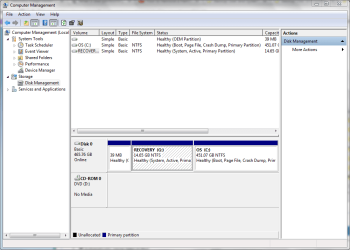
I recently lost my videos--and luckily have a Seagate external HD which recovered them. I would like to have a smaller backup location on my HD for my files so I don't have to resort to Seagate first.
From reading Brink's directions on "backup user and system files", one needs a letter drive different than C.
Does this require partitioning? If so, do I shrink volume on the C drive, format, and assign new letter?
 

Attachments

  • Capture.PNG
    Capture.PNG
    30.4 KB · Views: 2

My Computer

Computer type
PC/Desktop
Computer Manufacturer/Model Number
Lenovo
OS
win7 64bit Pro
CPU
2.4
Memory
8G
Hard Drives
1T SSD
How much do you need to backup? The simple and safest is to use Google drive or one drive that gives you over 15 gig of backup. You simply save to a folder on your HD and it backs up to the cloud on its own then you can restore anywhere in the world
 

My Computer

Computer type
PC/Desktop
OS
win 8 32 bit
Thanks for the info, but I rather have a physical backup. Is partition a feasible option for me?
 

My Computer

Computer type
PC/Desktop
Computer Manufacturer/Model Number
Lenovo
OS
win7 64bit Pro
CPU
2.4
Memory
8G
Hard Drives
1T SSD
Thanks for the info, but I rather have a physical backup. Is partition a feasible option for me?

First, I want to commend you for having the wisdom to have a backup of your data.

While there is nothing wrong with having backups in the cloud when using a good, paid cloud backup service (other than expense and long upload and download times), Google drive is not a good place for a backup. It's merely storage, which is not the same as a cloud backup service, such as Carbonite, Crashplan, or Backblaze. Free cloud storage is notorious for disappearing with little or no warning and is rarely secure from hacking. Google is notorious for discontinuing free services and is even more notorious for snooping. I trust Google Drive as far as I can spit upwind in a stiff breeze.

You are also wise to want a second backup. However, if you are talking about partitioning an internal drive to use for a backup, then the answer is no, it's not feasible (partitioning as you can suggest for convenience purposes can be done, although using folders instead of partitioning is more practical, but it would not be a true backup). If the drive inside the computer dies, then your backup partition will also die with it, leaving you with only the Seagate to recover from.

Any drive, including a backup drive, is subject to sudden, irrecoverable failure at any time without warning. Also, drive failure is not the only way one can lose data. User error (such as accidental deletion), malware, hacking, theft, fire, natural disaster, etc. can all cause data loss.

For data to be safe, it needs to exist in three, physically separate locations, such as on the computer, on an onsite backup, and on an offsite backup.

You are already halfway to having a solid backup plan. I recommend you get a second, external drive, replicate the backup on it, then store it offsite, such as in a locked drawer or locker at school or work, at a trusted relative's, neighbor's or friend's home, a storage facility, or in a safe deposit box at your bank (I use the latter). That way, if the worst should happen and you lose both your original data and the onsite backup, then you will have the offsite backup to fall back on.

 

My Computer

Computer type
PC/Desktop
Computer Manufacturer/Model Number
Custom Build
OS
Win 7 Ultimate 64 bit
CPU
Intel i7-3930K
Motherboard
ASUS P9X79 WS
Memory
Kingston HyperX Genesis 32GB Kit (8x4GB Modules) 1600MHz DDR
Graphics Card(s)
MSI R7850 Twin Frozr 2GD5/OC Radeon HD 7850 2GB 256-bit GDDR
Sound Card
Asus Xonar Essence STX
Monitor(s) Displays
3x Asus VG248QE 24", Vizio 32" TV
Screen Resolution
1920 x 1080, ?
Hard Drives
Samsung 128GB 840 Pro SSD (1),
Samsung 4TB 850 EVO SSDs (4)
Samsung 4TB 850 EVO SSDs (16) external backup drives used in 2.5" hot swap bays in the computer.
PSU
Corsair HX750w
Case
Antec Two Hundred v2 (modified)
Cooling
Cooler Master GeminII S524 120mm (fan replaced with a 140mm)
Keyboard
Logitech G510s
Mouse
Logitech M525 (two in use)
Internet Speed
=< 32Mbps down, 8Mbps up
Antivirus
AVAST!, MBAM, SAS, Spybot S&D (all but MBAM free) Glary Util
Browser
IE11
Other Info
LSI 9211-8i HBA card (8 SATA III ports), 2.5" & 3.5" Hot Swap Bays, HooToo HT-CR001 PCI-E to USB 3.0 Internal Hub + 6 Slot Card Reader, and LG Model CH12LS28 BD-ROM Optical Drive. Also, ScanSnap S1500 ADF duplexing scanner, Canon 9000F flat bed scanner, Corsair SP2500 2.1 speakers, Samsung CLP 415nw laser color printer, Cyberpower PP2200SW UPS
Yes, the external is the fail-proof method. I just wanted a faster backup in case of deletions, etc, without relying on it solely. Also, in case of an HD failure, one partition theoretically can still work.
Agree with you about google, and just started using their gmail in case yahoo disappears.
 

My Computer

Computer type
PC/Desktop
Computer Manufacturer/Model Number
Lenovo
OS
win7 64bit Pro
CPU
2.4
Memory
8G
Hard Drives
1T SSD
Yes, the external is the fail-proof method. I just wanted a faster backup in case of deletions, etc, without relying on it solely. Also, in case of an HD failure, one partition theoretically can still work.
Agree with you about google, and just started using their gmail in case yahoo disappears.

Theoretically but highly unlikely. There is a better chance of snow in Phoenix, AZ in June.

For accidental deletions or just plain convenience, you can keep a copy of your data on the internal drive but I do not feel partitioning is the way to go. In most cases, partitioning is an extremely inefficient way to organize data since they are fixed in size whereas a folder will only occupy the amount storage space needed to accommodate the data inside (up to the maximum available space on the drive, of course). The only time I recommend partitioning is to segregate System folders and files from data folders and files so different methods of backing up can be used for increased efficiency (however, that is a topic for another thread). I keep my backup images of my little C: drive (which has only the OS and programs on it; my data is on other internal drives) in a folder on one of my data drives in my computer strictly for convenience. That way, I don't have to horse around with digging out an external backup drive whenever I want to image or restore my C: drive. However, I also have both onsite and offsite backups of each of my data drives so the images in that folder inside my computer winds up being backed up twice when I backup the internal drive the folder resides in.

Rather than going to the hassle of shrinking your C: partition just so you can stash second copies of your data inside the computer, I feel you would be better off just stashing the second copies into a new folder, keeping in mind that it will not be a true backup and is merely for convenience. However, you still should have both an onsite and offsite backup for your data to be reasonably safe. Keep in mid that any drive, internal or an external backup drive, can fail at anytime so it is wise to have a backup of the backup rather than just one backup (I go to the extreme of having backups of both my onsite and offsite backups—that's four backup drives for each internal data drive plus a Carbonite account—but that's way overkill for most people). Having both an onsite and an offsite backup is enough for most people (it's also less expensive and less hassle).
 

My Computer

Computer type
PC/Desktop
Computer Manufacturer/Model Number
Custom Build
OS
Win 7 Ultimate 64 bit
CPU
Intel i7-3930K
Motherboard
ASUS P9X79 WS
Memory
Kingston HyperX Genesis 32GB Kit (8x4GB Modules) 1600MHz DDR
Graphics Card(s)
MSI R7850 Twin Frozr 2GD5/OC Radeon HD 7850 2GB 256-bit GDDR
Sound Card
Asus Xonar Essence STX
Monitor(s) Displays
3x Asus VG248QE 24", Vizio 32" TV
Screen Resolution
1920 x 1080, ?
Hard Drives
Samsung 128GB 840 Pro SSD (1),
Samsung 4TB 850 EVO SSDs (4)
Samsung 4TB 850 EVO SSDs (16) external backup drives used in 2.5" hot swap bays in the computer.
PSU
Corsair HX750w
Case
Antec Two Hundred v2 (modified)
Cooling
Cooler Master GeminII S524 120mm (fan replaced with a 140mm)
Keyboard
Logitech G510s
Mouse
Logitech M525 (two in use)
Internet Speed
=< 32Mbps down, 8Mbps up
Antivirus
AVAST!, MBAM, SAS, Spybot S&D (all but MBAM free) Glary Util
Browser
IE11
Other Info
LSI 9211-8i HBA card (8 SATA III ports), 2.5" & 3.5" Hot Swap Bays, HooToo HT-CR001 PCI-E to USB 3.0 Internal Hub + 6 Slot Card Reader, and LG Model CH12LS28 BD-ROM Optical Drive. Also, ScanSnap S1500 ADF duplexing scanner, Canon 9000F flat bed scanner, Corsair SP2500 2.1 speakers, Samsung CLP 415nw laser color printer, Cyberpower PP2200SW UPS
"...Also, in case of an HD failure, one partition theoretically can still work..." Quite often, if the hard-drive is experiencing physical failure or a certain logical failure, then all the partitions fail with it. If a partition survives, what happens if it is the "wrong" partition that survived?
 

My Computer

Computer type
PC/Desktop
Computer Manufacturer/Model Number
Antec desktop; Acer Aspire laptops
OS
Windows 7 Professional 64-bit
CPU
Desktop i5; Acers i5 & i7
Memory
desktop 16GB; 1 Acer 8GB & 1 Acer 16GB
Hard Drives
1TB split into 2 equal partitions [OS and data] usable by RJS
Internet Speed
AT&T DSL
Browser
FF, GChrome, msIE
Other Info
Windows 7 Firewall, Emsisoft AM/AV, MSE [scan-only], SpywareBlaster, Ruiware/BillP combine
Back
Top