
Bad sector in the hard disk

neouser

New member
Local time
6:58 PM
Messages
6
Hi All,
I am having Dell Inspiron 1510 with Windows 7 64bit. For the last few months I am having issues with my OS like:
1. I find "The driver detected a controller error on \Device\Ide\IdePort0" error logged into the Event Viewer almost everyday
2. Almost once in a month my system goes to the "Startup Repair" mode and after some diagnostics it says it was unable to fix the error automatically. I tried to restore it to a previous point but I found a error that No OS found.

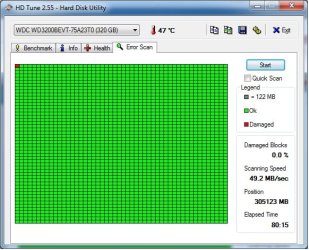
In the last 4 months, I had to re-install OS 4 - 5 times. Yesterday I ran HD Tune on my hard disk which shows a bad sector (screen shot attached).

Is it the bad sector which is causing above mentioned 2 problems? If so how can I get rid of it?
 

Attachments
  • HD Tune Diagnostic.jpg
    HD Tune Diagnostic.jpg
    67.8 KB · Views: 19

My Computer My Computer

Computer type
Laptop
Computer Manufacturer/Model Number
Dell
OS
Windows 7 Ultimate 64bit
CPU
i3
Motherboard
Intel
Memory
3 GB
Hard Drives
320 GB Western Digital

My Computer My Computer

OS
Windows 7 64bit
Hi Saurabh,

Thanks for your reply. I will try the on-borad "Hardware Diagnostics" and let you know the result.
I have already ran Disc Check for all of the logical partitions using drive's property page but could not find any problem.

Bad sector shown in the image attached is at the very beginning of the hard disk. Can it cause any problem to MBR or the area where the system files are stored because I have read somewhere that MBR and system files are usually located at the beginning of the hdd.

Also, can you please suggest if the first error mentioned in my first post has anything to do with the bad sector?

Thanks
 

My Computer My Computer

Computer type
Laptop
Computer Manufacturer/Model Number
Dell
OS
Windows 7 Ultimate 64bit
CPU
i3
Motherboard
Intel
Memory
3 GB
Hard Drives
320 GB Western Digital
I ran the Pre Boot System Assessment (PSA) test through BIOS as suggested by Saurabh above. All devices passed the test except the Hard drive. Error is below:

Hard Drive - DST short test


Test Result - Fail


Error Code - 0146


Msg - Error Code 2000-0146


Msg - Hard drive 0 - self test log contains previous error(s).

Could anyone please let me know what exactly the problem here?
 

My Computer My Computer

Computer type
Laptop
Computer Manufacturer/Model Number
Dell
OS
Windows 7 Ultimate 64bit
CPU
i3
Motherboard
Intel
Memory
3 GB
Hard Drives
320 GB Western Digital
Hi neouser,

The 'error code' 2000-0146 may occur either due to 'software corruption' or due to a 'bad hard drive'. Basic diagnostics (Pre-Boot System Assessment) does not test the 'hard drive' if this error is indicated. I recommend you to run the DST-Short / Long test for more accurate diagnosis. DST-Short (or DST-Long) from '32bit Dell Diagnostics' may help us to determine if the previous error has been corrected.

You may also run the 'hardware diagnostics' again and continue testing even after you reach the 2000-0146 error message. You may get prompted with the following options:
- Select 'Test System'
- Select 'Custom Test'
- Drill down to the hard drive in question, select 'SMART Short Self Test'
- Click 'Run Tests'

Please refer to the following web article for detailed information on '32 bit Dell Diagnostics utility': How to Run the Dell 32-bit Diagnostics Utility

If the 'advanced diagnostics' indicate a 'hard drive' failure, you may want to get the 'drive replaced'; if still in warranty, you may be entitled for free 'part replacement'. However, if no 'hardware failure' is detected, you may try a fresh 'operating system re installation' to see if that works. I strongly recommend you to backup the data immediately; this status may lead to 'data loss'.

I realize that you've already re-installed 'Windows' a few times; would like to know if you used any special tool/utility that you used for formatting. Was it the default 'Windows formatting? Is there anything else (debugging script, etc) that you've tried to fix the 'bad sectors'? You referred to the possibility of 'Boot MBR files' at a location with 'bad sectors' on the drive. Not sure, but it sounds possible.

Do reply with the findings. I would be glad to assist.


My Computer My Computer

OS
Windows 7 64bit
Hi Saurabh,

I will surely try "32bit Dell Diagnostics" and share you the result.

Before installing Windows 7 Ultimate 64bit, I had installed Windows 7 Ultimate 32bit SP1 but could not found compatible graphics driver for 32bit OS on dell website, so I have downloaded compatible drvier from intel's website and installed it. After few days of fine working, my system started freezing. I checked the event viewer and found the error "The driver detected a controller error on \Device\Ide\IdePort0".
To fix this I have re-installed the OS, this time Windows 7 Ultimate 64bit and downloaded the compatible graphics driver from dell website. Since then I am facing the OS crash issue.

Also I have not used any tool/utility for formatting. It was default windows formatting.
I have not tried any tool/script to fix the bad sectors.

Thanks
 

My Computer My Computer

Computer type
Laptop
Computer Manufacturer/Model Number
Dell
OS
Windows 7 Ultimate 64bit
CPU
i3
Motherboard
Intel
Memory
3 GB
Hard Drives
320 GB Western Digital
Hi neouser,

Thank you for the response.

The default 'Windows re-installation' performs a basic level format; other tools may prove beneficial to mask the bad sectors.
Let us wait for the 32 bit Diagnostic test results. It takes the 'bad sectors' into consideration due the analysis; may produce some useful information.

Do reply with the findings; will take it forward from there.


My Computer My Computer

OS
Windows 7 64bit
Hi Saurabh,

Yesterday when I ran the PSA, I didn't find the option to run "32bit Dell Diagnostic" tool. Right now I was searching on the internet "how to run 32bit dell diagnostic" tool, I found out that to run this diagnostic test it needs utility partition on my hard drive created by dell when I purchased my computer.

Could you please confirm whether this is correct? Because I don't have that utility partition on my hard drive and in that case how would I run the diagnostic?

Thanks
 

My Computer My Computer

Computer type
Laptop
Computer Manufacturer/Model Number
Dell
OS
Windows 7 Ultimate 64bit
CPU
i3
Motherboard
Intel
Memory
3 GB
Hard Drives
320 GB Western Digital
Hi All,
I am having Dell Inspiron 1510 with Windows 7 64bit. For the last few months I am having issues with my OS like:
1. I find "The driver detected a controller error on \Device\Ide\IdePort0" error logged into the Event Viewer almost everyday
2. Almost once in a month my system goes to the "Startup Repair" mode and after some diagnostics it says it was unable to fix the error automatically. I tried to restore it to a previous point but I found a error that No OS found.

In the last 4 months, I had to re-install OS 4 - 5 times. Yesterday I ran HD Tune on my hard disk which shows a bad sector (screen shot attached).

Is it the bad sector which is causing above mentioned 2 problems? If so how can I get rid of it?


Hi there
Look at the problem another way.

How much TIME and EFFORT has this cost you in the last few months with OS re-installs etc.

HDD's are CHEAP these days -- just Bin the old one, install the new one and carry on.
If you have any user data on the old HDD copy as much as you can on to another device or keep both disks in the system until you've completed the copy and then remove the old one.

You can get even several TB capacity HDD's cheaply now as people are switching in droves to SSD's - and changing disks is really easy anyway. If you have access to places where people are sending computers in to upgrade HDD's then it won't even cost you anything - just use one of the old HDD's.

Once you start getting defective sectors on an HDD it really isn't worth messing about with it any more -- just junk it. It WILL fail a lot more catastrophically sooner or later and you might then lose completely valuable data.

I certainly wouldn't for example want to re-rip 3,000 CD's etc.

Cheers
jimbo
 

My Computer My Computer

Computer type
PC/Desktop
Computer Manufacturer/Model Number
Custom built, several laptops HP/ASUS
OS
Linux CENTOS 7 / various Windows OS'es and servers
CPU
Intel i7 Intel i5
Memory
8GB, 16GB
Graphics Card(s)
On Motherboard
Sound Card
Realtek HD audio
Monitor(s) Displays
Apple Cinema display, Samsung LCD
Screen Resolution
1920 X 1080
Hard Drives
4 X 1TB SATA
Mouse
Toshiba wireless laser
Internet Speed
> 20MB up
Hi jimbo,

Thanks for the suggestion.
I would certainly change the HDD if I need to. But before doing that I just want to make sure that this problem is related to HDD only and not some other hardware issue.

And as far as valuable data is concerned, on the first day my laptop displayed a glitch, I had back up all my data in another external hdd.
 

My Computer My Computer

Computer type
Laptop
Computer Manufacturer/Model Number
Dell
OS
Windows 7 Ultimate 64bit
CPU
i3
Motherboard
Intel
Memory
3 GB
Hard Drives
320 GB Western Digital
Hi there
It's 99.999% unlikely -- if there are poor connections then the HDD won't work at all or give such messages like "This disk needs to be formatted before use".

Just remove it and put a new one in. You'll see within seconds if it's another hardware issue.

Cheers
jimbo
 

My Computer My Computer

Computer type
PC/Desktop
Computer Manufacturer/Model Number
Custom built, several laptops HP/ASUS
OS
Linux CENTOS 7 / various Windows OS'es and servers
CPU
Intel i7 Intel i5
Memory
8GB, 16GB
Graphics Card(s)
On Motherboard
Sound Card
Realtek HD audio
Monitor(s) Displays
Apple Cinema display, Samsung LCD
Screen Resolution
1920 X 1080
Hard Drives
4 X 1TB SATA
Mouse
Toshiba wireless laser
Internet Speed
> 20MB up
Hi Saurabh,

Yesterday when I ran the PSA, I didn't find the option to run "32 bit Dell Diagnostic" tool. Right now I was searching on the internet "how to run 32bit dell diagnostic" tool, I found out that to run this diagnostic test it needs utility partition on my hard drive created by dell when I purchased my computer.

Could you please confirm whether this is correct? Because I don't have that utility partition on my hard drive and in that case how would I run the diagnostic?

Thanks

Hi neouser,

Thank you for the response.

It appears that the 'Utility Partition' has been washed out during the 'Windows re-install'.
You may use the 'Resource CD' (Drivers & Utilities Media) to load the 32 bit diagnostics if the 'utility partition' is not present. If you do not have this CD either, you may download the 'Utility' from 'Drivers & Downloads' section for your computer from 'Dell Support Website. Once downloaded, the contents can be written on an external media (CD/USB flash drive), which can be used later.

If required, use the Resource CD / created media and follow the steps given below:
- Insert Recovery CD / USB Flash Drive > Restart the desktop > At Dell logo, immediately tap <F12> repeatedly
Note: If you wait too long and the operating system logo appears, continue to wait until you see the Microsoft Windows desktop; then shut down your computer and try again.

When the boot device list appears, highlight the option CD/DVD/CD-RW and press <Enter>
Boot from CD-ROM from the menu that appears and press <Enter>
This message appears ‘Press any key to boot from the CD’
Promptly hit <Enter>
Note: If you wait too long and Dell Diagnostic screen does not appear, then, shut down your computer and repeat all steps.
(Following screen appears)

7752.d7.JPG


Press <Enter>
When the Dell Diagnostics main menu appears, select the test you want to run
Select Custom Test and run a test on the 'hard drive' (Refer to image below)

0842.diagnostics.JPG


To access the drivers (utility partition) for your computer, click Support for Home Users | Dell US > Enter the 'Service Tag' > 'Utility Partition' is likely to be listed under 'Diagnostics' / 'Applications' category. (Note: Diagnostic Utility is available for download for only select computers)
- Download the 'executable file' and extract it (Refer to the following image)

4336.Online-diags.jpg


- Follow the on-screen instructions to create the Recovery CD. If using a 'USB Flash Drive', ensure that it is more than 2 GB in size.

Hope this helps. Do reply with the findings.
 

My Computer My Computer

OS
Windows 7 64bit
Back
Top