Battery drivers won't re-install

joshw2011

New member
Local time
3:56 PM
Messages
9
My battery was stuck at 51% charging, so I was trying to fix that. I removed the battery, turned on with AC power, in device manager uninstalled Microsoft AC Adapter and Microsoft ACPI-Compliant Control Method Battery (as seen in the picture of device management here [ Solved ] Windows 7 Laptop Battery Charging Problem) However upon shutting down my computer and putting the battery back in and turning it back on, neither are being automatically re-installed. Scanning for hardware changes does nothing either.

I'm not sure if these can be downloaded anywhere or not, or how to get them back on. The problem of not having them is there is no longer a battery icon showing if it's charging or not and how full it is. Thanks for any help.
 

My Computer

Computer Manufacturer/Model Number
Dell XPS 15 (L502x)
OS
Windows 7 Home Premium 64 bit
CPU
i5-2410M
Motherboard
Dell
Memory
8GB (4GBx2) DDR3
Anyone?
 

My Computer

Computer Manufacturer/Model Number
Dell XPS 15 (L502x)
OS
Windows 7 Home Premium 64 bit
CPU
i5-2410M
Motherboard
Dell
Memory
8GB (4GBx2) DDR3
What's the make and model of your laptop?.
 

My Computer

Computer Manufacturer/Model Number
Cooler Master
OS
Windows 7 Home Premium 64 Bit
CPU
Core I7 1155 3.4GHZ
Memory
8GB DDR 1600
Hard Drives
64 GB SSD - OS
1TB - DATA
PSU
340 Watt Corsair
Case
Cooler Master
Cooling
Cooler Master
I swear I filled out a lot of my laptop info but it's not there now. But it's Dell XPS 15 (L502x). I have Windows 7 Home premium 64 Bit. I'll fill out more computer info again.

Nevermind, the info I filled out is there. I just saw personal info all blank and got confused. :)
 
Last edited:

My Computer

Computer Manufacturer/Model Number
Dell XPS 15 (L502x)
OS
Windows 7 Home Premium 64 bit
CPU
i5-2410M
Motherboard
Dell
Memory
8GB (4GBx2) DDR3

My Computer

Computer Manufacturer/Model Number
Cooler Master
OS
Windows 7 Home Premium 64 Bit
CPU
Core I7 1155 3.4GHZ
Memory
8GB DDR 1600
Hard Drives
64 GB SSD - OS
1TB - DATA
PSU
340 Watt Corsair
Case
Cooler Master
Cooling
Cooler Master
I don't see that option anywhere. The problem is the battery isn't being recognized by the computer. Like in the taskbar properties, selecting whether each icon should always dispay, only display notifications, or never display, it says Power: No battery is detected.

The drivers never re-installed when I put the battery back in, that's the problem.

Edit: Trying the driver download now.
 
Last edited:

My Computer

Computer Manufacturer/Model Number
Dell XPS 15 (L502x)
OS
Windows 7 Home Premium 64 bit
CPU
i5-2410M
Motherboard
Dell
Memory
8GB (4GBx2) DDR3
I don't see that option anywhere. The problem is the battery isn't being recognized by the computer. Like in the taskbar properties, selecting whether each icon should always dispay, only display notifications, or never display, it says Power: No battery is detected.

The drivers never re-installed when I put the battery back in, that's the problem.

see my post above,

Download and install the driver from Dell. I've linked the driver ^^^^
 

My Computer

Computer Manufacturer/Model Number
Cooler Master
OS
Windows 7 Home Premium 64 Bit
CPU
Core I7 1155 3.4GHZ
Memory
8GB DDR 1600
Hard Drives
64 GB SSD - OS
1TB - DATA
PSU
340 Watt Corsair
Case
Cooler Master
Cooling
Cooler Master
I tried it and even reset but it didn't change anything. The Dell Quickset thing popped up, but there is still no battery icon, and the two drivers in device manager Microsoft AC Adapter and Microsoft ACPI-Compliant Control Method Battery are still not there.
 

My Computer

Computer Manufacturer/Model Number
Dell XPS 15 (L502x)
OS
Windows 7 Home Premium 64 bit
CPU
i5-2410M
Motherboard
Dell
Memory
8GB (4GBx2) DDR3
I tried it and even reset but it didn't change anything. The Dell Quickset thing popped up, but there is still no battery icon, and the two drivers in device manager Microsoft AC Adapter and Microsoft ACPI-Compliant Control Method Battery are still not there.


They might not even be compatible for your system, Hence why they dont show.

If you have any hardware that didn't have it's driver installed. you would have a yellow ! against the hardware in device manager.

Try this:

Click the little arrow bottom right in the system tray, It will give you more icons. Is the battery one there?.

If not, Try reseting the Default Icon behaviors:

Click the Arrow on the task bar, (bottom right ) Click customize, Then at the bottom cluick Restore Default Icon Behavious.
 

My Computer

Computer Manufacturer/Model Number
Cooler Master
OS
Windows 7 Home Premium 64 Bit
CPU
Core I7 1155 3.4GHZ
Memory
8GB DDR 1600
Hard Drives
64 GB SSD - OS
1TB - DATA
PSU
340 Watt Corsair
Case
Cooler Master
Cooling
Cooler Master
They were originally there, though. I uninstalled them following instructions to try to get my battery to get past 51% charging. More details are in the first post about that.

But no, the battery isn't in the more icon area. And restoring the default behaviors didn't do anything either.
 

My Computer

Computer Manufacturer/Model Number
Dell XPS 15 (L502x)
OS
Windows 7 Home Premium 64 bit
CPU
i5-2410M
Motherboard
Dell
Memory
8GB (4GBx2) DDR3
Hi joshw2011,

Please check the status of 'AC Adapter Type' in 'system BIOS'. You may follow the steps listed below:
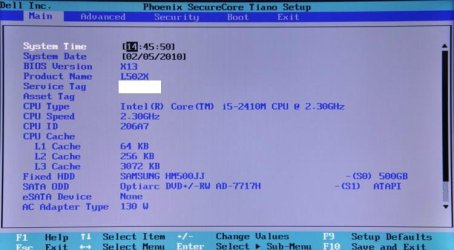
- Power off the notebook > Power it back on and at 'Dell Splash Screen' repeatedly tap 'F2 key' (Refer to the image below to check the 'BIOS environment'):
3.JPG

braddersz has suggested the correct link to install 'QuickSet Utility' for this system: Driver Details | Dell United States

It appears that you've installed it already. If yes, please try the following steps:
1. Update BIOS
Note: Before flashing the BIOS please check the following: Battery should have 10% or greater charge; Adapter should be connected; No external devices should be connected; All other programs should be closed and documents saved
- Click Driver Details | Dell United States to download and install the latest available 'BIOS update' > Check the 'battery performance' after the system restarts

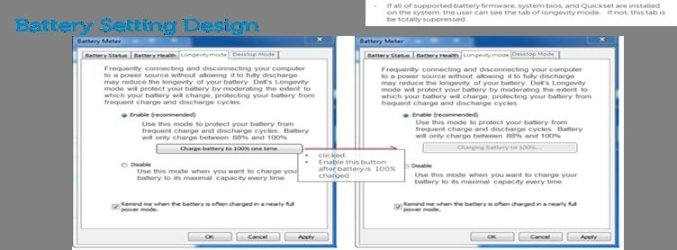
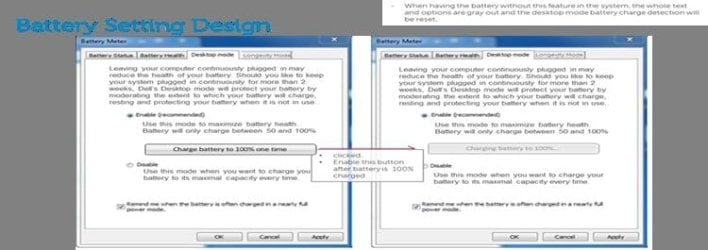
2. If the issue persists, you may check if the 'Dell Battery Health Meter' in the computer to see if you get 'settings' as shown in screenshots below:
- Right-click the 'Battery icon' in 'System Tray' > choose 'Battery Health Meter' > Select 'Longevity mode' > Click 'Charge battery to 100% one time' > If battery charge goes beyond 51%, the issue may have been due to 'Longevity mode triggered'

1.JPG

2.JPG

Check the results again. Do reply with the findings.
 

My Computer

OS
Windows 7 64bit
The BIOS shows 130W for AC Adapter, just like your screenshot. I updated the BIOS (I think I had already installed that), and nothing changed. I can't do step 2 because the battery icon isn't in the system tray. That's what I'm trying to get back out of all of this.
 

My Computer

Computer Manufacturer/Model Number
Dell XPS 15 (L502x)
OS
Windows 7 Home Premium 64 bit
CPU
i5-2410M
Motherboard
Dell
Memory
8GB (4GBx2) DDR3
Hi joshw2011,

If you are unable to see the battery icon, you may check the 'Battery Meter' in the 'Power Options'. You may find the following 'web article' useful: Battery meter: frequently asked questions

If you haven't been able to restore 'Microsoft AC Adapter and Microsoft ACPI-Compliant Control Method Battery' in 'Device Manager', try installing 'Windows Updates' to see if that works. If not, you may try 'System Restore' to roll back the 'software-changes' to the 'date/time' before you uninstalled it. Please refer to the following 'web article': http://www.sevenforums.com/tutorials/700-system-restore.html
Note: Ensure that you 'create a System Restore Point' before attempting 'System Restore': http://www.sevenforums.com/tutorials/697-system-restore-point-create.html

If you've not tried it again, would suggest you to re-try installing the 'Dell QuickSet Utility' that I shared in my previous post. Check the laptop after its installation to see if the 'screenshots' I shared with you in my previous post are visible.

Hope this helps. Do reply with the findings.
 

My Computer

OS
Windows 7 64bit
Back
Top