Best incremental backup solution for Windows 7?

Cursed Lemon

New member
Local time
12:07 PM
Messages
5
Location
The Corpse of the Motor City
Macrium Reflect has done me well with its HDD cloning function, but backing up an entire TB of data every time leaves me with considerable gaps in data coverage when I just don't feel like sitting through the process for a while.

Are there any simple tools (perhaps rsync-like in functionality) for Windows 7 that do incremental backups, so I don't have to deal with the pain of a full hard drive clone every time I want to run a backup? One of my hard drives just went kaput on me, and were it not for TestDisk, I wouldn't have gotten back a few gigabytes of important data.

To be clear, I very much enjoy the RAID-like cloning ability of Macrium; I want whatever utility I use to make it so that I can just pull the dead hard drive out with no downtime.
 

My Computer

Computer type
PC/Desktop
Computer Manufacturer/Model Number
Custom
OS
Windows 7 Home Premium 64-bit
CPU
i7-6700K
Motherboard
MSI H110M Gaming
Memory
Kingston HYPERX Fury DDR4 2x8GB
Graphics Card(s)
Geforce GTX960
Hard Drives
2x 1TB Western Digital
Antivirus
Malwarebytes
Browser
Chrome
I only do full drive backups. Where I used to work (I was the Network Manager) we originally did a full drive backup of our file server on Monday night and then incrementals the rest of the week. We found out that it was shorter backups on the incrementals, but also a hassle and even confusion properly installing the incrementals when a hard drive restore or rebuild was required. We dumped the incrementals and did a full backup every night.

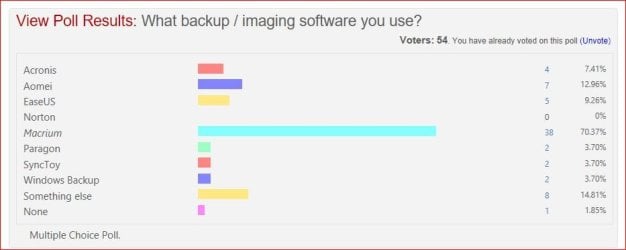
FWIW, there is a poll on our sister Win 10 forum, Windows 10 Forums about what backup software is being used. Here is the latest results.
 

Attachments

  • backup poll.JPG
    backup poll.JPG
    44.8 KB · Views: 1

My Computer

Computer type
PC/Desktop
Computer Manufacturer/Model Number
My Own Build
OS
Windows 10 64 bit
CPU
Intel i7 6700K
Motherboard
ASUS ROG Maximus VIII Hero
Memory
16GB Corsair Dominator
Graphics Card(s)
Intel CPU Graphics
Sound Card
RealTek
Monitor(s) Displays
27" Dell S2719dgf
Screen Resolution
2560X1440
Hard Drives
1 TB Samsung 850 EVO SSD for Win 10 Pro
500GB Samsung 850 EVO SSD for Win 10 Insider
2 TB drive for backup
PSU
EVGA Supernova 750G2
Case
BeQuiet Silent Base 600
Cooling
Deepcool Captain 120EX
Keyboard
Microsoft Wireless 2000
Mouse
Microsoft wireless
Internet Speed
100 MB/sec (Cable)
Antivirus
Microsoft Defender and Malwarebytes
Browser
Edge/Firefox
Other Info
Cakewalk (Sonar) by BandLab and Studio One 4.1 Pro recording studio software. MOTU 896Mk3 Hybrid recording interface, Frontier Tranzport wireless control unit, Behringer X-Touch Control Surface.
Five USB connected optical drives for CD Audio production using Nero BurningROM
You say "considerable gaps in data coverage", but you imply in your last sentence that you want more than a simple data backup.

If data backup is all you want, I would just use a data backup tool. I run one 2 or 3 times a day and it takes maybe 90 seconds to keep up with my data changes since the last time I ran it. Much quicker and simpler than imaging or cloning an entire drive or partition.
 

My Computer

Computer type
PC/Desktop
Computer Manufacturer/Model Number
Ignatz Special; 4 speed manual gearbox; factory air conditioning; one of one
OS
Windows 7 Home Premium SP1, 64-bit
CPU
Intel Skylake i5-6600K, not overclocked
Motherboard
AsRock Z170M Extreme 4, micro ATX
Memory
8 GB HyperX DDR4-2666 (2 x 4 GB)
Graphics Card(s)
none; graphics are integrated on CPU
Sound Card
onboard: Realtek ALC1150; external: USB Behringer UF0-202
Monitor(s) Displays
Dell S2340M 23 inch IPS
Screen Resolution
1600 x 900
Hard Drives
System: Crucial MX100 series SSD, 128 GB;
Data: Samsung Spinpoint 103SJ, 1 TB;
Backup: WD Caviar Green WD30EZRX-00D8PB0, 3 TB
PSU
Rosewill SilentNight 500 watt fanless, semi-modular
Case
Antec Solo II
Cooling
Noctua NH-U12S; Noctua F12 intake, Noctua S12A exhaust
Keyboard
Microsoft 200 6JH-00001 USB
Mouse
Dell or Microsoft optical wired; USB
Antivirus
Microsoft Security Essentials and Malwarebytes Premium
Browser
Pale Moon
Other Info
All fans PWM; speeds at idle: CPU circa 500 rpm; intake circa 600 rpm; exhaust circa 600 rpm; CPU temps 27 idle and 47 C load in a warm room (27 C/81 F) when running Intel Extreme Tuning Utility stress test.
You say "considerable gaps in data coverage", but you imply in your last sentence that you want more than a simple data backup.

If data backup is all you want, I would just use a data backup tool. I run one 2 or 3 times a day and it takes maybe 90 seconds to keep up with my data changes since the last time I ran it. Much quicker and simpler than imaging or cloning an entire drive or partition.

What I meant by that is that I want the entire disk scanned when performing the initial full backup or considering incremental changes - if I decide to install a Linux OS alongside Windows and install GRUB, for example, I want a backup utility that will be able to read multiple partitions as well as the MBR.
 

My Computer

Computer type
PC/Desktop
Computer Manufacturer/Model Number
Custom
OS
Windows 7 Home Premium 64-bit
CPU
i7-6700K
Motherboard
MSI H110M Gaming
Memory
Kingston HYPERX Fury DDR4 2x8GB
Graphics Card(s)
Geforce GTX960
Hard Drives
2x 1TB Western Digital
Antivirus
Malwarebytes
Browser
Chrome
ignatzsonic or other responder, can you please recommend a data backup software or process? I would like to do incremental data backups in which the default is to copy all of the data files that are new or changed since the last run. I also want an option to make a new "base run" that will copy all of the data files at that point and make a new archive. Then I would delete from the computer the files that I don't want to have underfoot every day, and they would stay on the backup disk (in the "base run")in case I do need them again. I would then back up the computer data again to create a "new base run". The future incremental backups would refer to the "new base run." One goal is that I don't want the backup software to delete files that it saved on a previous run -- I may want them archived.

So, on the backup drive I would have, for example, my most recent base run and its incremental backups, but in the future I would be able to go to the backup drive and find all of the data sets that were on the computer on, for example, September 15 2016, July 30th 2017, etc (I don't envision doing housecleaning very often!) Why do I want this old stuff? I do some video editing, and there are file clips and images that I needed for a particular project that I may or may not use again. I'd just as soon not have to look at them every time I go to a folder, yet in some cases if I do want to use them they have to go back in the same folder they were in origianlly, and all of this makes life complicated.

I hope that is clear.

It looks like for the system files backup forum members recommend Macrium Reflect, right?
 

My Computer

Computer type
PC/Desktop
Computer Manufacturer/Model Number
HP Z800
OS
Windows 7 Professional 64 bit
Judy:

Did you seem my comments in your other thread titled "Create partition and move original backup to it"?

See comments in bold below:


can you please recommend a data backup software or process? I would like to do incremental data backups in which the default is to copy all of the data files that are new or changed since the last run. I also want an option to make a new "base run" that will copy all of the data files at that point and make a new archive. Then I would delete from the computer the files that I don't want to have underfoot every day, and they would stay on the backup disk (in the "base run")in case I do need them again. I would then back up the computer data again to create a "new base run". The future incremental backups would refer to the "new base run." One goal is that I don't want the backup software to delete files that it saved on a previous run -- I may want them archived.

Most backup software gives you a choice of the following:

1: If I delete a file from my "originals", it will also be deleted from my backup the next time I run the backup. That's normally called "mirroring"--the target drive matches the source drive 100%.

or

2: If I delete a file from my "originals", it will NOT be deleted from the backup drive the next time I run it.

Sounds like you want choice 2.

That's doable. I use choice 1, but to each her own.

Just configure the app to avoid "mirroring".

I've used 4 or 5 such apps in the last 15 years--Second Copy (paid), the others free: Free File Sync, SyncToy, SyncBackFree, and another 1 or 2 I can't recall right now.

Currently satisfied with SyncBackFree, for the last 3 months or so. You have a lot of control over the setup, but it's got a pretty sane interface. I quit Free File Sync due to the convoluted interface. I quit the others as the "include" or "exclude" functions were problematic.

Generally: they all give you some degree of control--include this folder, exclude that folder, include .doc files but exclude .mp4 files, etc, etc.

They differ in their interfaces, their help files, feature list, and extent of bugs/problems.

Second Copy is exceptional, but $30 the last I checked, with a 30 day free trial.

Most would tell you not to rely on a single backup. Once in a while, I'm glad I have two. In addition to running SyncBackFree at least once a day, I also make a completely separate periodic (every month or two) manual drag-and-drop copies of all of my data. I delete the old drag-and-drop when I make a new one.


I also make a monthly copy of my most critical files (no video, no mp3s; just pix and text files) to a USB thumb drive.

I also use SyncBackFree to make separate backups of my browser bookmarks (I have thousands) and my Thunderbird Email folder. So I have a total of 3 "profiles" that I run in SyncBackFree:

1: All data on my data partition. I run this at least daily.
2: Bookmarks only, maybe monthly. The originals of these are NOT on my data partition, so I have to back them up separately.
3: Thunderbird folder only, maybe monthly. Also not on my data partition.

The bookmarks and Thunderbird backups are useful when I build a new PC and want to transfer everything over to a new Windows installation.

My SyncBackFree backups are done to a separate internal drive.


It looks like for the system files backup forum members recommend Macrium Reflect, right?


Right. Most use the Free Edition. But don't get yourself in a jam where you are dead in the water if it fails. Imaging isn't perfect.

It will back up everything on a given partition, but normally imaging is an inferior way to back up personal files. Try to get your personal files off of the C partition. That makes for smaller images and more efficient and easier house-keeping.

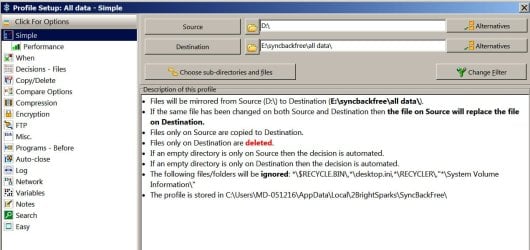
Below is a screen shot of the SyncBackFree configuration screen that shows how I have my "all data" backup configured.

 

Attachments

  • Untitled-1.jpg
    Untitled-1.jpg
    262.4 KB · Views: 1

My Computer

Computer type
PC/Desktop
Computer Manufacturer/Model Number
Ignatz Special; 4 speed manual gearbox; factory air conditioning; one of one
OS
Windows 7 Home Premium SP1, 64-bit
CPU
Intel Skylake i5-6600K, not overclocked
Motherboard
AsRock Z170M Extreme 4, micro ATX
Memory
8 GB HyperX DDR4-2666 (2 x 4 GB)
Graphics Card(s)
none; graphics are integrated on CPU
Sound Card
onboard: Realtek ALC1150; external: USB Behringer UF0-202
Monitor(s) Displays
Dell S2340M 23 inch IPS
Screen Resolution
1600 x 900
Hard Drives
System: Crucial MX100 series SSD, 128 GB;
Data: Samsung Spinpoint 103SJ, 1 TB;
Backup: WD Caviar Green WD30EZRX-00D8PB0, 3 TB
PSU
Rosewill SilentNight 500 watt fanless, semi-modular
Case
Antec Solo II
Cooling
Noctua NH-U12S; Noctua F12 intake, Noctua S12A exhaust
Keyboard
Microsoft 200 6JH-00001 USB
Mouse
Dell or Microsoft optical wired; USB
Antivirus
Microsoft Security Essentials and Malwarebytes Premium
Browser
Pale Moon
Other Info
All fans PWM; speeds at idle: CPU circa 500 rpm; intake circa 600 rpm; exhaust circa 600 rpm; CPU temps 27 idle and 47 C load in a warm room (27 C/81 F) when running Intel Extreme Tuning Utility stress test.
Personally I would do a differential. You only need to keep (or potentially restore) one on top of a full backup whereas with an incremental you would need to keep all of them and if needed restore them in order from oldest to newest.
 

My Computers

System One System Two

Why do you have to backup 1 TB of Data all the time, just backup the new data.
 

My Computer

Computer type
PC/Desktop
Computer Manufacturer/Model Number
Skylake Special #666
OS
Windows 10 Pro x64
CPU
Intel Core i7 6700K
Motherboard
Asus Sabertooth Z170 Mark 1
Memory
GSkill TridentZ RGB 16GB 3600 16-16-16-36
Graphics Card(s)
EVGA GTX 980 Ti SC x2
Sound Card
Realtek High Definition
Monitor(s) Displays
AOC G2460PG
Screen Resolution
1920 x 1080 144Hz
Hard Drives
Samsung 860 Pro 256GB, Seagate Barracuda 4TB x2
PSU
EVGA 1000 P2, EVGA White Custom Braided Cables
Case
Corsair Vengeance C70 Gunmetal Black
Cooling
Corsair H100i v2, Corsair ML120 x2, Thermal Grizzly Kryonaut
Keyboard
Logitech G910 Orion Spectrum
Mouse
Logitech G700s
Internet Speed
Verizon Fios Quantum Gateway 75/75
Antivirus
Windows Defender, Malwarebytes Free 3.8.3
Browser
Chrome
Other Info
Corsair SP120 x4, LG Blu-ray Drive, Durabrand HT-395 100 Watt Dolby Digital Amp, Corsair H2100 Wireless 7.1 Headset
Thank you ignatzsonic, I will investigate SyncBackFree for the data backups. It look like it copies individual files instead of making a file in its own format (.trb or such), which is what I want, so I can go back and get just one file if I want to.
 

My Computer

Computer type
PC/Desktop
Computer Manufacturer/Model Number
HP Z800
OS
Windows 7 Professional 64 bit
Thank you ignatzsonic, I will investigate SyncBackFree for the data backups. It look like it copies individual files instead of making a file in its own format (.trb or such), which is what I want, so I can go back and get just one file if I want to.

Yeah, that's right.

If you back up kitty.mp4, the backup is kitty.mp4. No complications

In contrast, image files have their own file format. Macrium files have an .mrimg extension. All of the jillion files in the partition would be represented by that one .mrimg file.

If you double-click the .mrimg file, it will open an Explorer-like interface and you can drill down to kitty.mp4 within the image and copy it wherever you want--assuming kitty.mp4 is on the partition represented by the image file. In that sense, the .mrimg file is a backup of kitty.mp4, but you have the complexity of imaging and the different file format complicating your access to kitty.mp4--a possible point of failure. That can and does happen. So, I would not rely on imaging as a data backup.

Imaging your C partition is just a time-saver---you restore the image within a half hour or so, rather than taking the dozens of hours typically required to do a new install and configure dozens of applications. If it weren't a time-saver, no one would bother.
 

My Computer

Computer type
PC/Desktop
Computer Manufacturer/Model Number
Ignatz Special; 4 speed manual gearbox; factory air conditioning; one of one
OS
Windows 7 Home Premium SP1, 64-bit
CPU
Intel Skylake i5-6600K, not overclocked
Motherboard
AsRock Z170M Extreme 4, micro ATX
Memory
8 GB HyperX DDR4-2666 (2 x 4 GB)
Graphics Card(s)
none; graphics are integrated on CPU
Sound Card
onboard: Realtek ALC1150; external: USB Behringer UF0-202
Monitor(s) Displays
Dell S2340M 23 inch IPS
Screen Resolution
1600 x 900
Hard Drives
System: Crucial MX100 series SSD, 128 GB;
Data: Samsung Spinpoint 103SJ, 1 TB;
Backup: WD Caviar Green WD30EZRX-00D8PB0, 3 TB
PSU
Rosewill SilentNight 500 watt fanless, semi-modular
Case
Antec Solo II
Cooling
Noctua NH-U12S; Noctua F12 intake, Noctua S12A exhaust
Keyboard
Microsoft 200 6JH-00001 USB
Mouse
Dell or Microsoft optical wired; USB
Antivirus
Microsoft Security Essentials and Malwarebytes Premium
Browser
Pale Moon
Other Info
All fans PWM; speeds at idle: CPU circa 500 rpm; intake circa 600 rpm; exhaust circa 600 rpm; CPU temps 27 idle and 47 C load in a warm room (27 C/81 F) when running Intel Extreme Tuning Utility stress test.
Judy:

Did you seem my comments in your other thread titled "Create partition and move original backup to it"?

See comments in bold below:


can you please recommend a data backup software or process? I would like to do incremental data backups in which the default is to copy all of the data files that are new or changed since the last run. I also want an option to make a new "base run" that will copy all of the data files at that point and make a new archive. Then I would delete from the computer the files that I don't want to have underfoot every day, and they would stay on the backup disk (in the "base run")in case I do need them again. I would then back up the computer data again to create a "new base run". The future incremental backups would refer to the "new base run." One goal is that I don't want the backup software to delete files that it saved on a previous run -- I may want them archived.

Most backup software gives you a choice of the following:

1: If I delete a file from my "originals", it will also be deleted from my backup the next time I run the backup. That's normally called "mirroring"--the target drive matches the source drive 100%.

or

2: If I delete a file from my "originals", it will NOT be deleted from the backup drive the next time I run it.

Sounds like you want choice 2.

That's doable. I use choice 1, but to each her own.

Just configure the app to avoid "mirroring".

I've used 4 or 5 such apps in the last 15 years--Second Copy (paid), the others free: Free File Sync, SyncToy, SyncBackFree, and another 1 or 2 I can't recall right now.

Currently satisfied with SyncBackFree, for the last 3 months or so. You have a lot of control over the setup, but it's got a pretty sane interface. I quit Free File Sync due to the convoluted interface. I quit the others as the "include" or "exclude" functions were problematic.

Generally: they all give you some degree of control--include this folder, exclude that folder, include .doc files but exclude .mp4 files, etc, etc.

They differ in their interfaces, their help files, feature list, and extent of bugs/problems.

Second Copy is exceptional, but $30 the last I checked, with a 30 day free trial.

Most would tell you not to rely on a single backup. Once in a while, I'm glad I have two. In addition to running SyncBackFree at least once a day, I also make a completely separate periodic (every month or two) manual drag-and-drop copies of all of my data. I delete the old drag-and-drop when I make a new one.


I also make a monthly copy of my most critical files (no video, no mp3s; just pix and text files) to a USB thumb drive.

I also use SyncBackFree to make separate backups of my browser bookmarks (I have thousands) and my Thunderbird Email folder. So I have a total of 3 "profiles" that I run in SyncBackFree:

1: All data on my data partition. I run this at least daily.
2: Bookmarks only, maybe monthly. The originals of these are NOT on my data partition, so I have to back them up separately.
3: Thunderbird folder only, maybe monthly. Also not on my data partition.

The bookmarks and Thunderbird backups are useful when I build a new PC and want to transfer everything over to a new Windows installation.

My SyncBackFree backups are done to a separate internal drive.


It looks like for the system files backup forum members recommend Macrium Reflect, right?


Right. Most use the Free Edition. But don't get yourself in a jam where you are dead in the water if it fails. Imaging isn't perfect.

It will back up everything on a given partition, but normally imaging is an inferior way to back up personal files. Try to get your personal files off of the C partition. That makes for smaller images and more efficient and easier house-keeping.

Below is a screen shot of the SyncBackFree configuration screen that shows how I have my "all data" backup configured.

I have used SyncBackFree for 4 or 5 years, it's a great tool.

Jerry
 

My Computer

Computer type
Laptop
Computer Manufacturer/Model Number
Sager NP9170
OS
Win 7 Pro x64 / Win 10 Pro
CPU
Intel(R) Core(TM) i7-3630QM CPU @ 2.40GHz
Motherboard
CLEVO P170EM
Memory
12 GB
Graphics Card(s)
(1) Intel(R) HD Graphics 4000 (2) NVIDIA GeForce GTX 675M
Sound Card
(1) Realtek High Definition Audio (2) Intel(R) Display Aud
Monitor(s) Displays
17.3
Screen Resolution
1920x1080
Hard Drives
(1) Samsung 860 EVO 500GB(OS) (1) Samsung 860 EVO 500GB(Data)
Keyboard
Backlite
Antivirus
MSE, Malwarebytes Pro
Browser
Firefox
Other Info
DESKTOP: Custom-built.
OS: Win 10 Pro x64.
CASE: Rosewill R5.
CPU: Intel I5 4670K CPU @ 3.40GHz.
CPU COOLER: Cool Master Hyper 212 EVO.
MOTHERBOARD: Asus Z87-A.
MEMORY: Kingston HyperX 2x4 GB.
GPU: Nvidia Geforce 650 TI.
PSU: Corsair TX750.
DRIVES: (1) Samsung 840 120 GB SSD (2) Western Digital blue 500 GB 7200 RPM.
Back
Top