
Best operating system backup software

Stevekir

New member
Member
VIP
Local time
5:58 PM
Messages
231
Windows 7 Home Premium, 64 bit. I have a setup to backup all my documents, movies, music and pictures to external HDDs. (They are first saved on my internal 1 TB drive, X:.) Now I want to set up a system to allow me to:

1. Copy an (out of date of course) backed up image of my entire C: (a 256 GB SSD) back to the C: drive if the C: drive gets corrupted (but of course when it can still actually boot the computer); and

2. Make a bootable CD (or a bootable USB external HDD or stick if they will work) which will allow me to boot the computer so I can get back to work quickly (again using an out of date image or other type of backup).

Importantly, both must include my three Adobe programs (Photoshop, Indesign and Bridge) and Microsoft Office in such a way that they will run as normal without needing to be re-installed.

Windows 7's Backup and Restore won't satisfy 1. because it doesn't include programs, and its System Repair Disk won't satisfy 2. because it is not designed to.

What would be good backup programs to do this (I don't mind paying)? Symantic, NovaBackup are two that I have seen. I have tried Macrium and Acronis True Image 2016 and have rejected them (for several reasons, mainly because they just wouldn't work for me).
 

My Computer

Computer type
PC/Desktop
Computer Manufacturer/Model Number
Gigabyte ATX case with 500 W power supply GZ-M1
OS
Windows 7 Home Premium 64bit
CPU
Intel Pentium Edition G3220 3.0 GHz
Motherboard
Gigabyte Socket 1150 MicroATX Mot Ultra Durable, GA-H81M-S2H
Memory
8 GB DDR3 1600 MHz DIMM
Graphics Card(s)
Not Known
Sound Card
Not known
Monitor(s) Displays
Samsung LS24D590 23.6"
Screen Resolution
1920 x 1080
Hard Drives
256 GB Solid State Drive (C: on which Windows 7 is installed)-
1 TB internal conventional HD (X:)-
Two WD "Elements" " 2TB USB drives as backups
PSU
500 W
Case
Gigabyte ATX case
Cooling
Several fans!
Keyboard
Accuratus 301 USB Compact, white.
Mouse
Microsoft Basic Optical Mouse v2.0, two-button, tethered
Internet Speed
10 to 12 Mb per second
Antivirus
Kaspersky Internet Security 2016, Malwarebytes (paid)
Browser
Firefox (ocassionally Safari)
Other Info
The 256 GB SSD (C:) also has Adobe Photoshop CS6 and InDesign CS6, MS Office, Adobe Lightroom, and other small programs.
For #2 I think you mean a bootable rescue disk to perform the restoration? The program I use is Aomei's Backupper. It's got a nice interface. It doesn't do well with factory restore partitions, however, but I don't count on them much anyway. Free works fine, but if you want backup management and other advanced features, you'll need a paid version. I used to use Easeus, but switched over.

Or if you're ok with a text interface, you can do it for free with Clonezilla. It's a bit of a pain though, and not fast, and not as failsafe as I once thought it was, though it is quite good.
 

My Computer

Computer type
PC/Desktop
Computer Manufacturer/Model Number
dell precision t3400 tower
OS
Linux Lite 3.2 x64; Windows 7, 8.1
CPU
Core2Duo 2.4
Memory
6GB ddr2
Graphics Card(s)
nVidia
Hard Drives
120gb SSD, 1TB HD, 2TB HD; sata II
Internet Speed
12/2
Browser
Vivaldi, Slimjet (Chromium) x64
For #2 I think you mean a bootable rescue disk to perform the restoration? The program I use is Aomei's Backupper. It's got a nice interface. It doesn't do well with factory restore partitions, however, but I don't count on them much anyway. Free works fine, but if you want backup management and other advanced features, you'll need a paid version. I used to use Easeus, but switched over.

Or if you're ok with a text interface, you can do it for free with Clonezilla. It's a bit of a pain though, and not fast, and not as failsafe as I once thought it was, though it is quite good.
Thanks. I will investigate Aomei's Backupper.

No, I didn't mean a bootable rescue or restoration disc as such for No. 2. For my No. 2 I just want to boot the computer so I can continue work immediatley (But perhaps that what is meant by "rescue.") I intended my No. 1 to do the restoration. However, if a rescue disc allowed me to boot after a non-boot event and then also allowed me (after I had done the work) to back up my C:, that's OK of course.
 

My Computer

Computer type
PC/Desktop
Computer Manufacturer/Model Number
Gigabyte ATX case with 500 W power supply GZ-M1
OS
Windows 7 Home Premium 64bit
CPU
Intel Pentium Edition G3220 3.0 GHz
Motherboard
Gigabyte Socket 1150 MicroATX Mot Ultra Durable, GA-H81M-S2H
Memory
8 GB DDR3 1600 MHz DIMM
Graphics Card(s)
Not Known
Sound Card
Not known
Monitor(s) Displays
Samsung LS24D590 23.6"
Screen Resolution
1920 x 1080
Hard Drives
256 GB Solid State Drive (C: on which Windows 7 is installed)-
1 TB internal conventional HD (X:)-
Two WD "Elements" " 2TB USB drives as backups
PSU
500 W
Case
Gigabyte ATX case
Cooling
Several fans!
Keyboard
Accuratus 301 USB Compact, white.
Mouse
Microsoft Basic Optical Mouse v2.0, two-button, tethered
Internet Speed
10 to 12 Mb per second
Antivirus
Kaspersky Internet Security 2016, Malwarebytes (paid)
Browser
Firefox (ocassionally Safari)
Other Info
The 256 GB SSD (C:) also has Adobe Photoshop CS6 and InDesign CS6, MS Office, Adobe Lightroom, and other small programs.
Windows inbuilt system imaging should meet your requirements. Macrium Reflect (free) is far better. You say they "don't work for you". They have worked for me on 4 PCs (4 generation CPUs) and I have used them extensively.
 

My Computer

Computer type
PC/Desktop
Computer Manufacturer/Model Number
Own build
OS
Windows 7x64 Home Premium SP1
CPU
Intel i7 2600k
Motherboard
ASUS P8Z68 Deluxe
Memory
G.Skill Ripjaws (DDR3-1600) 2x4GB
Graphics Card(s)
Nvidia GeForce GTS 450; Intel HD Graphics 3000(GT2+)
Monitor(s) Displays
Dell Ultrasharp IPS panel U2311H, Samsung SyncMaster P2350
Screen Resolution
1920x1080
Hard Drives
Samsung 850 Pro SSD 256GB, Samsung SSD 840 120GB, Seagates 1TB Barracuda ST31000528AS x2
PSU
Seasonic M12II 520W
Case
Lian Li Lancool PC-K60
Cooling
Case: 1x120mm, 3x140mm CPU: Hyper 212+
Keyboard
Logitech MK520 (wireless)
Mouse
Logitech MK520
Internet Speed
6-7 Mbps
Antivirus
Norton Security Premium, Malwarebytes on 2 (MSE on 3rd PC)
Browser
FireFox
Other Info
Audio: Logitech Z523 2.1
Windows inbuilt system imaging should meet your requirements. Macrium Reflect (free) is far better. You say they "don't work for you". They have worked for me on 4 PCs (4 generation CPUs) and I have used them extensively.
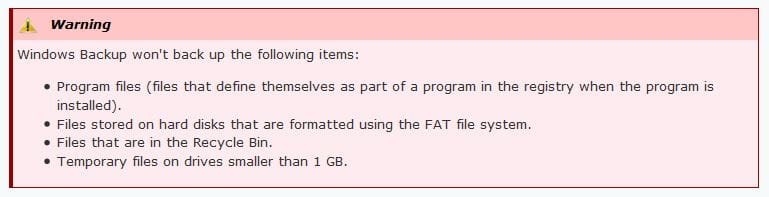
sevenforums tutorial "How to Back Up User and System Files in Windows 7" says:

Windows Backup won't back up the following items:

  • Program files (files that define themselves as part of a program in the registry when the program is installed).
  • .............
which is why I am looking for a method to backup and then boot from a copy of the entire C: drive which contains my Adobe and Office programs. Hopefully, something as simple as the Windows 7 restore from an image backup. I wonder why Microsoft excluded programs. It seems possible because other backup softwares claim to do so.

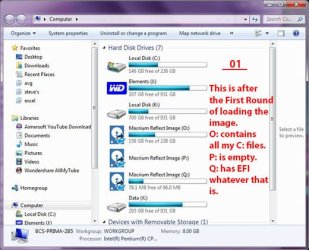
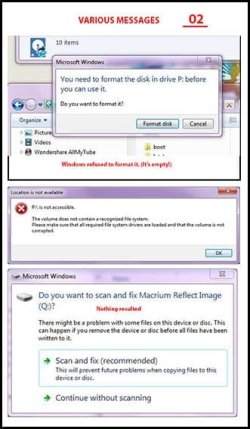
On Macrium, it certainly looked like what I want but here are two of the many bizarre things it produced which this forum could not help with, before messing up my computer. Three virtual discs, one empty and unformattable!!:
 

Attachments

  • 369174d1439718827-questions-about-backup-windows-7-wanting-test-out-win10-01.jpg
    369174d1439718827-questions-about-backup-windows-7-wanting-test-out-win10-01.jpg
    67.5 KB · Views: 37
  • 369175d1439718827-questions-about-backup-windows-7-wanting-test-out-win10-02.jpg
    369175d1439718827-questions-about-backup-windows-7-wanting-test-out-win10-02.jpg
    50.4 KB · Views: 37

My Computer

Computer type
PC/Desktop
Computer Manufacturer/Model Number
Gigabyte ATX case with 500 W power supply GZ-M1
OS
Windows 7 Home Premium 64bit
CPU
Intel Pentium Edition G3220 3.0 GHz
Motherboard
Gigabyte Socket 1150 MicroATX Mot Ultra Durable, GA-H81M-S2H
Memory
8 GB DDR3 1600 MHz DIMM
Graphics Card(s)
Not Known
Sound Card
Not known
Monitor(s) Displays
Samsung LS24D590 23.6"
Screen Resolution
1920 x 1080
Hard Drives
256 GB Solid State Drive (C: on which Windows 7 is installed)-
1 TB internal conventional HD (X:)-
Two WD "Elements" " 2TB USB drives as backups
PSU
500 W
Case
Gigabyte ATX case
Cooling
Several fans!
Keyboard
Accuratus 301 USB Compact, white.
Mouse
Microsoft Basic Optical Mouse v2.0, two-button, tethered
Internet Speed
10 to 12 Mb per second
Antivirus
Kaspersky Internet Security 2016, Malwarebytes (paid)
Browser
Firefox (ocassionally Safari)
Other Info
The 256 GB SSD (C:) also has Adobe Photoshop CS6 and InDesign CS6, MS Office, Adobe Lightroom, and other small programs.
looking for a method to backup and then boot from a copy of the entire C: drive which contains my Adobe and Office programs. Hopefully, something as simple as the Windows 7 restore from an image backup. I wonder why Microsoft excluded programs. It seems possible because other backup softwares claim to do so.

On Macrium, it certainly looked like what I want but here are two of the many bizarre things it produced which this forum could not help with, before messing up my computer. Three virtual discs, one empty and unformattable!!:

If you truly want to "boot from a copy of the entire C drive", you need to be cloning, not imaging.

Cloning produces a drive that is bootable as it sits, immediately. Imaging does not, precisely because images must be restored. Imaging produces image files, not bootable drives.

I don't know what your experience with Macrium has been, but if you have any interest in imaging at all, I would certainly try to use it to make a single image file containing all partitions on your hard drive, rather than images of each partition separately.

That would produce 1 image file, not several. You'd have to restore 1 image file, not several. It should simplify the process and reduce the failure rate. I don't know if you are operating it properly or not, nor do I know if you are using the latest version.

I don't know the context or source of that quote you have about Windows Backup not backing up "program files", but I assume you are misunderstanding something. That's one of the things it can do, although it isn't elegant or easily understood.
 

My Computer

Computer type
PC/Desktop
Computer Manufacturer/Model Number
Ignatz Special; 4 speed manual gearbox; factory air conditioning; one of one
OS
Windows 7 Home Premium SP1, 64-bit
CPU
Intel Skylake i5-6600K, not overclocked
Motherboard
AsRock Z170M Extreme 4, micro ATX
Memory
8 GB HyperX DDR4-2666 (2 x 4 GB)
Graphics Card(s)
none; graphics are integrated on CPU
Sound Card
onboard: Realtek ALC1150; external: USB Behringer UF0-202
Monitor(s) Displays
Dell S2340M 23 inch IPS
Screen Resolution
1600 x 900
Hard Drives
System: Crucial MX100 series SSD, 128 GB;
Data: Samsung Spinpoint 103SJ, 1 TB;
Backup: WD Caviar Green WD30EZRX-00D8PB0, 3 TB
PSU
Rosewill SilentNight 500 watt fanless, semi-modular
Case
Antec Solo II
Cooling
Noctua NH-U12S; Noctua F12 intake, Noctua S12A exhaust
Keyboard
Microsoft 200 6JH-00001 USB
Mouse
Dell or Microsoft optical wired; USB
Antivirus
Microsoft Security Essentials and Malwarebytes Premium
Browser
Pale Moon
Other Info
All fans PWM; speeds at idle: CPU circa 500 rpm; intake circa 600 rpm; exhaust circa 600 rpm; CPU temps 27 idle and 47 C load in a warm room (27 C/81 F) when running Intel Extreme Tuning Utility stress test.
looking for a method to backup and then boot from a copy of the entire C: drive which contains my Adobe and Office programs. Hopefully, something as simple as the Windows 7 restore from an image backup. I wonder why Microsoft excluded programs. It seems possible because other backup softwares claim to do so.

On Macrium, it certainly looked like what I want but here are two of the many bizarre things it produced which this forum could not help with, before messing up my computer. Three virtual discs, one empty and unformattable!!:

If you truly want to "boot from a copy of the entire C drive", you need to be cloning, not imaging.

Cloning produces a drive that is bootable as it sits, immediately. Imaging does not, precisely because images must be restored. Imaging produces image files, not bootable drives.

I don't know what your experience with Macrium has been, but if you have any interest in imaging at all, I would certainly try to use it to make a single image file containing all partitions on your hard drive, rather than images of each partition separately.

That would produce 1 image file, not several. You'd have to restore 1 image file, not several. It should simplify the process and reduce the failure rate. I don't know if you are operating it properly or not, nor do I know if you are using the latest version.

I don't know the context or source of that quote you have about Windows Backup not backing up "program files", but I assume you are misunderstanding something. That's one of the things it can do, although it isn't elegant or easily understood.
OK. Good to see more response on this.

So, (on your "If you truly want..."), I would copy a clone of my C: to a suitable place. It is an SSD and presently uses 105 GB.

1. A DVD is too small.

2. Kingston sell a 256 GB DataTraveller HyperX Predator USB thumb drive for 162 USD. Rather expensive.

3. A 256 GB SSD (eg. form Crucial like the one that is my C: drive), put it in a housing/socket thing and connect it somehow. Probably also expensive.

4. The easiest. I have a 1 TB partition on my external USB HDD. (I have read that making a clone on a disc will erase what is already on that disc or partition, so I must make sure that the partition is empty.) Presumably I need to change the boot order to make that partition top priority. Then, on restarting, the computer it will find the clone on the partition and boot from it.

Question please: Will 4 be bootable? I have read that Windows will not reliably boot from an external USB HDD.

On my comments about Windows 7's Backup and Restore not including programs, the source is a tutorial made by this very forum as one of many tutorials which I have relied on. It is at:

http://www.sevenforums.com/tutorials/615-backup-user-system-files.html

and at about 10% of a monitor height down from the top it has this (see below). There can be no misunderstanding about it! Either the sevenforums statement is right or it is wrong. I will search, and contact Microsoft and ask them. Clearly, if you are right, Windows 7's Backup and restore is exactly what I want, and free!

Thanks for the support.
 

Attachments

  • Warning.JPG
    Warning.JPG
    26.5 KB · Views: 0

My Computer

Computer type
PC/Desktop
Computer Manufacturer/Model Number
Gigabyte ATX case with 500 W power supply GZ-M1
OS
Windows 7 Home Premium 64bit
CPU
Intel Pentium Edition G3220 3.0 GHz
Motherboard
Gigabyte Socket 1150 MicroATX Mot Ultra Durable, GA-H81M-S2H
Memory
8 GB DDR3 1600 MHz DIMM
Graphics Card(s)
Not Known
Sound Card
Not known
Monitor(s) Displays
Samsung LS24D590 23.6"
Screen Resolution
1920 x 1080
Hard Drives
256 GB Solid State Drive (C: on which Windows 7 is installed)-
1 TB internal conventional HD (X:)-
Two WD "Elements" " 2TB USB drives as backups
PSU
500 W
Case
Gigabyte ATX case
Cooling
Several fans!
Keyboard
Accuratus 301 USB Compact, white.
Mouse
Microsoft Basic Optical Mouse v2.0, two-button, tethered
Internet Speed
10 to 12 Mb per second
Antivirus
Kaspersky Internet Security 2016, Malwarebytes (paid)
Browser
Firefox (ocassionally Safari)
Other Info
The 256 GB SSD (C:) also has Adobe Photoshop CS6 and InDesign CS6, MS Office, Adobe Lightroom, and other small programs.
see comments in bold

So, (on your "If you truly want..."), I would copy a clone of my C: to a suitable place. It is an SSD and presently uses 105 GB.

1. A DVD is too small.

2. Kingston sell a 256 GB DataTraveller HyperX Predator USB thumb drive for 162 USD. Rather expensive.

3. A 256 GB SSD (eg. form Crucial like the one that is my C: drive), put it in a housing/socket thing and connect it somehow. Probably also expensive.

4. The easiest. I have a 1 TB partition on my external USB HDD. (I have read that making a clone on a disc will erase what is already on that disc or partition, so I must make sure that the partition is empty.) Presumably I need to change the boot order to make that partition top priority. Then, on restarting, the computer it will find the clone on the partition and boot from it.

Question please: Will 4 be bootable? I have read that Windows will not reliably boot from an external USB HDD.

I think that's right. As far as I know, booting from an external HDD is problematic.

If you clone, you won't "make sure the partition is empty". The cloning process itself will delete all partitions on the target drive without any interaction from you. The whole drive will be wiped.

If your primary drive fails, I don't think something "problematic" is what you'd need in such an emergency.

If you want to clone and not image and intend to use the cloned drive ONLY if you have to and ONLY in an emergency situation, I'd just buy an ordinary internal spinning hard drive of maybe 250 to 500 GB. Cost in the USA $50 max. After you clone to it, you're just going to put it in a closet. With any luck, you will NEVER use it and it will just be a waste of $50 to give you peace of mind. So I wouldn't insist on it being an SSD unless an SSD is in your budget. If you have to use the cloned drive because your primary fails, presumably you'd go out and buy another drive to have another cloned spare anyway.

Needless to say, you better test the clone before you put it in the closet.


On my comments about Windows 7's Backup and Restore not including programs, the source is a tutorial made by this very forum as one of many tutorials which I have relied on.

You will notice that the tutorial does not say it does not back up installed applications or installed programs. It refers to "program files" and then makes an attempt at defining what a "program file" is.

I avoid Windows Backup and cannot speak from first hand experience.

As far as I have ever heard, it does in fact back up your "installed programs".

The tutorials are not always clearly written and this may be such a case.

Microsoft may tell you X, Y, or Z. Other members who have actually used it can clarify, but I can't see why anyone would even consider using a "backup program" that did NOT back up my installed programs.

Since you are very worried about not being able to get back up and running immediately in case of a drive failure, you'd be a fool to rely on Windows Backup or any other backup without having some way of testing your so-called backup. Usually they work. Sometimes they don't.
 

My Computer

Computer type
PC/Desktop
Computer Manufacturer/Model Number
Ignatz Special; 4 speed manual gearbox; factory air conditioning; one of one
OS
Windows 7 Home Premium SP1, 64-bit
CPU
Intel Skylake i5-6600K, not overclocked
Motherboard
AsRock Z170M Extreme 4, micro ATX
Memory
8 GB HyperX DDR4-2666 (2 x 4 GB)
Graphics Card(s)
none; graphics are integrated on CPU
Sound Card
onboard: Realtek ALC1150; external: USB Behringer UF0-202
Monitor(s) Displays
Dell S2340M 23 inch IPS
Screen Resolution
1600 x 900
Hard Drives
System: Crucial MX100 series SSD, 128 GB;
Data: Samsung Spinpoint 103SJ, 1 TB;
Backup: WD Caviar Green WD30EZRX-00D8PB0, 3 TB
PSU
Rosewill SilentNight 500 watt fanless, semi-modular
Case
Antec Solo II
Cooling
Noctua NH-U12S; Noctua F12 intake, Noctua S12A exhaust
Keyboard
Microsoft 200 6JH-00001 USB
Mouse
Dell or Microsoft optical wired; USB
Antivirus
Microsoft Security Essentials and Malwarebytes Premium
Browser
Pale Moon
Other Info
All fans PWM; speeds at idle: CPU circa 500 rpm; intake circa 600 rpm; exhaust circa 600 rpm; CPU temps 27 idle and 47 C load in a warm room (27 C/81 F) when running Intel Extreme Tuning Utility stress test.
Thanks. Very helpful. I will pursue the swapped small internal HDD idea, and test it. It will not go out of date (much) because it has little on it that is date-dependant.

Presumably, this amall drive will be bootable (of course: else what's the point, and anyway it's a clone) provided I change the boot order;

And I would be able to clone it to the C: drive and change the boot order back to C: and reboot.

Does that seem right?

Thanks a lot.
 

My Computer

Computer type
PC/Desktop
Computer Manufacturer/Model Number
Gigabyte ATX case with 500 W power supply GZ-M1
OS
Windows 7 Home Premium 64bit
CPU
Intel Pentium Edition G3220 3.0 GHz
Motherboard
Gigabyte Socket 1150 MicroATX Mot Ultra Durable, GA-H81M-S2H
Memory
8 GB DDR3 1600 MHz DIMM
Graphics Card(s)
Not Known
Sound Card
Not known
Monitor(s) Displays
Samsung LS24D590 23.6"
Screen Resolution
1920 x 1080
Hard Drives
256 GB Solid State Drive (C: on which Windows 7 is installed)-
1 TB internal conventional HD (X:)-
Two WD "Elements" " 2TB USB drives as backups
PSU
500 W
Case
Gigabyte ATX case
Cooling
Several fans!
Keyboard
Accuratus 301 USB Compact, white.
Mouse
Microsoft Basic Optical Mouse v2.0, two-button, tethered
Internet Speed
10 to 12 Mb per second
Antivirus
Kaspersky Internet Security 2016, Malwarebytes (paid)
Browser
Firefox (ocassionally Safari)
Other Info
The 256 GB SSD (C:) also has Adobe Photoshop CS6 and InDesign CS6, MS Office, Adobe Lightroom, and other small programs.
And I would be able to clone it to the C: drive and change the boot order back to C: and reboot.

Does that seem right?

You're confusing me, not for the first time.

"Clone it to the C: drive and change the boot order back to C: and reboot"??????

What does "it" refer to in that sentence?

I would think you would clone FROM C to some yet unpurchased drive that will end up in your closet until needed. Not TO C.

Why would you need to change the boot order?

I'm just not following you.

My assumption was that you would:


1: Go buy a drive to clone your existing good hard drive to, let's call the new drive WD50

2: Clone your existing good drive to WD50.

3: Confirm that WD50 will in fact boot your PC AFTER the existing good drive is disconnected.

4: If it does boot your PC, disconnect it, put it in the closet and reconnect and continue to use your existing good drive.

5: If your existing good drive fails in some way, remove it completely.

6: Get WD50 out of the closet and connect it to the same cables the existing good drive was connected to. It will be C when you boot it.

7: Hope it boots as it did in your test in step 3 and if so, carry on. If not, go to Plan B.


Where am I going wrong in my assumptions?
 

My Computer

Computer type
PC/Desktop
Computer Manufacturer/Model Number
Ignatz Special; 4 speed manual gearbox; factory air conditioning; one of one
OS
Windows 7 Home Premium SP1, 64-bit
CPU
Intel Skylake i5-6600K, not overclocked
Motherboard
AsRock Z170M Extreme 4, micro ATX
Memory
8 GB HyperX DDR4-2666 (2 x 4 GB)
Graphics Card(s)
none; graphics are integrated on CPU
Sound Card
onboard: Realtek ALC1150; external: USB Behringer UF0-202
Monitor(s) Displays
Dell S2340M 23 inch IPS
Screen Resolution
1600 x 900
Hard Drives
System: Crucial MX100 series SSD, 128 GB;
Data: Samsung Spinpoint 103SJ, 1 TB;
Backup: WD Caviar Green WD30EZRX-00D8PB0, 3 TB
PSU
Rosewill SilentNight 500 watt fanless, semi-modular
Case
Antec Solo II
Cooling
Noctua NH-U12S; Noctua F12 intake, Noctua S12A exhaust
Keyboard
Microsoft 200 6JH-00001 USB
Mouse
Dell or Microsoft optical wired; USB
Antivirus
Microsoft Security Essentials and Malwarebytes Premium
Browser
Pale Moon
Other Info
All fans PWM; speeds at idle: CPU circa 500 rpm; intake circa 600 rpm; exhaust circa 600 rpm; CPU temps 27 idle and 47 C load in a warm room (27 C/81 F) when running Intel Extreme Tuning Utility stress test.
Windows Backup won't back up the following items:

  • Program files (files that define themselves as part of a program in the registry when the program is installed).
  • .............
Windows "Backup" involves 2 different processes. One is a system image and a second is a file/folder backup. The second basically backs up your data and non installed programs if you like. A system image creates a snapshot of your total system. You can restore a system image to your existing HDD/SSD or a new one.
You do not need to "Clone" and as I said before you are better off using Macrium Reflect.
 

My Computer

Computer type
PC/Desktop
Computer Manufacturer/Model Number
Own build
OS
Windows 7x64 Home Premium SP1
CPU
Intel i7 2600k
Motherboard
ASUS P8Z68 Deluxe
Memory
G.Skill Ripjaws (DDR3-1600) 2x4GB
Graphics Card(s)
Nvidia GeForce GTS 450; Intel HD Graphics 3000(GT2+)
Monitor(s) Displays
Dell Ultrasharp IPS panel U2311H, Samsung SyncMaster P2350
Screen Resolution
1920x1080
Hard Drives
Samsung 850 Pro SSD 256GB, Samsung SSD 840 120GB, Seagates 1TB Barracuda ST31000528AS x2
PSU
Seasonic M12II 520W
Case
Lian Li Lancool PC-K60
Cooling
Case: 1x120mm, 3x140mm CPU: Hyper 212+
Keyboard
Logitech MK520 (wireless)
Mouse
Logitech MK520
Internet Speed
6-7 Mbps
Antivirus
Norton Security Premium, Malwarebytes on 2 (MSE on 3rd PC)
Browser
FireFox
Other Info
Audio: Logitech Z523 2.1
Well if all you are wanting to do is have a backup of your entire system cloning would be the best option. I personally use Paragon Hard Disk Manager 15 Professional. I have cloned a copy of my hard drive. Should I ever need to restore my system the utility does it in about 6 minutes(only had to use it once) and the amount of time will of course vary the size of your system setup. It is a very user friendly, Nice simple interface, but yet it offers many advanced features. There are many others to choose from like Acronis, etc. It is just a matter of software choice
 

My Computer

Computer type
Laptop
Computer Manufacturer/Model Number
Alienware 17
OS
Windows 7 Ultimate 64 bit
CPU
Intel I7-4710MQ 2.5 GHz
Memory
8 GB DDR3 RAM
Graphics Card(s)
Nvidia 860M 2 GB GDR5 RAM
Sound Card
Realtek
Monitor(s) Displays
Intel HD 4600
Screen Resolution
Resolution 1920 x 1080
Hard Drives
80 GB SSD
1 TB HDD
Mouse
Microsoft USB Wireless
Internet Speed
35 MBps
Antivirus
Kaperskey Antivirus 2016
Browser
IE 11, Google Chrome, Firefox
And I would be able to clone it to the C: drive and change the boot order back to C: and reboot.

Does that seem right?

You're confusing me, not for the first time.

"Clone it to the C: drive and change the boot order back to C: and reboot"??????

What does "it" refer to in that sentence?

I would think you would clone FROM C to some yet unpurchased drive that will end up in your closet until needed. Not TO C.

Why would you need to change the boot order?

I'm just not following you.

My assumption was that you would:


1: Go buy a drive to clone your existing good hard drive to, let's call the new drive WD50

2: Clone your existing good drive to WD50.

3: Confirm that WD50 will in fact boot your PC AFTER the existing good drive is disconnected.

4: If it does boot your PC, disconnect it, put it in the closet and reconnect and continue to use your existing good drive.

5: If your existing good drive fails in some way, remove it completely.

6: Get WD50 out of the closet and connect it to the same cables the existing good drive was connected to. It will be C when you boot it.

7: Hope it boots as it did in your test in step 3 and if so, carry on. If not, go to Plan B.


Where am I going wrong in my assumptions?
Sorry. Bad drafting. I will follow your steps after "My assumption....". Good to know that the boot order would not need to be changed.

You mention: "...your existing good hard drive." My existing C: drive is actually an SSD, but I don't think that would affect the method.

I will talk to my Computer shop. I would prefer him to do it as I don't want to get inside the box.

Thanks again.
 

My Computer

Computer type
PC/Desktop
Computer Manufacturer/Model Number
Gigabyte ATX case with 500 W power supply GZ-M1
OS
Windows 7 Home Premium 64bit
CPU
Intel Pentium Edition G3220 3.0 GHz
Motherboard
Gigabyte Socket 1150 MicroATX Mot Ultra Durable, GA-H81M-S2H
Memory
8 GB DDR3 1600 MHz DIMM
Graphics Card(s)
Not Known
Sound Card
Not known
Monitor(s) Displays
Samsung LS24D590 23.6"
Screen Resolution
1920 x 1080
Hard Drives
256 GB Solid State Drive (C: on which Windows 7 is installed)-
1 TB internal conventional HD (X:)-
Two WD "Elements" " 2TB USB drives as backups
PSU
500 W
Case
Gigabyte ATX case
Cooling
Several fans!
Keyboard
Accuratus 301 USB Compact, white.
Mouse
Microsoft Basic Optical Mouse v2.0, two-button, tethered
Internet Speed
10 to 12 Mb per second
Antivirus
Kaspersky Internet Security 2016, Malwarebytes (paid)
Browser
Firefox (ocassionally Safari)
Other Info
The 256 GB SSD (C:) also has Adobe Photoshop CS6 and InDesign CS6, MS Office, Adobe Lightroom, and other small programs.
Well if all you are wanting to do is have a backup of your entire system cloning would be the best option. I personally use Paragon Hard Disk Manager 15 Professional. I have cloned a copy of my hard drive. Should I ever need to restore my system the utility does it in about 6 minutes(only had to use it once) and the amount of time will of course vary the size of your system setup. It is a very user friendly, Nice simple interface, but yet it offers many advanced features. There are many others to choose from like Acronis, etc. It is just a matter of software choice
Thanks. I will look into that.
 

My Computer

Computer type
PC/Desktop
Computer Manufacturer/Model Number
Gigabyte ATX case with 500 W power supply GZ-M1
OS
Windows 7 Home Premium 64bit
CPU
Intel Pentium Edition G3220 3.0 GHz
Motherboard
Gigabyte Socket 1150 MicroATX Mot Ultra Durable, GA-H81M-S2H
Memory
8 GB DDR3 1600 MHz DIMM
Graphics Card(s)
Not Known
Sound Card
Not known
Monitor(s) Displays
Samsung LS24D590 23.6"
Screen Resolution
1920 x 1080
Hard Drives
256 GB Solid State Drive (C: on which Windows 7 is installed)-
1 TB internal conventional HD (X:)-
Two WD "Elements" " 2TB USB drives as backups
PSU
500 W
Case
Gigabyte ATX case
Cooling
Several fans!
Keyboard
Accuratus 301 USB Compact, white.
Mouse
Microsoft Basic Optical Mouse v2.0, two-button, tethered
Internet Speed
10 to 12 Mb per second
Antivirus
Kaspersky Internet Security 2016, Malwarebytes (paid)
Browser
Firefox (ocassionally Safari)
Other Info
The 256 GB SSD (C:) also has Adobe Photoshop CS6 and InDesign CS6, MS Office, Adobe Lightroom, and other small programs.
And I would be able to clone it to the C: drive and change the boot order back to C: and reboot.

Does that seem right?

You're confusing me, not for the first time.

"Clone it to the C: drive and change the boot order back to C: and reboot"??????

What does "it" refer to in that sentence?

I would think you would clone FROM C to some yet unpurchased drive that will end up in your closet until needed. Not TO C.

Why would you need to change the boot order?

I'm just not following you.

My assumption was that you would:


1: Go buy a drive to clone your existing good hard drive to, let's call the new drive WD50

2: Clone your existing good drive to WD50.

3: Confirm that WD50 will in fact boot your PC AFTER the existing good drive is disconnected.

4: If it does boot your PC, disconnect it, put it in the closet and reconnect and continue to use your existing good drive.

5: If your existing good drive fails in some way, remove it completely.

6: Get WD50 out of the closet and connect it to the same cables the existing good drive was connected to. It will be C when you boot it.

7: Hope it boots as it did in your test in step 3 and if so, carry on. If not, go to Plan B.

Where am I going wrong in my assumptions?
Sorry. Bad drafting. I will follow your steps after "My assumption....". Good to know that the boot order would not need to be changed.

You mention: "...your existing good hard drive." My existing C: drive is actually an SSD, but I don't think that would affect the method.

I will talk to my Computer shop. I would prefer him to do it as I don't want to get inside the box.

Thanks again.
Another thought. In another recent topic "Backing up before 10 upgrade" you said:

"The closet drive would be immediately bootable, but would soon be out of date because your original drive would continue to evolve, getting more data and receiving more Windows updates and new programs." That seems to apply also to the "swap the internal HDD for a smaller one" approach we have discussed in this topic.

If, due to updates and security improvements, it would not be safe to run a Windows that is, say, a year out of date, the swapping would have to be done every year which would be quite laboursome, more so if the safety period was, say, 3 months.

I don't know anything about the internals in a Windows box but, building on your proposal, would it be possible to use a second SSD that matches the internal one, (the running one, my C: drive), and in some way clone C: to it, and boot from it after a fault. For example:

1 a) if the internal SSD was connected to the hardware by cables (I think some are rather than by pins), could those cables be T-eed off and brought outside the case (but protected against damage); or

1 b) if the computer had a second slot for an SSD, a plug could be inserted and its cables brought out of the box.

The outside cables could be connected to an enclosure holding a matching (external) SSD. A clone of the internal SSD could be made to it frequently, treating it simply as another drive. That external SSD would be put in the closet.

On wanting to boot after a fault, that external SSD in the closet could be re-inserted into the enclosure. If the internal SSD would still boot (but with faults) the boot order could be changed, otherwise if the internal SSD would not boot, the computer would automatically recognise the external SSD as the boot volume. Booting would take place, Windows could be updated, I could get back to work quickly. When convenient I could clone the external SSD to the internal one in the enclosure, treating it as another drive. That external one would again be a clone in the closet but up to date.

2. Or perhaps, the box could have a second slot for an SSD (*), with a matching second SSD in it. A clone of the first SSD could be made to it frequently, treating it simply as another drive. When next booted for normal operation, the first SSD would remain top priority in the Boot order.

On wanting to boot after a fault, if the internal SSD would still boot (but with faults) the boot order could be changed, otherwise if the first SSD would not boot, the computer would automatically recognise the second SSD as the boot volume. Booting would take place, Windows could be updated, I could get back to work quickly. When convenient I could clone the second SSD to the first SSD, treating it as another drive. The boot order would then be changed (if necessary) to return priority to the first SSD. The second SSD would again be a clone but up to date and would remain in the box.

Would any of these work, or are they fanciful?

(*) In 2, if my first SSD was replaced by one double the size (512 GB) and it was partitioned it two equal parts, and my C: drive cloned to one partition ("First SSD"), the second partition could be the "Second SSD".

Possible?

Thanks
 

My Computer

Computer type
PC/Desktop
Computer Manufacturer/Model Number
Gigabyte ATX case with 500 W power supply GZ-M1
OS
Windows 7 Home Premium 64bit
CPU
Intel Pentium Edition G3220 3.0 GHz
Motherboard
Gigabyte Socket 1150 MicroATX Mot Ultra Durable, GA-H81M-S2H
Memory
8 GB DDR3 1600 MHz DIMM
Graphics Card(s)
Not Known
Sound Card
Not known
Monitor(s) Displays
Samsung LS24D590 23.6"
Screen Resolution
1920 x 1080
Hard Drives
256 GB Solid State Drive (C: on which Windows 7 is installed)-
1 TB internal conventional HD (X:)-
Two WD "Elements" " 2TB USB drives as backups
PSU
500 W
Case
Gigabyte ATX case
Cooling
Several fans!
Keyboard
Accuratus 301 USB Compact, white.
Mouse
Microsoft Basic Optical Mouse v2.0, two-button, tethered
Internet Speed
10 to 12 Mb per second
Antivirus
Kaspersky Internet Security 2016, Malwarebytes (paid)
Browser
Firefox (ocassionally Safari)
Other Info
The 256 GB SSD (C:) also has Adobe Photoshop CS6 and InDesign CS6, MS Office, Adobe Lightroom, and other small programs.
Sorry if you already sorted this! Those "bizarre things" look like mounted Macrium image files. You should be able to unmount them from the context menu (right click).

I am using Acronis True Image Home 2010 (Plus Pack) and it has saved me few times from unnecessary headache. I have weekly full backups going with differential daily backups in between. It takes 10-15 minutes tops to recall C (50-60 GB) from the daily backup. So I don't feel a need for a clone (which I had when I first started).

And even though Acronis can backup files/folders, I prefer to use FreeFileSync to sync my data to the backup HDD (once a week to every 15 days, depending on the amount and nature of the change).

Both Acronis and Macrium are good products.
 

My Computer

Computer type
PC/Desktop
Computer Manufacturer/Model Number
Custom Build
OS
Windows 7 Ultimate x64 SP1
CPU
AMD Phenom 2 1090T
Motherboard
Gigabyte GA-890FXA-UD5
Memory
2x8GB Kingston HyperX Fury Black 1600Mhz Unganged
Graphics Card(s)
MSI GTX 970 Gaming 4G
Sound Card
Realtek On-Board HD 7.1 Audio / Logitech G35
Monitor(s) Displays
3xAcer GD245HQ
Screen Resolution
1920x1080
Hard Drives
Samsung 850 Pro 512GB SSD - OS /
WD Caviar Black SATA 3 - 1 TBx2 - Dynamic RAID 0 /
WD Caviar Green SATA 2 - 640GBx2 - Dynamic RAID 0 /
WD Caviar Green SATA 2 - 640GB - Internal Backup /
Seagate Barracude SATA 3 - 3TB - External Backup/ Sync
PSU
HighPower 1000W
Case
Cooler Master HAF 932
Cooling
Noctua NH-D14
Keyboard
Logitech G19
Mouse
Logitech G500
Internet Speed
100/4 Mbit Cable (100GB quota)
Antivirus
ZoneAlarm Extreme Security / MBAM Pro / MBAE Free / SAS Free
Browser
IE 11 - Firefox - Chrome
Other Info
Logitech F710/ G27/ G940/ Z5500 // TrackIR 5 // Nvidia 3D Surround Vision
I will talk to my Computer shop. I would prefer him to do it as I don't want to get inside the box.

Do you intend to rely on your shop for this procedure on into the future? The shop makes new clones periodically, the shop confirms they work, the shop installs the cloned drive into the case when the internal drive fails, etc, etc? And you personally don't do any of it? When you have a drive failure, you call the shop rather than look for a screwdriver?

That sounds very cumbersome. But you say "I don't want to get inside the box".

I wouldn't be overly concerned about the "becoming out of date" issue for a cloned drive. Live with it.

If the cloned drive was made in Jan 2015 and is left in the closet until you have a drive failure in Aug 2016, then install the clone in Aug 2016 and update it via Windows Updates and otherwise bring it up to date.

If you are worried about the clone becoming out of date then make new clones more often, say quarterly, so that the cloned drive is never more than 3 months stale. Test each new clone.

Eight out of ten reading this would tell you to use imaging rather than cloning, but you have rejected imaging because you want something that is immediately bootable and does not need to be restored.

I would not get more fanciful ideas in my head as per your most recent post. Why ask for complications of an already shaky procedure? That's a rhetorical question.

Pick one method, verify it, understand it, and stick with it.

Your main problem will be confidence in your plan, whether it will in fact work in an emergency situation, and the extent of your reliance on a computer shop rather than yourself. Not whether the backup is stale.

Personally, I'd spend $50 or whatever necessary to buy a second drive with which to practice cloning or imaging and restoration myself so I had some confidence in the procedure and wean myself from the shop. If you can't or won't do that, then you have to live with the consequences of relying on the shop and whatever anxiety that entails.

Above all, know what you will do if your plans fail utterly and your precious backup is dead in the water.

There's not a lot more to be said without going around in circles and being repetitive.
 

My Computer

Computer type
PC/Desktop
Computer Manufacturer/Model Number
Ignatz Special; 4 speed manual gearbox; factory air conditioning; one of one
OS
Windows 7 Home Premium SP1, 64-bit
CPU
Intel Skylake i5-6600K, not overclocked
Motherboard
AsRock Z170M Extreme 4, micro ATX
Memory
8 GB HyperX DDR4-2666 (2 x 4 GB)
Graphics Card(s)
none; graphics are integrated on CPU
Sound Card
onboard: Realtek ALC1150; external: USB Behringer UF0-202
Monitor(s) Displays
Dell S2340M 23 inch IPS
Screen Resolution
1600 x 900
Hard Drives
System: Crucial MX100 series SSD, 128 GB;
Data: Samsung Spinpoint 103SJ, 1 TB;
Backup: WD Caviar Green WD30EZRX-00D8PB0, 3 TB
PSU
Rosewill SilentNight 500 watt fanless, semi-modular
Case
Antec Solo II
Cooling
Noctua NH-U12S; Noctua F12 intake, Noctua S12A exhaust
Keyboard
Microsoft 200 6JH-00001 USB
Mouse
Dell or Microsoft optical wired; USB
Antivirus
Microsoft Security Essentials and Malwarebytes Premium
Browser
Pale Moon
Other Info
All fans PWM; speeds at idle: CPU circa 500 rpm; intake circa 600 rpm; exhaust circa 600 rpm; CPU temps 27 idle and 47 C load in a warm room (27 C/81 F) when running Intel Extreme Tuning Utility stress test.
Thanks. Wise words. I will re-think.
 

My Computer

Computer type
PC/Desktop
Computer Manufacturer/Model Number
Gigabyte ATX case with 500 W power supply GZ-M1
OS
Windows 7 Home Premium 64bit
CPU
Intel Pentium Edition G3220 3.0 GHz
Motherboard
Gigabyte Socket 1150 MicroATX Mot Ultra Durable, GA-H81M-S2H
Memory
8 GB DDR3 1600 MHz DIMM
Graphics Card(s)
Not Known
Sound Card
Not known
Monitor(s) Displays
Samsung LS24D590 23.6"
Screen Resolution
1920 x 1080
Hard Drives
256 GB Solid State Drive (C: on which Windows 7 is installed)-
1 TB internal conventional HD (X:)-
Two WD "Elements" " 2TB USB drives as backups
PSU
500 W
Case
Gigabyte ATX case
Cooling
Several fans!
Keyboard
Accuratus 301 USB Compact, white.
Mouse
Microsoft Basic Optical Mouse v2.0, two-button, tethered
Internet Speed
10 to 12 Mb per second
Antivirus
Kaspersky Internet Security 2016, Malwarebytes (paid)
Browser
Firefox (ocassionally Safari)
Other Info
The 256 GB SSD (C:) also has Adobe Photoshop CS6 and InDesign CS6, MS Office, Adobe Lightroom, and other small programs.
My PC has been in to my local PC shop (which built my machine) for the removal of minor glitches. When I collected it I asked him what the black panel on the front was for, just below the DVD tray. It is for fitting hardware. I asked if an additional HDD could be fitted. He told me that it could, mounted permanantly inside the case. In fact up to yet another 2 could be added if needed. He agreed that the additional HDD could be bootable when the C: drive was cloned to it. He had no doubt about that.

It looks like that solves my problem - no swapping of drives inside the case but still offering the use of a conventional (spinning) HDD which was recognisewd by the OS as a bootable internal HDD. This is the basis of Ignatzatsonic's approach in post 10 above with the exception of his line 5:

"5: If your existing good drive [my 256 GB SSD which holds C:] fails in some way, remove it completely."

I asked my computer shop whether there would be any confusdion between the (not-removed) SSD C: and the cloned C: in the new HDD. He said that if the SSD failed completely the computer would recognise the C: in the new drive (and if it didn't I would just need to re-boot (pressing one of the F-keys) and change the boot order to give priority to the new drive which would then become the boot drive). If the SSD managed to boot but was corrupted, I would need to re-boot (pressing one of the F-keys) and change the boot order to give priority to the new drive which would then become the boot drive.

I have read somewhere that it is possible to have a PC with dual boot.

I will discuss it with him in a couple of weeks and get him to supply and install the additional drive and test it. (Unless someone here sees problems.) If he doesn't get it to work I will use the new drive to follow Ignatzatsonic's approach.

Thanks folks for the help.
 

My Computer

Computer type
PC/Desktop
Computer Manufacturer/Model Number
Gigabyte ATX case with 500 W power supply GZ-M1
OS
Windows 7 Home Premium 64bit
CPU
Intel Pentium Edition G3220 3.0 GHz
Motherboard
Gigabyte Socket 1150 MicroATX Mot Ultra Durable, GA-H81M-S2H
Memory
8 GB DDR3 1600 MHz DIMM
Graphics Card(s)
Not Known
Sound Card
Not known
Monitor(s) Displays
Samsung LS24D590 23.6"
Screen Resolution
1920 x 1080
Hard Drives
256 GB Solid State Drive (C: on which Windows 7 is installed)-
1 TB internal conventional HD (X:)-
Two WD "Elements" " 2TB USB drives as backups
PSU
500 W
Case
Gigabyte ATX case
Cooling
Several fans!
Keyboard
Accuratus 301 USB Compact, white.
Mouse
Microsoft Basic Optical Mouse v2.0, two-button, tethered
Internet Speed
10 to 12 Mb per second
Antivirus
Kaspersky Internet Security 2016, Malwarebytes (paid)
Browser
Firefox (ocassionally Safari)
Other Info
The 256 GB SSD (C:) also has Adobe Photoshop CS6 and InDesign CS6, MS Office, Adobe Lightroom, and other small programs.
Back
Top