

In order to submit site information to Bing or to get performance report or access diagnostic tools, webmasters need to verify their site ownership in Bing Webmaster Tools. Traditionally Bing Webmaster Tools support three verification options,
Options 1 and 2 requires webmaster to access the site source code to complete the site verification. With Option 3, webmaster can avoid access to site source code but need to access the domain hosting account to edit the CNAME record to hold the verification code provided by Bing Webmaster Tools. To simplify option 3, we announce the support for Domain Connect open standard that will allow webmasters to seamlessly verify their site in Bing Webmaster Tools.
- Option 1: XML file authentication
- Option 2: Meta tag authentication
- Option 3: Add a CNAME record to DNS
Domain Connect is an open standard that makes it easy for a user to configure DNS for a domain running at a DNS provider (e.g. GoDaddy, 1&1 Ionos, etc) to work with a Service running at an independent Service Provider (e.g. Bing, O365, etc). The protocol presents a simple experience to the user, isolating them from the details of DNS settings and its complexity.
Bing Webmaster Tools verification using Domain Connect is already live for users whose domain is hosted with following DNS providers



Bing webmaster tools will gradually integrate this capability with other DNS providers that support Domain Connect open standard.
Quick guide on how to use Domain Connect feature to verify your site in Bing Webmaster Tools:
Step 1: Open a Bing Webmaster Tools account
You can open a free Bing Webmaster Tools account by going to the Bing Webmaster Tools sign-in or sign-up page. You can sign up using Microsoft, Google or Facebook account.
Step 2: Add your website
Once you have a Bing Webmaster Tools account, you can add sites to your account. You can do so by entering the URL of your site into the Add a Site input box and clicking Add.
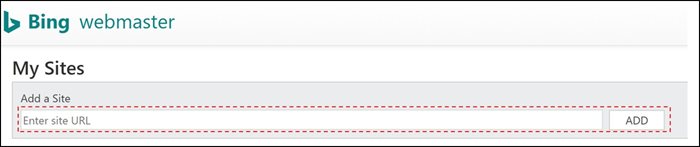
Step 3: Check if your site is supported for Domain Connect protocol
When you Add the website information, Bing Webmaster Tools will do background check to identify if that domain/ website is hosted on DNS provider that has integrated Domain Connect solution with Bing Webmaster Tools. Following view will show in case the site is supported –
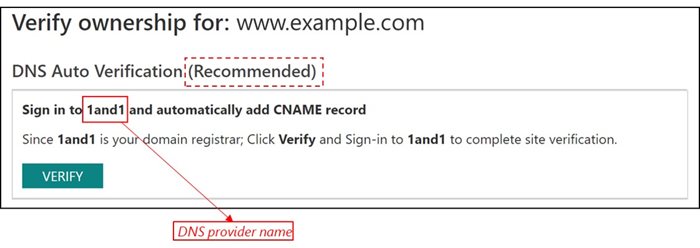
In case the site is not supported for Domain Connect protocol then user will see the default verification options as mentioned in top of this blog.
Step 4: Verify using DNS provider credentials
On click of Verify, user will be redirected to DNS provider site. Webmaster should sign-in using the account credentials associated with domain/ website under verification.
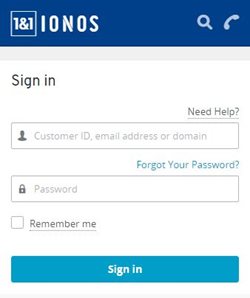
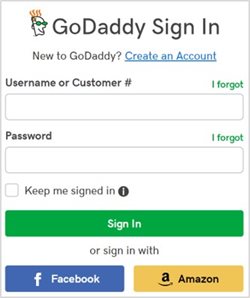
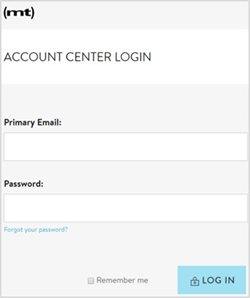
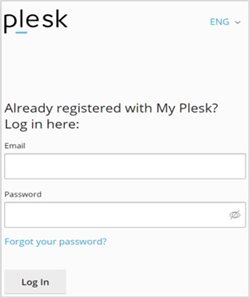
On successful sign-in, user site will be successfully verified by Bing webmaster tools within few seconds. In certain cases, it may take longer for DNS provider to send the site ownership signal to Bing webmaster tool service.
Using the new verification options will significantly reduce the time taken and simplify the site verification process in Bing Webmaster Tools. We encourage you to try out this solution and get more users for your sites on Bing via Bing Webmaster Tools.
In case you face any challenges using this solution you can raise a service ticket with our support team.
We are building another solution to further simplify the site verification process and help webmasters to easily add and verify their site in Bing Webmaster Tools. Watch this space for more!
Additional reference:
Domain Connect extension - Plesk
https://www.godaddy.com/engineering/2019/04/25/domain-connect/
Thanks!
Bing Webmaster Tools team
Source: https://blogs.bing.com/webmaster/au...lifies-site-verification-using-Domain-Connect
My Computer
At a glance
64-bit Windows 11 Pro for WorkstationsIntel i7-8700K OC'd to 5 GHz64 GB (4x16GB) G.SKILL TridentZ RGB DDR4 3600...ASUS ROG-STRIX-GTX1080TI-O11G-GAMING
- Computer type
- PC/Desktop
- Computer Manufacturer/Model Number
- Self built custom
- OS
- 64-bit Windows 11 Pro for Workstations
- CPU
- Intel i7-8700K OC'd to 5 GHz
- Motherboard
- ASUS ROG Maximus XI Formula Z390
- Memory
- 64 GB (4x16GB) G.SKILL TridentZ RGB DDR4 3600 MHz
- Graphics Card(s)
- ASUS ROG-STRIX-GTX1080TI-O11G-GAMING
- Sound Card
- Integrated
- Monitor(s) Displays
- 2 x Samsung Odyssey G7 27"
- Screen Resolution
- 2560x1440
- Hard Drives
- 1TB Samsung 990 PRO M.2,
4TB Samsung 990 PRO PRO M.2,
TerraMaster F8 SSD Plus NAS
- PSU
- Seasonic Prime Titanium 850W
- Case
- Thermaltake Core P3
- Cooling
- Corsair Hydro H115i
- Keyboard
- Logitech wireless K800
- Mouse
- Logitech MX Master 4
- Internet Speed
- 2 Gb/s Download and 100 Mb/s Upload
- Antivirus
- Malwarebyte Anti-Malware Premium
- Browser
- Google Chrome
- Other Info
- Logitech Z625 speaker system,
Logitech BRIO 4K Pro webcam,
HP Color LaserJet Pro MFP M477fdn,
APC SMART-UPS RT 1000 XL - SURT1000XLI,
Galaxy S23 Plus phone