Black Bars Begone!

DV1

New member
Member
Local time
1:19 PM
Messages
24
Searching through past postings on the forum I noticed much about black bars, whether side or top, related to gaming. My issue with the bars is not about games but more for example in making 1024x768 fill the screen area. I recently got a new monitor, Acer widescreen, 1366x768, and of course anything less than that shows black sidebars.

So, how can I expand 1024 proportionately (or for that matter 800x600) to fit the screen? Btw, the basic suggestion I've read elsewhere is go to CP-Display and slide to native resolution but that's not what I'm addressing here. What I want - and I know this won't sound the most technical - is the "look" of 1024 (or lower) to fill the screen area. On the old CRT I could switch to any size and there were no black bars.

Thanks for any suggestions. :)

Dan
 

My Computer

OS
Windows 7 Home Premium 32bit
What you want to will not work as you'd like to.

Apparently your old CRT display had 4:3 aspect ratio; you could switch to any other 4:3 resolution without distorting the image.

Now your new display has the aspect ratio 16:9. Hopefully this will explain it for you:

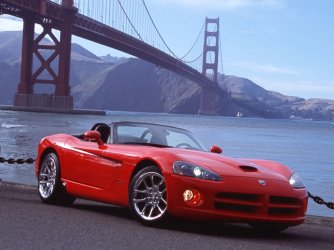
Let's take a 1024*768 image:

1024x768.jpg

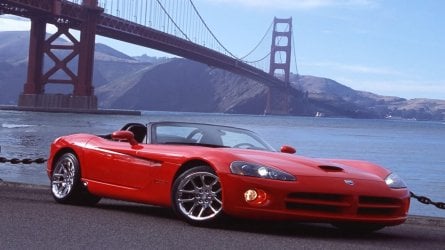
Showing it full screen on a 16:9 1366*768 display, you have three options. First, change its resolution to 1366*768:

1366x768.jpg

The height remained the same, the width was increased, causing distortion.

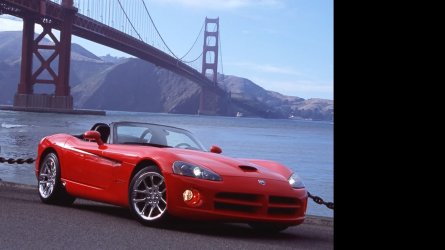
Second possibility, to keep image's original size, which leaves the black area either on the left or right:

1366x768_2.jpg

This is of course only natural as the height of the image remains the same (768 pixels) and the width of the image (1024 pixels) is not enough to cover an area of 1366 pixels.

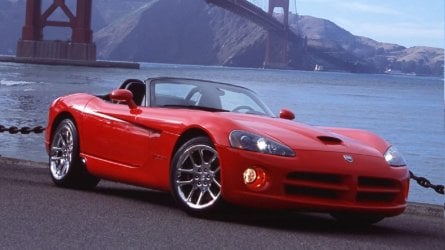
The last option is to resize the image to 1366*1024 (= same 4:3 aspect ratio than 1024*768) then fill the 16:9 aspect ratio 1366*768 area with this 1366*1024 image, which of course crops the image showing it only partially:

1366x768_partial.jpg

Check the resolution options using Screen Resolution tool (right click on desktop, select Screen Resolution), and select a 16:9 aspect ratio resolution that suits you.

Tutorial: http://www.sevenforums.com/tutorials/255-screen-resolution-display-settings.html

Kari
 
Last edited:

My Computer

Computer type
Laptop
Computer Manufacturer/Model Number
HP ENVY 17-1150eg
OS
Windows 10 Pro x64 EN-GB
CPU
1.6 GHz Intel Core i7-720QM Processor
Memory
6 GB
Graphics Card(s)
ATI Mobility Radeon HD 5850 Graphics
Sound Card
Beats sound system with integrated subwoofer
Monitor(s) Displays
17" laptop display, 22" LED and 32" Full HD TV through HDMI
Screen Resolution
1600*900 (1), 1920*1080 (2&3)
Hard Drives
Internal: 2 x 500 GB SATA Hard Disk Drive 7200 rpm
External: 2TB for backups, 3TB USB3 network drive for media
Cooling
As Envy runs a bit warm, I have it on a Cooler Master pad
Keyboard
Logitech diNovo Media Desktop Laser (bluetooth)
Mouse
Logitech Performance Mouse MX
Internet Speed
50/10 Mbps VDSL
Antivirus
Windows Defender 4.3.9431.0
Browser
Maxthon 3.5.2., IE11
Kari

Thanks for the reply.

Yes, it's all about the aspect ratio. I noted the stretching when I chose maintain aspect ratio in the Graphics Properties panel. Things got stretchy.

I guess I thought that the ratio could have been maintained even if it involved slight scrolling vertically or horizontally. In other words, using your image of the car, it would fill the screen proportionately but you'd have to scroll a bit to see the full image; not that different than when you view a very large image in actual size and you have to scroll to see all of it. Seems odd that that the widescreen can't adjust thusly instead of 'verboten' black bars.

So, with what you've noted, then this is a hardware issue in that the widescreen monitor with it's 16x9 aspect cannot register and compensate the ratio with scrolling? Thus a more 'squarish' monitor such as some of those listed here would be more appropriate?

Since it was an inexpensive monitor then up the road I will have to get one of those shown in the link. For the moment I will have to compensate by using the Firefox add-on 'Zoom Page' for a bigger view.

Thanks :)

Dan
 

My Computer

OS
Windows 7 Home Premium 32bit
You are welcome.
 

My Computer

Computer type
Laptop
Computer Manufacturer/Model Number
HP ENVY 17-1150eg
OS
Windows 10 Pro x64 EN-GB
CPU
1.6 GHz Intel Core i7-720QM Processor
Memory
6 GB
Graphics Card(s)
ATI Mobility Radeon HD 5850 Graphics
Sound Card
Beats sound system with integrated subwoofer
Monitor(s) Displays
17" laptop display, 22" LED and 32" Full HD TV through HDMI
Screen Resolution
1600*900 (1), 1920*1080 (2&3)
Hard Drives
Internal: 2 x 500 GB SATA Hard Disk Drive 7200 rpm
External: 2TB for backups, 3TB USB3 network drive for media
Cooling
As Envy runs a bit warm, I have it on a Cooler Master pad
Keyboard
Logitech diNovo Media Desktop Laser (bluetooth)
Mouse
Logitech Performance Mouse MX
Internet Speed
50/10 Mbps VDSL
Antivirus
Windows Defender 4.3.9431.0
Browser
Maxthon 3.5.2., IE11
Back
Top