
Boot sector on the wrong drive

funkeydogz

New member
Local time
2:20 AM
Messages
1
Hi there, i'm a new member and very glad i found this forum because if you people don't have the answer i probably have to format and reinstall...

I've searched the forum for an answer to my issue and found some things that might be the sollution, but i'm not totally confident it'll fix things, so plz don't flame me for posting an already asked question! :)

I had a version of Windows 7 installed on drive 0 (schijf 0) it started acting up and doing crazy etc.. so i decided to install a new(er) windows 7 on an another drive, drive 2 (schijf 2).
The newly installed Windows sadly used the old sector for booting on drive 0, so now i get a dual boot option when i put drive 0 first in the bios and a system disk failure with the new windows 7 install, when i put drive 2 first in the bios.

I want to entirely format drive 0 with the old Windows, so now i need to get a boot partition on drive 2.

What would be the best way to do this?


The drives; it's Dutch...schijf 0 is drive 0 and schijf 2 is drive 2.
 

Attachments
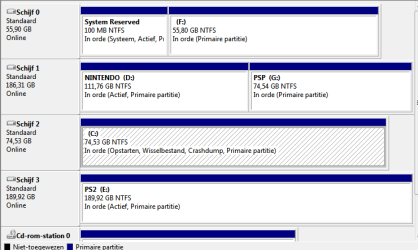
  • drives.PNG
    drives.PNG
    11.2 KB · Views: 279

My Computer

OS
Win 7
You'll have to create your boot record using the Recovery Environment.

Either format the old installation first, the 100mb partition or disconnect the drive with the existing installation before starting. Otherwise the RE will keep writing / creating to the old drive.


How to use the Bootrec.exe tool in the Windows Recovery Environment to troubleshoot and repair startup issues in Windows

*NB It sometimes takes a few re-boots for Start up repair to fully finish repairing / creating the Boot sector / MBR
 

My Computer

Computer type
PC/Desktop
Computer Manufacturer/Model Number
Systems by SmartEyeball
OS
8 Pro x64
CPU
i7 3770K 4.6GHz
Motherboard
ASUS P8Z77 WS
Memory
16GB G.Skill Trident X 2666mhz
Graphics Card(s)
x2 EVGA 780 Ti Superclocked SLI
Sound Card
SB X-FI Surround 5.1 PRO USB / ATH-AD900 Headphones
Monitor(s) Displays
x3 Dell U2410 / 58" Samsung
Screen Resolution
5760*1200/ 1920*1200
Hard Drives
2x Intel 520 240GB (RAID 0) * 2x WD Caviar Blacks 2TB (RAID 0) * 2TB WD Caviar Black * Sony Optirac DVD
PSU
Silverstone Strider Evolution 1200W
Case
Thermaltake Level 10 GT Snow Edition
Cooling
Noctua NH-D14
Keyboard
Topre Realforce // Ducky Shine MX Black // Filco Ninja TKL
Mouse
Thermaltake Theron (Highly Recommended) + Razer Imperator
Antivirus
MSE
Browser
IE, FF, WaterFox
Other Info
GT Extreme V2 Sim Racing Cockpit + 40" LCD and K/B Mouse stand ▼
Fanatec CSR Elite Wheel + Clubsport V1 Pedals + CSR shifter/7G-H ▼Saitek X52 Pro ▼ TrackIR 5 Pro
Buttkicker v2 Seat Rumbler with Dedicated 5.1 and Sub Woofer attached to frame ▼
=
Bloody Big Grin
The easiest way is to add the boot files to the Win 7 partition on Drive 2. Then mark that partition active and set it so Drive 2 is the primary drive in the bios so that active partition is the first one encountered during boot. This does not mean the drive has to show as drive 0 since that is controlled by the SATA connectors.

Open an administrative command prompt window and type the following and enter after, then wait for a response.

bcdboot C:\Windows /s C:

When you have confirmation, close the command window and use Disk Management to set the C: partition active.

Since you have several active partitions, if the Win 7 drive is not set first in the boot order it will not boot.

If you want, the boot file bootmgr and folder boot are hidden system files and can be seen if you set the folder view to see them.

To open an administrative command prompt type CMD in the Start Menu search box and hit
CTRL+Shift Enter.
 

My Computer

Computer Manufacturer/Model Number
Homebuilt
OS
Windows 7 x64
CPU
i7-2600K
Motherboard
Asus P8Z77-v Pro
Memory
8 G
Graphics Card(s)
GTX 480
Sound Card
Onboard
Monitor(s) Displays
LG W2753V
Screen Resolution
1920x1080
Hard Drives
Crucial M4 128 G SSD
Using the Win7 DVD Repair console, you can deactivate the three Active partitions, clean and format Disk 0 and then mark active to recover the System MBR into Win7 partition.

Boot Win7 DVD, select Repair on second screen, click through to Recovery tools list, open a Command line, type:

DISKPART
LIST DISK
SELECT DISK 0 (confirm this is the old Win7 you want to clean/format)
CLEAN ALL (zeroes HD, deepest clean, takes awhile)
Create Partition Logical
Format
Select Disk 1 (confirm this is Nintendo HD)
List partition
Select partition # (give number for Nintendo)
Inactive
Select disk 3 (confirm this is PS2 HD0
List partition
Select partition # (give number for PS2 partition)
Inactive
Select disk 2 (confirm this is new Win7 HD)
List partition
Select partition # (give number for Win7 partition)
Active
exit

Now return to Recovery tools list to run Startup Repair up to 3 separate times with reboots as it will attempt to repair before writing the MBR to Win7.
 
Wow !

@Saltgrass !!!!!

Six years later you saved my ass.
My Windows 10 was failing, not boot/bcd ... now it works.

thanks.
 

My Computer

Computer type
PC/Desktop
OS
windows 10 64 bits
Back
Top