Booting From Multiple Drives

Gables

New member
Local time
10:46 PM
Messages
7
Hi everyone, I have two hard drives each with it's own operating system, one for my work and one for leisure stuff.
For the last few years I have been pressing the delete button at boot time to decide which drive to boot from, which has worked without problems.
I have just purchased and installed a new Windows 7 Ultra operating system for my work stuff. At first glance it all seems to work perfectly normal, it boots correctly into my work desktop, but on closer inspection, I notice that when I boot from my work stuff drive, I am actually booting from my e: drive instead of my c: drive.
So when I open my Windows Explorer, I have to navigate to e: drive to look at my program files. I can live with this but it can be a bit confusing.
Has anyone got any idea how I managed to get into this situation, and more importantly, how I can remedy the situation
Many thanks
David
 

My Computer

OS
Windows 7
When you install Windows 7, when using 2 drives, it is very important to know which one is set to primary. This controls where the boot files are placed.

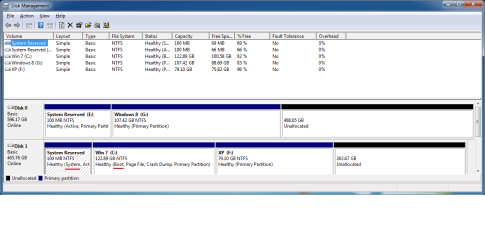
But to make it easier for us, could you use the snipping tool to take a picture of your Disk Management Window, while expanding it to see the comments on the different partitions and the graphical presentation. Then attach using the paperclip.
 

My Computer

Computer Manufacturer/Model Number
Homebuilt
OS
Windows 7 x64
CPU
i7-2600K
Motherboard
Asus P8Z77-v Pro
Memory
8 G
Graphics Card(s)
GTX 480
Sound Card
Onboard
Monitor(s) Displays
LG W2753V
Screen Resolution
1920x1080
Hard Drives
Crucial M4 128 G SSD
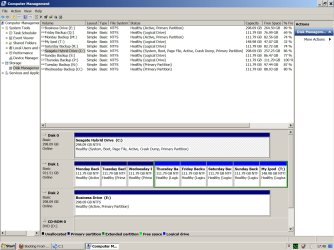
Thanks, I have attached an image of File Management.
At Boot time I selected to boot from My Business Drive, and it looks like it booted correctly because it has my new desktop that I set up when I installed the new operating system. But the files are on drive E: and not on C:
All help appreciated
David
 

Attachments

  • Disk Management.jpg
    Disk Management.jpg
    221.3 KB · Views: 16

My Computer

OS
Windows 7
From the picture, it looks like you are booted into the Seagate Drive install, which now shows as C: If you choose to boot into Disk 2 or your Business drive, it should then show as System, Boot and C:

You have an active partition on Disk 1, Partition 1 in your Monday Backup. Don't know if any boot files are there, but be aware of it. If you boot into your Business install, either Disk 1 or Disk 2 should show as system, unless all the boot files are on the Disk 0, which would not seem to agree with your description.

Not sure exactly where we stand on answering your questions, but having two drives the same size with the same size partitions can be confusing. And since the C: drive letter is not fixed to a particular partition (but the boot partition), it is extra confusing.

Maybe checking your disk management picture after you boot to your other install might help you see what is happening.
 

My Computer

Computer Manufacturer/Model Number
Homebuilt
OS
Windows 7 x64
CPU
i7-2600K
Motherboard
Asus P8Z77-v Pro
Memory
8 G
Graphics Card(s)
GTX 480
Sound Card
Onboard
Monitor(s) Displays
LG W2753V
Screen Resolution
1920x1080
Hard Drives
Crucial M4 128 G SSD
What happens when you set the BIOS boot priority to boot from Disk2 first.
 

My Computer

Computer Manufacturer/Model Number
HP, Dell, Gateway, Toshiba - 4 laptops and 2 desktops
OS
Vista, Windows7, Mint Mate, Zorin, Windows 8
CPU
from 1.6GHz Duo to i7
Monitor(s) Displays
2x HP w2207
Hard Drives
5x HDD, 7x SSD, 12x Externals
Keyboard
with trackball - no mices
Mouse
Trackball mice
Internet Speed
DSL 6000
As long as you correctly boot the installer and not run it from C then it should show C when booted into either OS. However because you didn't unplug C during install it placed the boot files for the new install on C to create it's Dual Boot.

If this is the only problem then you can either leave it that way, or if you want to go back to booting via BIOS Boot menu key at boot, mark new install Active, unplug all other HD"s, set it's HD first to boot in BIOS setup, run Startup Repair - Run 3 Separate Times to write the System boot files to the new install.

If you incorrectly ran the installer from C so that it locked out C for use then I would reinstall with all other HD"s unplugged, unless you can live with Win7 being on E.
 
Thanx Saltgrass, you are correct when you say it looks as if I have booted into the Seagate drive, but I didn't, that's the problem, I booted into the Business Drive e:
If I do boot into the Seagate drive, I get exactly the same File Management screen. Both boots have completely different desktops, menus and programs.
I hope that you can now understand the problem. It looks as though the Disk Management program and programs like Windows Explorer are wrongly reporting the drives when I boot from my Business drive, as though it is reporting drive c: as drive e: and vice versa.
David
 

My Computer

OS
Windows 7
Thanks gregrocker, will try what you suggest tomorrow, its getting late now and my brain is hurting from all this stuff. Sounds like you understand the problem I am experiencing.
David
 

My Computer

OS
Windows 7
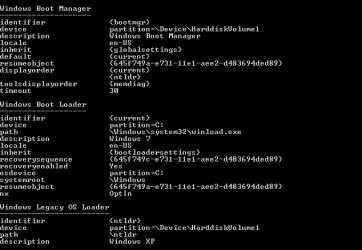
Well, how about opening an Administrative command prompt and type bcdedit then hit enter to get the results. Copy and paste the results, or use the snipping tool to take a picture. And this might show different things, depending on which OS you booted into.

That should show your exact boot options. But whichever partition shows BOOT, that is the OS you are booted into. Whichever partition shows System, is where your boot files are for that situation.
 

My Computer

Computer Manufacturer/Model Number
Homebuilt
OS
Windows 7 x64
CPU
i7-2600K
Motherboard
Asus P8Z77-v Pro
Memory
8 G
Graphics Card(s)
GTX 480
Sound Card
Onboard
Monitor(s) Displays
LG W2753V
Screen Resolution
1920x1080
Hard Drives
Crucial M4 128 G SSD
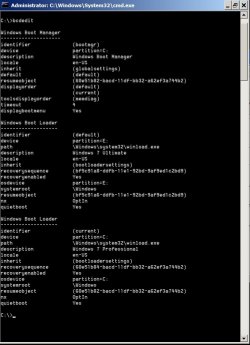
Thanks Saltgrass, have attached bcdedit. Not sure where I go from here
David
 

Attachments

  • bcdedit.jpg
    bcdedit.jpg
    86.9 KB · Views: 9

My Computer

OS
Windows 7
What is it you want to do?

Are both OS's booting via a Windows Boot Menu just after the BIOS post?

Or are you booting them via the BIOS as you said you had been doing, by tapping the BIOS Boot Menu Key at boot to trigger the chosen HD that way?

Since there are no boot files on E, it looks like it is booting off of C so you should have the Windows Boot Menu. Is this sufficient?

I also asked you if you had installed Ultimate from C so that it does not boot as C but E. If so you'll need to decide if you want Win7 on E since it is designed to always show as C when booted, if it is correctly installed from boot and not run from an OS.
 
What I am wanting to do is:-
When I choose to boot from my Seagate drive, I want that drive to be drive c: (which it currently does)
When I choose to boot from my Business drive, I want that drive to be drive c: (it currently is drive e:

Sorry about earlier confusion, I have EasyBCD installed and it prompts me for the boot drive at startup.

To the best of my knowledge, when I installed Windows Ultimate to my Business drive, I was booted into the Seagate drive, I then formatted my business drive e:, run setup from my cd/dvd drive and when prompted where to install my new operating system, I chose drive e: which was my newly formatted drive.

So if I now disconnect all hard drives except my business drive, and then reinstall my new Windows 7 Ultimate to that drive, and then reconnect my other drives, should that resolve the matter? I guess that I should also uninstall EasyBDC and it should then revert back to me having to tap the esc key to select my boot drive?

David
 

My Computer

OS
Windows 7
Gables - Boot the Win7 DVD, not the Seagate HD, to install Win7 correctly to your Business drive so that it shows as C - as Windows 7 always does when it is correctly installed from the booted installer.

Start over with all other HD's unplugged, follow these best practices to Clean Reinstall - Factory OEM Windows 7 which are the same for retail.

Once Win7 boots on its own power down to plug back in the Seagate, set preferred HD to boot first in BIOS setup, boot the other HD using one-time BIOS Boot Menu key as you did before.

If this is not optimal for your uses, install EasyBCD to the primary HD to add the other OS.
 
Many many thanks gregrocker, I have to go to work soon. I will do a reinstall later in the day
David
 

My Computer

OS
Windows 7
You BCDedit readout appears to be a normal, dual boot setup to Win 7 Ultimate as default and Win 7 Pro as the other choice.

So when you boot, you get the Boot Menu with Win 7 Pro (Not Default) listed first, so if you do not choose an OS, Win 7 Ultimate will boot. I would probably realign the choices so the default OS is listed first.

So, I suppose I am still a little confused by the "Going to E:" comments concerning your setup. But you are saying that Explorer shows Windows 7 Pro on the E: partition when you are booted to it. I think Gregrocker mentioned installs being messed up and the only time I have seen that is during a cloning operation.

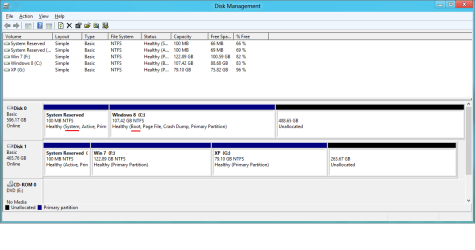
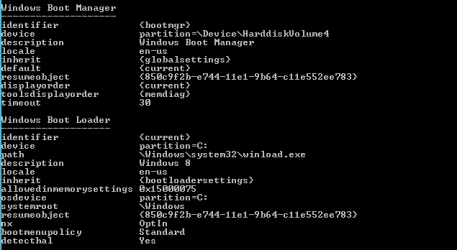
I am sure gregrocker will straigten this out for you, but just for some info, I have attached an install with two hard drives. One with Window 7 and one with Windows 8. Each install was independent, so I can boot to either one by using the Boot Devices menu.

I have booted to each one in turn and show the Disk Management window and BCD Store for that respective boot. Good Luck with your situation.
 

Attachments

  • System_1.png
    System_1.png
    20.7 KB · Views: 8
  • System_1_BCD.PNG
    System_1_BCD.PNG
    4.8 KB · Views: 8
  • System_2.png
    System_2.png
    25.2 KB · Views: 8
  • System_2_BCD.png
    System_2_BCD.png
    3 KB · Views: 8

My Computer

Computer Manufacturer/Model Number
Homebuilt
OS
Windows 7 x64
CPU
i7-2600K
Motherboard
Asus P8Z77-v Pro
Memory
8 G
Graphics Card(s)
GTX 480
Sound Card
Onboard
Monitor(s) Displays
LG W2753V
Screen Resolution
1920x1080
Hard Drives
Crucial M4 128 G SSD
Back
Top